

use-cases/macos-sidebar-detail-inspector.md +211 −0 added
1---
2name: Build a Mac app shell
3tagline: Use Codex to build a Mac-native SwiftUI app shell with a sidebar,
4 detail pane, inspector, commands, and Settings.
5summary: Use Codex and the Build macOS Apps plugin to turn an app idea into a
6 desktop-native `NavigationSplitView` app, keep sidebar selection stable, add
7 menus, toolbars, and keyboard shortcuts, and move preferences into a dedicated
8 `Settings` scene.
9skills:
10 - token: build-macos-apps
11 url: https://github.com/openai/plugins/tree/main/plugins/build-macos-apps
12 description: Use the macOS SwiftUI patterns, window management, AppKit interop,
13 and build/run skills to create sidebar-detail-inspector layouts, wire
14 menus and settings, and validate the app in a shell-first loop.
15bestFor:
16 - New Mac app ideas or iPad-first and web-first concepts that need a real
17 desktop shell with persistent navigation, menus, toolbars, and keyboard
18 shortcuts
19 - Editor, library, admin, or review tools where a sidebar selection drives a
20 detail pane and an inspector exposes secondary metadata or actions
21 - Mac apps where settings should live in a dedicated preferences window
22 instead of another pushed screen in the main content stack
23starterPrompt:
24 title: Build a Mac-Native Sidebar and Inspector Shell
25 body: >-
26 Use the Build macOS Apps plugin to turn [describe your app idea] into a
27 Mac-native SwiftUI app shell with a sidebar, detail pane, inspector,
28 commands, and Settings.
29
30
31 Constraints:
32
33 - Choose the scene model first. Prefer `WindowGroup` for the main window and
34 add a dedicated `Settings` scene for preferences.
35
36 - Build the main UI around `NavigationSplitView` with explicit selection
37 state, a native `.sidebar` list, a detail surface, and an
38 `inspector(isPresented:)` panel for secondary metadata or controls.
39
40 - Keep sidebar rows lightweight and native: one icon, one title line, and at
41 most one short secondary line. Do not wrap every row in large custom cards
42 unless there is a strong product reason.
43
44 - Expose important actions through scene-level `commands`, `CommandMenu`,
45 toolbar buttons, and keyboard shortcuts. Do not hide the only path to a
46 critical action behind gestures.
47
48 - Use `@SceneStorage` for window-scoped UI state, `@AppStorage` for
49 preferences, and explicit parent-owned selection bindings for sidebar/detail
50 coordination.
51
52 - Prefer system materials, semantic colors, and standard sidebar
53 backgrounds. Add custom styling only to detail or inspector content cards
54 when needed.
55
56 - Use a narrow AppKit bridge only if SwiftUI cannot express one specific
57 desktop behavior cleanly.
58
59 - Create or update `script/build_and_run.sh`, run the smallest useful
60 build/run check, and tell me the exact commands you used.
61
62
63 Deliver:
64
65 - the scene structure and main sidebar/detail/inspector views
66
67 - the menu, toolbar, and keyboard shortcut wiring
68
69 - the Settings scene and preference state model
70
71 - any AppKit bridge you added and why it was necessary
72
73 - the build/run validation steps and any desktop UX follow-up you recommend
74relatedLinks:
75 - label: Build macOS Apps plugin
76 url: https://github.com/openai/plugins/tree/main/plugins/build-macos-apps
77 - label: Agent skills
78 url: /codex/skills
79techStack:
80 - need: Split-view app shell
81 goodDefault: "`NavigationSplitView`, `.sidebar` lists, and `inspector(isPresented:)`"
82 why: A persistent sidebar, detail pane, and inspector match common Mac app
83 layouts better than touch-first push navigation.
84 - need: Desktop actions and settings
85 goodDefault: "`commands`, `CommandMenu`, keyboard shortcuts, and a `Settings` scene"
86 why: Menu bar actions, shortcuts, and a dedicated settings window make the
87 feature feel like a real Mac app instead of an iOS screen stretched to
88 desktop.
89 - need: State ownership
90 goodDefault: "`@State`, `@SceneStorage`, `@AppStorage`, and explicit selection bindings"
91 why: Codex can keep sidebar selection, inspector visibility, and user
92 preferences predictable without adding a view model by reflex.
93 - need: Native escape hatches
94 goodDefault: "[AppKit](https://developer.apple.com/documentation/appkit) through
95 narrow `NSViewRepresentable` or `NSWindow` bridges"
96 why: Use AppKit only for platform behaviors SwiftUI cannot express cleanly,
97 while keeping SwiftUI as the source of truth for scene and selection
98 state.
99---
100
101## Start from the Mac scene model
102
103This use case is for turning an app idea into a Mac app shell that feels built for desktop, not stretched from a touch-first stack. Ask Codex to choose the scene model first, then design the main window around stable sidebar selection, a detail surface, and an inspector for secondary controls or metadata.
104
105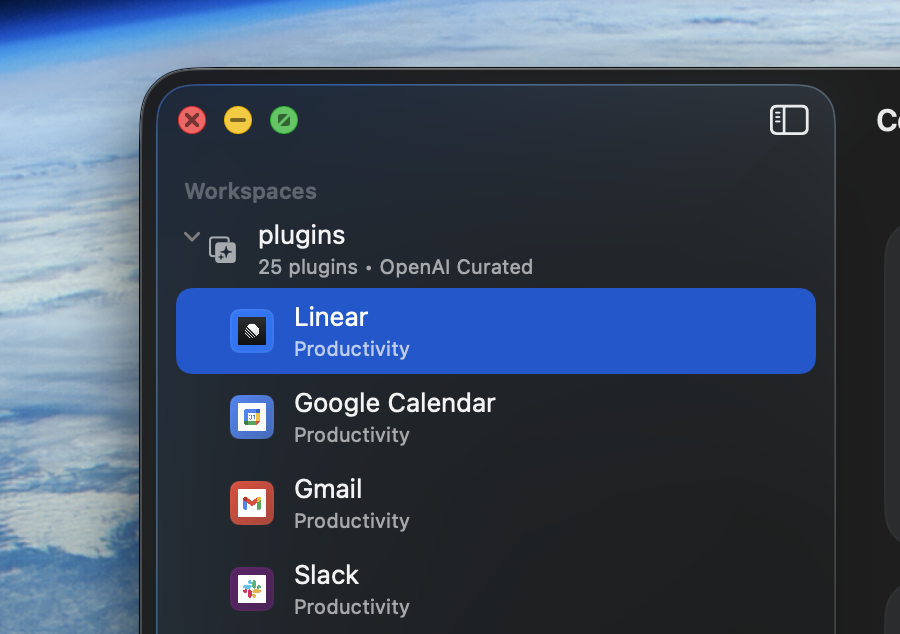
106
107Use the [Build macOS Apps plugin](https://github.com/openai/plugins/tree/main/plugins/build-macos-apps) when you want Codex to apply that desktop structure and keep the build/run loop shell-first. Its macOS SwiftUI patterns skill is a good fit for scene design, sidebars, inspectors, commands, settings, and small AppKit bridges when SwiftUI stops just short of one Mac-specific behavior.
108
109## Build a sidebar, detail pane, and inspector
110
111Prefer `NavigationSplitView` when the feature benefits from persistent navigation and a stable selected item. Keep sidebar rows native and lightweight, let the sidebar use system backgrounds, and reserve custom cards or dense metadata for the detail pane or inspector.
112
113```swift
114struct LibraryRootView: View {
115 @SceneStorage("LibraryRootView.selection") private var selection: Item.ID?
116 @SceneStorage("LibraryRootView.showInspector") private var showInspector = true
117
118 var body: some View {
119 NavigationSplitView {
120 List(selection: $selection) {
121 ForEach(items) { item in
122 Label(item.title, systemImage: item.systemImage)
123 .tag(item.id)
124 }
125 }
126 .listStyle(.sidebar)
127 .navigationTitle("Library")
128 } detail: {
129 ItemDetailView(selection: selection)
130 .inspector(isPresented: $showInspector) {
131 ItemInspectorView(selection: selection)
132 }
133 }
134 }
135}
136```
137
138If the app needs unusual split sizing, low-level window coordination, or custom responder-chain behavior, ask Codex to keep the SwiftUI shell intact and add only the smallest AppKit bridge required for that one gap.
139
140## Put commands, toolbars, and shortcuts in the desktop layer
141
142Mac users should be able to discover important actions in the menu bar, the toolbar, and keyboard shortcuts. Ask Codex to wire scene-level `commands`, context-sensitive menu items, and toolbar buttons around the same app actions so desktop users do not have to hunt for gesture-only controls.
143
144```swift
145@main
146struct LibraryApp: App {
147 var body: some Scene {
148 WindowGroup {
149 LibraryRootView()
150 }
151 .commands {
152 CommandMenu("Library") {
153 Button("New Item") {
154 // Create a new item.
155 }
156 .keyboardShortcut("n")
157
158 Button("Toggle Inspector") {
159 // Route this command to the focused window or selected item state.
160 }
161 .keyboardShortcut("i", modifiers: [.command, .option])
162 }
163 }
164
165 Settings {
166 LibrarySettingsView()
167 }
168 }
169}
170```
171
172Use `FocusedValue`, scene state, or explicit selection state when a command should apply to the current detail item. If a shortcut would be registered in multiple places, ask Codex to consolidate ownership so the app has one clear command route.
173
174## Keep preferences in `Settings`
175
176For app preferences, use a dedicated `Settings` scene and persist durable user choices with `@AppStorage`. This is usually a better Mac fit than pushing a settings screen inside the main content window.
177
178```swift
179struct LibrarySettingsView: View {
180 @AppStorage("showItemMetadata") private var showItemMetadata = true
181
182 var body: some View {
183 TabView {
184 Form {
185 Toggle("Show Item Metadata", isOn: $showItemMetadata)
186 }
187 .tabItem { Label("General", systemImage: "gearshape") }
188 }
189 .frame(width: 460, height: 260)
190 .scenePadding()
191 }
192}
193```
194
195## Prompt the app concept, then validate the shell
196
197This page works best when your prompt names the app concept, the main content objects, and the primary actions, then asks Codex to build the desktop shell around that workflow first. Have the agent run a small build/run check and summarize the scene structure, command wiring, state ownership, and any AppKit edge it had to bridge.
198
199## Practical tips
200
201### Keep the sidebar native
202
203Use one icon, one title line, and at most one short secondary line in sidebar rows. Move richer cards, counters, and metadata into the detail pane or inspector so the source list stays easy to scan.
204
205### Avoid hiding settings in the main stack
206
207If a user preference affects the whole app, ask Codex to put that control in `Settings` with `@AppStorage` and expose an entry point through the app menu instead of building another pushed settings screen.
208
209### Save AppKit for narrow desktop gaps
210
211If the feature needs open/save panels, first-responder control, or a custom `NSView`, use AppKit as a small edge around a SwiftUI-owned state model rather than rewriting the whole window in AppKit.