
Claude Code on desktop
Run Claude Code tasks locally or on secure cloud infrastructure with the Claude desktop app
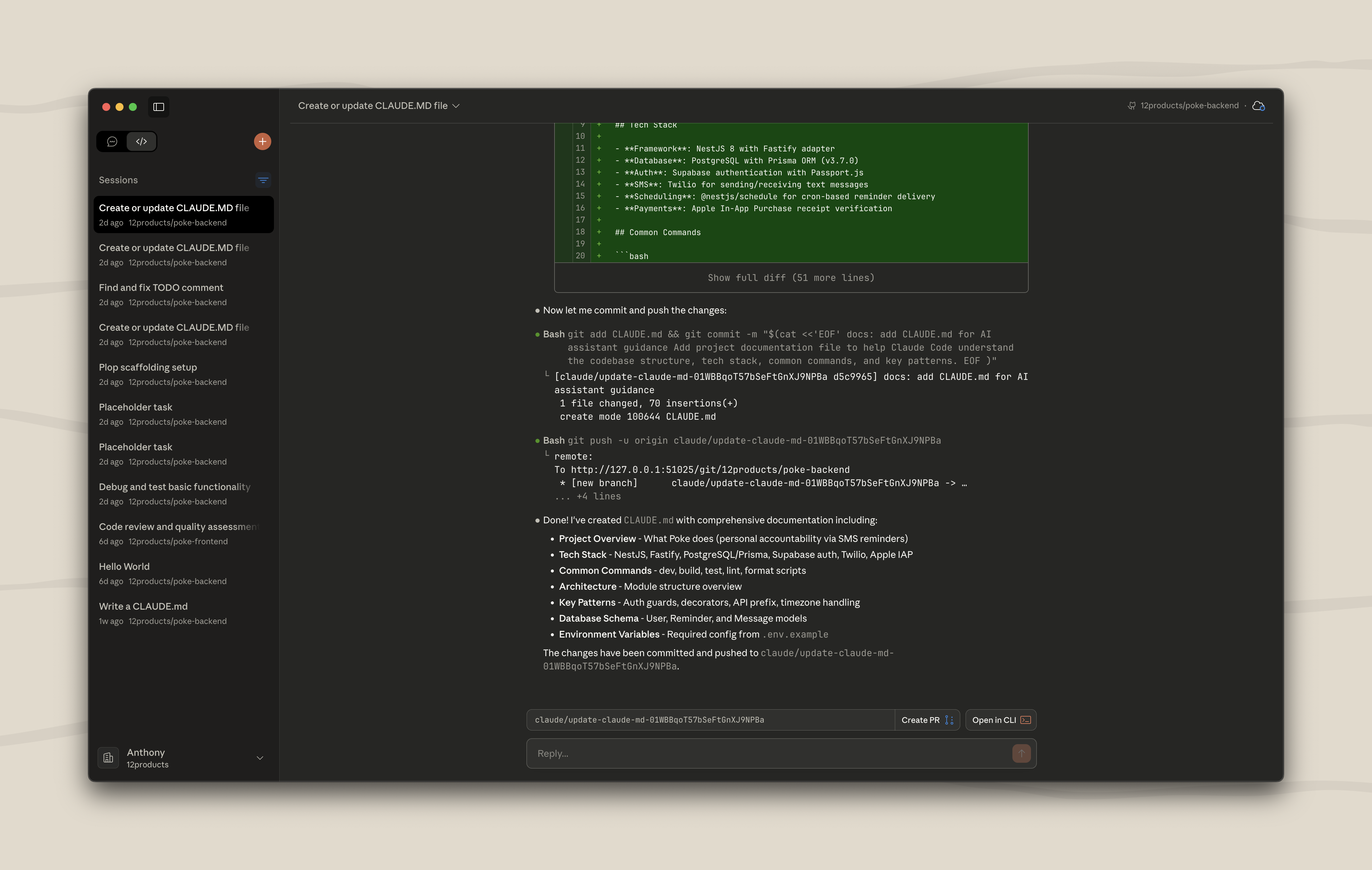
Claude Code on desktop (Preview)
The Claude desktop app provides a native interface for running multiple Claude Code sessions on your local machine and seamless integration with Claude Code on the web.
Features
Claude Code on desktop provides:
- Parallel local sessions with
gitworktrees: Run multiple Claude Code sessions simultaneously in the same repository, each with its own isolatedgitworktree - Include files listed in your
.gitignorein your worktrees: Automatically copy files in your.gitignore, like.env, to new worktrees using.worktreeinclude - Launch Claude Code on the web: Kick off secure cloud sessions directly from the desktop app
Installation
Download and install the Claude Desktop app from claude.ai/download
Using Git worktrees
Claude Code on desktop enables running multiple Claude Code sessions in the same repository using Git worktrees. Each session gets its own isolated worktree, allowing Claude to work on different tasks without conflicts. The default location for worktrees is ~/.claude-worktrees but this can be configured in your settings on the Claude desktop app.
Copying files ignored with .gitignore
When Claude Code creates a worktree, files ignored via .gitignore aren't automatically available. Including a .worktreeinclude file solves this by specifying which ignored files should be copied to new worktrees.
Create a .worktreeinclude file in your repository root:
.env
.env.local
.env.*
**/.claude/settings.local.json
The file uses .gitignore-style patterns. When a worktree is created, files matching these patterns that are also in your .gitignore will be copied from your main repository to the worktree.
Launch Claude Code on the web
From the desktop app, you can kick off Claude Code sessions that run on Anthropic's secure cloud infrastructure. This is useful for:
To start a web session from desktop, select a remote environment when creating a new session.
For more details, see Claude Code on the web.
Bundled Claude Code version
Claude Code on desktop includes a bundled, stable version of Claude Code to ensure a consistent experience for all desktop users. The bundled version is required and downloaded on first launch even if a version of Claude Code exists on the computer. Desktop automatically manages version updates and cleans up old versions.
Environment configuration
For local environments, Claude Code on desktop automatically extracts your $PATH environment variable from your shell configuration. This allows local sessions to access development tools like yarn, npm, node, and other commands available in your terminal without additional setup.
Custom environment variables
Select "Local" environment, then to the right, select the settings button. This will open a dialog where you can update local environment variables. This is useful for setting project-specific variables or API keys that your development workflows require. Environment variable values are masked in the UI for security reasons.
Enterprise configuration
Organizations can disable local Claude Code use in the desktop application with the isClaudeCodeForDesktopEnabled enterprise policy option. Additionally, Claude Code on the web can be disabled in your admin settings.
Related resources
- Claude Code on the web
- Claude Desktop support articles
- Enterprise Configuration
- Common workflows
- Settings reference
To find navigation and other pages in this documentation, fetch the llms.txt file at: https://code.claude.com/docs/llms.txt