
Set up PR Steward
Turn on PR Steward for your Claude organization: require reviews, add a repository, set spend limits, and choose when it starts and for which authors
To set up PR Steward, turn it on for your Claude organization and then for each repository. You need an Owner role.
Once it's on in a repository, PR Steward pushes commits to pull requests there to address review feedback, and attempts to fix failing checks and resolve merge conflicts. It starts by itself or when someone asks for it, as you choose for each repository.
Prerequisites
Check that your organization qualifies for PR Steward.
In your Claude organization, which you manage at claude.ai, you need:
- An Owner role
- Usage credits, which pay for PR Steward's work
- The GitHub connector, turned on at Organization settings > Connectors. With it on, people in your organization can connect their GitHub accounts to Claude
On GitHub, you need this access, or someone who has it:
- Owner of the GitHub organization, to install the Claude GitHub App and link it to your Claude organization
- Admin of the repository, to add branch rules. A private repository also needs a paid GitHub plan
- Push access to the repository, from the GitHub account that you connect to Claude
Require reviews with branch rules
Add these rules in GitHub before you turn on PR Steward.
1. Require an approval
Add a ruleset rule on the default branch that requires a pull request with at least one approval.
2. Require a new approval after a push
In that rule, dismiss stale approvals when new commits are pushed, or require approval of the most recent push.
3. Check the ruleset's bypass list
Keep the Claude GitHub App off the ruleset's bypass list. On GitHub Enterprise Server, that's the app that your organization created. If PR Steward runs in a self-hosted environment, keep the runner's git identity off it.
4. Protect other branches
Add rules to any other branch that PR Steward shouldn't push to, and block force pushes where you don't want them.
[!NOTE]
Where a Claude Approvals policy lets Claude approve, Claude's review can count as the approval in step 1. An approval from a session in a self-hosted environment can count as well.
Turn on PR Steward and add repositories
Start on Organization settings > Claude Ship.
The Repositories table on that page lists each repository with its Steward setting:
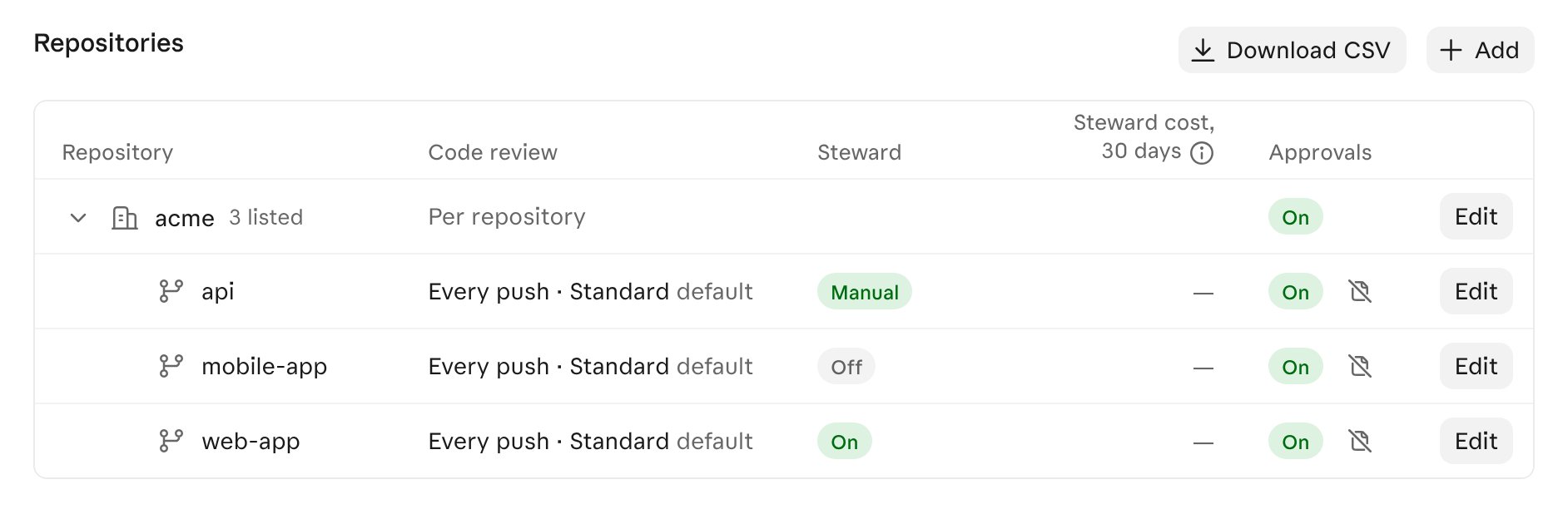
[!WARNING]
Adding a repository can start Code Review there, which is billed.
- No repository is listed yet: a dialog asks what Claude does on the repositories that you add, and Code review is selected by default. If you select Steward in the dialog, PR Steward turns on for the organization and those repositories before you've set a spend limit.
- Others are already listed: no dialog opens, and the new one is set up for review at every push by default.
To change that, set when reviews run or turn off Code Review for the repository.
1. Add a repository
If the repository is already listed under Repositories, skip this step. Otherwise, click Add, connect your GitHub account if asked, and select the repository. If a dialog then asks what Claude does on it, click Not now, which keeps the repository listed.
2. Set which authors PR Steward works for
Under the Steward switch, use Runs for to set whose pull requests PR Steward works on. Select All eligible authors, or select Listed users only to pilot with a few people, and enter their GitHub usernames.
On GitHub Enterprise Server, select All eligible authors, because PR Steward doesn't start there with a list.
3. Turn on PR Steward for the organization
Click the Steward switch, then click Turn on.
4. Set PR Steward's monthly limit
Go to Organization settings > Usage. Under Services, set the limit in the PR Steward row. PR Steward has no spend limit of its own until you set one.
5. Turn on PR Steward for the repository
On the Claude Ship page, click Edit beside the repository. Set Steward to Manual (@claude steward). Click Change beside Steward spend cap and enter the cap, in US dollars. See how the cap works.
6. Test PR Steward
Open a pull request from an account that has write access and that Runs for covers. Comment @claude steward. The claude-pr-steward-watching label and a comment headed Claude PR Steward appear.
If they don't appear, see Troubleshoot PR Steward.
Roll out PR Steward to more pull requests
When PR Steward's fixes match what your reviewers would do, set the repository to On. For each repository that you add later, require reviews there first. Then repeat these steps from Turn on PR Steward and add repositories: add the repository, turn on PR Steward for it, and test PR Steward. PR Steward can be on in up to 256 repositories.
Choose when PR Steward starts in each repository
On the Claude Ship page, click Edit beside a repository and open the Steward menu:
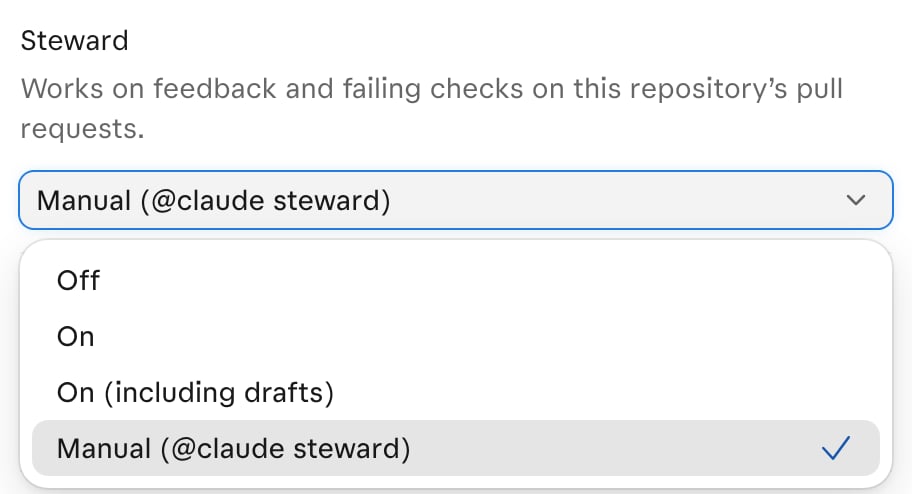
Select when you want PR Steward to start:
| Option | When PR Steward starts |
|---|---|
| Manual (@claude steward) | When a person with write access comments @claude steward or adds the claude-pr-steward-watching label |
| On | When a pull request that PR Steward doesn't skip is opened, reopened, or marked ready for review. Also at the next push to an open one that it hasn't started on before |
| On (including drafts) | The same as On, and on draft pull requests |
| Off | PR Steward doesn't start in the repository |
In a Manual repository, a comment or the label can start PR Steward on a draft. It doesn't start PR Steward on the other pull requests that PR Steward skips.
PR Steward also starts there on the pull requests of a developer who selects Act on its own.
Limit which authors PR Steward works for
To skip an author, add their GitHub username to Excluded users, under the Steward switch.
Control what PR Steward spends
Billing continues while usage credits are turned off.
See what PR Steward spent
To see the average for each merged pull request, open a repository's Edit dialog. For your organization's total over the last 30 days, go to claude.ai/analytics/pr-steward.
Set PR Steward's spend limits
Change the monthly limit in Organization settings > Usage, under Services, in the PR Steward row. The row appears after you first turn on PR Steward. Change the spend cap in the repository's Edit dialog. When PR Steward reaches a limit, look for its comment on the pull request:
- Its monthly limit, or your organization's usage-credit limit: PR Steward pauses. It picks up again at the next push or comment once usage credits can pay again
- The spend cap: PR Steward stops on that pull request. Spend can pass the cap before it stops. A person with write access can start it again, with the full cap. When PR Steward works on a pull request for more than about a week, it can start a new cloud session, and the full cap then applies again
With no usage credits left to spend, PR Steward doesn't start, and the Claude Ship page shows Steward cannot start on pull requests. Add usage credits or raise the limit on the Usage page.
Set up PR Steward's build environment
Choose an environment for PR Steward when it needs more to build and test your code.
Choose the environment PR Steward runs in
To add a setup script, environment variables, or different network access, use an organization-shared environment. On the Claude Ship page, select a Default environment under Where it runs. To override it for one repository, click Change beside Environment in the Edit dialog.
With neither set, PR Steward can use your organization's default environment. Without one, it runs in an Anthropic-hosted environment with no setup script and no environment variables.
Run PR Steward in a self-hosted environment
For the environment that PR Steward runs in, you can select a self-hosted environment. The limits on approvals and merges are described for Anthropic-hosted sessions only. On a runner without Anthropic-managed git, PR Steward pushes with the runner's own git credentials.
[!WARNING]
In a self-hosted environment, Claude can reach GitHub directly with any GitHub credential that a session can read. Anthropic's service can't refuse an approval that's made that way. GitHub can count it toward the approvals that you require.
In a self-hosted environment, PR Steward doesn't load a CLAUDE.md or rules file from the runner or from the runner's checkout of the pull request. It doesn't load a managed CLAUDE.md. Put what PR Steward should follow on the repository's default branch.
Give PR Steward credentials from a Claude Tag bundle
To give PR Steward a credential, such as a login for a private package registry, keep it in a Claude Tag bundle and turn on the bundle for PR Steward. PR Steward can use a bundle when it runs in an Anthropic-hosted environment, which is any environment other than a self-hosted one.
To put a credential in a bundle, set up Claude Tag and create a bundle.
[!WARNING]
PR Steward works unattended and reads pull request text that other people write, which could steer how it uses a credential. Limit each credential to the hosts and permissions that building and testing your code needs.
To turn on the bundle for PR Steward:
1. Open the bundle
Go to Organization settings > Claude Tag, select the Bundles tab, and open the bundle.
2. Turn on PR Steward for the bundle
Under Where it applies, turn on the switch in the PR Steward row and click Save changes.
The bundle is then on for PR Steward across your organization, and the switch covers every credential in the bundle.
An install or a test in a PR Steward session can fail with a 403 that starts with this text:
denied by policy: this host's bundle of logins and rules isn't turned on for PR Steward
If PR Steward needs that host to build or test your code, turn on the PR Steward switch for the bundle that holds the host's credential. That can be a bundle with Everywhere turned on, because the two switches are separate. If the bundle holds more than PR Steward needs, create a bundle with that credential alone, and turn on PR Steward for that one.
Turn off PR Steward
When you turn off PR Steward, new starts stop. It keeps working for a time on pull requests that already have the claude-pr-steward-watching label. When you turn it off for one author, that time can be about a week.
To stop PR Steward there as well, first remove the label from the pull requests that the change covers.
Then turn off PR Steward on the Claude Ship page:
| To turn off PR Steward for | Then |
|---|---|
| The organization | Click the Steward switch |
| One repository | Click Edit beside the repository and set Steward to Off |
| One author | Add their GitHub username to Excluded users |
If you turned it off first, remove the labels afterward to stop PR Steward, unless your GitHub organization is linked to more than one Claude organization.