
ZDR with Private Safety Processing (PSP)
For the complete documentation index, see llms.txt. Markdown versions of documentation pages are available by appending
.mdto the page URL.
li+li]:mt-2! [&ul>li>p]:my-0! [&#built-with-three-principles+ol>li+li]:mt-2! [&_#check-storage-status]:mt-0!">
ZDR with PSP enables offline, automated safety review without OpenAI retaining customer prompts or responses. This guide provides an overview of how ZDR with PSP works and your operating responsibilities. For the full architecture and security model, see the Private Safety Processing technical white paper.
Built with Three Principles
-
Customers control their content
Customer content is stored in customer-controlled storage. Customers control the permissions and customer-managed Enterprise Key Management (EKM) authorization required to retrieve and decrypt protected safety records.
-
No human review
Safety review must not create a new way for OpenAI personnel to read protected customer content. Encrypted customer content is decrypted in an approved, hardware-attested safety runtime that disables human access. Only bounded safety signals and operational metadata leave the PSP protected review in plaintext.
-
Content retention for safety only
Content stored in customer-controlled storage serves only approved safety purposes. Customer content cannot be used to train models or be made available to other groups within OpenAI or its partners.
How ZDR with PSP Works
The architecture consists of two flows:
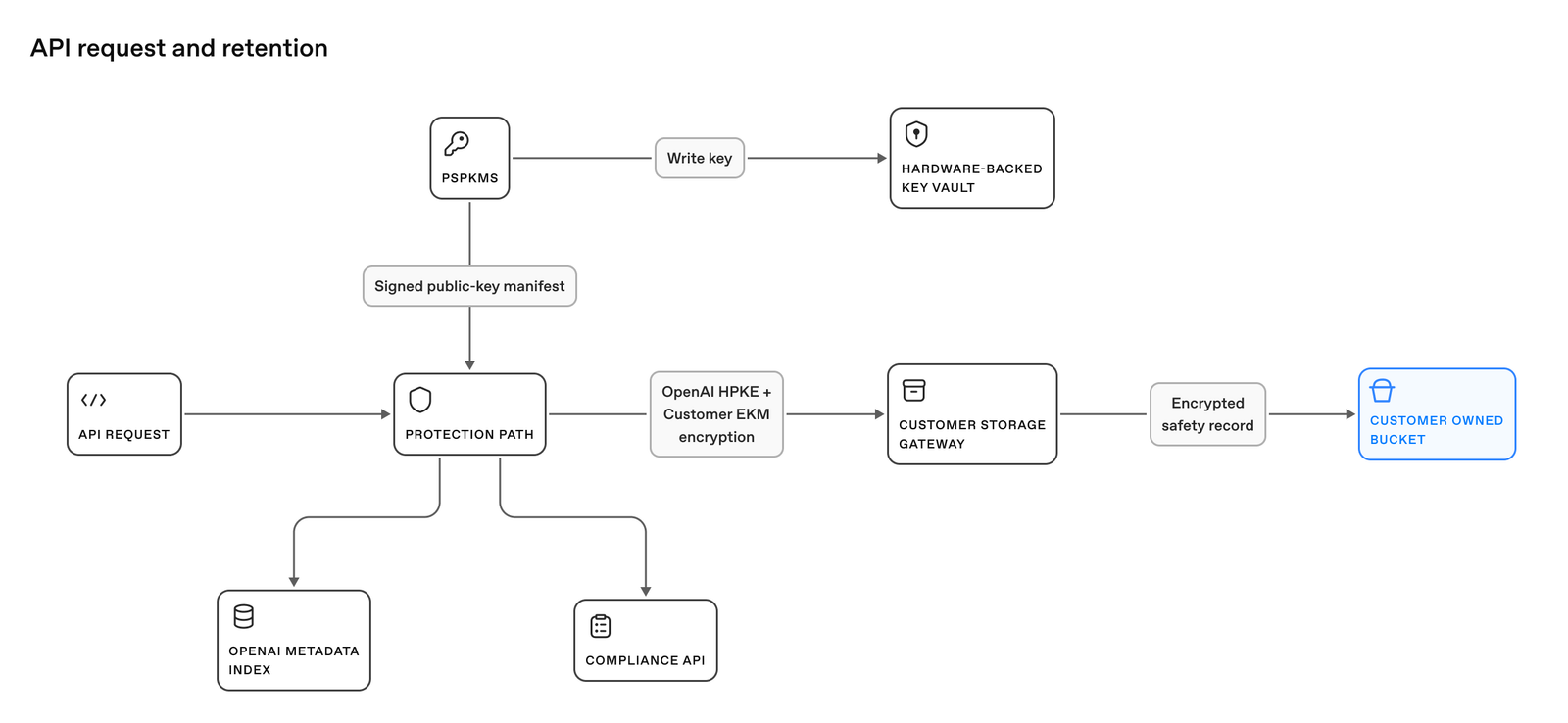
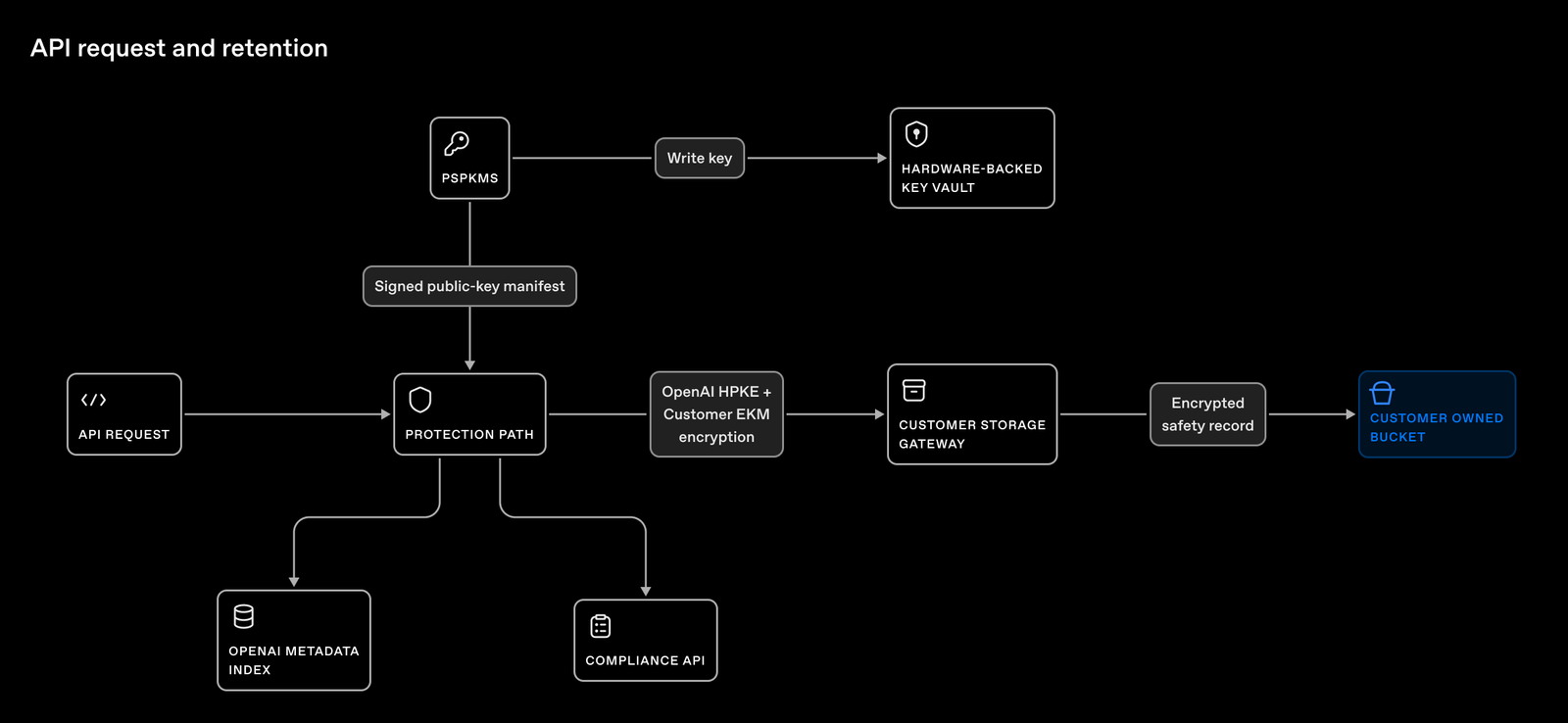
- The API Request and Retention flow protects and retains eligible API content in a customer-controlled storage container.
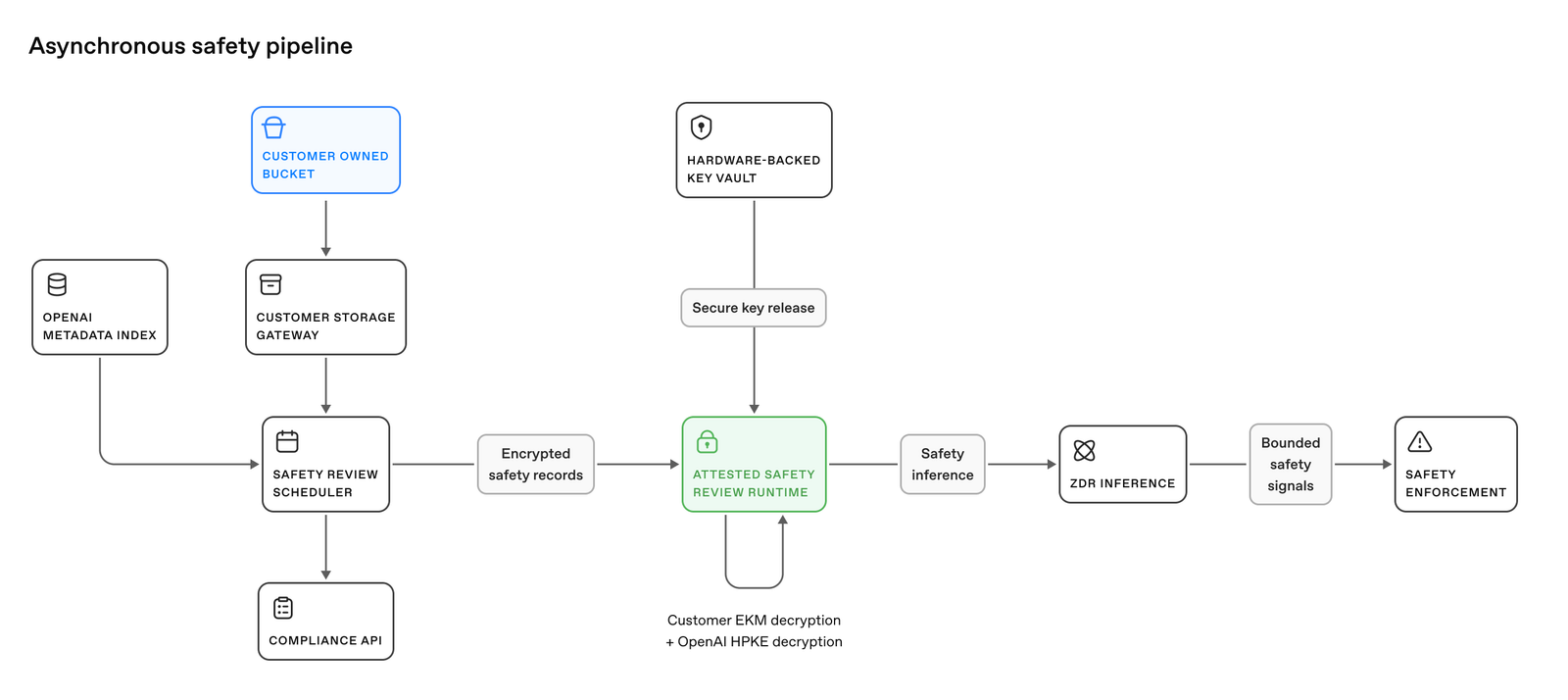
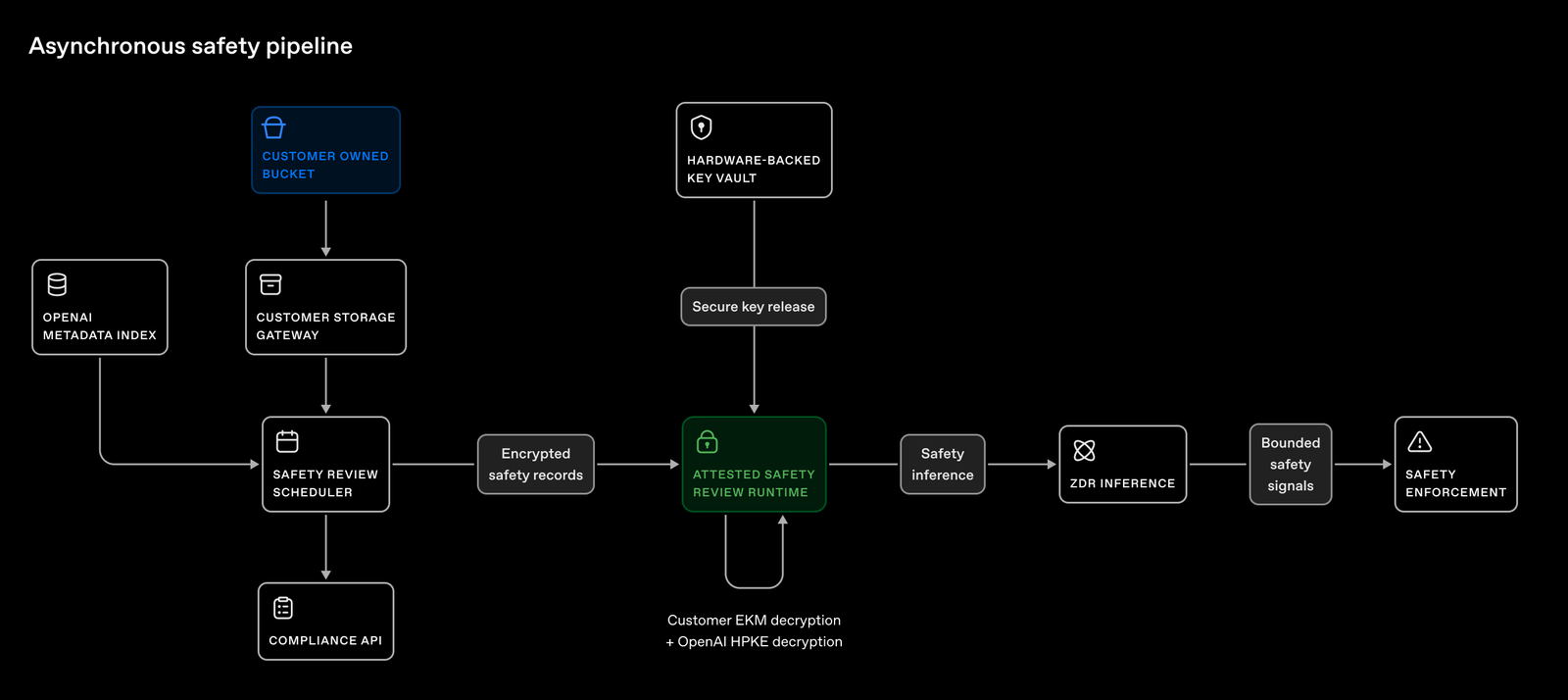
- The Asynchronous Safety Pipeline retrieves records only for approved automated safety review and releases bounded safety decisions.
API Request and Retention
An interaction - your prompt and the model’s response - is selected through a safety classifier referral or an approved sampling policy. A referral does not establish a policy violation.
The system encrypts the record and writes it to your regional cloud storage. OpenAI keeps an index with operational metadata and a storage reference, not a copy of the content. Encryption and storage run asynchronously without blocking inference.
Asynchronous Safety Pipeline
ZDR with PSP retrieves encrypted records from your storage and checks their ability to be decrypted. The Safety Review Runtime, a hardware-attested computing environment that disables human access, is designed to be the only workload that can decrypt customer content. It performs automated safety review using an approved reviewer prompt and output schema that does not expose customer content.
Only predefined, bounded safety signals and approved operational metadata may leave the review in plaintext. Detailed results are encrypted before leaving the runtime and stored in your cloud storage with the original record’s expiration. ZDR with PSP encrypts the records and writes them to your regional cloud storage with a TTL of 30 days.
Customer Content Encryption
Each stored record is doubly encrypted when it is retained in customer storage:
- OpenAI-managed HPKE encryption: The inner encryption layer restricts decryption of customer content to the authorized Safety Review Runtime.
- Customer-managed encryption: Enterprise Key Management (EKM) adds an outer layer using your customer-controlled key-management service.
OpenAI’s inner decryption key is not enough to decrypt a stored record when EKM is enabled: your customer-managed key authorization is also required. Revoking that authorization prevents decryption of retained records, but does not delete them or undo completed processing.
We recommend enabling EKM for this additional control. See the EKM technical FAQ for authorization and revocation, and the technical whitepaper for encryption, confidential computing, guardrails, and transparency.
Set Up and Verify Storage
Connect your own AWS S3 bucket or Azure Blob container to an OpenAI project. Follow the setup steps for your cloud, then register and validate the connection.
Before you start
- Ask your OpenAI contact to approve your organization.
- Choose a storage region that matches your project's data residency. You need permission to create storage and delegate access in your cloud account.
- Have an organization administrator register and validate storage in the API console. For the Management API, use an OpenAI organization Admin API key. Project administrators can view guidance and status; a project inference key won't work for the Management API calls.
Open storage setup in the API console
- Open Organization settings > Data controls > Data retention, then select Connect storage.
- In Connect external storage, choose AWS or Azure and select your project. You can also open Connect storage from Project Settings > Data retention.
- Complete the cloud setup below. Then enter your storage details in the modal and select Connect and validate.
Cloud-specific Setups
AWS S3
Complete these steps if you're using AWS. For Azure, skip to Azure Blob Storage.
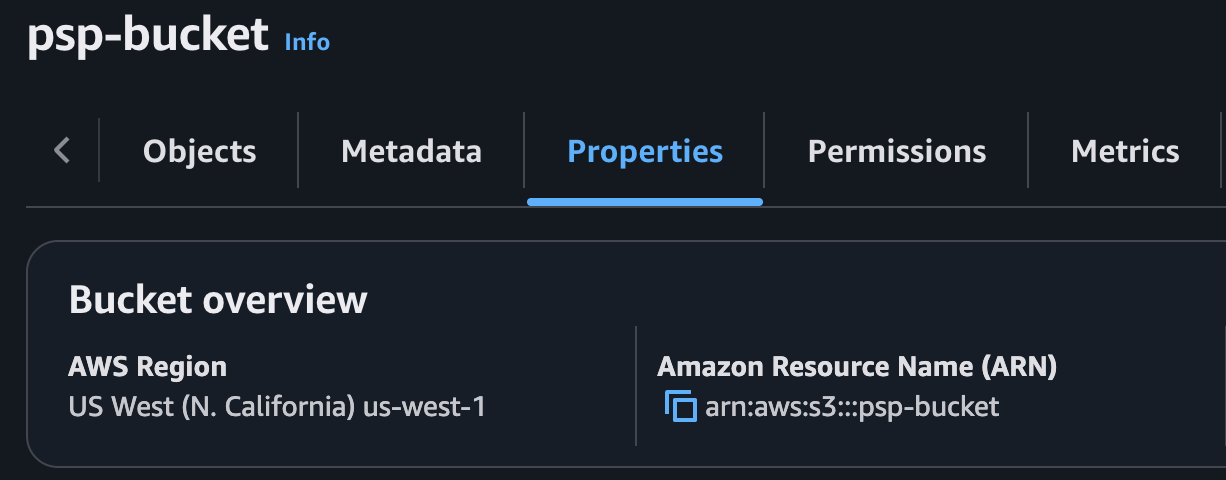
1. Create the bucket
Create a dedicated S3 bucket in a region compatible with your project's data residency. If Data Residency is off, the recommended region is us-west-1.
- Keep ACLs disabled.
- Turn on Block all Public Access.
- Record the bucket ARN. You'll use it as
CUSTOMER_BUCKET_ARNbelow.
2. Set the lifecycle rule
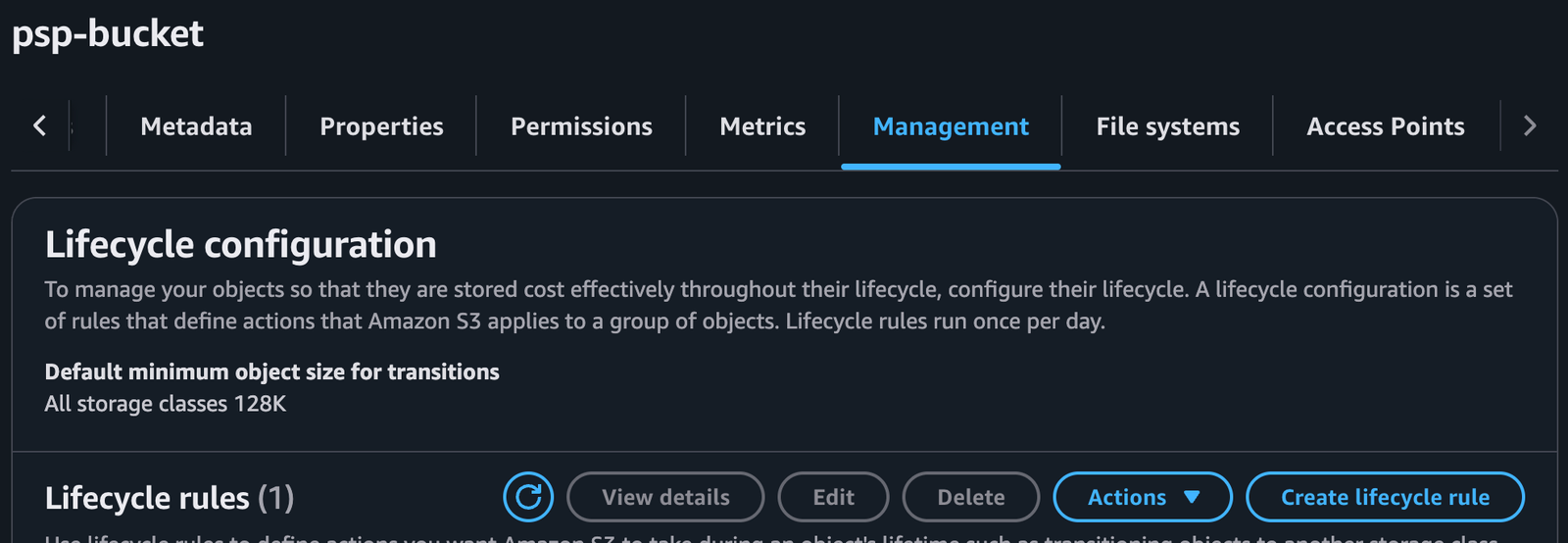
Open the bucket's Management > Create lifecycle rule page and use these settings:
- Rule name:
psp-retention - Prefix:
openai/ - Action: Expire current versions of objects
- Age: 30 days
Enable the rule. Make sure no other rule expires these records earlier. This sets the objects' lifecycle expiration; OpenAI's decryption-key expiration is separate.
3. Create the access policy
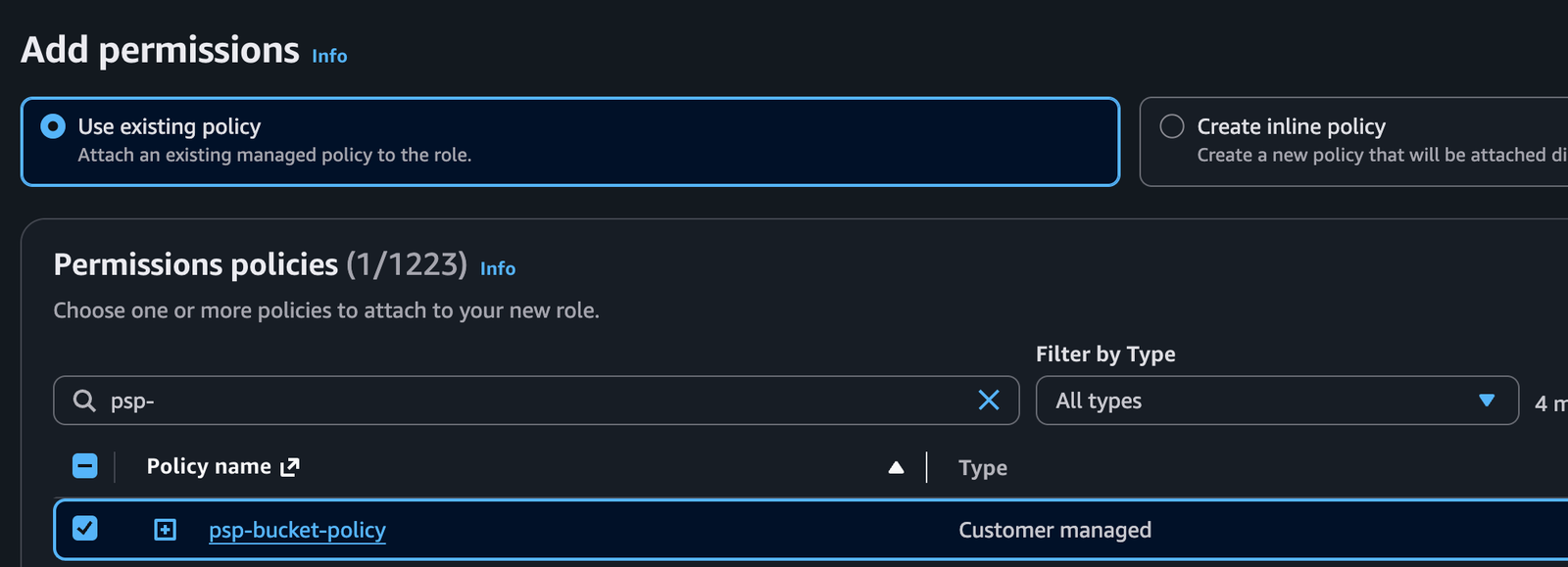
In IAM > Policies > Create policy, choose JSON. Replace CUSTOMER_BUCKET_ARN with your bucket ARN, for example arn:aws:s3:::your-psp-bucket, and save the policy as psp-bucket-policy.
{
  "Version": "2012-10-17",
  "Statement": [
    {
      "Effect": "Allow",
      "Action": "s3:GetLifecycleConfiguration",
      "Resource": "CUSTOMER_BUCKET_ARN"
    },
    {
      "Effect": "Allow",
      "Action": ["s3:GetObject", "s3:PutObject", "s3:DeleteObject"],
      "Resource": "CUSTOMER_BUCKET_ARN/*"
    }
  ]
}
4. Create the IAM role
In IAM > Roles > Create role, choose Custom trust policy.
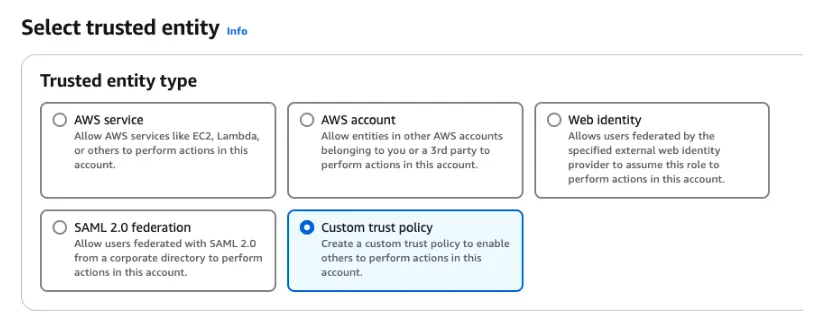
Use the policy below. Replace CUSTOMER_PROJECT_ID with your OpenAI project ID. Leave the OpenAI principal ARN unchanged.
{
  "Version": "2012-10-17",
  "Statement": [
    {
      "Effect": "Allow",
      "Principal": {
        "AWS": "arn:aws:iam::790389265272:role/CustomerStorage"
      },
      "Action": "sts:AssumeRole",
      "Condition": {
        "StringEquals": {
          "sts:ExternalId": ["CUSTOMER_PROJECT_ID"]
        }
      }
    }
  ]
}
Attach psp-bucket-policy to the role you are creating. You can name the role psp-role. Record its ARN as CUSTOMER_ROLE_ARN; the project ID in sts:ExternalId must match the project you register.
Continue to Register your storage.
Azure Blob Storage
Complete these steps if you're using Azure.
1. Create the storage account
Create a dedicated account in commercial Azure. Choose an approved US or EU storage region that matches your project's data residency.
- Account kind:
StorageV2 - Basics > Performance: Standard
- Basics > Redundancy: LRS or ZRS (preferred)
- Advanced > Access tier: Hot
- Advanced > Hierarchical namespace: Disabled
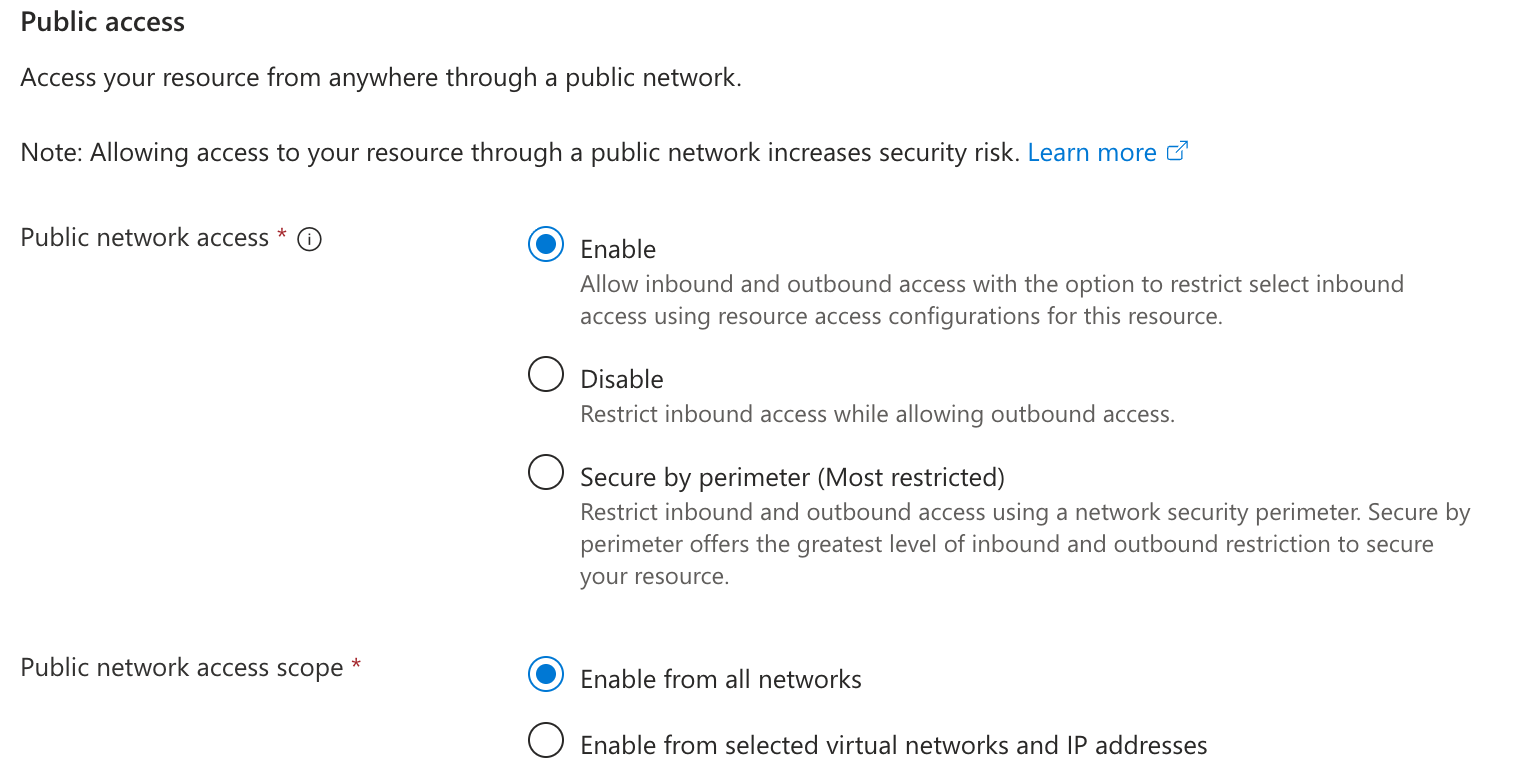
- Networking > Public network access: Enabled from all networks
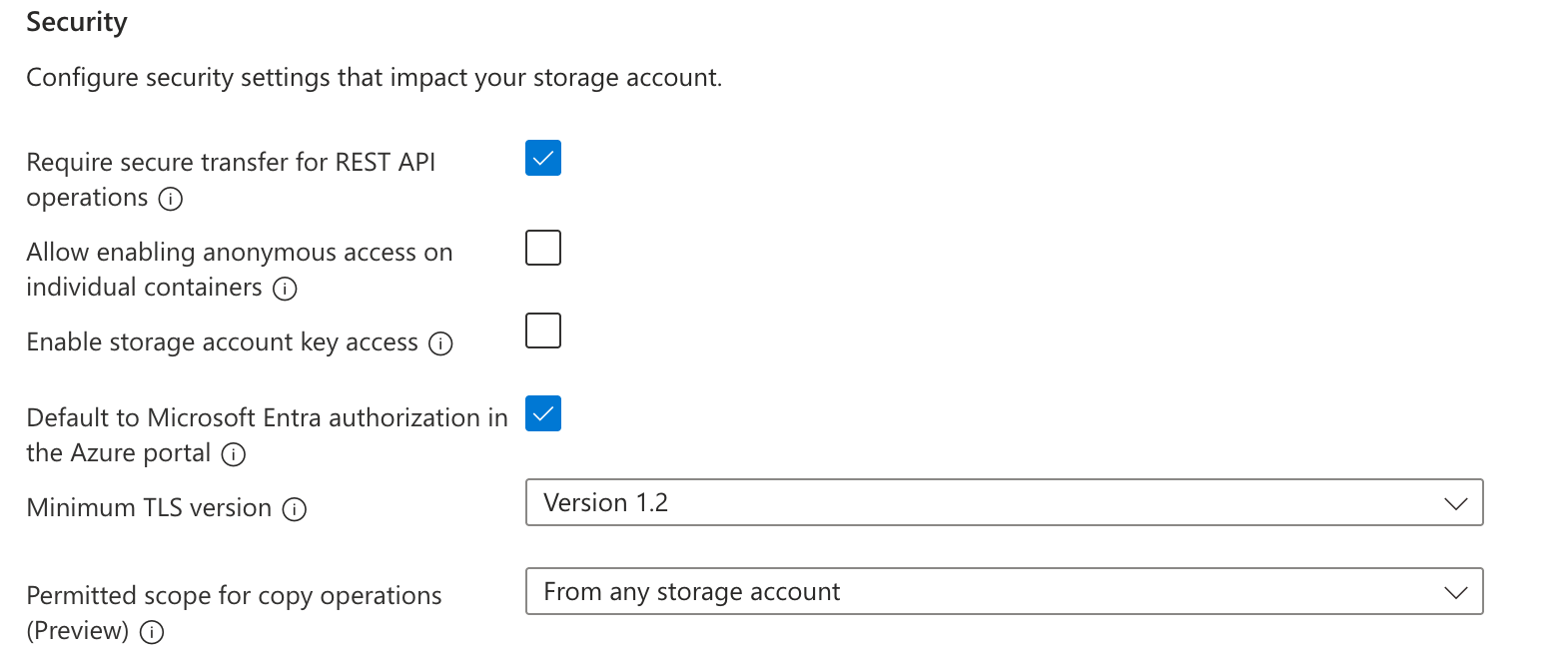
- Security > Secure transfer: HTTPS required; minimum TLS 1.2
- Security > Anonymous Blob access: Disabled
- Security > Storage account key access: Disabled
- Security > Microsoft Entra Authorization: Enabled
Confirm the network setting meets your cloud requirements. Use the account's primary Blob endpoint, not a sovereign-cloud or custom endpoint.
2. Create the container
Create a private container in Storage Account > Data Storage > Containers > Add Container. Add this container metadata in Container > Settings > Metadata with your exact OpenAI organization ID:
openai_organization_id: your OpenAI organization ID
Add the metadata to the container, not the storage account or individual blobs.
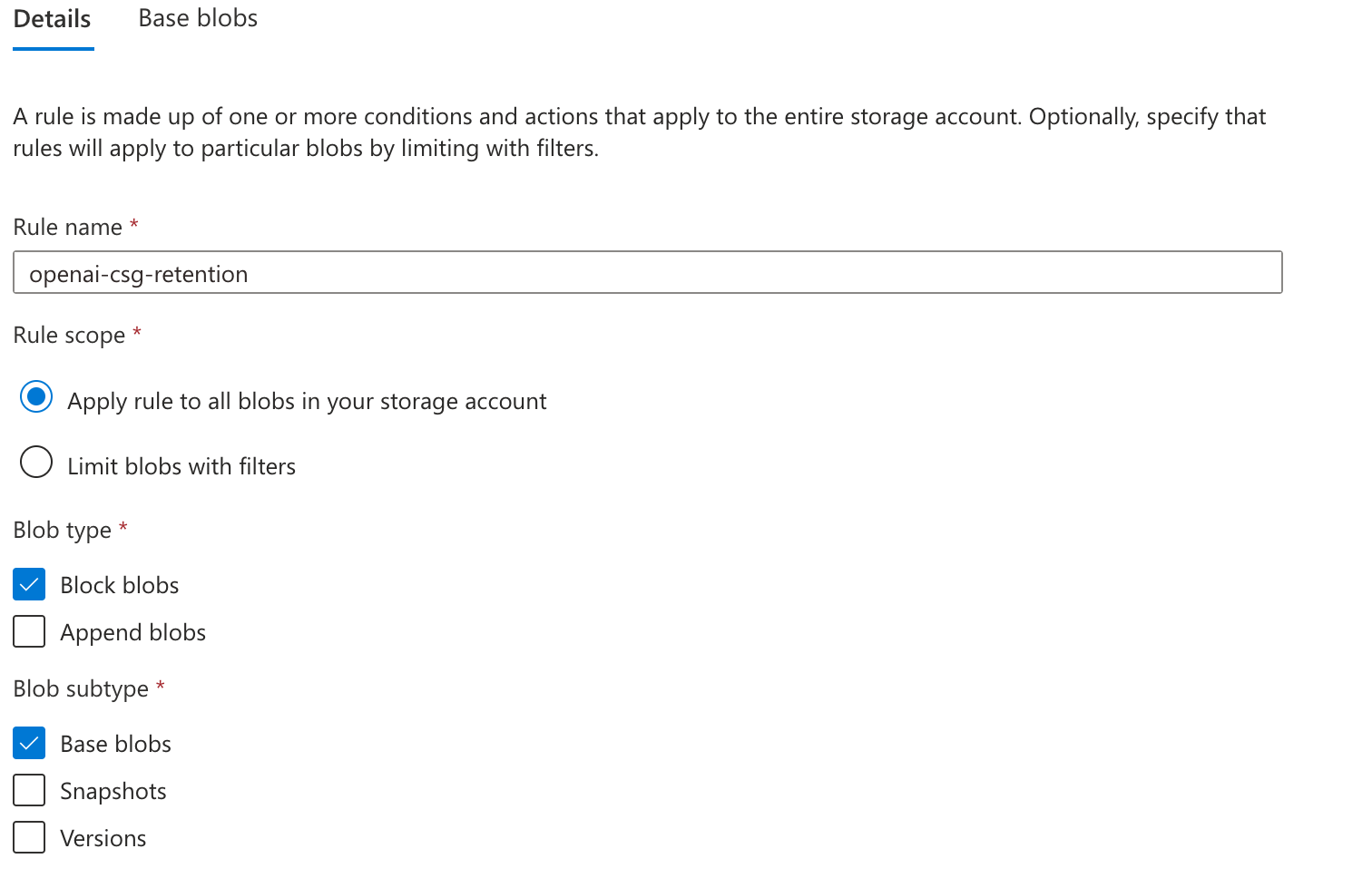
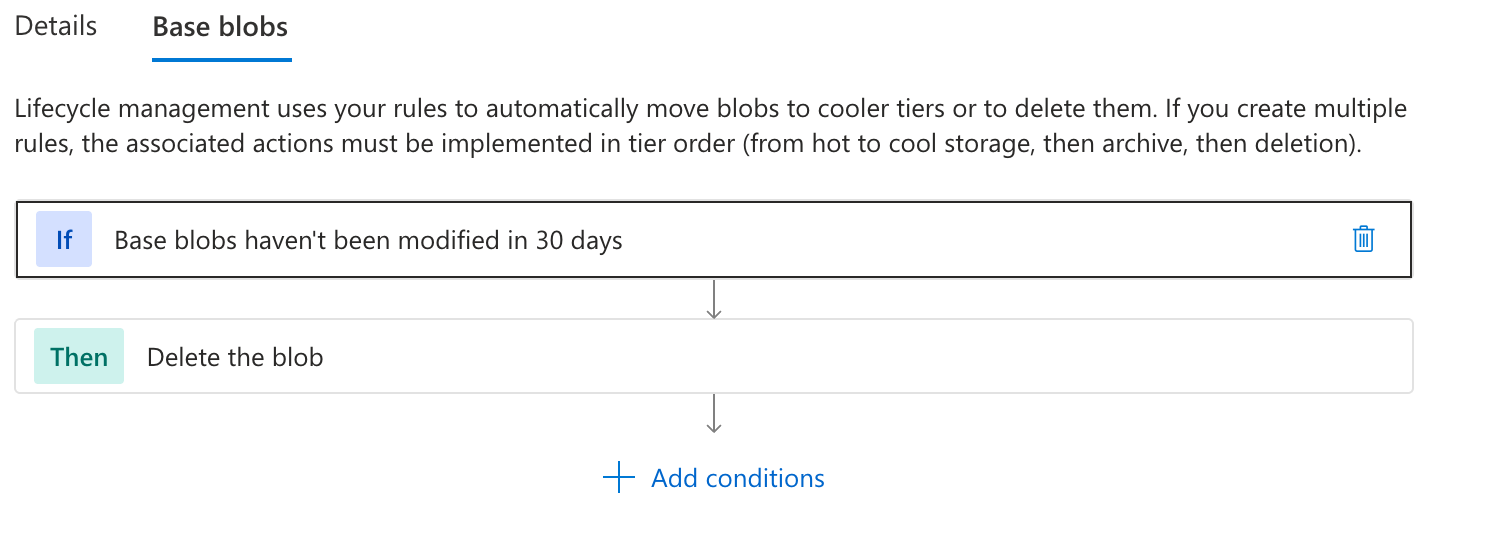
3. Set the lifecycle rule
Add an enabled rule in Storage Account > Data Management > Lifecycle management > Add that applies to all current/base block blobs in the dedicated account:
- Action: Delete after 30 days since last modification
- Filters: No prefix or tag filter
4. Grant OpenAI access
Ask your directory administrator to add OpenAI's application to your tenant. Replace CUSTOMER_TENANT_ID below with your Azure tenant ID. Leave the application ID unchanged.
az login --tenant '<CUSTOMER_TENANT_ID>'
az ad sp create --id 'e5627955-3059-4a88-89f8-73843190624d' \
  --query '{name:displayName,objectId:id}' -o table
If the application already exists, use az ad sp show with the same --id and query. Record the application name and its tenant-local object ID.
Open Storage Account > Access control (IAM) > Add role assignment on your storage account. Select the Reader role, set Assign access to to User, group, or service principal, then search for and select CSG - Azure Blob Storage Prod.
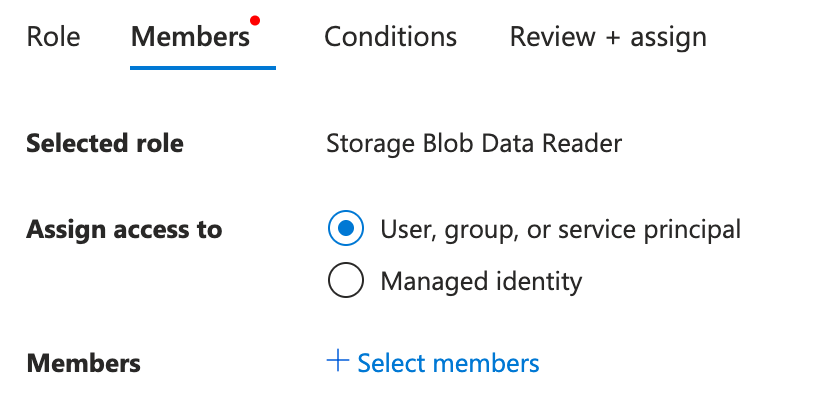
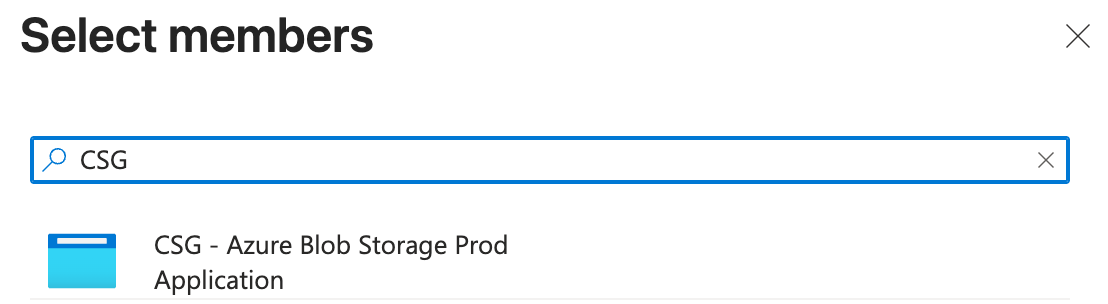
Then select the Storage Blob Data Contributor role, set Assign access to to User, group, or service principal, and search for and select CSG - Azure Blob Storage Prod.
OpenAI manages the application credentials. Don't create or share a storage key, SAS token, or client secret.
Register your storage
After completing the cloud setup above, use either the API console or the Management API to register and validate your storage. You only need to use one method.
Option 1: API console
Sign in as an organization administrator. The API console uses your signed-in session; you don't need an Admin API key or curl commands for this method.
1. Open Connect storage
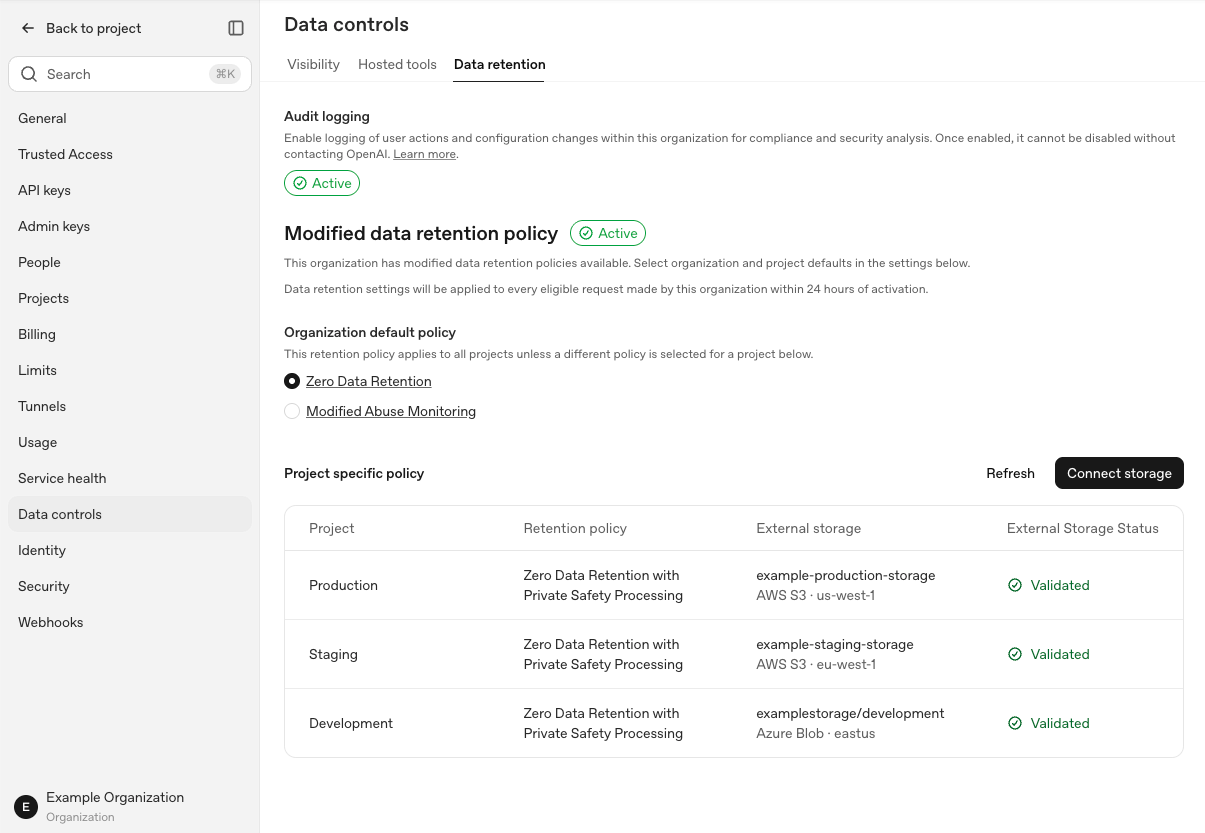
Open Organization settings > Data controls > Data retention and select Connect storage. You can also connect from Project Settings > Data retention.
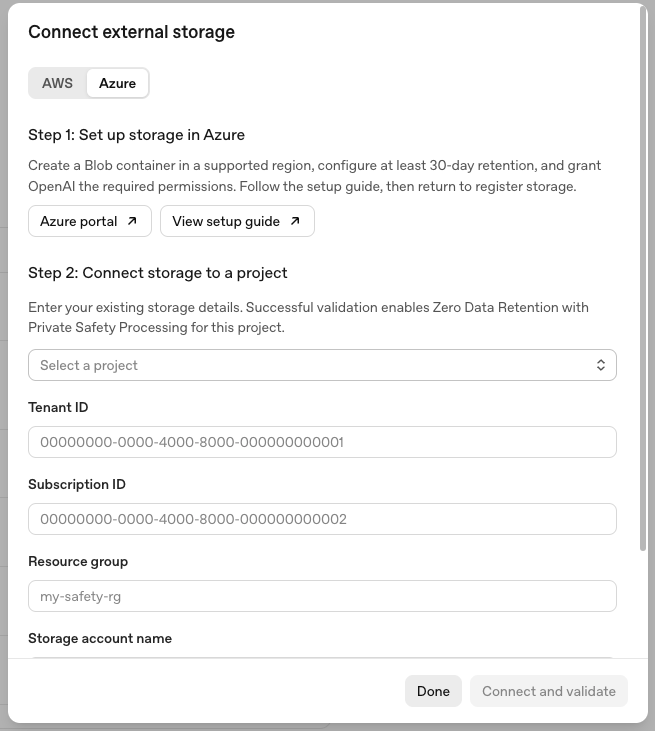
2. Enter your storage details
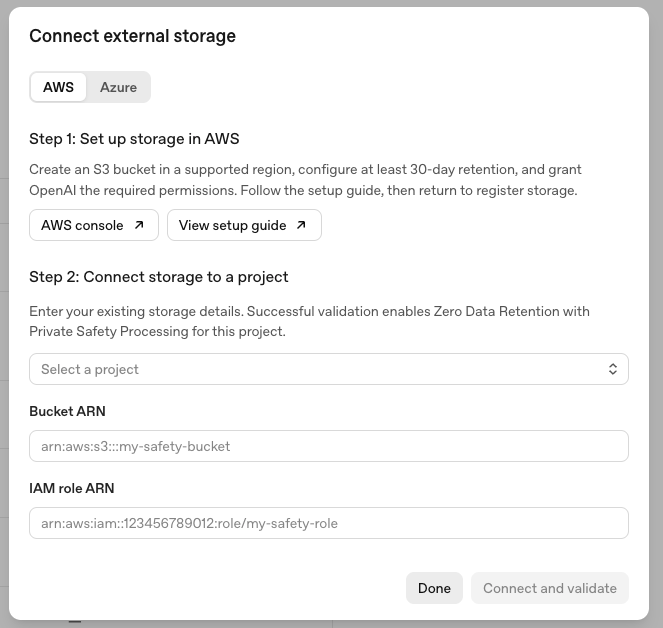
Choose AWS or Azure, then select the project. If you opened the modal from project settings, that project is already selected. If Registered storage appears, choose Connect new storage to add a destination.
For AWS, enter the Bucket ARN and IAM role ARN from your cloud setup.
For Azure, enter Tenant ID, Subscription ID, Resource group, Storage account name, and Container name. Scroll down in the modal to complete all fields.
3. Connect and validate
Select Connect and validate. The API console registers the storage, runs validation, and refreshes the storage status and project policy. Registration alone doesn't change the policy.
Wait for Storage validated and confirmation that the project now uses ZDR with PSP, then select Done.
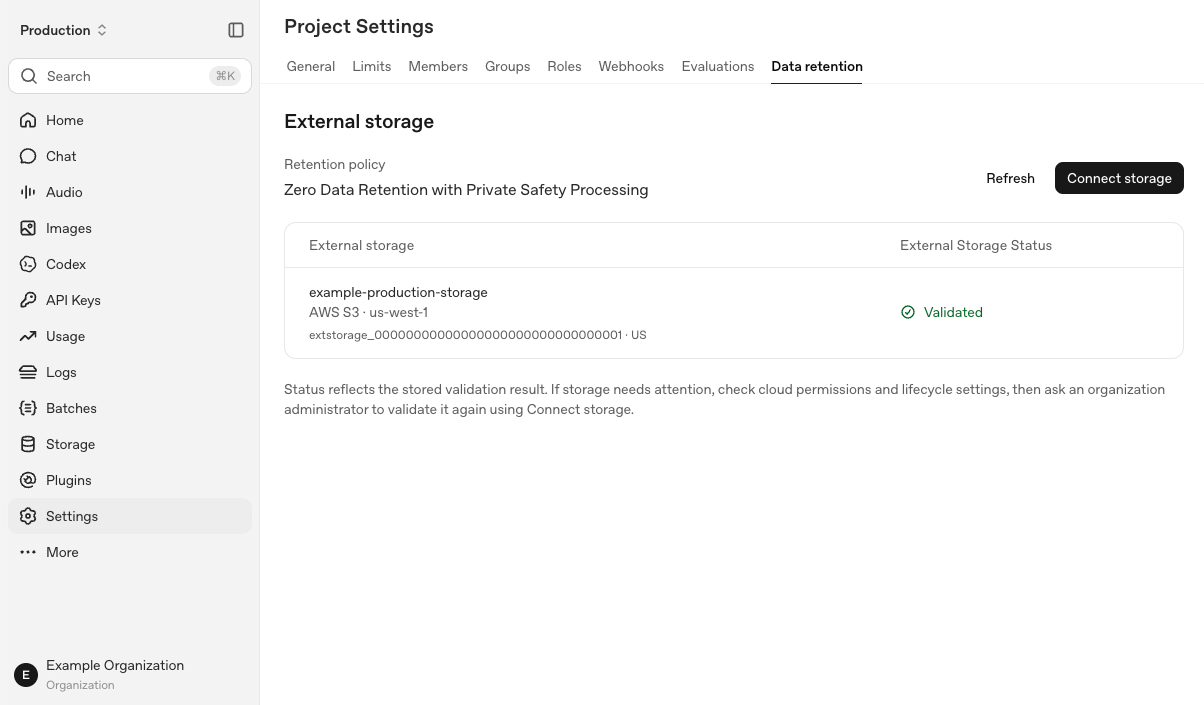
If validation fails after registration, fix the reported issue and select Retry validation. To resume later, select the destination under Registered storage and choose Validate storage. If the API console can't refresh the result, select Refresh status before starting over.
Option 2: Management API
Use an organization Admin API key for this method. Register storage with the commands below, then follow 3. Verify your setup to run validation.
1. Prepare your API settings
Load your organization Admin API key securely into OPENAI_ADMIN_KEY.
Set OPENAI_API_BASE to the endpoint confirmed for your project: https://api.openai.com for global, https://us.api.openai.com for US, or https://eu.api.openai.com for Europe.
Replace the placeholders below with that endpoint and your OpenAI organization ID. Run the remaining commands in the same shell session.
OPENAI_API_BASE='<OPENAI_API_BASE>'
OPENAI_ORG_ID='<OPENAI_ORG_ID>'
OPENAI_STORAGE_URL="$OPENAI_API_BASE/v1/organization/external_storage"
2. Send the registration request
Run the request for your provider only. Replace every CUSTOMER_... placeholder with your IDs and the resources you created.
AWS S3
curl --fail-with-body -sS -X POST "$OPENAI_STORAGE_URL" \
  -H "Authorization: Bearer $OPENAI_ADMIN_KEY" \
  -H "OpenAI-Organization: $OPENAI_ORG_ID" \
  -H 'Content-Type: application/json' \
  --data-binary '{
    "project_id": "CUSTOMER_PROJECT_ID",
    "provider": {
      "type": "aws",
      "bucket": "CUSTOMER_BUCKET_ARN",
      "role_arn": "CUSTOMER_ROLE_ARN"
    }
  }'
Azure Blob Storage
curl --fail-with-body -sS -X POST "$OPENAI_STORAGE_URL" \
  -H "Authorization: Bearer $OPENAI_ADMIN_KEY" \
  -H "OpenAI-Organization: $OPENAI_ORG_ID" \
  -H 'Content-Type: application/json' \
  --data-binary '{
    "project_id": "CUSTOMER_PROJECT_ID",
    "provider": {
      "type": "azure",
      "tenant_id": "CUSTOMER_TENANT_ID",
      "subscription_id": "CUSTOMER_SUBSCRIPTION_ID",
      "resource_group": "CUSTOMER_RESOURCE_GROUP",
      "account_name": "CUSTOMER_STORAGE_ACCOUNT",
      "container": "CUSTOMER_CONTAINER_NAME"
    }
  }'
The response contains an id beginning with extstorage_ and status: "pending". Keep the ID for validation. The API console shows Pending validation and leaves the project's retention policy unchanged.
3. Verify your setup
For API validation, replace EXTERNAL_STORAGE_ID with the ID returned by registration, then run:
EXTERNAL_STORAGE_ID='<EXTERNAL_STORAGE_ID>'
curl --fail-with-body -sS -X POST \
  "$OPENAI_STORAGE_URL/$EXTERNAL_STORAGE_ID/validate" \
  -H "Authorization: Bearer $OPENAI_ADMIN_KEY" \
  -H "OpenAI-Organization: $OPENAI_ORG_ID"
A successful response has status: "validated". Validation checks configuration and access, then activates customer-managed retention for that project. The API console shows Validated and the read-only policy Zero Data Retention with Private Safety Processing.
If you used the Management API, retrieve the saved registration:
curl --fail-with-body -sS \
  "$OPENAI_STORAGE_URL/$EXTERNAL_STORAGE_ID" \
  -H "Authorization: Bearer $OPENAI_ADMIN_KEY" \
  -H "OpenAI-Organization: $OPENAI_ORG_ID"
For either method, open Project Settings > Data retention and select Refresh. Confirm the destination, provider, geography, and Validated status, then check the policy is Zero Data Retention with Private Safety Processing. The organization Data retention table also shows storage and status for each project.
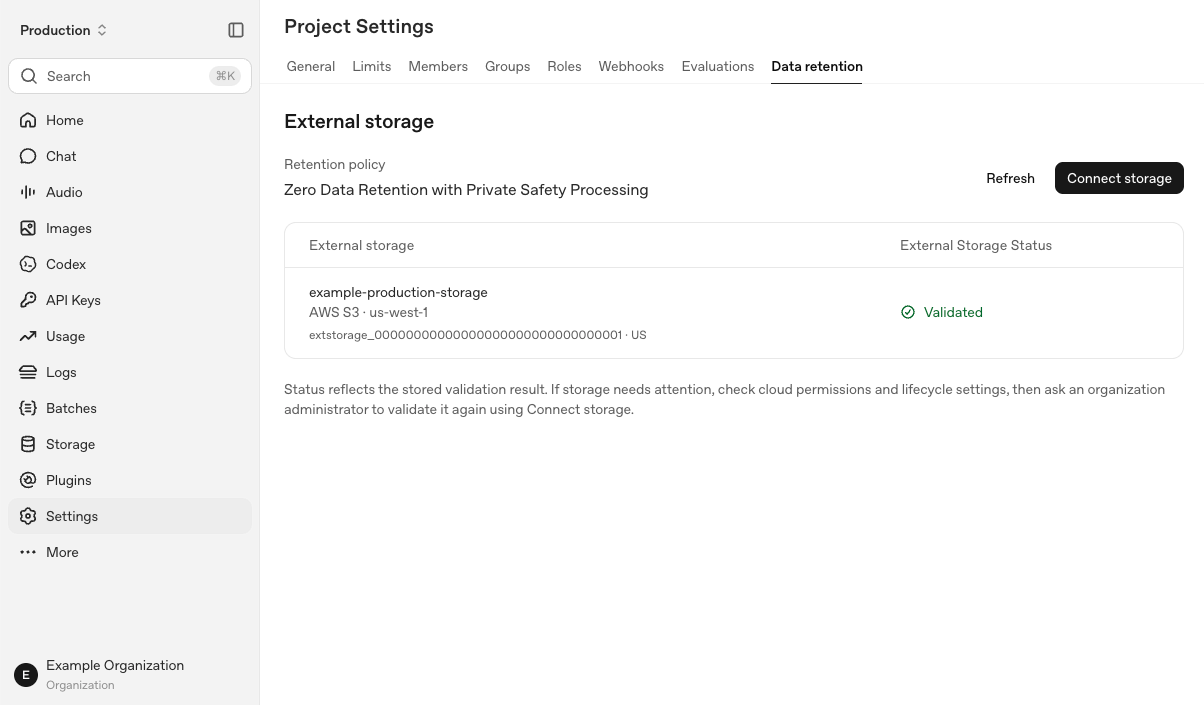
Validated records a successful check, not continuous storage health. Refresh doesn't rerun validation. Use Operations and Troubleshooting for ongoing monitoring and revalidation.
Troubleshooting
Check storage status
Open Organization settings > Data controls > Data retention for the project table, or Project Settings > Data retention for the project's storage details. Check the destination and geography, then read the status. You can also retrieve the registration through the API in Setup and Verification.
- Pending validation (
pending): Storage is registered but hasn't passed validation. The project's retention policy stays unchanged until validation succeeds. - Validated (
validated): Storage passed a validation check. This doesn't guarantee live connectivity. - Needs attention (
unhealthy): A check found a storage or configuration problem. Fix the cause and validate again.
Refresh reloads saved status; it doesn't test the connection. A runtime failure may not change the displayed status. If the API console can't load storage, check the API before treating that as a bucket outage.
Monitor storage activity
Check these sources separately:
- Storage registration: Check the project, provider, geography, and validation result.
- Cloud activity: Check provider access logs and read/write errors, where enabled. Separate validation probes from actual PSP activity.
- Safety and compliance events: Check available content-lifecycle events in the Compliance API, if separately enabled. These aren't storage-registration events or cloud access logs.
Your sampling policy determines which requests create retained objects. A missing object or event alone doesn't mean storage has failed.
Recover from a failure
1. Check the error
customer_managed_retention_not_enabled: Ask your onboarding contact to confirm organization access.- Authentication or permission failure: Check that you're using an organization Admin key with the required external-storage permission.
- Configuration problem: Check the cloud identity, trust policy or access permissions, lifecycle rules, and approved network configuration.
401 customer_storage_not_ready: Check that validated storage exists for the requested project's geography.incorrect_hostname: Use the hostname that matches your fixed-residency project's configuration.503 external_storage_validation_unavailable: Retry later. Contact support if the failure persists.
2. Validate again
After fixing the configuration, open Connect storage for the project and run the validation command with an organization Admin API key. Retrieve the registration or select Refresh to confirm Validated. Refresh alone doesn't run validation.
Contact support
If storage or validation issues persist after troubleshooting, contact OpenAI Support.
Change or stop your setup
Contact support before replacing storage, revoking access, or offboarding. Complete setup and validation for each new project and residency location.
Deleting a storage registration doesn't delete cloud objects or complete offboarding.
Ongoing Customer Responsibilities
Customers using ZDR with PSP are required to:
- Register and validate PSP storage. Register and validate storage buckets through OpenAI’s admin API for each PSP-enabled project and data-residency location, and configure PSP-service bucket access in accordance with OpenAI’s published guidance.
- Retain encrypted records for at least 30 days. Configure storage lifecycle rules so they do not delete PSP records earlier.
- Maintain storage and key access. Keep regional storage, service permissions, and customer-managed key authorization correctly configured.
- Repair configuration issues. Correct storage configuration problems after OpenAI provides notification.
- Respond to notices about safety concerns. Engage with OpenAI to investigate and address the concern.
Resources
- [{"Private Safety Processing technical whitepaper"}](https://openaiassets.blob.core.windows.net/$web/pdf/c7284810-2252-462f-803e-075b0c95bccb/psp-whitepaper.pdf) {" - Full architecture, security controls, and scope."}
- [{"API data controls"}](https://developers.openai.com/api/docs/guides/your-data) {" - ZDR eligibility, endpoint-specific retention, and exceptions."}
- [{"Data residency"}](https://developers.openai.com/api/docs/guides/your-data#data-residency-controls) {" - Supported regions and processing boundaries."}