
Image prompting
For the complete documentation index, see llms.txt. Markdown versions of documentation pages are available by appending
.mdto the page URL.
{"GPT-Image-2.6 prompting guide"}
      Choose a model, tune complexity, and guide image edits.


  </header>
Overview
Start with the image you need, then describe the subject, composition, style, and constraints. For edits, identify what should change and what must stay the same. Refine one thing at a time and inspect the result.
GPT-Image-2.6 Flare is the smaller model for workflows where speed matters most. GPT-Image-2.6 Sunburst is the base model for workflows that need more detail or precise edits. Both support image generation, editing, and transparent backgrounds.
For API setup and request examples, see the image generation guide.
Choose a model
For a new workflow, start with GPT-Image-2.6 Flare if response time matters most. Start with GPT-Image-2.6 Sunburst if the image must meet demanding requirements for detail, layout, or edit accuracy.
| Your current workflow | Start by testing |
|---|---|
| Your existing GPT-Image-2 workflow meets your quality requirements, or you use GPT-Image-2.5 Flare. | gpt-image-2.6-flare. Check quality and response time on the prompts you already use. |
| GPT-Image-2 falls short on a complex task, or you use GPT-Image-2.5 Sunburst. | gpt-image-2.6-sunburst. Check the details that determine whether you can use the image. |
If Sunburst meets your requirements, try Flare with the same prompts, reference images, dimensions, and quality setting. Compare the results and response times on your workload.
Model parameters
Set these fields in the API request. Use the prompt to describe the image you want.
| Parameter | GPT-Image-2.6 settings |
|---|---|
model |
Use gpt-image-2.6-flare or gpt-image-2.6-sunburst. |
quality |
Controls how much visual detail the model can render, such as texture or small lettering. Choose auto, low, medium, high, xhigh, or max. |
complexity |
Controls how much the model plans before rendering. Choose low, medium, or high. Both Sunburst and Flare use high when you omit the field. |
size |
Sets the output dimensions in pixels. Use auto or a supported size such as 1024x1024 (square), 1536x1024 (landscape), or 1024x1536 (portrait). |
background |
Use auto, opaque, or transparent. For transparent PNG or WebP, check the decoded alpha channel. SVG output also supports transparency. |
output_format |
Use png, jpeg, or webp. Generations also support svg and gif. Only JPEG and WebP support output_compression. |
markup |
On edits, upload a transparent PNG overlay with the same pixel dimensions as the first input image. See Guide an edit with markup. |
For a complex layout, start with the default and check how the model placed labels and connected objects. To compare complexity levels, keep quality fixed. If the layout is correct but small text is hard to read, compare quality settings at the same complexity. See Compare complexity.
For a custom size, use multiples of 16 for both dimensions and an aspect ratio from 1:3 to 3:1. The landscape slide example uses 1536x864.
Omit input_fidelity on image edits. GPT-Image-2.6 does not support reasoning.summary.
Migrate an existing workflow
- Save a baseline. Collect representative prompts, reference images, and outputs from your current model. Include difficult edits, exact text, product geometry, and transparent assets where relevant.
- Test the corresponding model. For a 2.5 Flare workflow, try 2.6 Flare first. For a 2.5 Sunburst workflow, try 2.6 Sunburst first. For a GPT-Image-2 workflow, use the model selection table.
- Keep the first comparison consistent. Use the same prompt, reference images, size, quality, and output format. Leave complexity at the model default.
- Inspect the result. Check text, layout, identity, and details that should survive an edit. For a sequence of edits, check the final image as well as each intermediate result.
- Tune one setting at a time. Change either quality or complexity. Repeat each request and compare how often the output meets your criteria and how long it takes.
- Roll out by workflow. Move a small share of traffic after the new model meets your criteria. Track response time, failures, retries, and cost per accepted image before you expand.
When migrating from GPT-Image-1 or GPT-Image-1.5, use its reference tab to check parameter differences and shutdown dates. If part of an image must remain pixel-identical, composite the approved edit into the original.
Prompting fundamentals
- Define the result. Name the subject and intended use, such as a product photograph, advertisement, or diagram. Specify the composition, aspect ratio, and important placement constraints. For complex requests, organize the prompt as scene, subject, details, and constraints, using labeled sections.
- Choose a maintainable format. Short prompts, descriptive paragraphs, JSON-like structures, instructions, and tags can all express the same intent. Choose the format that makes the requirements easiest to read and update rather than relying on special syntax.
- Describe visible details. Name materials, lighting, colors, and the visual medium. Request “photorealistic” or “real photograph” explicitly when that is the goal, and describe framing and texture. Treat camera specifications as cues for appearance, not a guarantee of exact physical simulation. For wide, cinematic, low-light, rainy, or neon scenes, specify scale, atmosphere, and color instead of relying on mood words alone.
- Specify people and actions. Describe body framing, relative scale, gaze, and interaction with objects. Instructions such as “full body visible, feet included,” “looking down at the open book,” or “hands naturally gripping the handlebars” make the intended pose and action clearer.
- Specify exact text. Put required wording in quotes and describe its position and typography. Spell unusual words or brand names letter by letter when needed. Ask for no extra text, then check spelling and legibility in the output. Compare medium or high quality for small text, dense information, or multiple fonts.
- Separate changes from constraints. For edits, say “change only X” and list the details to preserve, such as identity, geometry, layout, lighting, or labels. State exclusions such as unwanted text, logos, or watermarks. For precise local edits, also identify saturation, contrast, arrows, camera angle, and surrounding objects that must remain unchanged.
- Assign roles to references. Identify each input by number and purpose: subject, style, clothing, or background. Explain how the inputs should combine and which elements should move where.
- Iterate deliberately. Pass the previous output as the next edit input, request one change, and repeat the details to preserve. References such as “same style as before” can carry context, but restate critical constraints if the result drifts. Compare results before adding more instructions.
Most examples omit complexity and use the model default. Adapt the prompts to your own images and requirements.
Generate images
Compare complexity
When a prompt leaves design decisions open, try high complexity to give the model more room to plan the composition. This prompt names the scene and the material but leaves the trophy, uniforms, and lettering up to the model.
A premium handcrafted layered paper-cut illustration of a football team celebrating a championship victory inside a packed stadium.
GPT-Image-2.6 Sunburst generated one image at each complexity level with the same prompt, size="1024x1536", quality="medium", and PNG output. Compare the trophy and where the word “CHAMPIONS” appears.


In these outputs, low places a crown on the trophy. At medium, a laurel wreath decorates the cup and crests appear on the shirts. Both put a large banner in front of the team. At high, the sign moves into the stands, leaving the foreground for the players and the folds of their blue paper jerseys.
- Fully specified designs. When the prompt already sets the layout, text, and style, higher complexity may make little visible difference.
- Targeted edits. Start with
lowwhen you want to change one detail. Check that the surrounding details stay intact.
Generate SVG output
For a logo you can scale or recolor by editing its paths, send the Field & Flour bakery logo prompt to POST /v1/images/generations. Set output_format="svg" and n=1. SVG also supports background="transparent", so the space around the mark can take the color of the surface behind it.
Omit stream, partial_images, and output_compression from the SVG request. Decode data[0].b64_json from base64 and save the resulting XML as a .svg file.


Open the Flare SVG or the Sunburst SVG to inspect the artwork.
Generate a looping GIF
For a smooth loop, give the subject a starting pose to return to and say whether the camera should move.
A little monkey in an olive-green hooded coat stands in a snowy pine forest at dusk. A wooden cabin glows in the background. The monkey holds a glowing amber paper lantern at chest height, slowly lifts it, looks up and blinks, then lowers it back to its starting pose. Keep the lantern in its hands and the camera still. Make the motion loop smoothly.

Send the prompt to POST /v1/images/generations with output_format="gif". This example uses gpt-image-2.6-sunburst, size="512x512", quality="high", and the default high complexity. With frame_count=9 and frame_duration_ms=200, the loop lasts 1.8 seconds. See GIF settings and limits.
Control style and lighting
Describe a photograph through its subject, framing, light, and texture. This example specifies a candid composition and explicitly excludes heavy retouching.
The example uses size="1024x1536", quality="medium".
Create a photorealistic candid photograph of an elderly sailor standing on a small fishing boat.
He has weathered skin with visible wrinkles, pores, and sun texture, and a few faded traditional sailor tattoos on his arms.
He is calmly adjusting a net while his dog sits nearby on the deck. Shot like a 35mm film photograph, medium close-up at eye level, using a 50mm lens.
Soft coastal daylight, shallow depth of field, subtle film grain, natural color balance.
The image should feel honest and unposed, with real skin texture, worn materials, and everyday detail. No glamorization, no heavy retouching.


Explain a process visually
Name the process, audience, and information the image should communicate. For diagrams and information graphics, verify labels and factual relationships as well as appearance.
The example uses size="1024x1536", quality="medium".
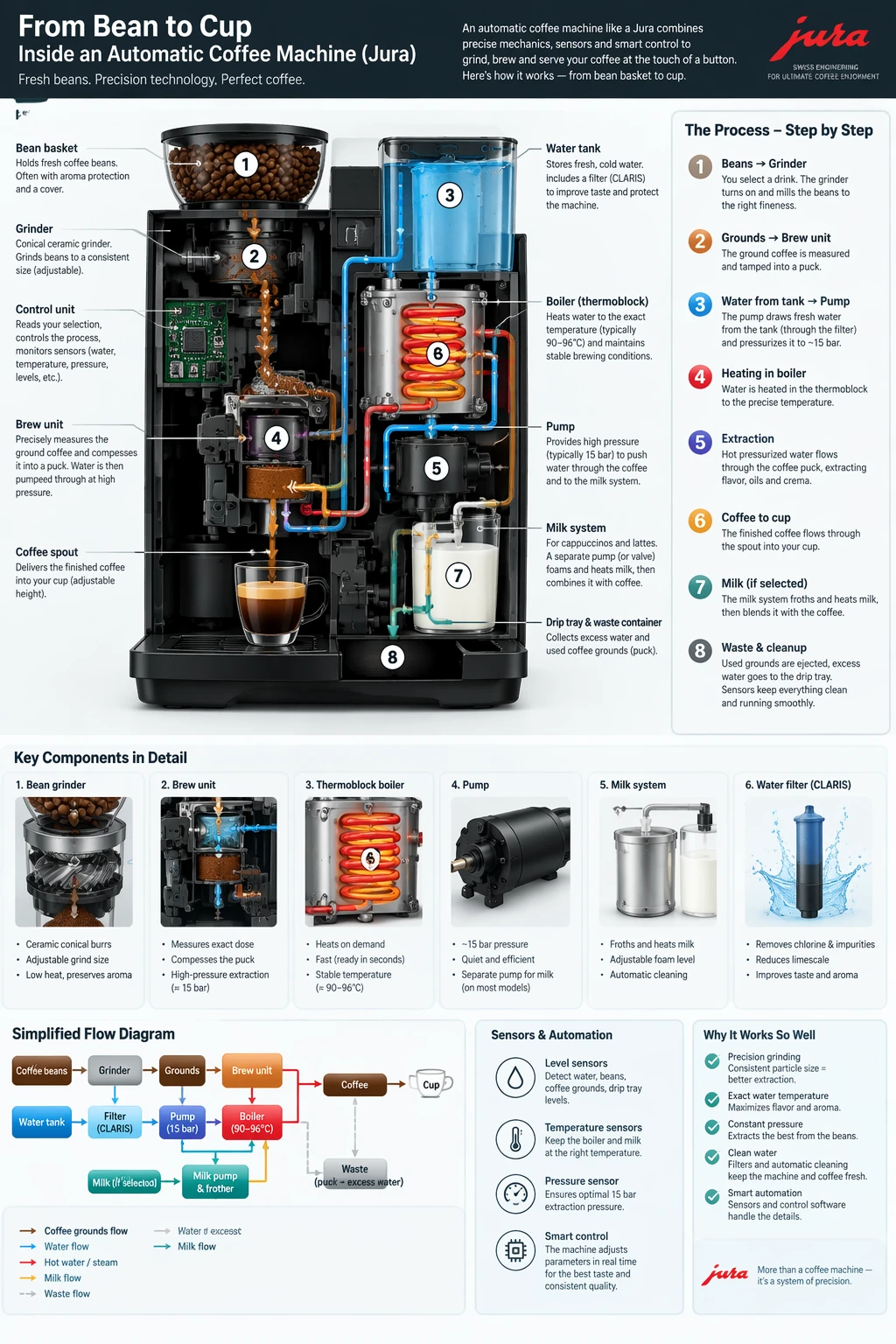
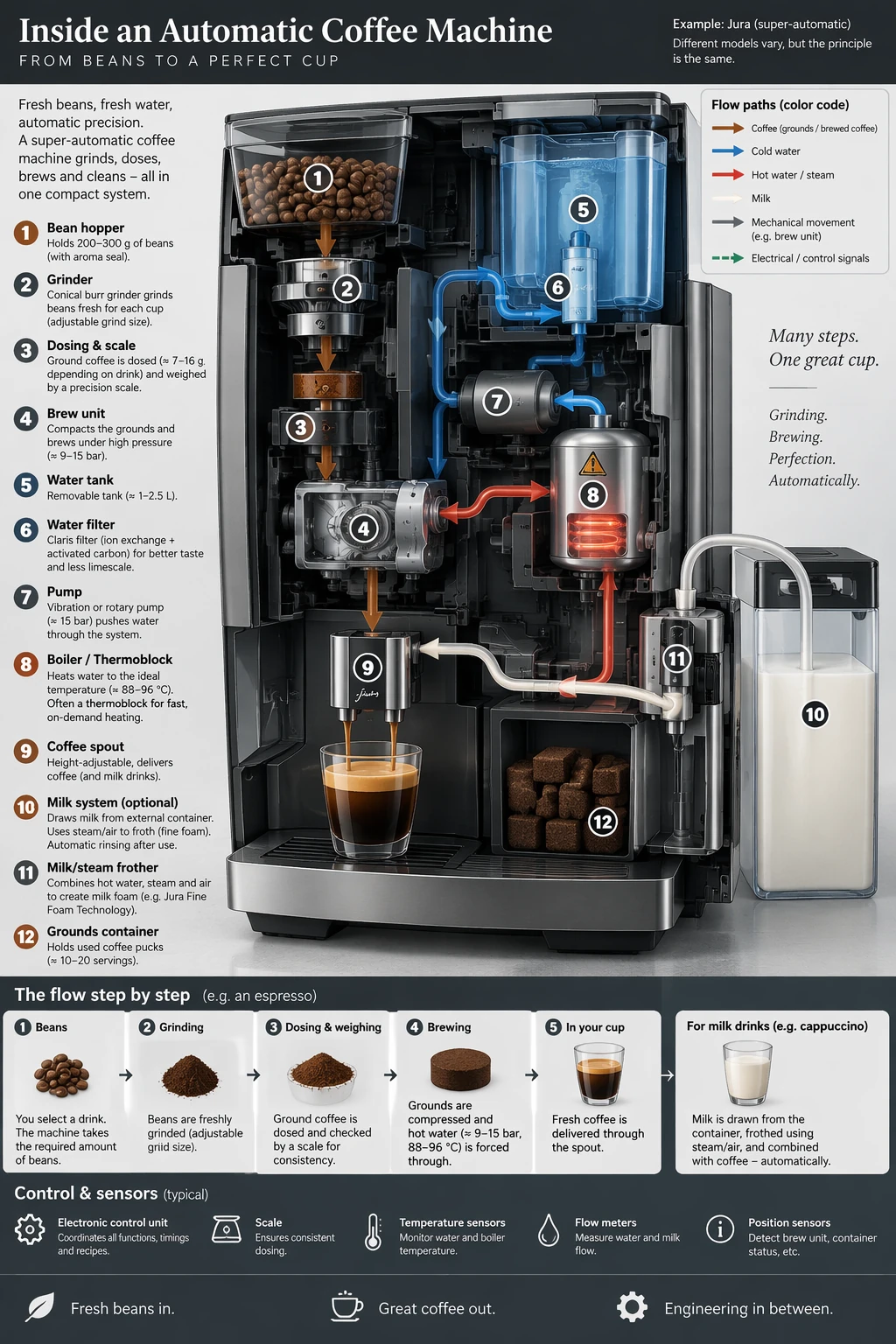
Create a detailed Infographic of the functioning and flow of an automatic coffee machine like a Jura.
From bean basket, to grinding, to scale, water tank, boiler, etc.
I'd like to understand technically and visually the flow.


Render exact text
Quote the required copy and tell the model how many times it should appear. Specify the audience and visual treatment without adding unrelated instructions.
The example uses size="1024x1536", quality="medium".
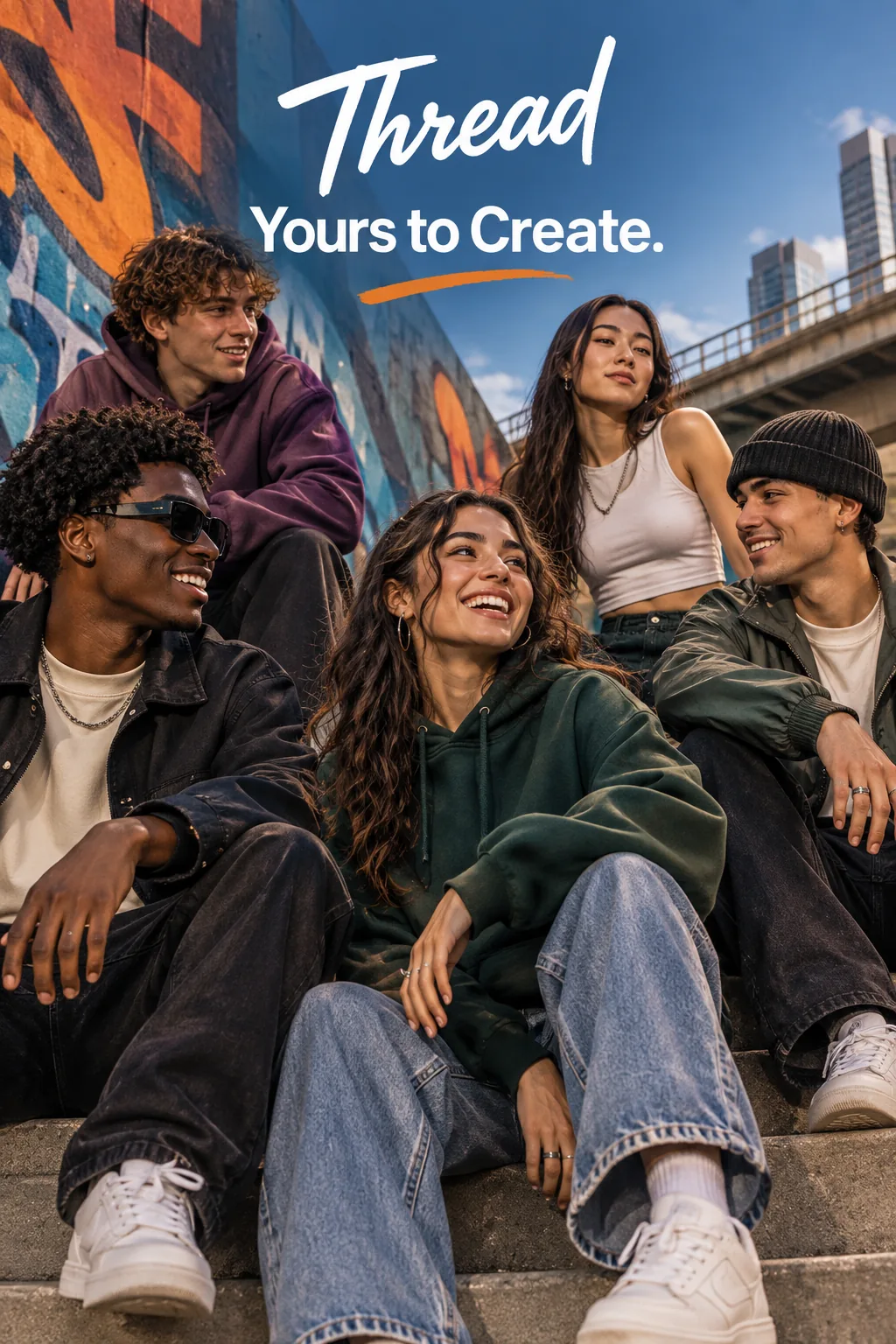
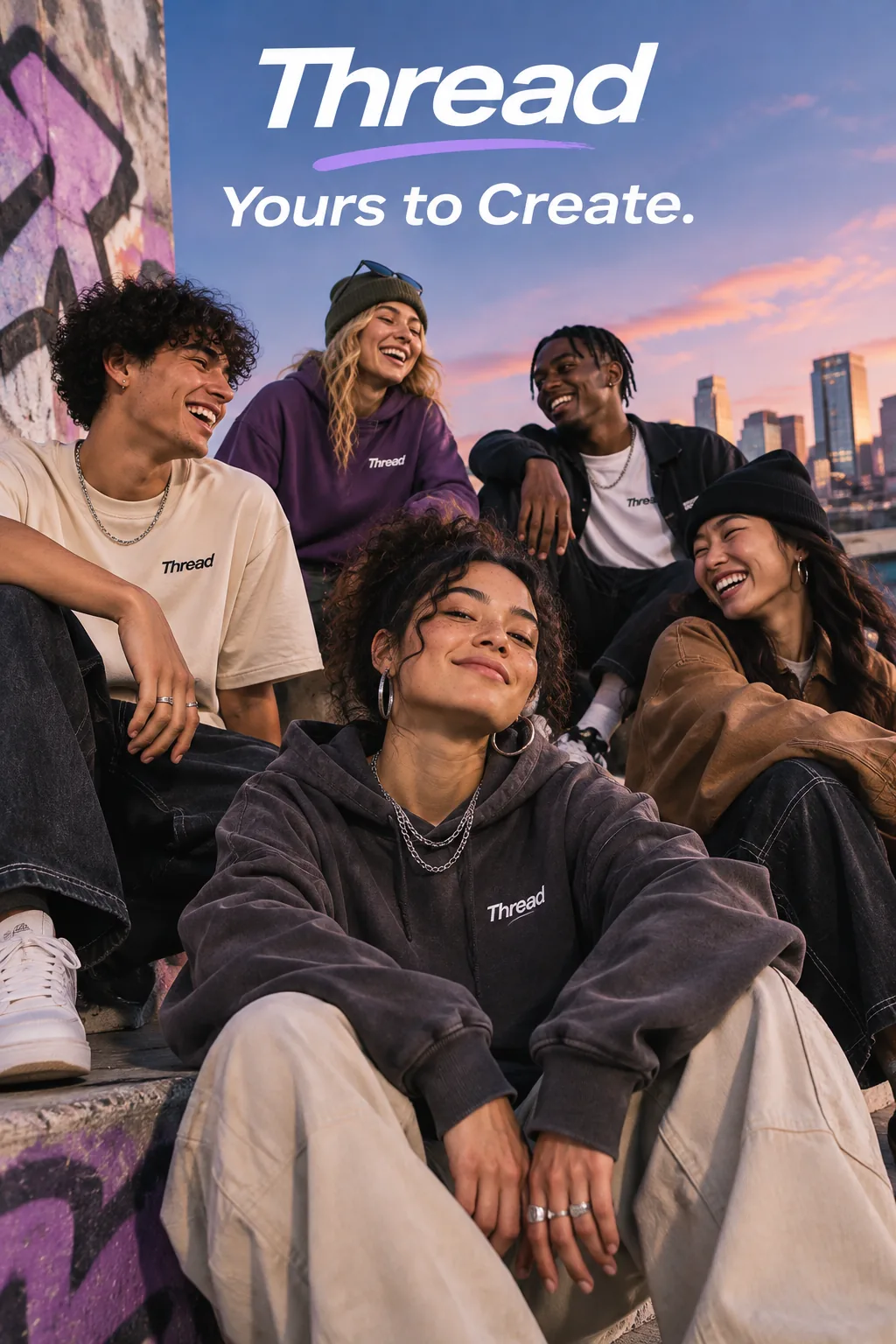
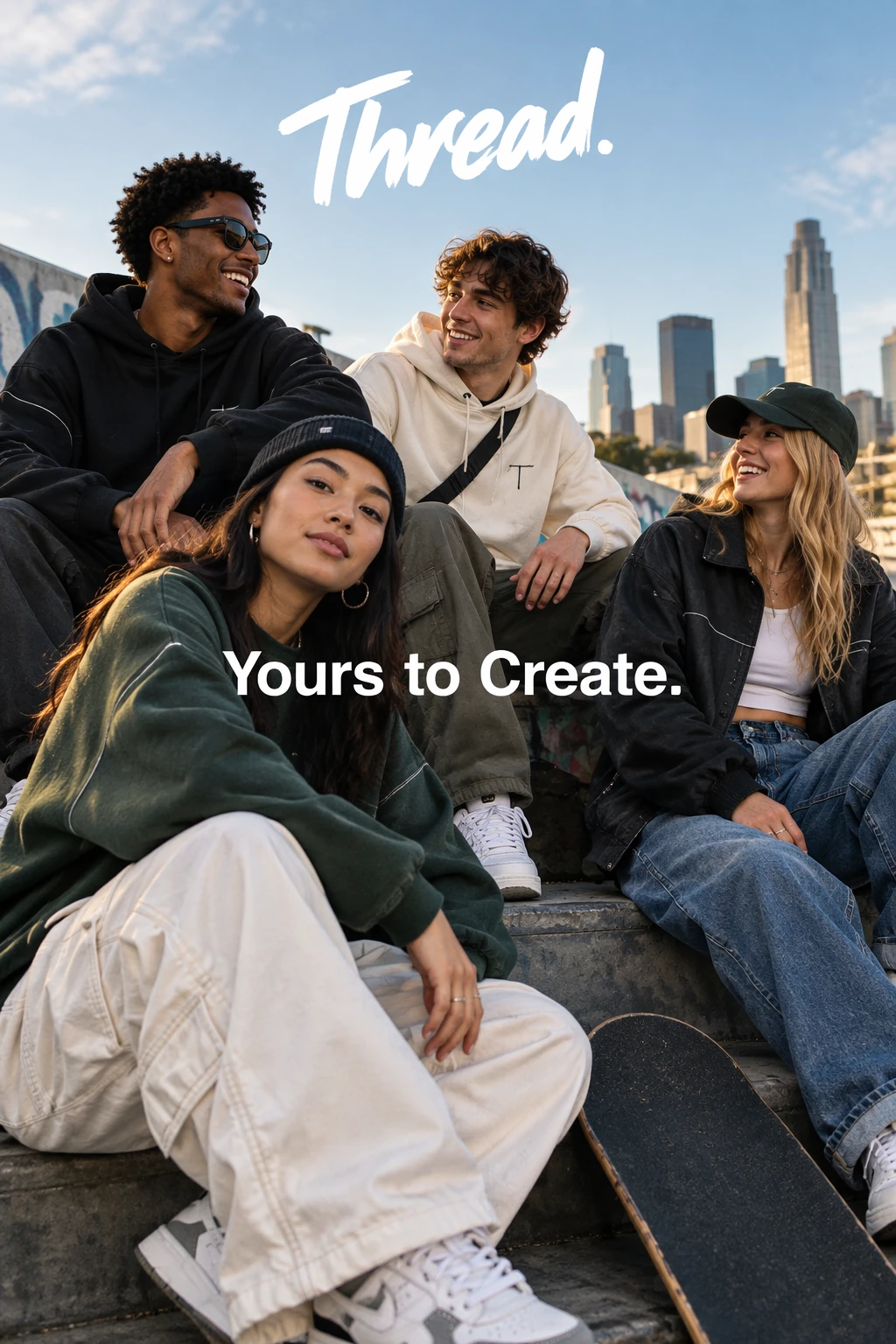
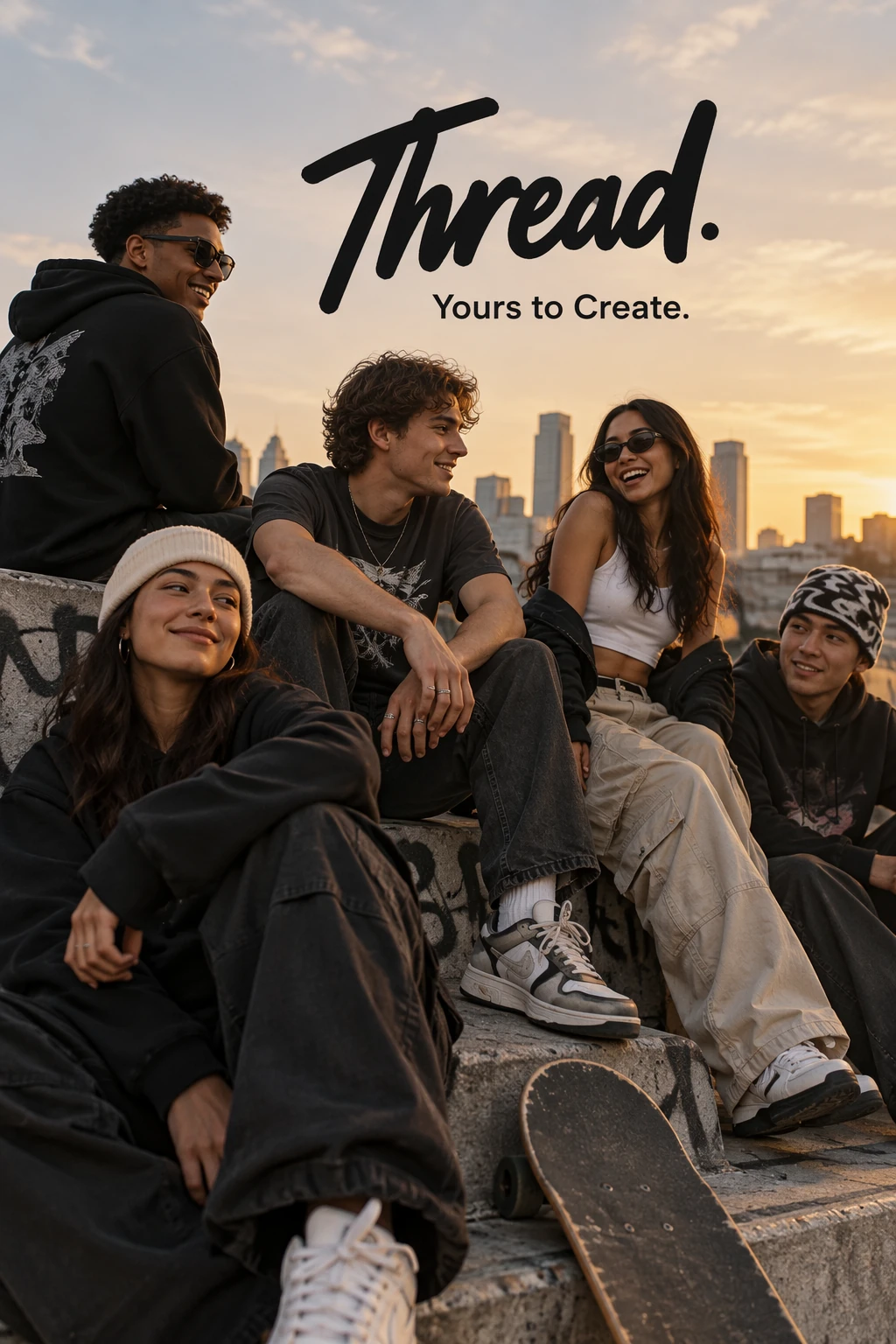
Give me a cool in culture ad / fashion shot for a brand called Thread.
It's a hip young street brand. The ad shows a group of friends hanging out together with the tagline "Yours to Create."
Make it feel like a polished campaign image for a youth streetwear audience: stylish, contemporary, energetic, and tasteful.
Use clean composition, strong color direction, natural poses, and premium fashion photography cues.
Render the tagline exactly once, clearly and legibly, integrated into the ad layout.
No extra text, no watermarks, no unrelated logos.
Design a reusable logo
Describe the brand and the shapes that define the mark. Ask for a silhouette that stays recognizable on a small label or a large sign.
Create an original, non-infringing logo for a company called Field & Flour, a local bakery.
The logo should feel warm, simple, and timeless. Use clean, vector-like shapes, a strong silhouette, and balanced negative space.
Favor simplicity over detail so it reads clearly at small and large sizes. Flat design, minimal strokes, no gradients unless essential.
Fully transparent background. Deliver a single centered logo with generous padding, clean alpha edges, and no solid backdrop, scenery, checkerboard, or watermark.
For a raster logo you can place on another background, use output_format="png" and background="transparent". See the Cookbook example on generating transparent image assets.
Each model used size="1024x1536", quality="medium", and n=1 for the prompt above. Increase n if you want more raster variations.


Use historical and real-world context
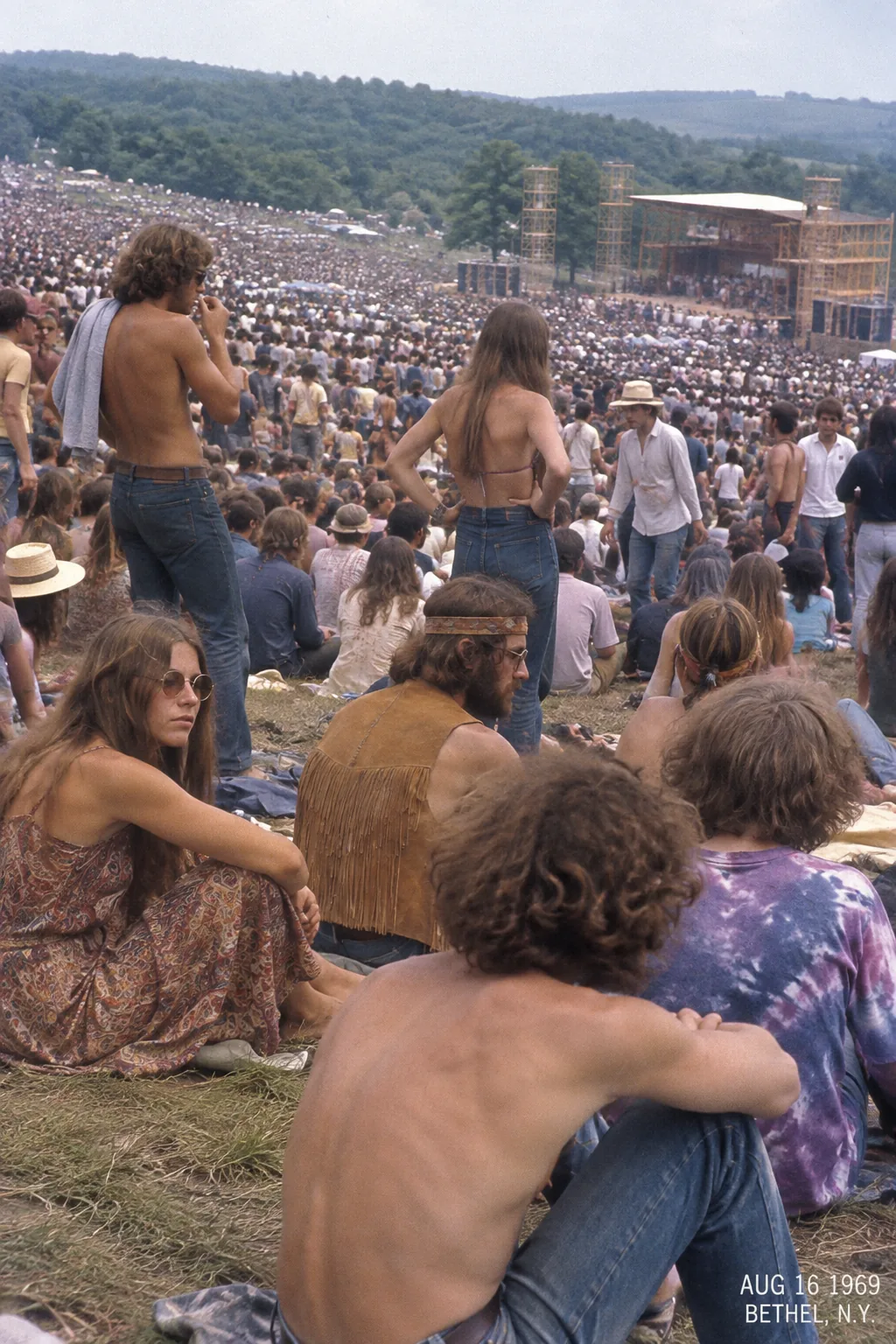
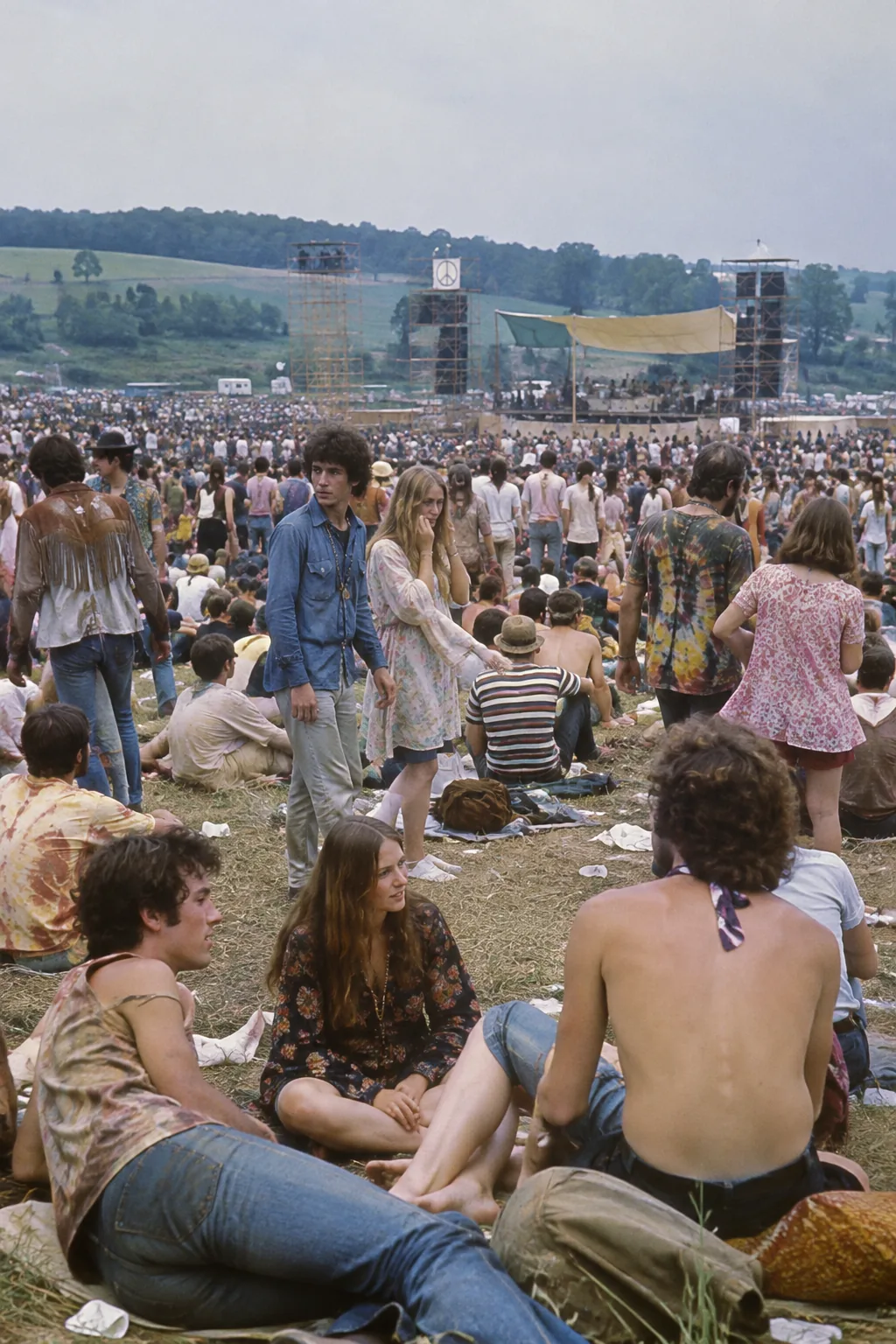
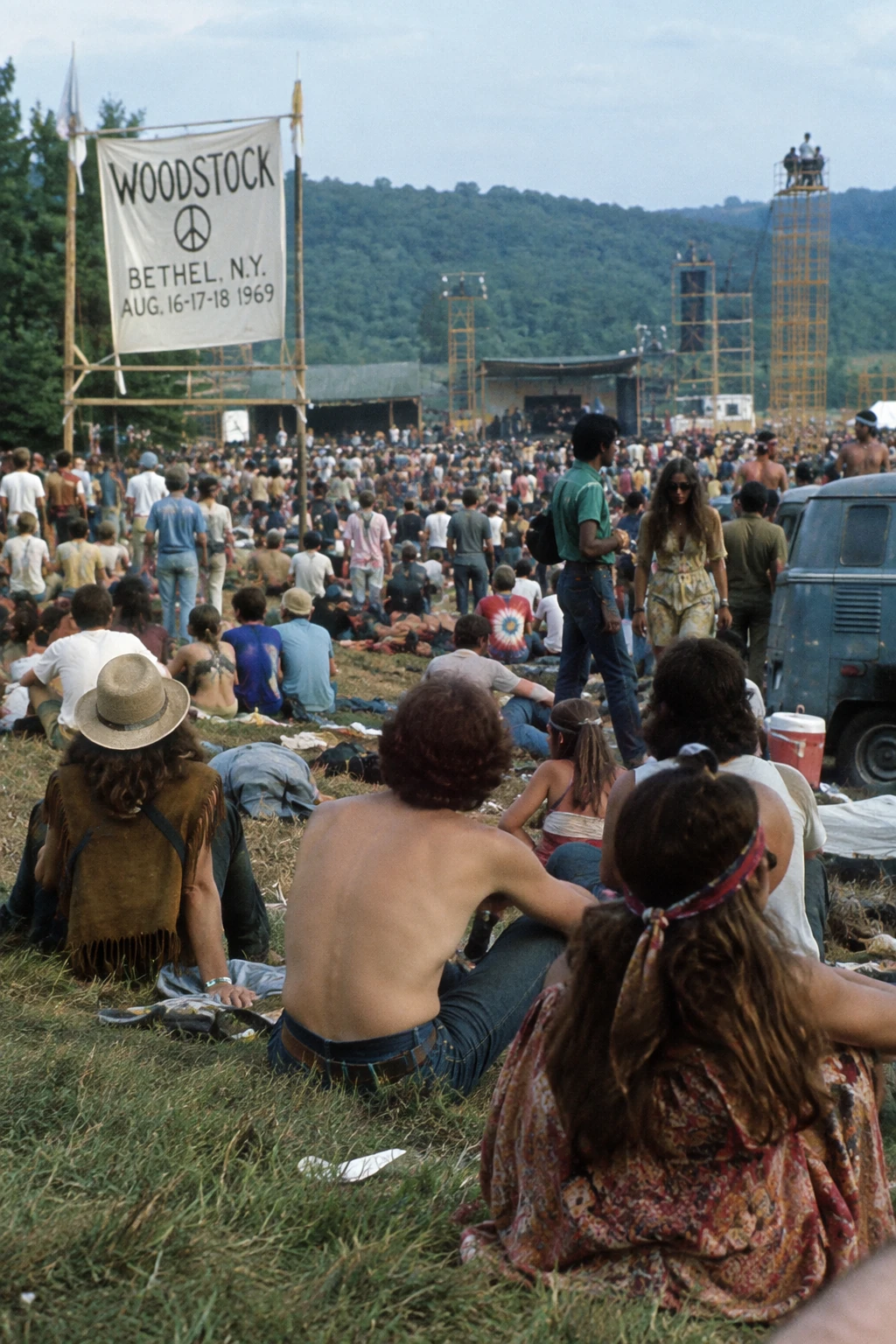
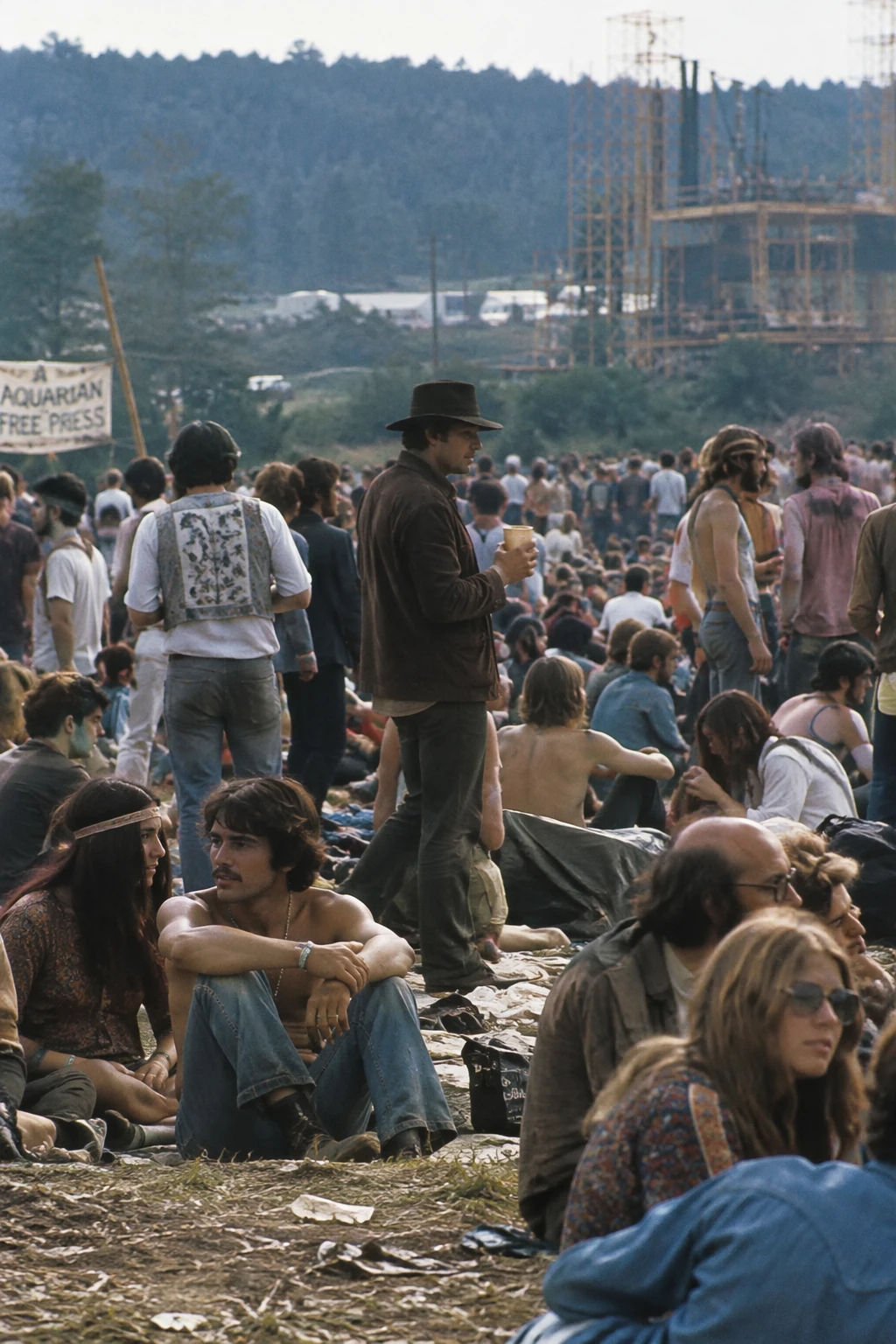
Name the place and date to establish a historical setting. The model can infer contextual details, but inspect clothing, staging, and surroundings for historical accuracy.
The example uses size="1024x1536", quality="medium".
Create a realistic outdoor crowd scene in Bethel, New York on August 16, 1969.
Photorealistic, period-accurate clothing, staging, and environment.
Turn a story into a comic strip
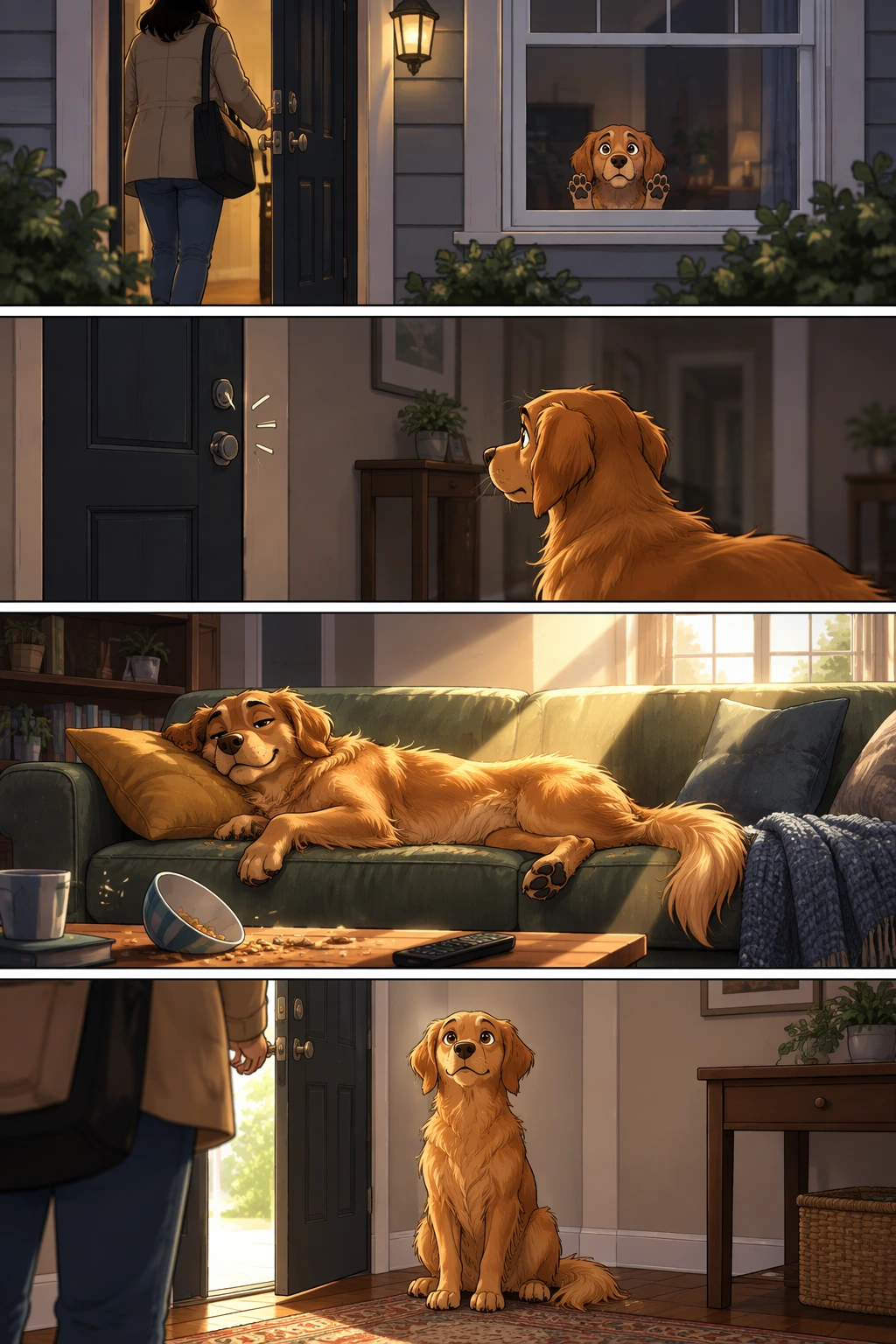
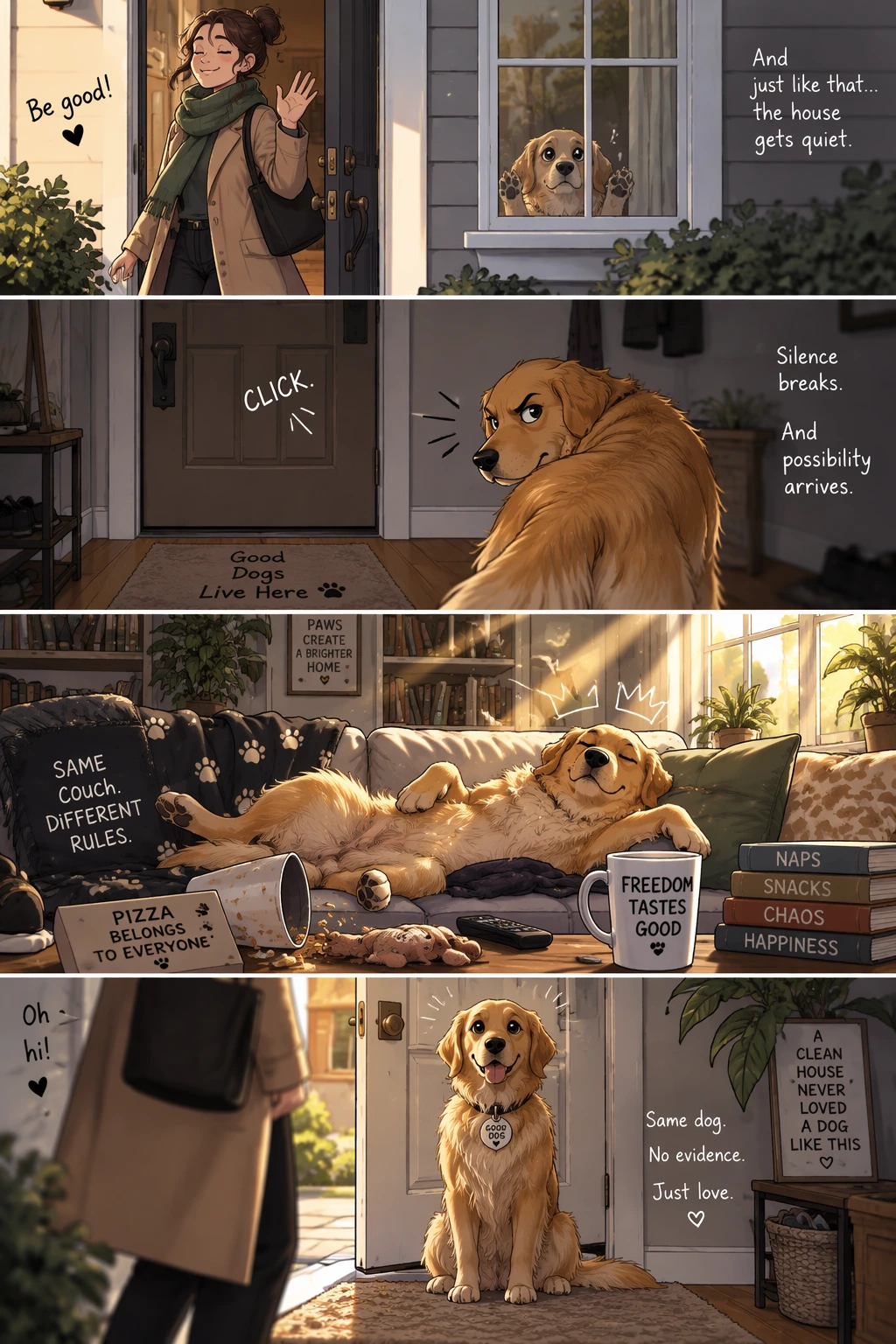
For story-to-comic generation, define the narrative as a sequence of clear visual beats, one per panel. Keep descriptions concrete and action-focused so the model can translate the story into readable, well-paced panels.
The example uses size="1024x1536", quality="medium".
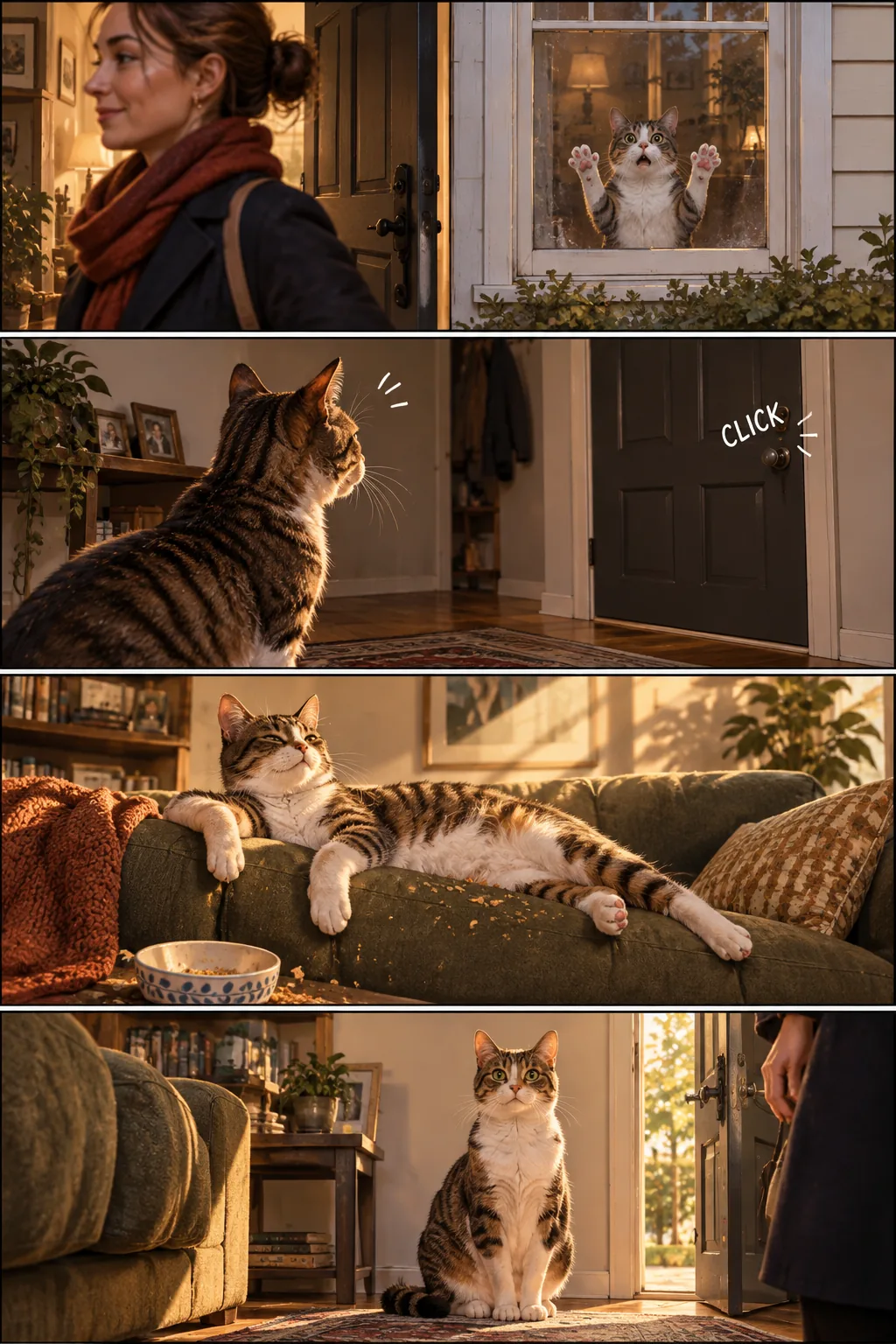
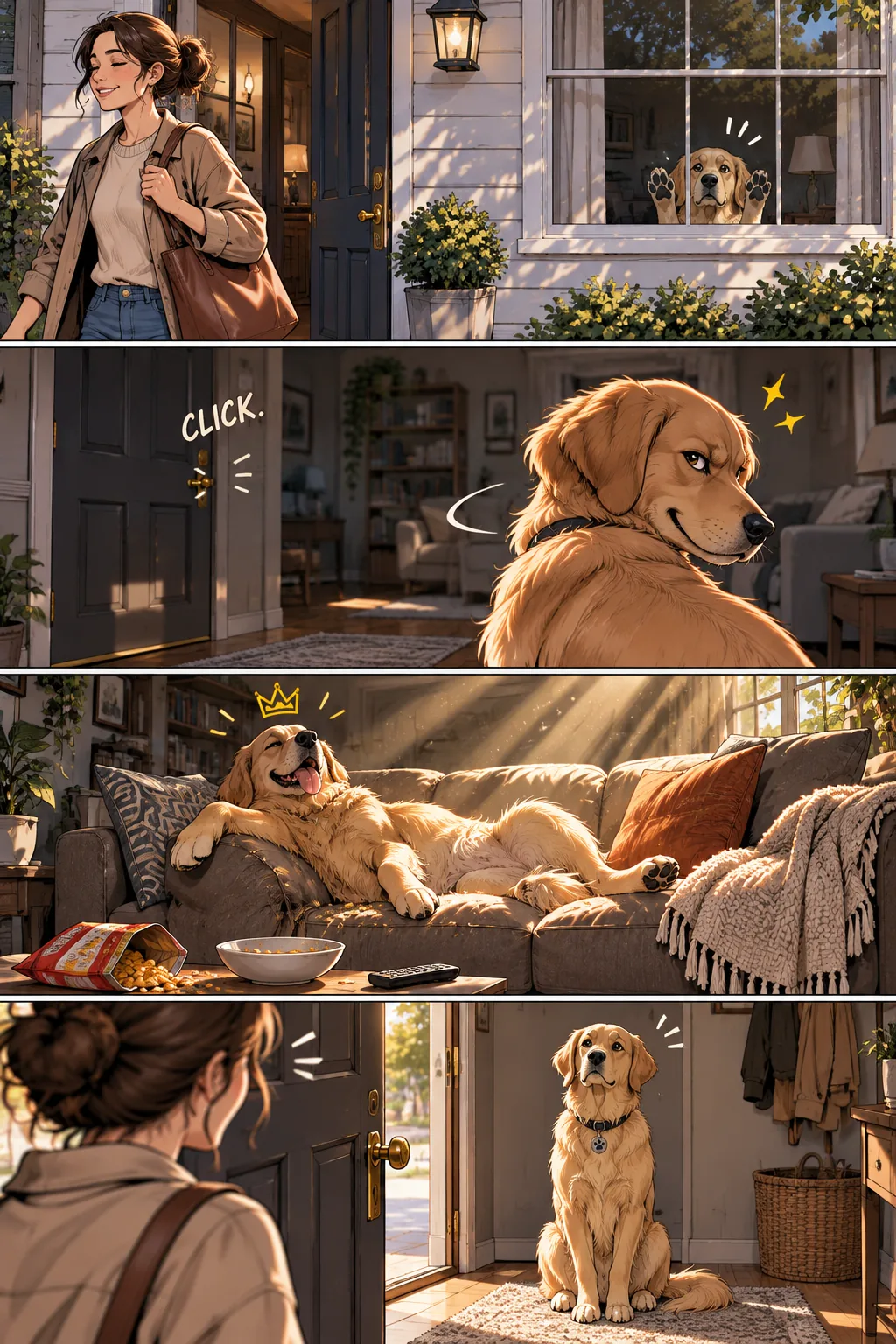
Create a short vertical comic-style reel with 4 panels.
Panel 1: The owner leaves through the front door. The pet is framed in the window behind them, small against the glass, eyes wide, paws pressed high, the house suddenly quiet.
Panel 2: The door clicks shut. Silence breaks. The pet slowly turns toward the empty house, posture shifting, eyes sharp with possibility.
Panel 3: The house transformed. The pet sprawls across the couch like it owns the place, crumbs nearby, sunlight cutting across the room like a spotlight.
Panel 4: The door opens. The pet is seated perfectly by the entrance, alert and composed, as if nothing happened.
Create an interface preview
Interface previews work best when you describe the product as if it already exists. Focus on layout, hierarchy, spacing, and real interface elements, and avoid concept art language so the result looks like a usable, shipped interface rather than a design sketch.
The example uses size="1024x1536", quality="medium".
Create a realistic mobile app UI mockup for a local farmers market.
Show today’s market with a simple header, a short list of vendors with small photos and categories, a small “Today’s specials” section, and basic information for location and hours.
Design it to be practical, and easy to use. White background, subtle natural accent colors, clear typography, and minimal decoration.
It should look like a real, well-designed, beautiful app for a small local market.
Place the UI mockup in an iPhone frame.


Create scientific and educational visuals
Scientific and educational visuals are strong fits for biology, chemistry, classroom explanations, flat scientific icon systems, diagrams, and learning assets. Prompt them like an instructional design brief: define the audience, lesson objective, visual format, required labels, and scientific constraints. For best results, ask for a clean, flat visual system with consistent icon style, clear arrows, readable labels, and enough white space for students to scan the concept quickly.
When accuracy matters, list the required components explicitly and say what should not be included. Use quality="high" for dense labels, diagrams, or assets that will be used in slides or course materials.
The example uses size="1536x1024", quality="high".
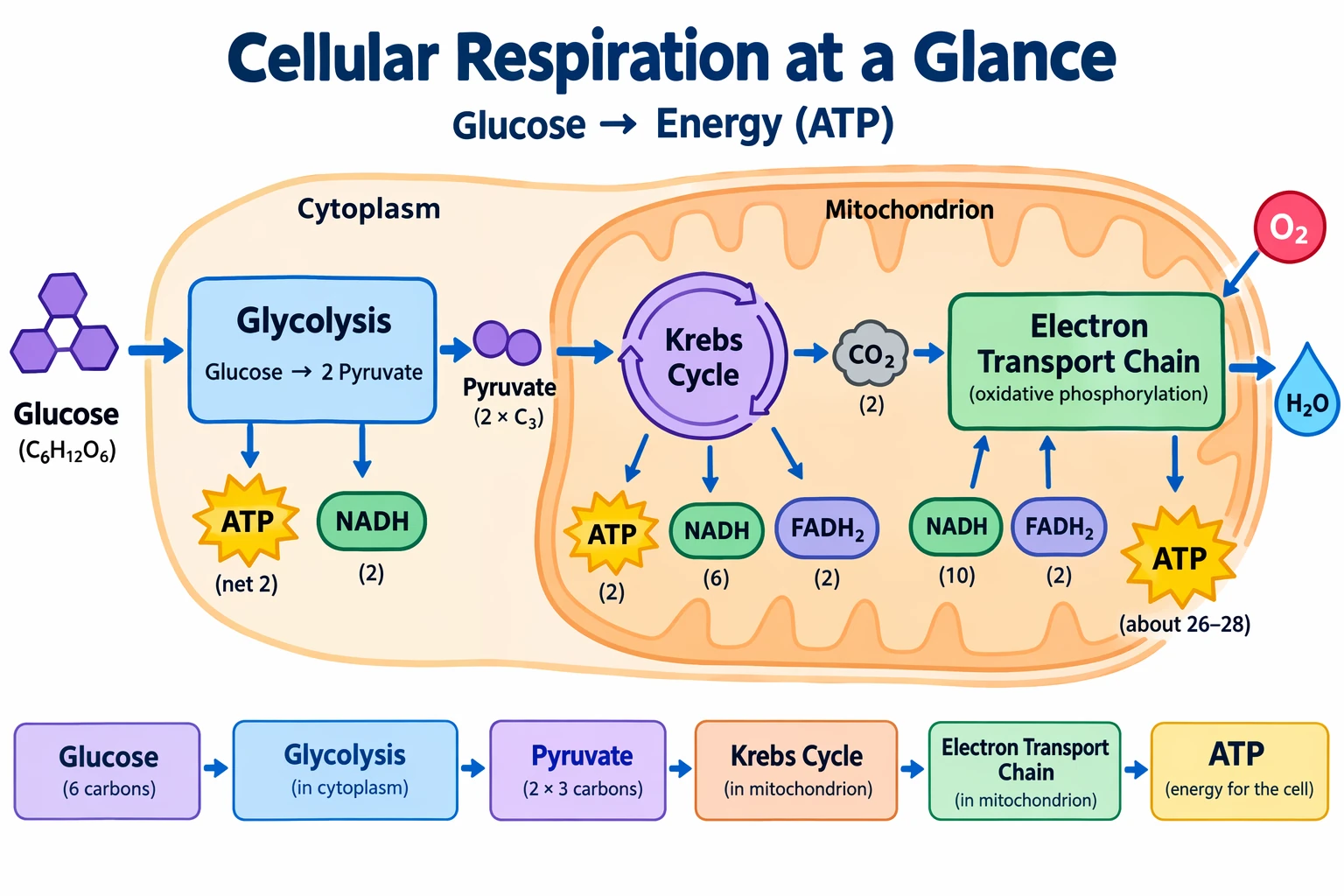
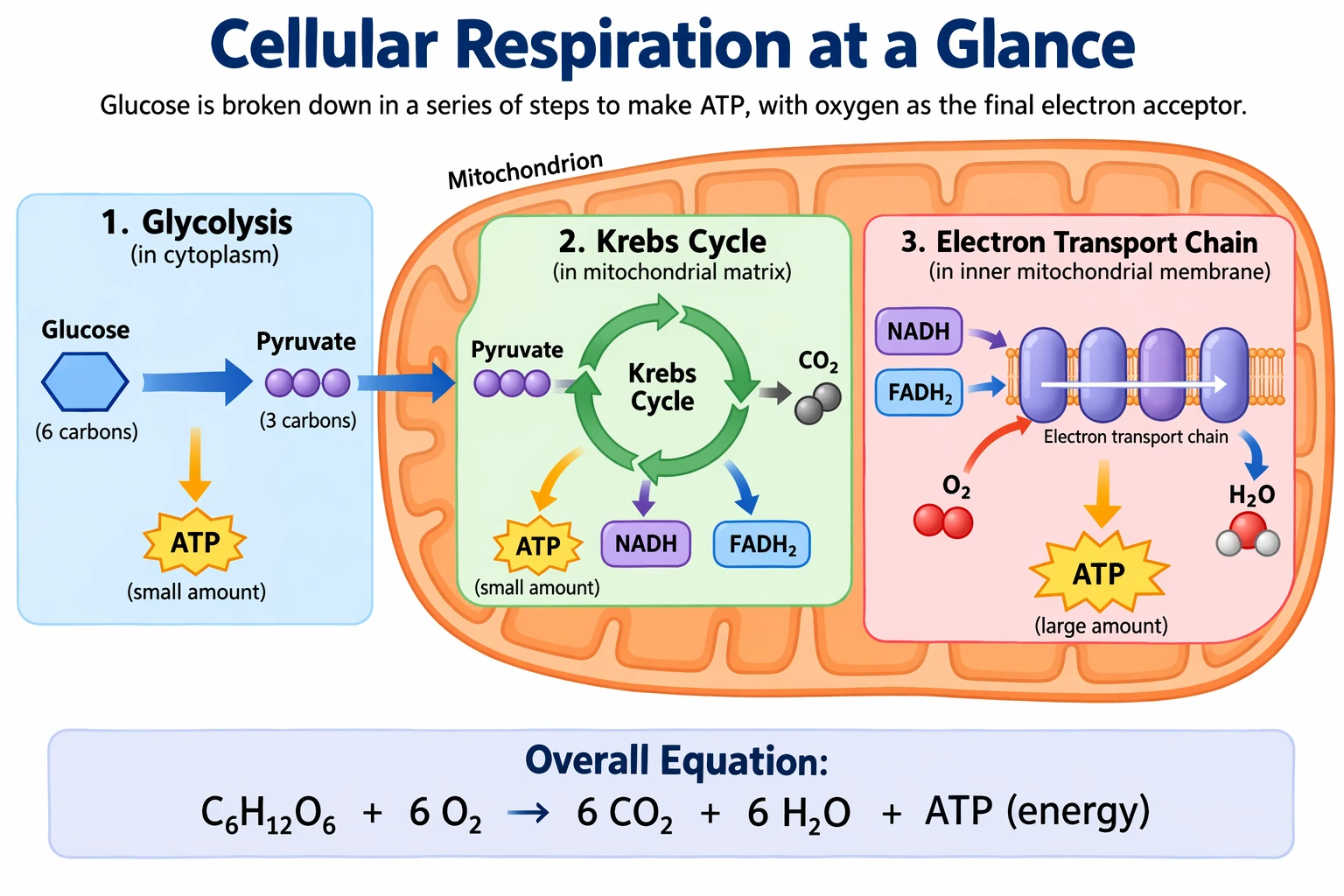
Create a simple biology diagram titled "Cellular Respiration at a Glance" for high school students.

Show how glucose turns into energy inside a cell. Include glycolysis, the Krebs cycle, and the electron transport chain.
Use arrows to connect the steps, and label the main molecules: glucose, pyruvate, ATP, NADH, FADH2, CO2, O2, and H2O.
Make it look like a clean classroom handout or slide, with a white background, simple icons, clear labels, and easy-to-read text.

Avoid tiny text, extra decoration, or anything that makes the diagram hard to understand.


Build slides, diagrams, and charts
Productivity visuals work best when the prompt is written like an artifact spec rather than an illustration request. Name the exact deliverable (slide, workflow diagram, chart, page image), define the canvas and hierarchy, provide the real text or data, and describe the visual language. These prompts should include practical constraints: readable typography, polished spacing, no decorative clutter, and no generic stock-photo treatment.
For slides, charts, and diagram-heavy assets, include the numbers and labels directly in the prompt. Use a landscape size for deck-style outputs and quality="high" when the image contains small text, legends, axes, or footnotes.
The figures and citations in this prompt are fictional. Check each number and any extra percentage the model adds before using a generated slide.
The example uses size="1536x864", quality="high".
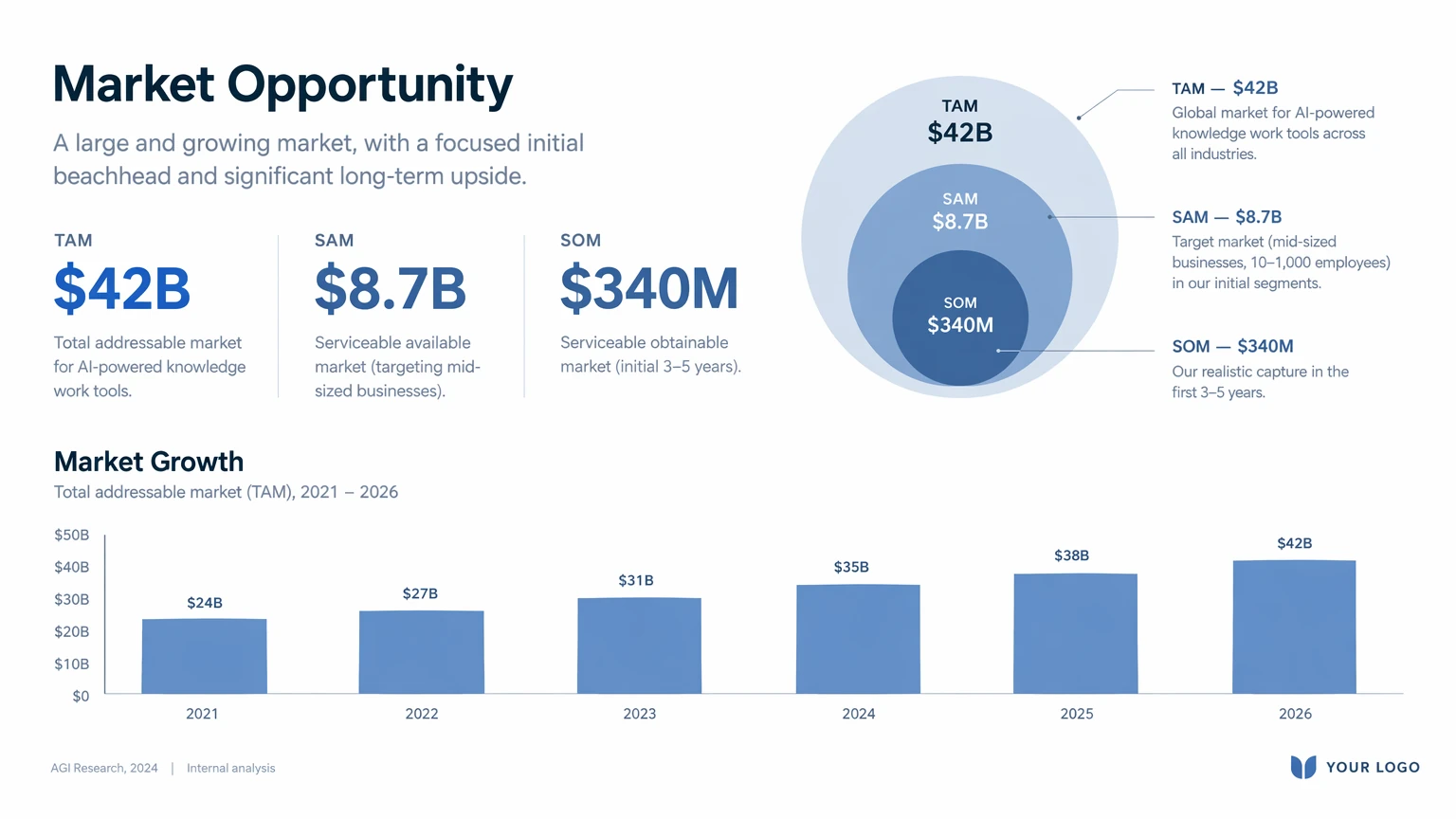
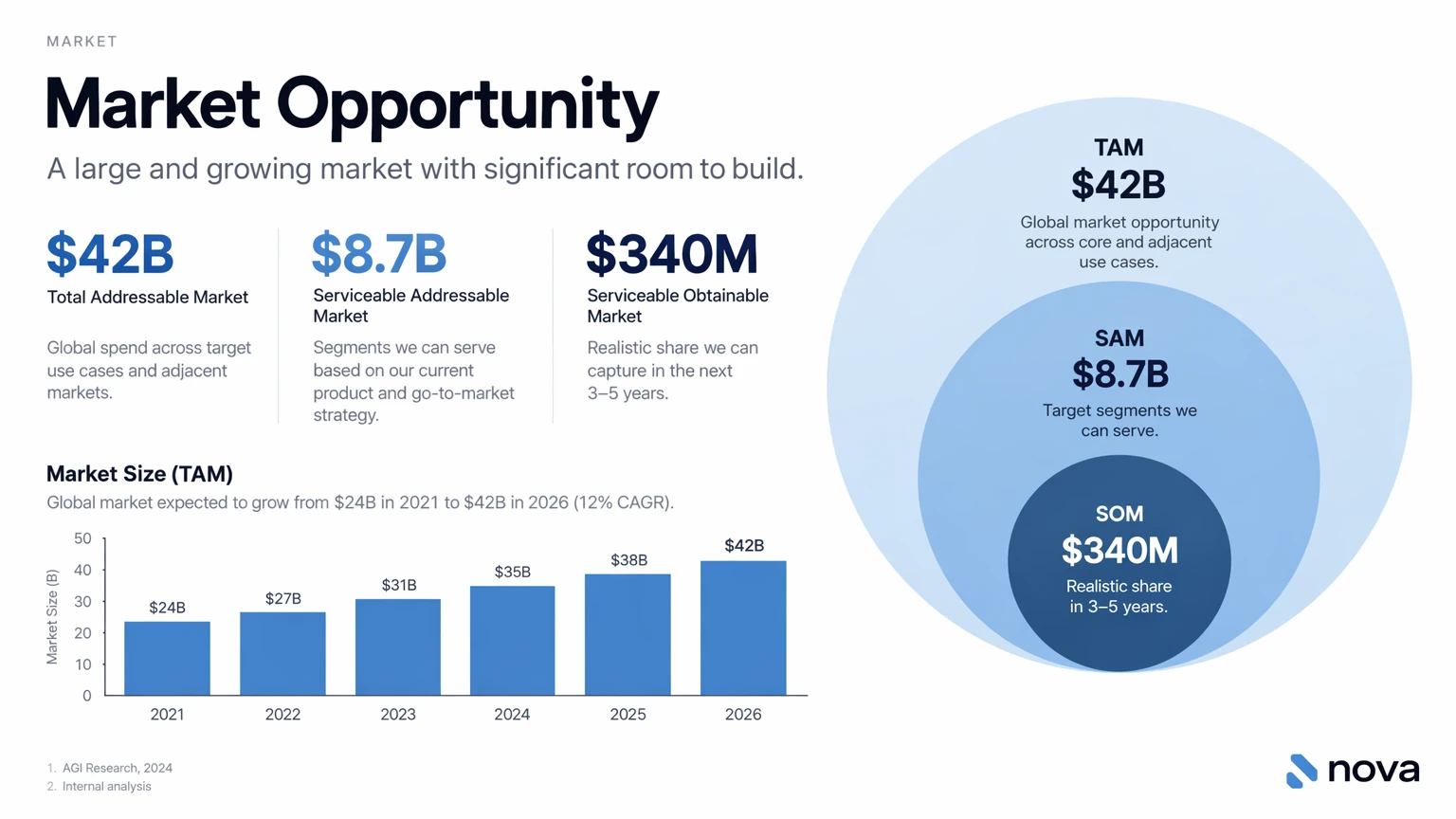
Create one pitch-deck slide titled **"Market Opportunity"** that feels like a real Series A fundraising slide from a YC-backed startup.

Use a clean white background, modern sans-serif typography like Inter, and a crisp, minimal layout. The slide should include:

* A TAM/SAM/SOM concentric-circle diagram in muted blues and grays
* Specific, believable market sizing numbers:

  * **TAM:** $42B
  * **SAM:** $8.7B
  * **SOM:** $340M
* A clean bar chart below showing market growth from **2021 to 2026**, with a subtle upward trend
* Small footnotes: **"AGI Research, 2024"** and **"Internal analysis"**
* A company logo placeholder in the bottom-right corner

The design should look like it belongs in a deck that actually raised money: highly readable text, clear data hierarchy, polished spacing, and professional startup-style visual language.

Avoid clip art, stock photography, gradients, shadows, decorative elements, or anything that feels generic or overdesigned.


Edit images
Use client.images.edit with the referenced input images. For local edits that require a mask, see editing with a mask.
Guide an edit with markup
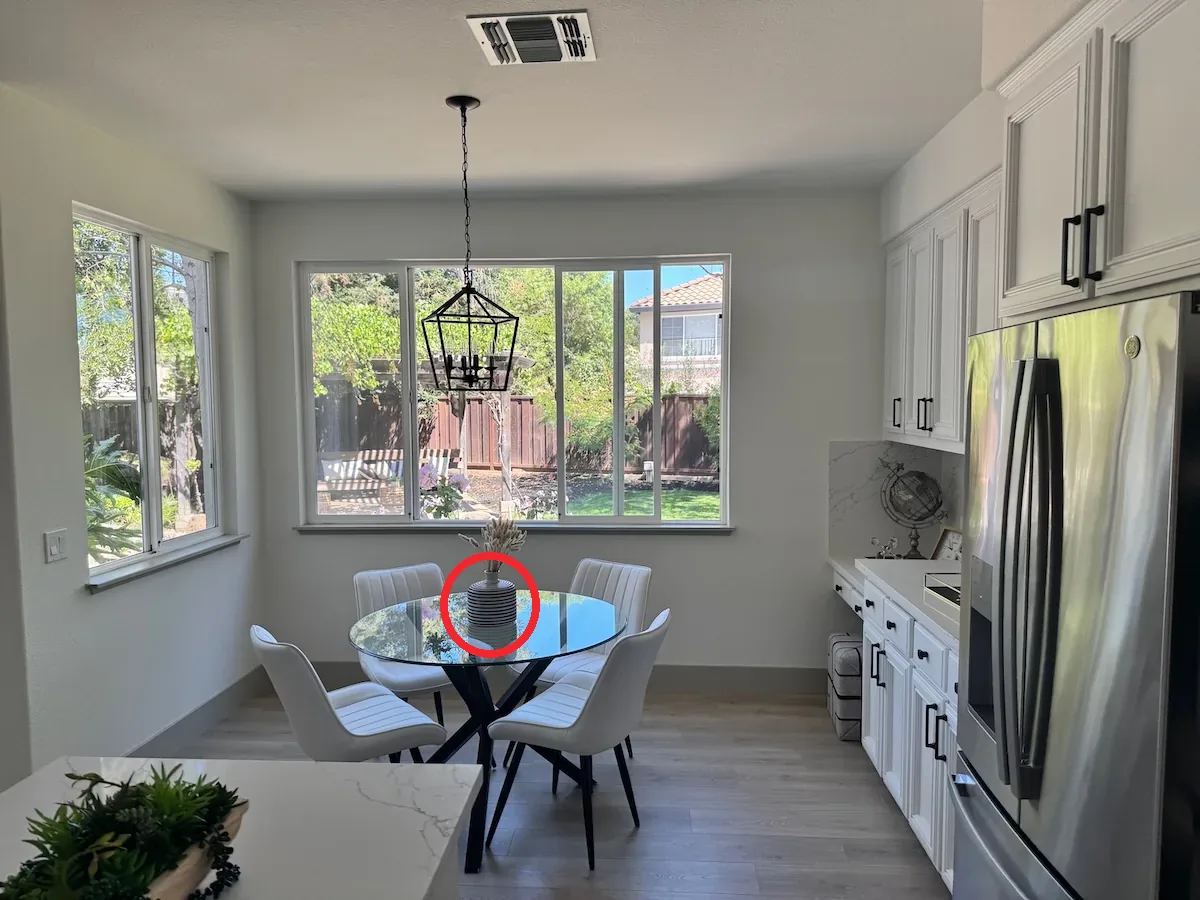
Draw a circle around the object you want to change, then describe the change in the prompt. This example targets the striped vase on a kitchen table.
Send two files in one multipart POST /v1/images/edits request. Use the original kitchen photo for image and the transparent circle overlay for markup. Both files are 1200 × 900 pixels. The preview shows the two files together.

The markup overlay applies only to the first input image. Any additional images serve as references. Omit mask when you send markup.
Both edits use quality="medium", size="auto", and PNG output.
Recolor the striped vase inside the red circle to solid cobalt blue ceramic. Keep its shape, the dried stems, and the rest of the kitchen unchanged. Remove the red circle from the finished photo.
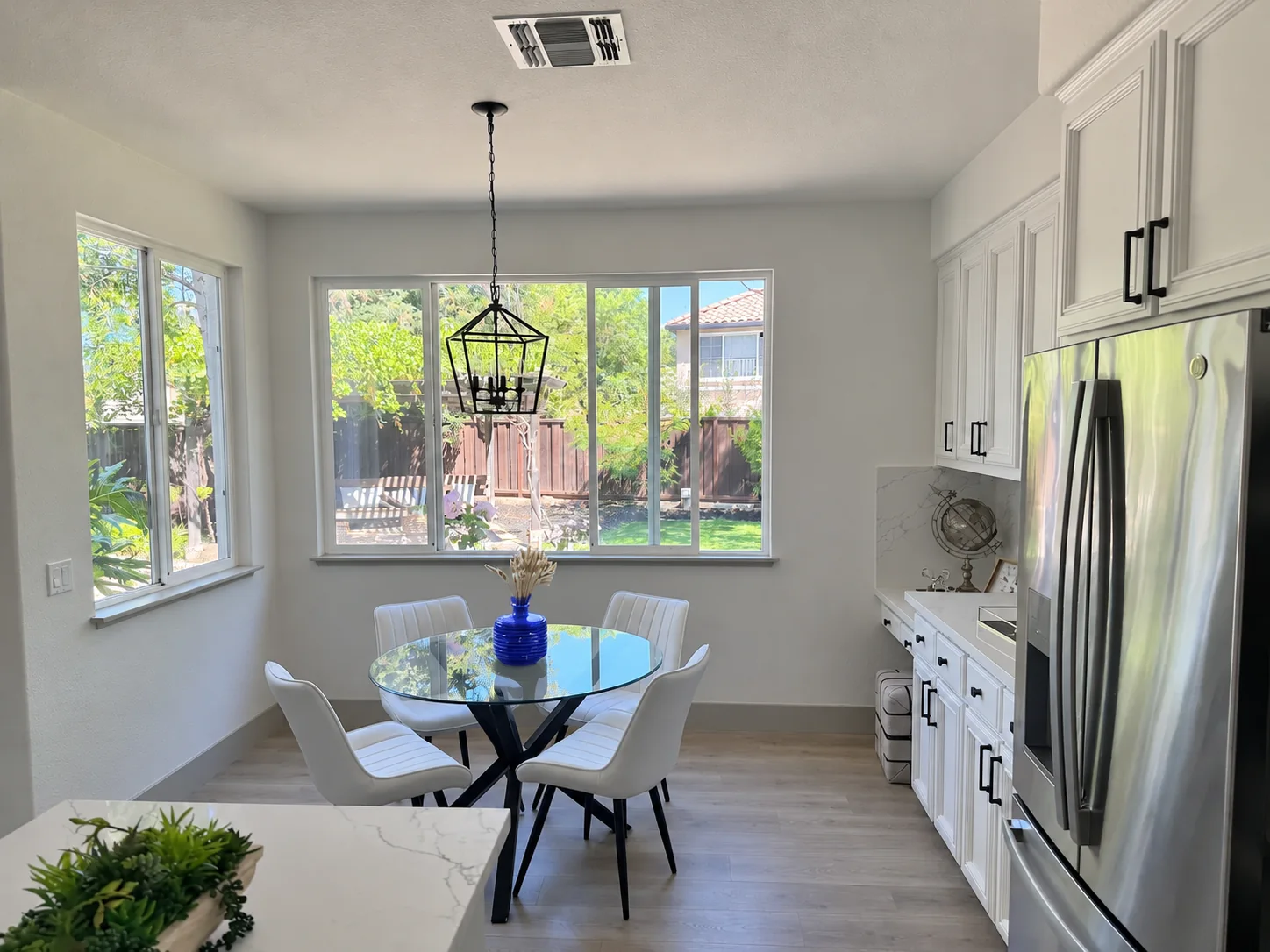

Both models turned the vase cobalt blue, kept the dried stems, and removed the red circle. Compare the rest of each image with the original to check for other changes.
Translate while preserving layout
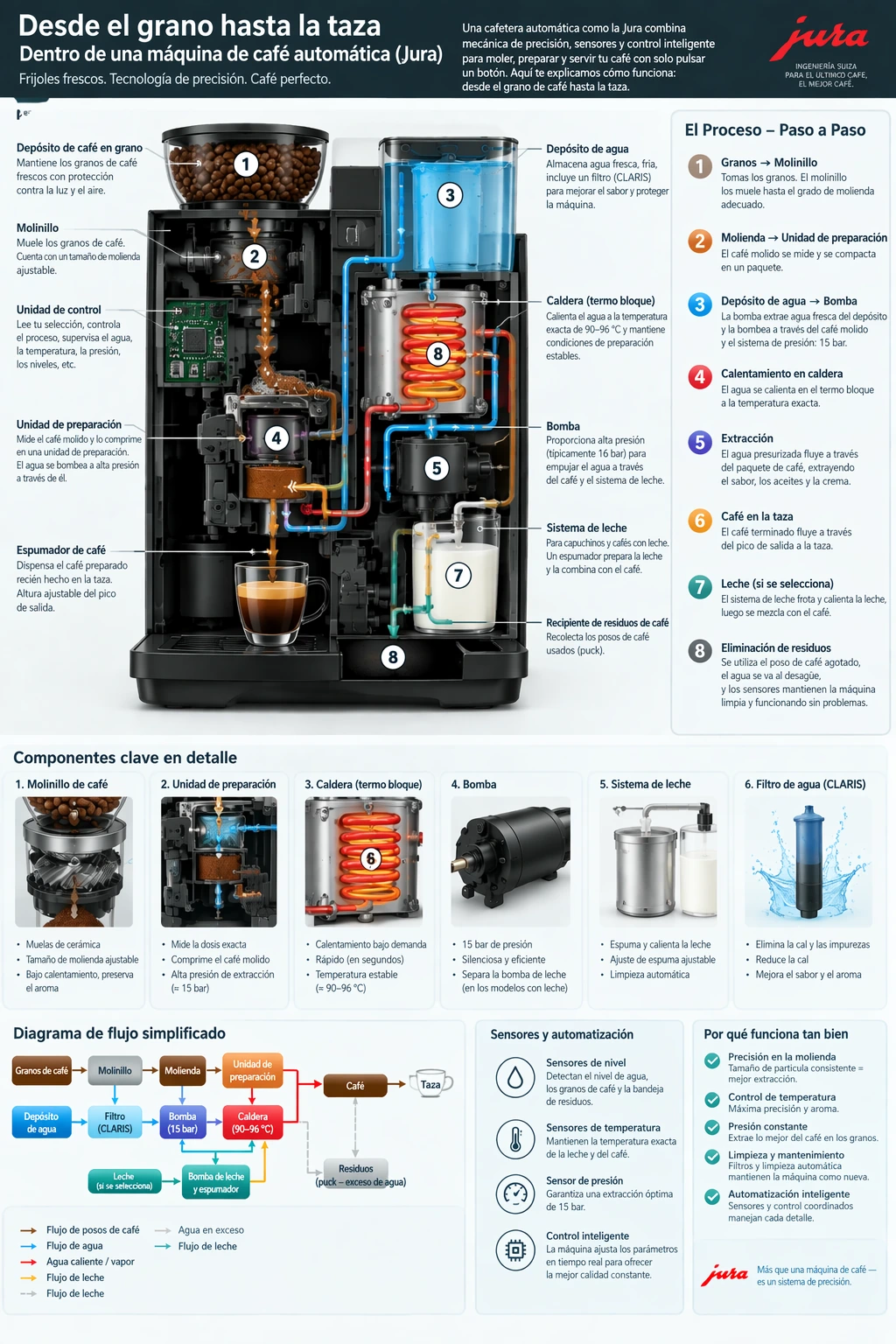
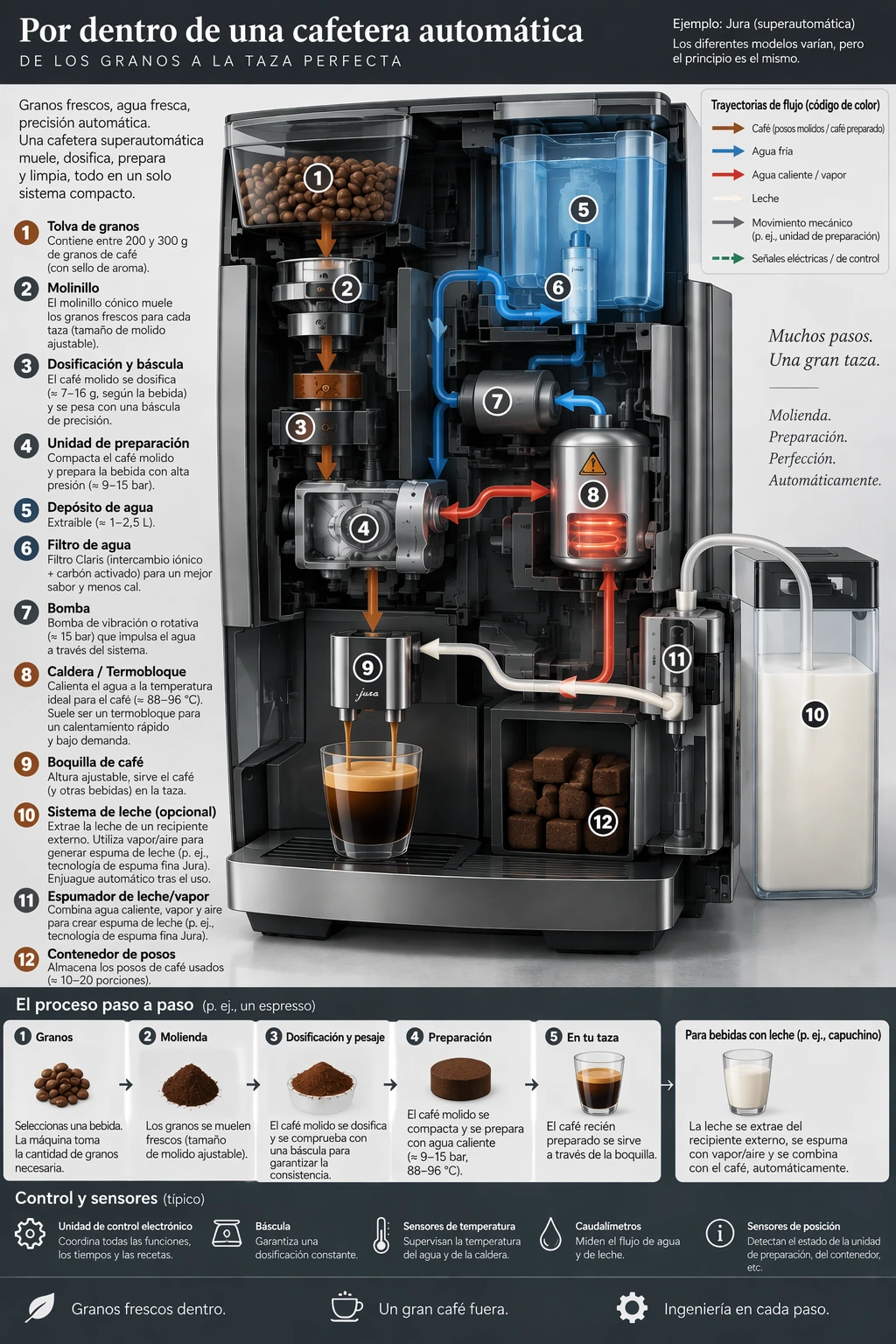
Use each model's coffee-machine diagram from Explain a process visually as the input. Ask to replace its text while keeping the design unchanged, then check the translation and any words left in the original language.
The example uses size="1024x1536", quality="high".
Translate the text in the infographic to Spanish. Do not change any other aspect of the image.


Transfer a visual style
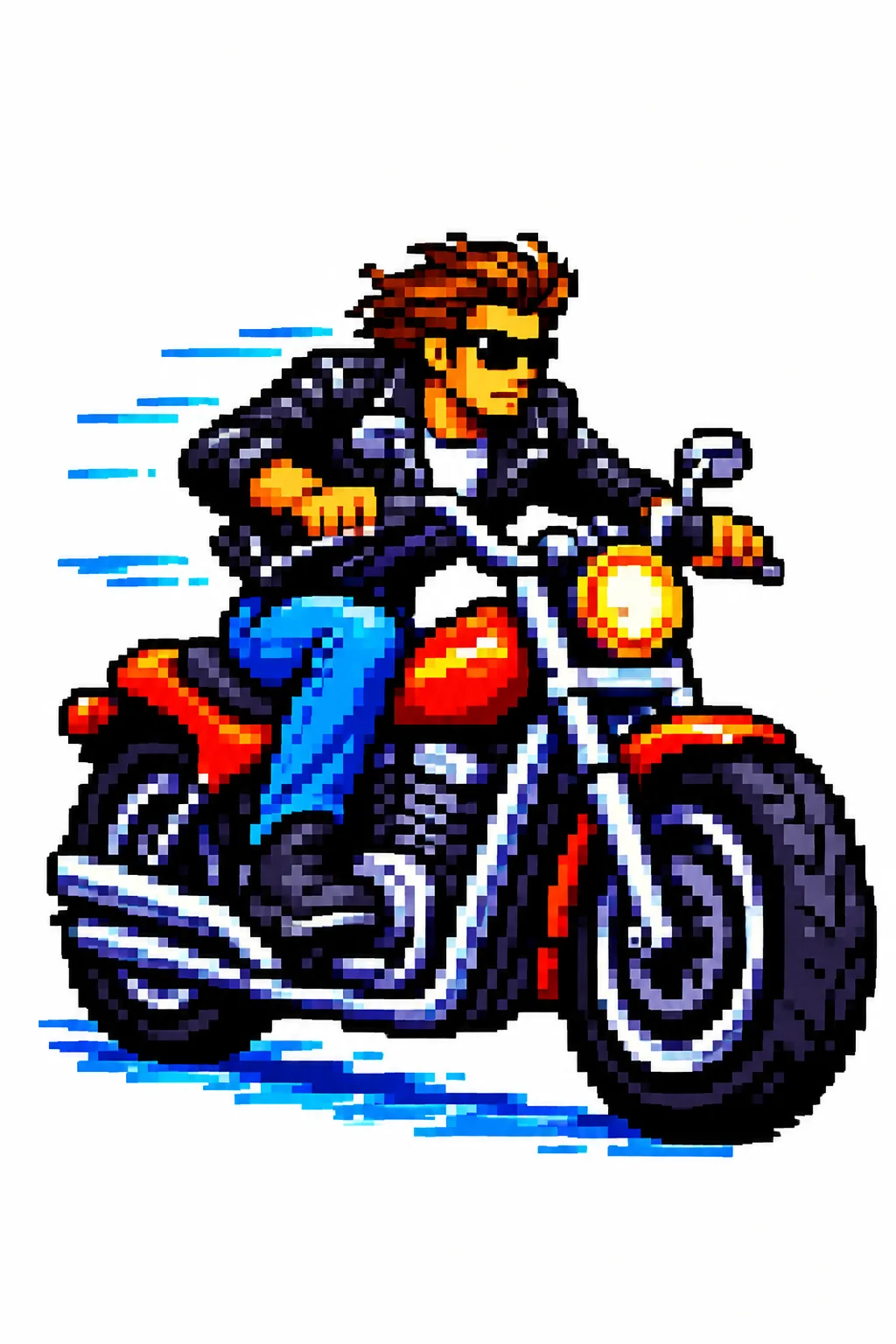
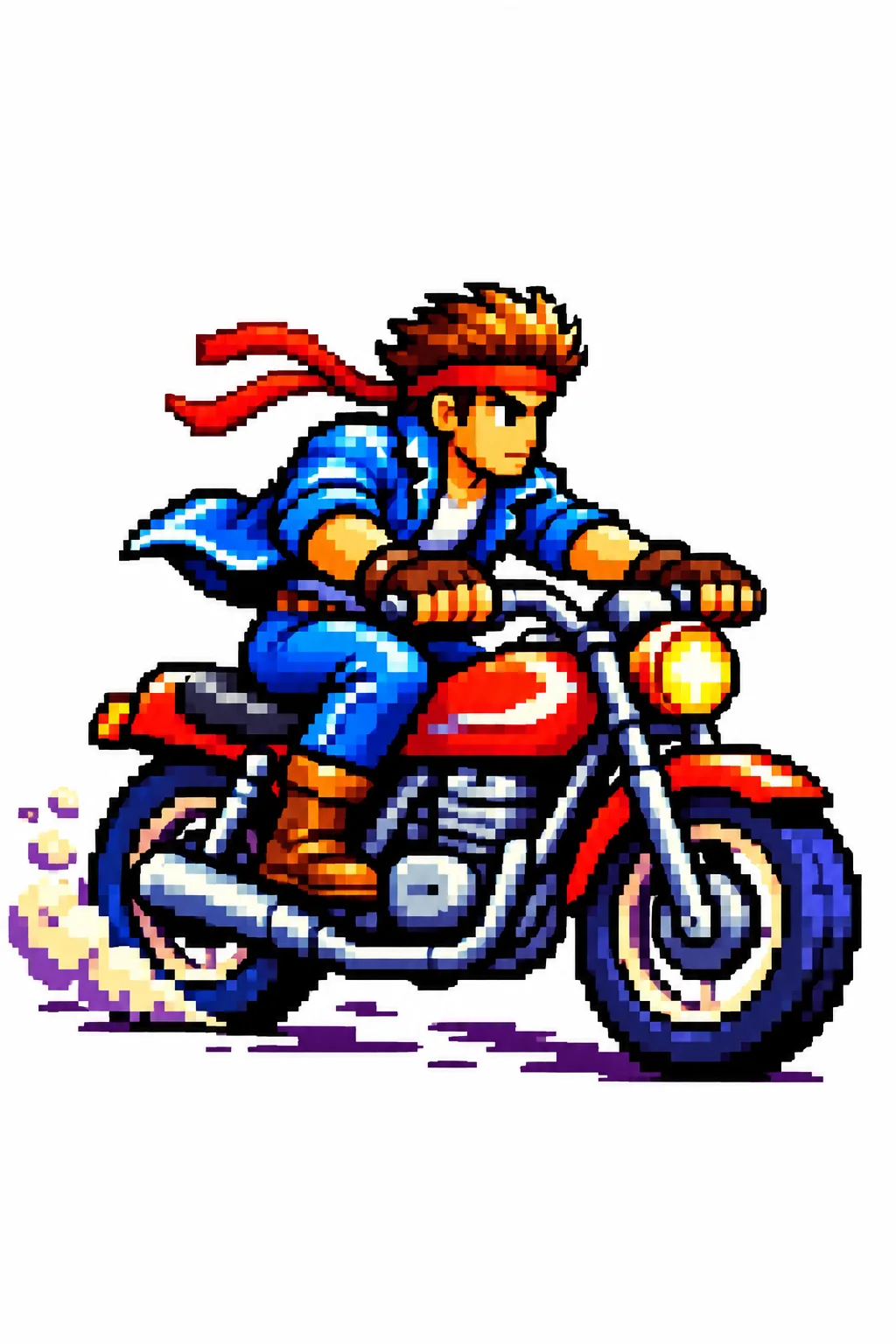
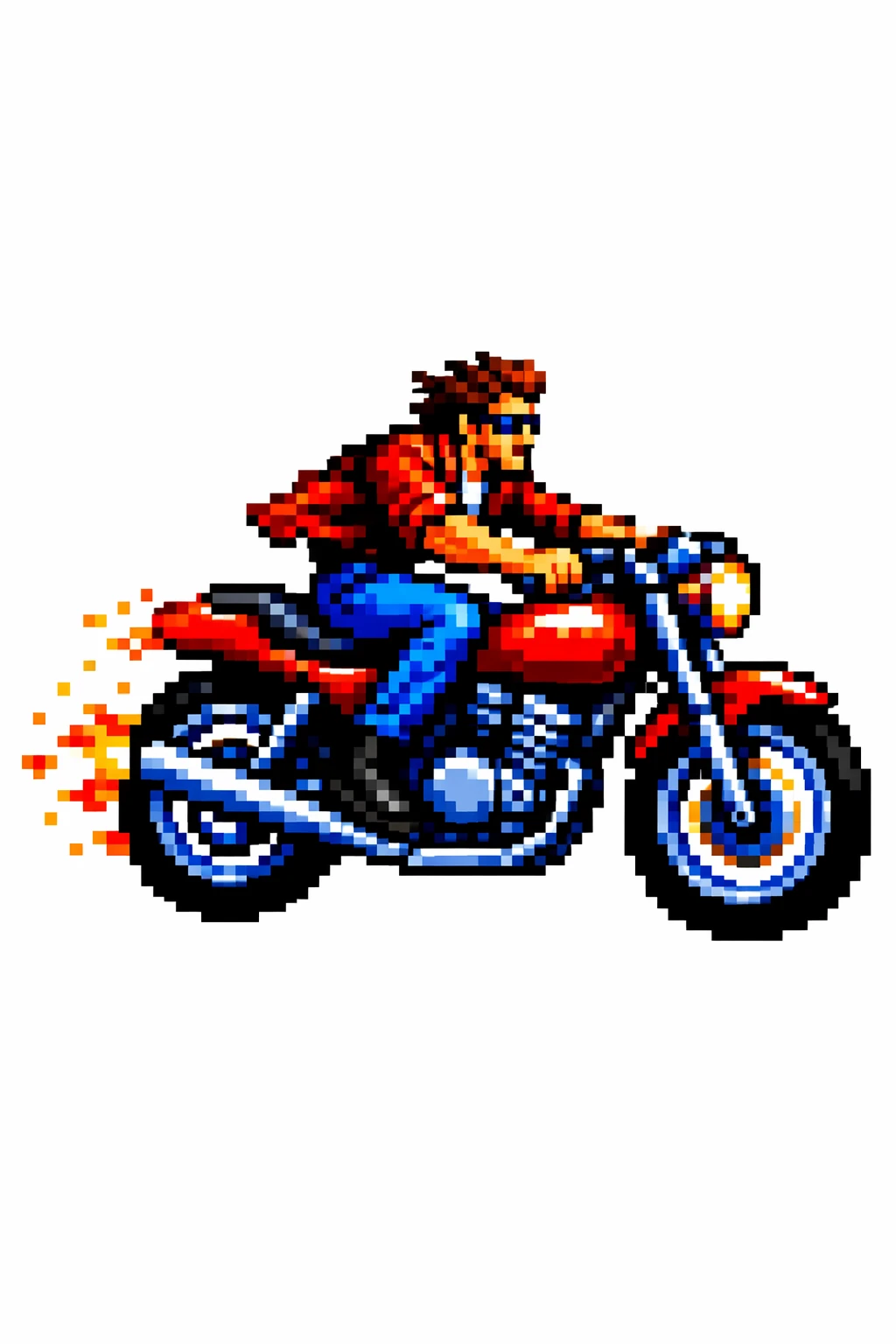
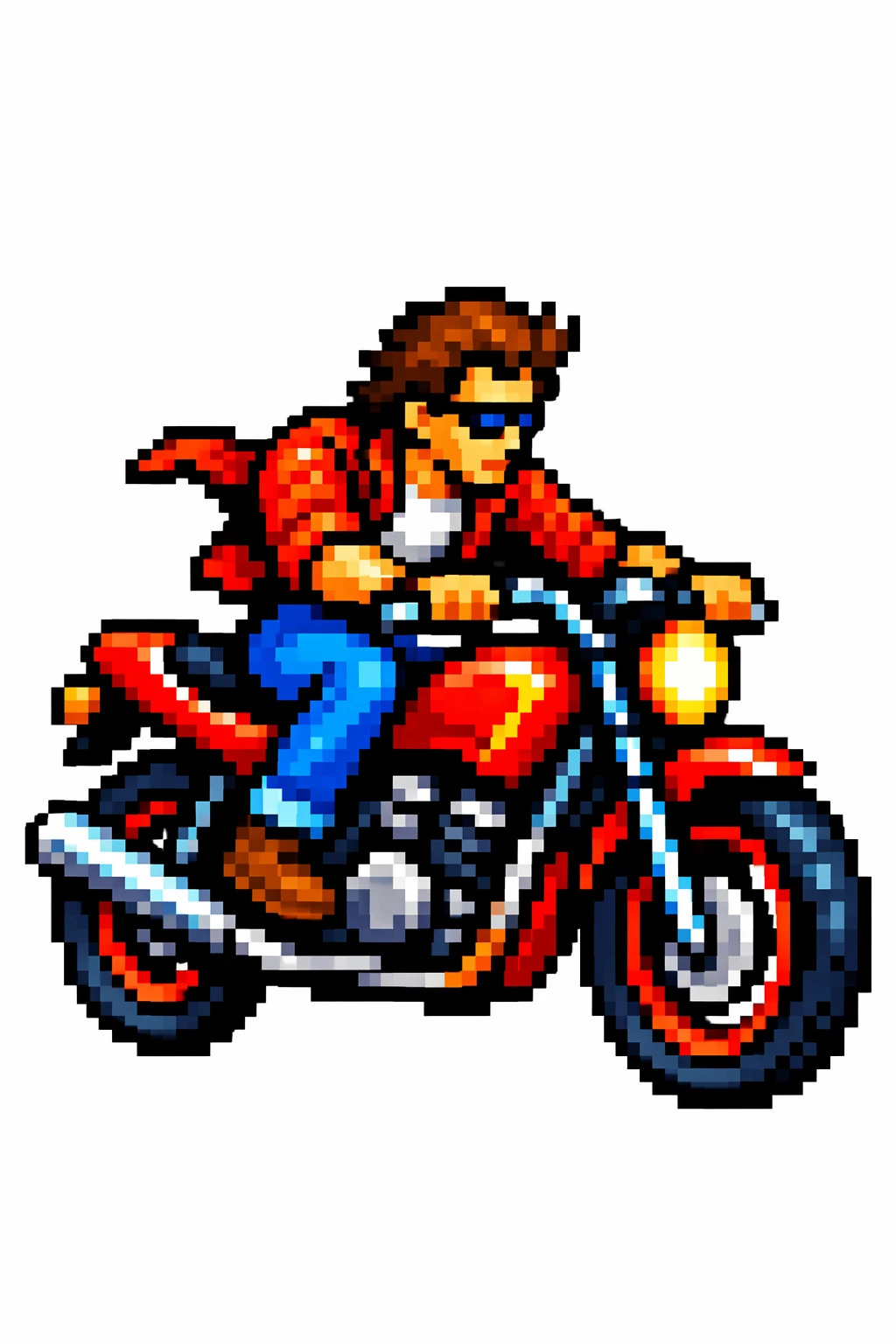
Assign the reference image a specific role: its palette, texture, or visual medium. Describe the new subject separately. Use the pixel-art image below as the input.
The example uses size="1024x1536", quality="medium".
Use the same style from the input image and generate a man riding a motorcycle on a white background.
Reference image

Preserve identity and change clothing
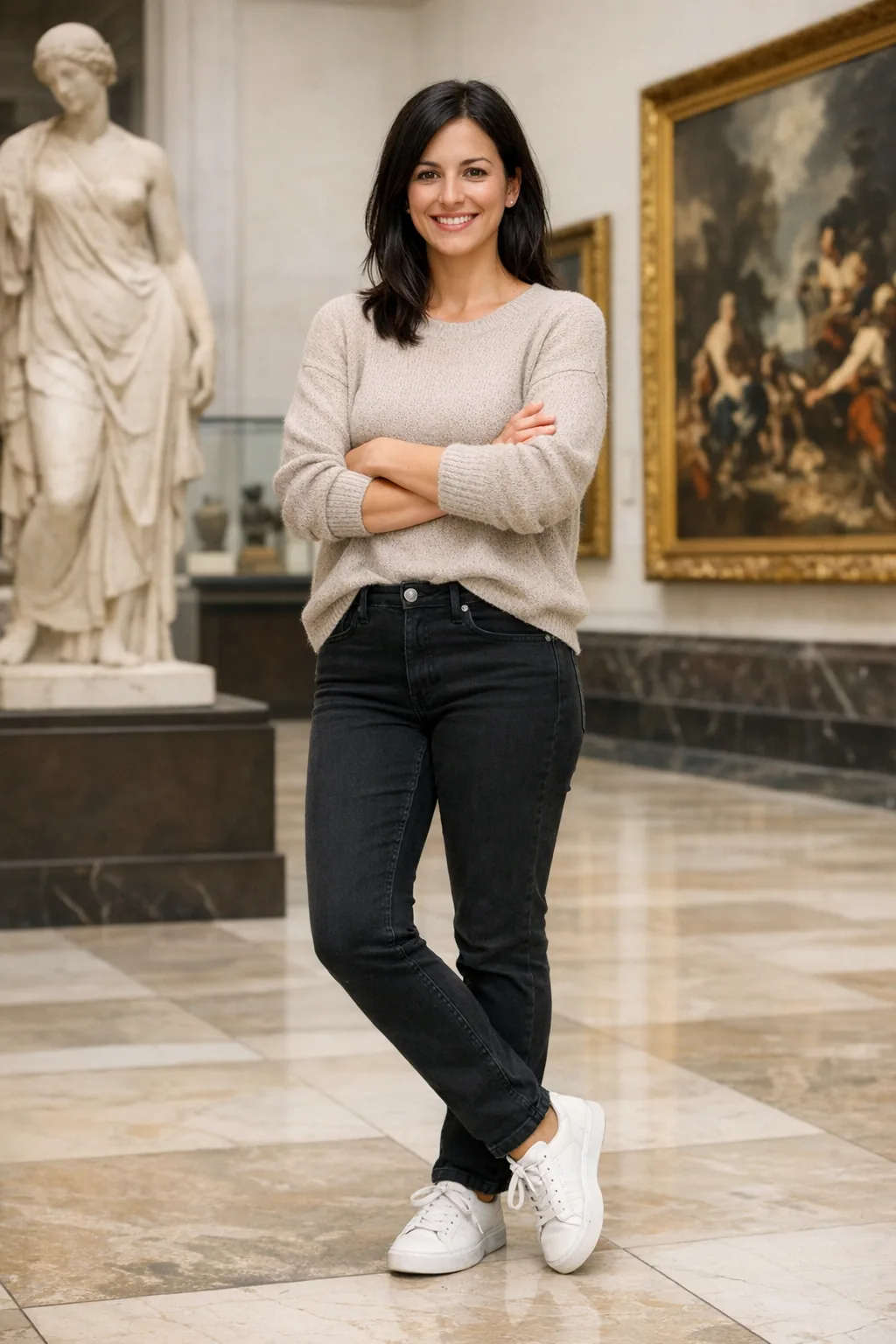
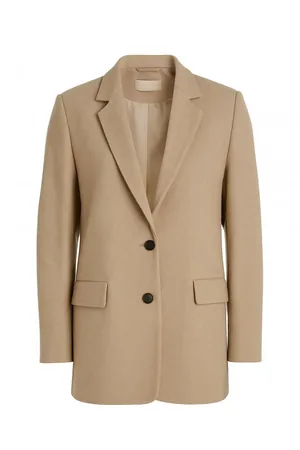
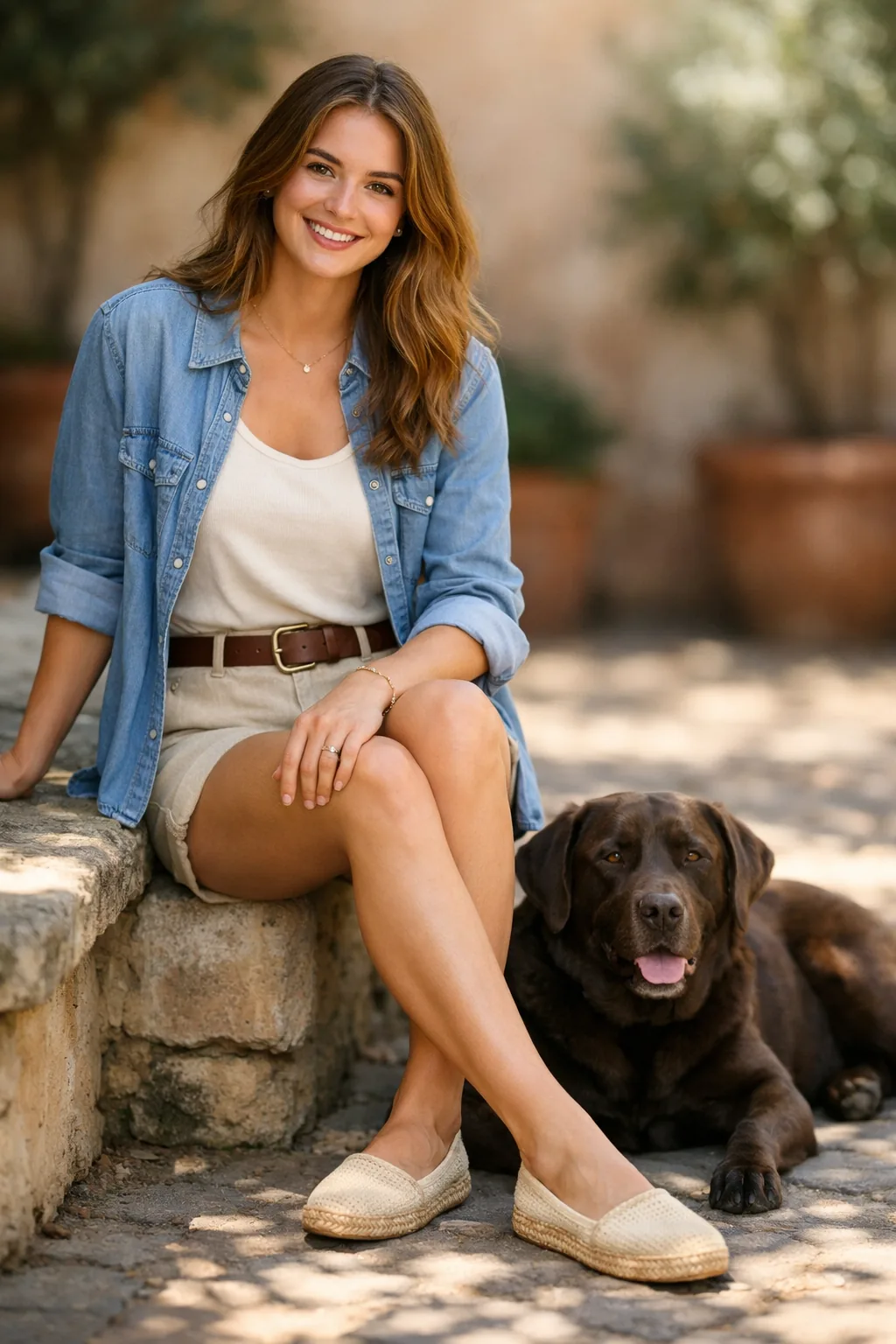
Use the person photograph and three clothing references below as inputs. State which aspects of the person must remain fixed, and allow only the clothing to change. This pattern also applies to edits where a product or object must remain recognizable.
The example uses size="1024x1536", quality="medium".
Edit the image to dress the woman using the provided clothing images. Do not change her face, facial features, skin tone, body shape, pose, or identity in any way. Preserve her exact likeness, expression, hairstyle, and proportions. Replace only the clothing, fitting the garments naturally to her existing pose and body geometry with realistic fabric behavior. Match lighting, shadows, and color temperature to the original photo so the outfit integrates photorealistically, without looking pasted on. Do not change the background, camera angle, framing, or image quality, and do not add accessories, text, logos, or watermarks.
Reference images
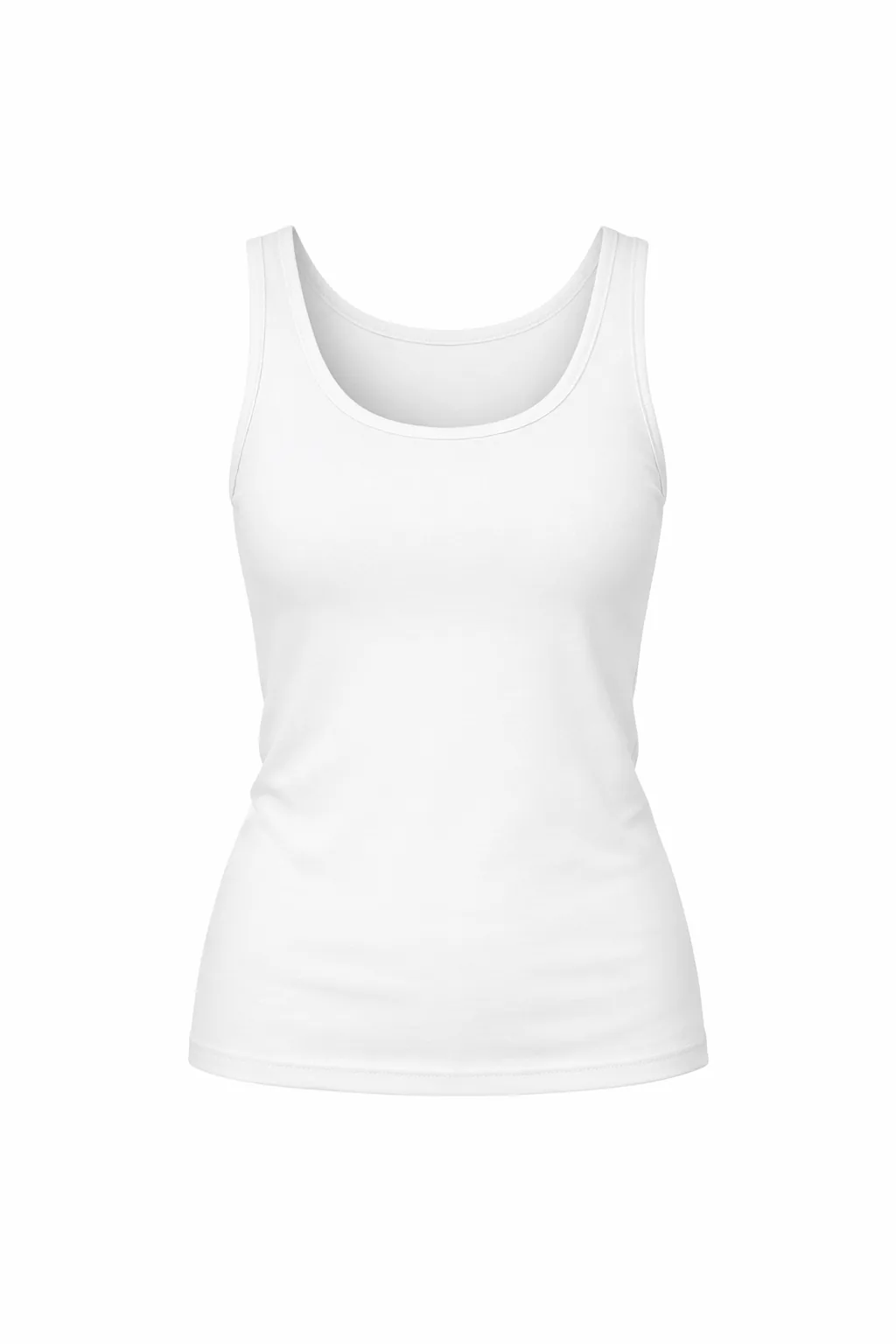
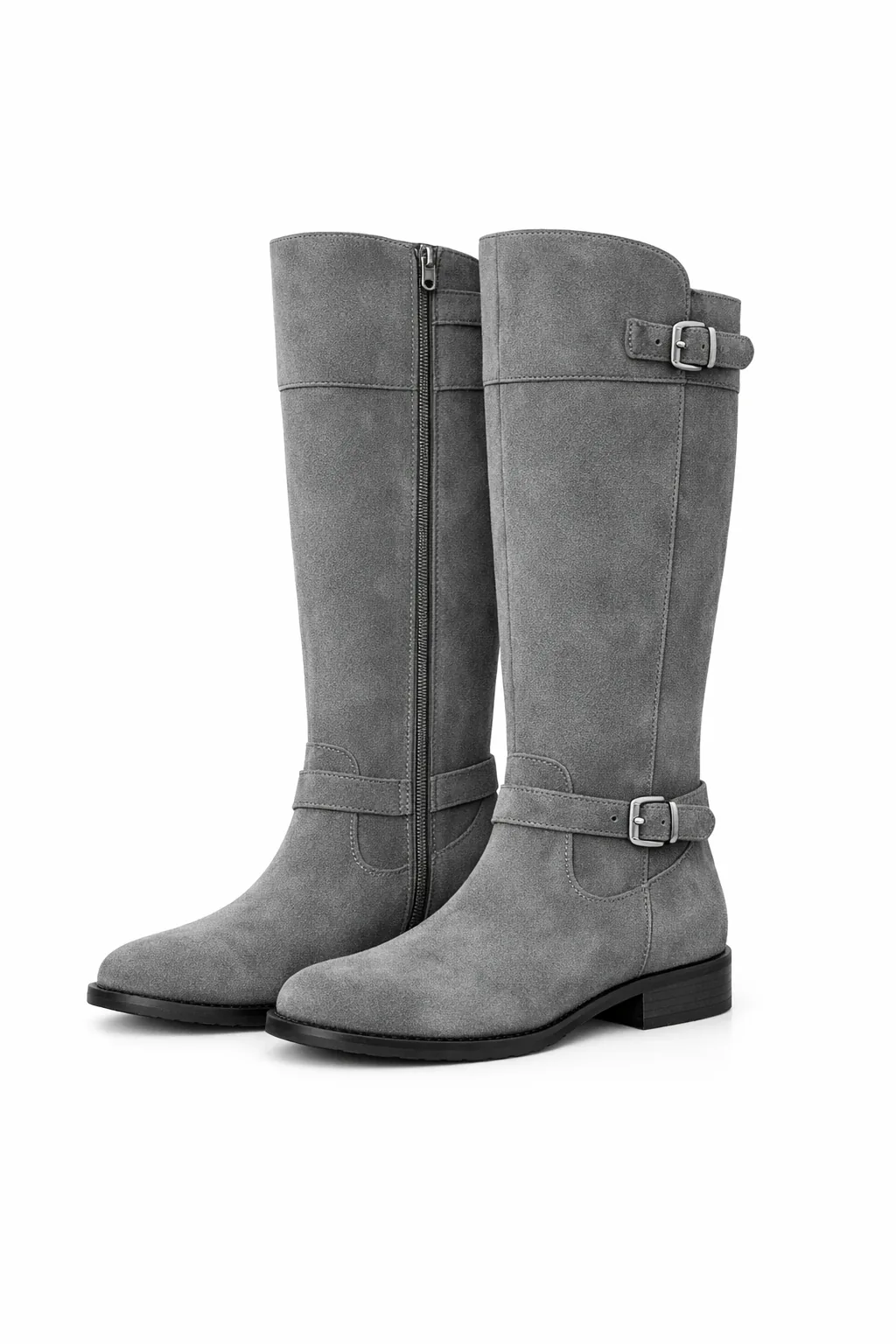

Combine references
Pass the scene photograph as image 1 and the dog photograph as image 2. Specify which element to move, its destination, and what must remain unchanged.
The example uses size="1024x1536", quality="medium".
Place the dog from the second image into the setting of image 1, right next to the woman, use the same style of lighting, composition and background. Do not change anything else.
Reference images
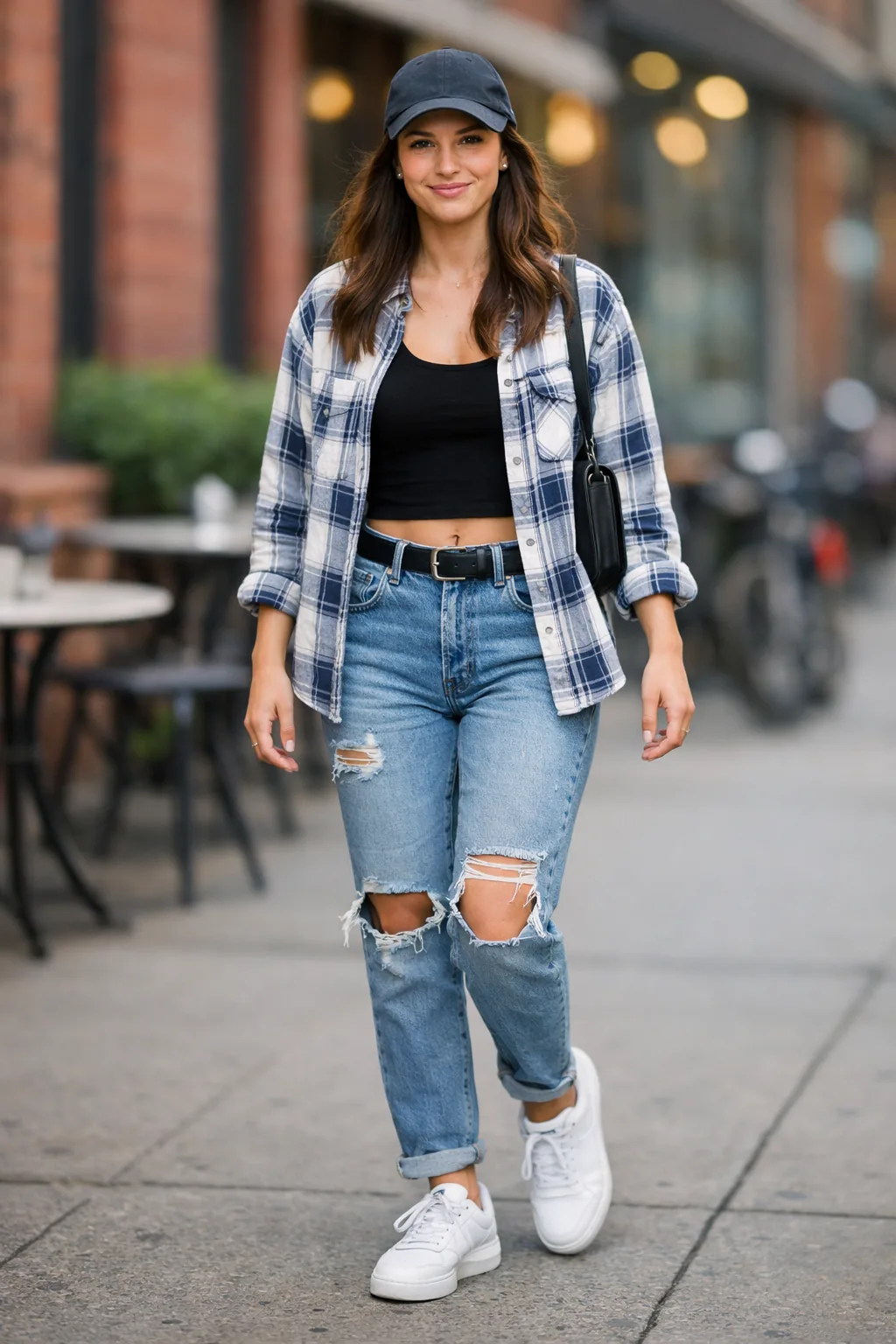


Create a transparent product cutout
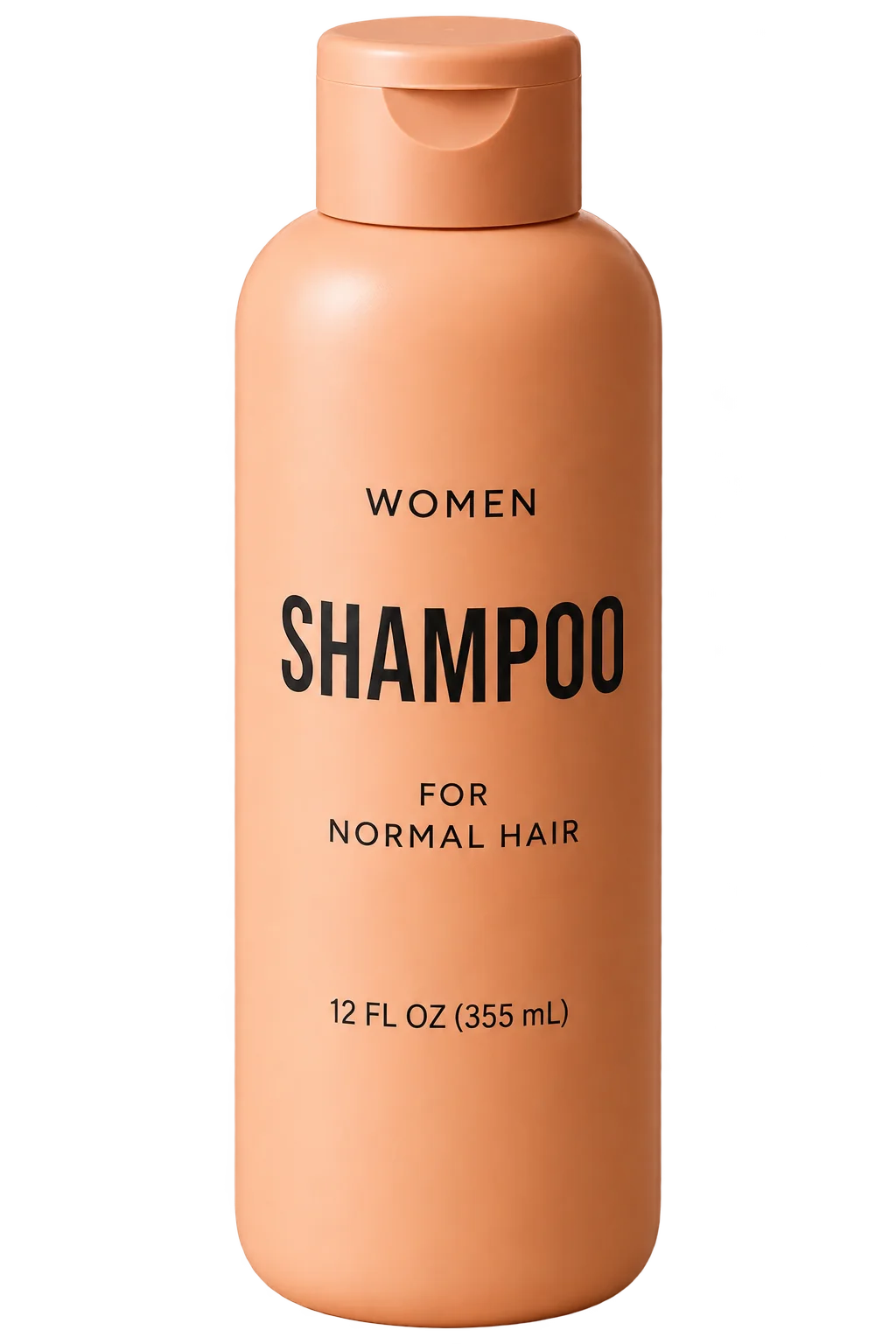
Request both an isolated subject in the prompt and background="transparent" in the API. Use PNG or WebP, preserve the returned alpha channel, and omit output_compression for PNG. A drawn checkerboard is not transparency. For subsequent edits, repeat the requirement to preserve the transparent background. Use the product photograph below as the input.
The example uses size="1024x1536", quality="medium", background="transparent", output_format="png".
Extract the product from the input image and isolate it on a fully transparent background.
Output: centered product, crisp silhouette, no halos/fringing.
Preserve product geometry and label legibility exactly.
Add only light polishing. Do not add a solid backdrop, checkerboard, scenery, or shadow.
Do not restyle the product; remove the background and preserve clean alpha transparency.
Reference image

Turn a drawing into a realistic image
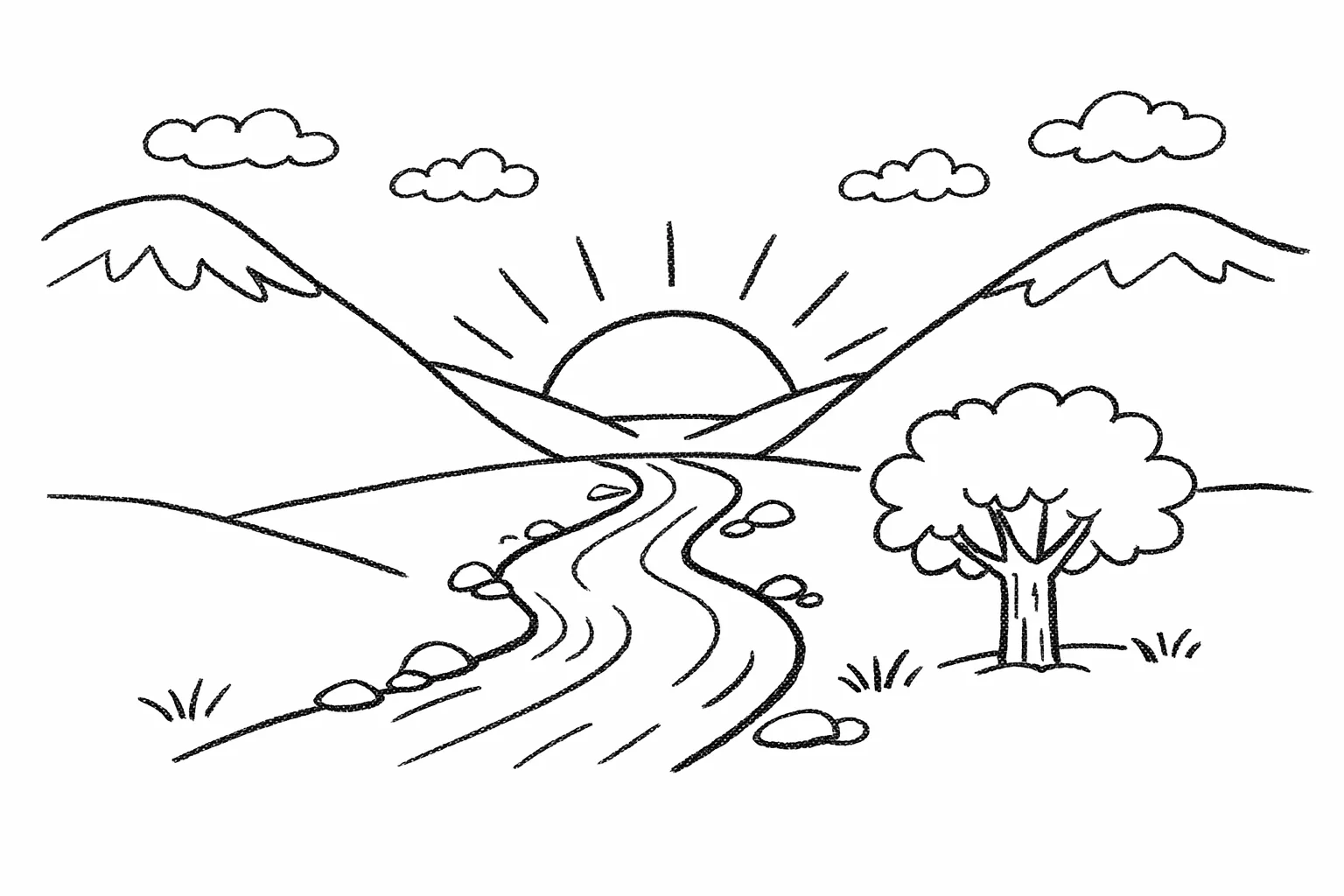
Sketch-to-render workflows are great for turning rough drawings into photorealistic concepts while keeping the original intent. Treat the prompt like a spec: preserve layout and perspective, then add realism by specifying plausible materials, lighting, and environment. Include "do not add new elements/text" to avoid creative reinterpretations.
The example uses size="1024x1536", quality="medium".
Turn this drawing into a photorealistic image.
Preserve the exact layout, proportions, and perspective.
Choose realistic materials and lighting consistent with the sketch intent.
Do not add new elements or text.
Reference image


Remove an object
Remove one object by naming it explicitly and preserving everything around it. Keep the person, pose, lighting, and composition unchanged so the edit stays local.
The example uses size="1024x1536", quality="medium".
Remove the flower from man's hand. Do not change anything else.
Reference image
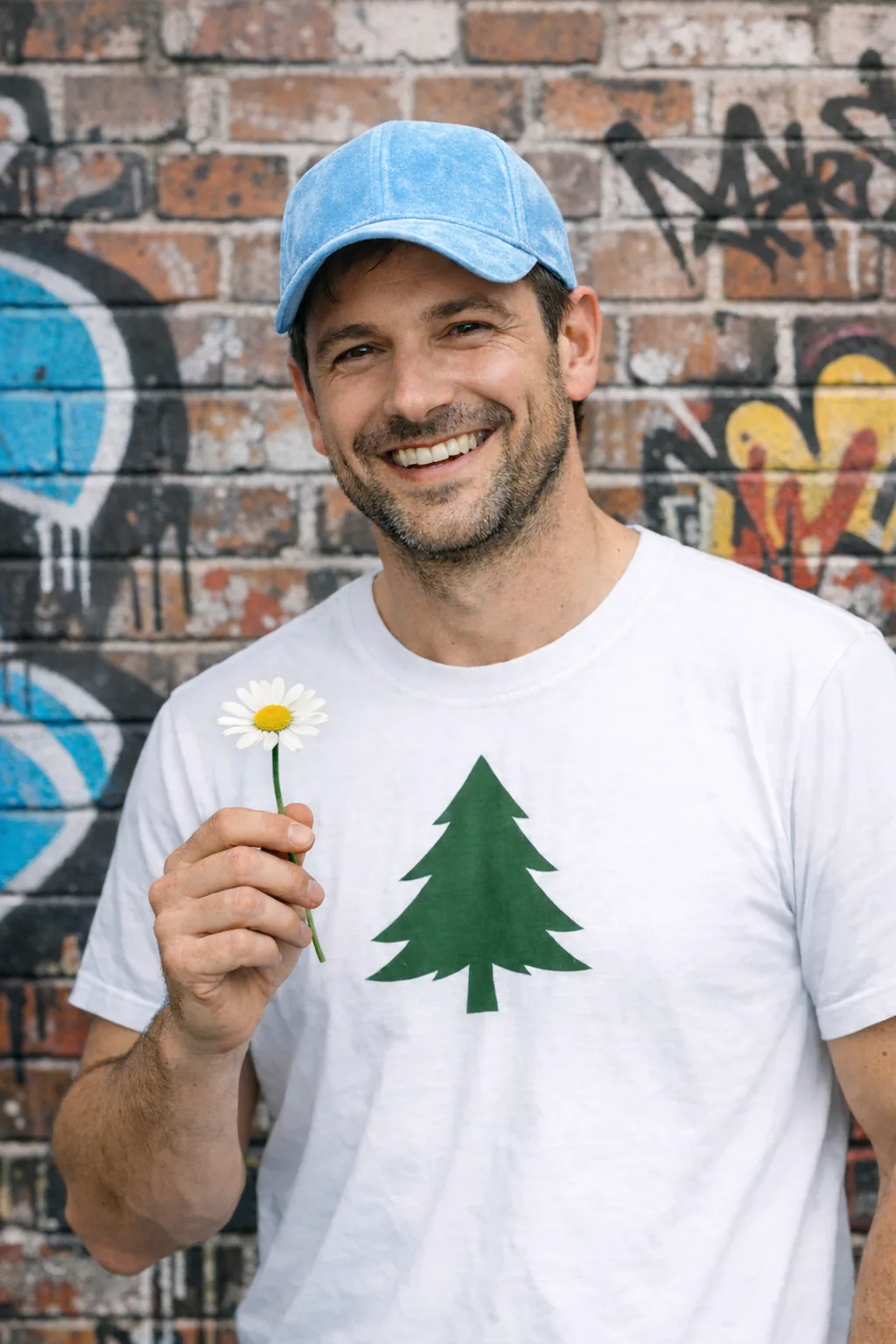


Insert a person into a scene
Insert a person into a new scene while preserving their identity. Specify natural lighting, believable detail, body framing, gaze, and interaction with the scene. State which facial features and proportions must remain unchanged. Omit input_fidelity from the edit request.
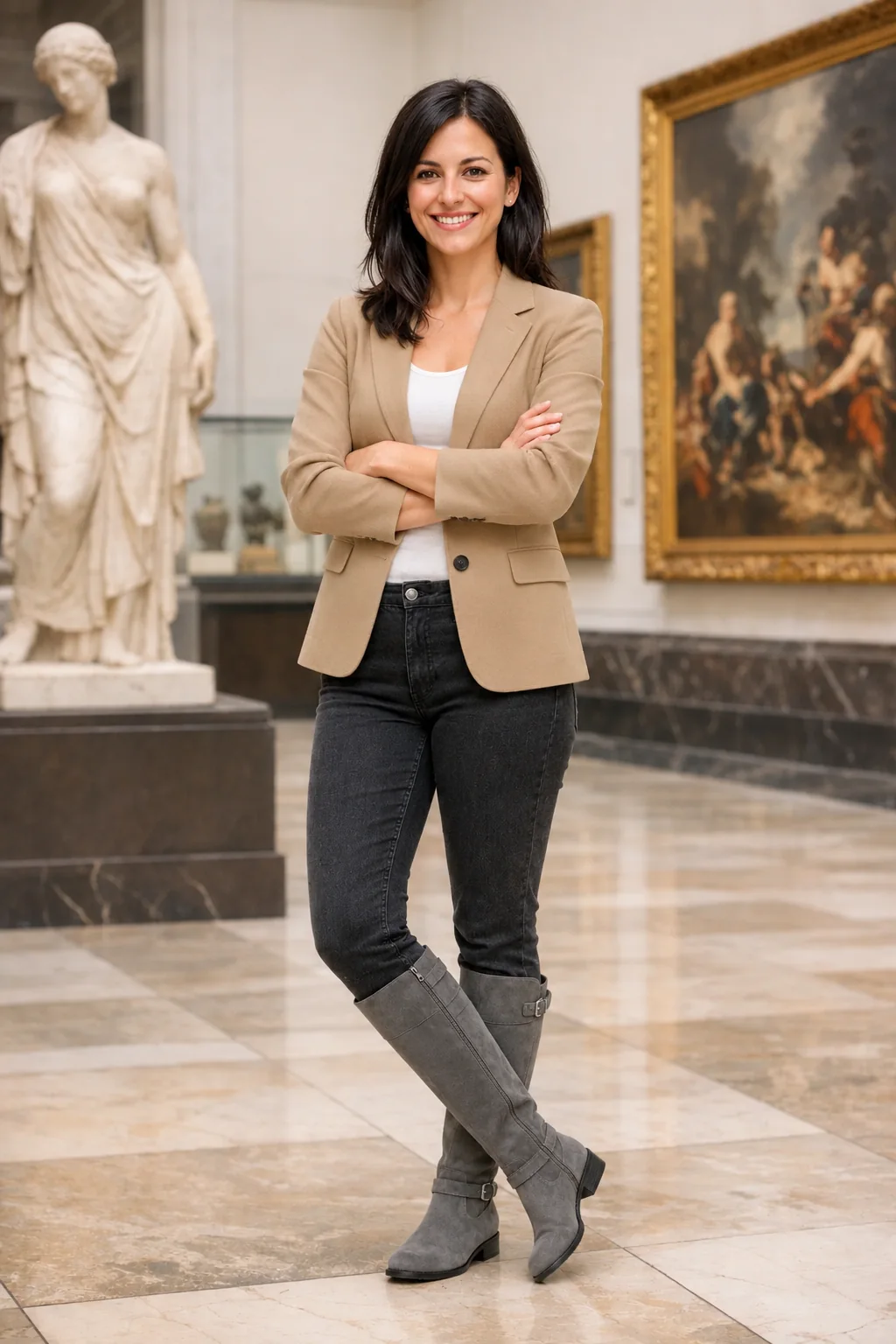
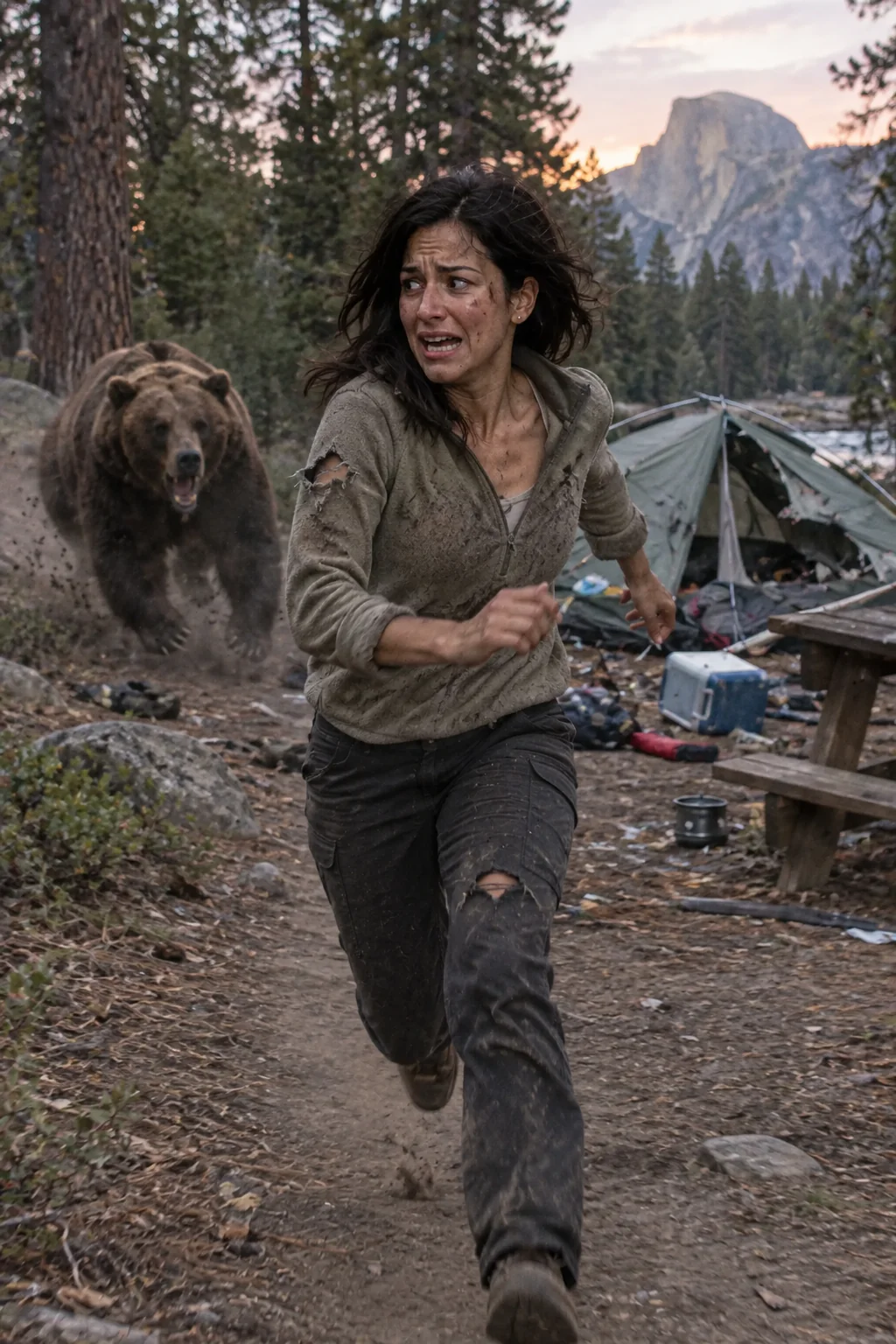
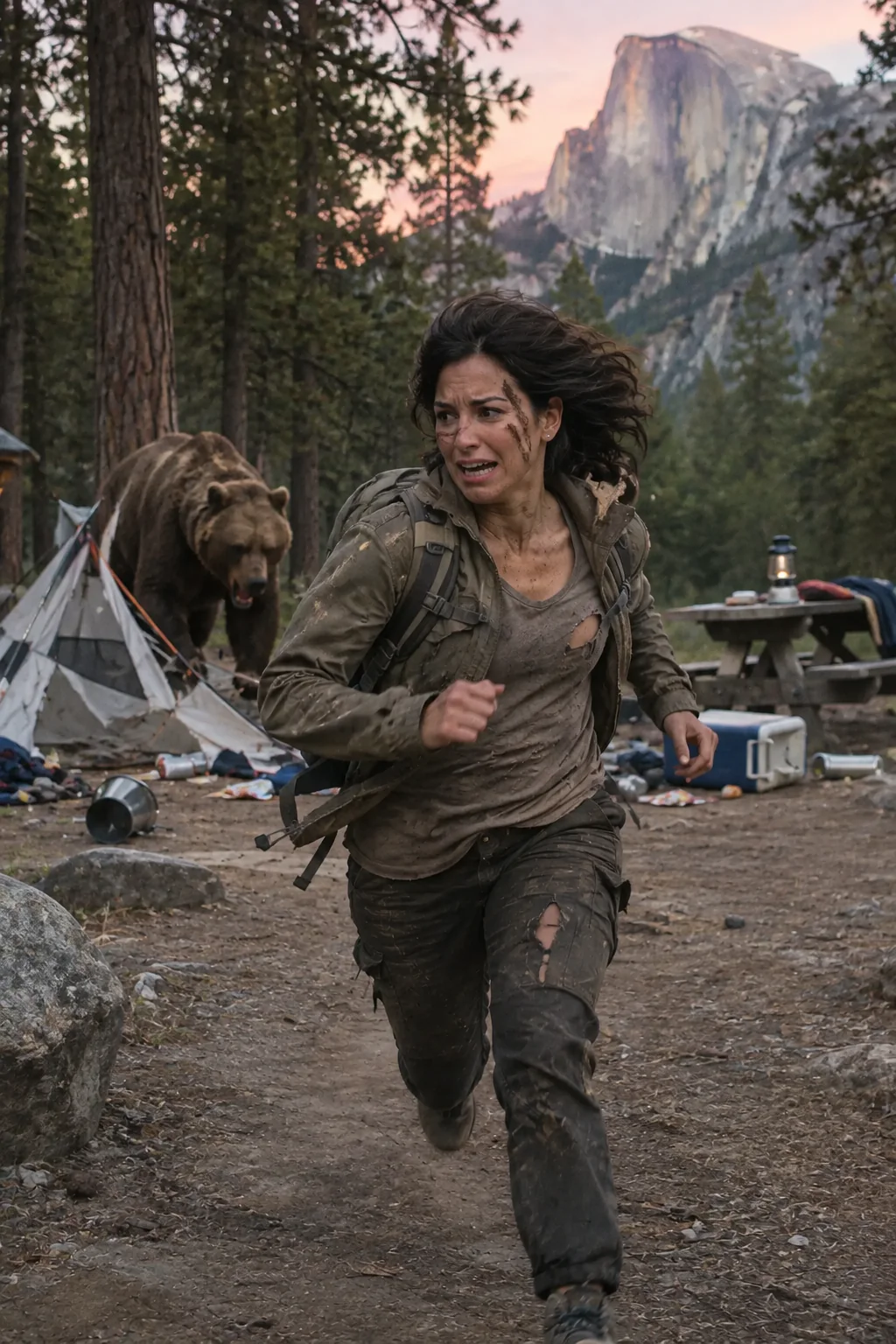
Use the woman in the museum as the input image.
The example uses size="1024x1536", quality="medium".
Generate a highly realistic action scene where this person is running away from a large, realistic brown bear attacking a campsite. The image should look like a real photograph someone could have taken, not an overly enhanced or cinematic movie-poster image.
She is centered in the image but looking away from the camera, wearing outdoorsy camping attire, with dirt on her face and tears in her clothing. She is clearly afraid but focused on escaping, running away from the bear as it destroys the campsite behind her.
The campsite is in Yosemite National Park, with believable natural details. The time of day is dusk, with natural lighting and realistic colors. Everything should feel grounded, authentic, and unstyled, as if captured in a real moment. Avoid cinematic lighting, dramatic color grading, or stylized composition.
Refine an image across turns
Start with one output, inspect it, and use it as the next input. Keep each follow-up narrow so you can see which change helped.
Create the starting image
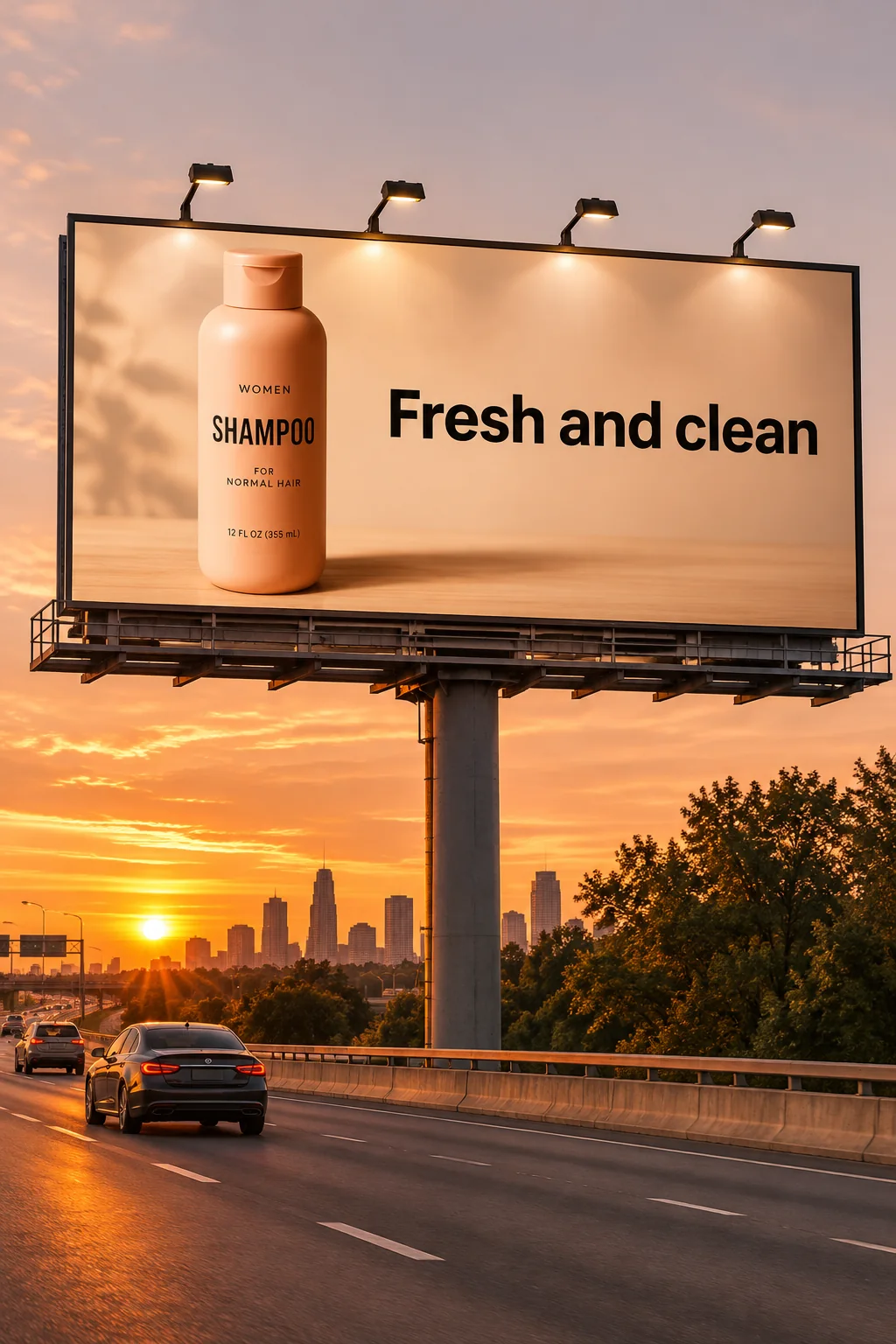
Use the shampoo photograph from Create a transparent product cutout as the input for this billboard scene. Quote the billboard headline exactly.
The example uses size="1024x1536", quality="medium".
Create a realistic billboard mockup of the shampoo on a highway scene during sunset.
Billboard text (EXACT, verbatim, no extra characters):
"Fresh and clean"
Typography: bold sans-serif, high contrast, centered, clean kerning.
Ensure text appears once and is perfectly legible.
No watermarks, no logos.
Reference image

Change one condition
Pass each model's billboard output from the previous step into its next edit request. This short follow-up changes the weather while retaining the existing scene.
The example uses size="1024x1536", quality="medium".
Make it look like a winter evening with snowfall.


Keep a character consistent
For a book with multiple illustrations, create a reusable character reference to help preserve appearance across scenes, poses, and pages. Change the environment and story while repeating the character’s defining details.
Establish the character
Define the character’s appearance, proportions, outfit, and tone.
The example uses size="1024x1536", quality="medium".
Create a children’s book illustration introducing a main character.

Character:
A young, storybook-style hero inspired by a little forest outlaw,
wearing a simple green hooded tunic, soft brown boots, and a small belt pouch.
The character has a kind expression, gentle eyes, and a brave but warm demeanor.
Carries a small wooden bow used only for helping, never harming.

Theme:
The character protects and rescues small forest animals like squirrels, birds, and rabbits.

Style:
Children’s book illustration, hand-painted watercolor look,
soft outlines, warm earthy colors, whimsical and friendly.
Proportions suitable for picture books (slightly oversized head, expressive face).

Constraints:
- Original character (no copyrighted characters)
- No text
- No watermarks
- Plain forest background to clearly showcase the character


Continue the story
Reuse each model's generated character image and describe a new scene. Repeat the appearance constraints so the character stays consistent.
The example uses size="1024x1536", quality="medium".
Continue the children’s book story using the same character.

Scene:
The same young forest hero is gently helping a frightened squirrel
out of a fallen tree after a winter storm.
The character kneels beside the squirrel, offering reassurance.

Character Consistency:
- Same green hooded tunic
- Same facial features, proportions, and color palette
- Same gentle, heroic personality

Style:
Children’s book watercolor illustration,
soft lighting, snowy forest environment,
warm and comforting mood.

Constraints:
- Do not redesign the character
- No text
- No watermarks


More workflows
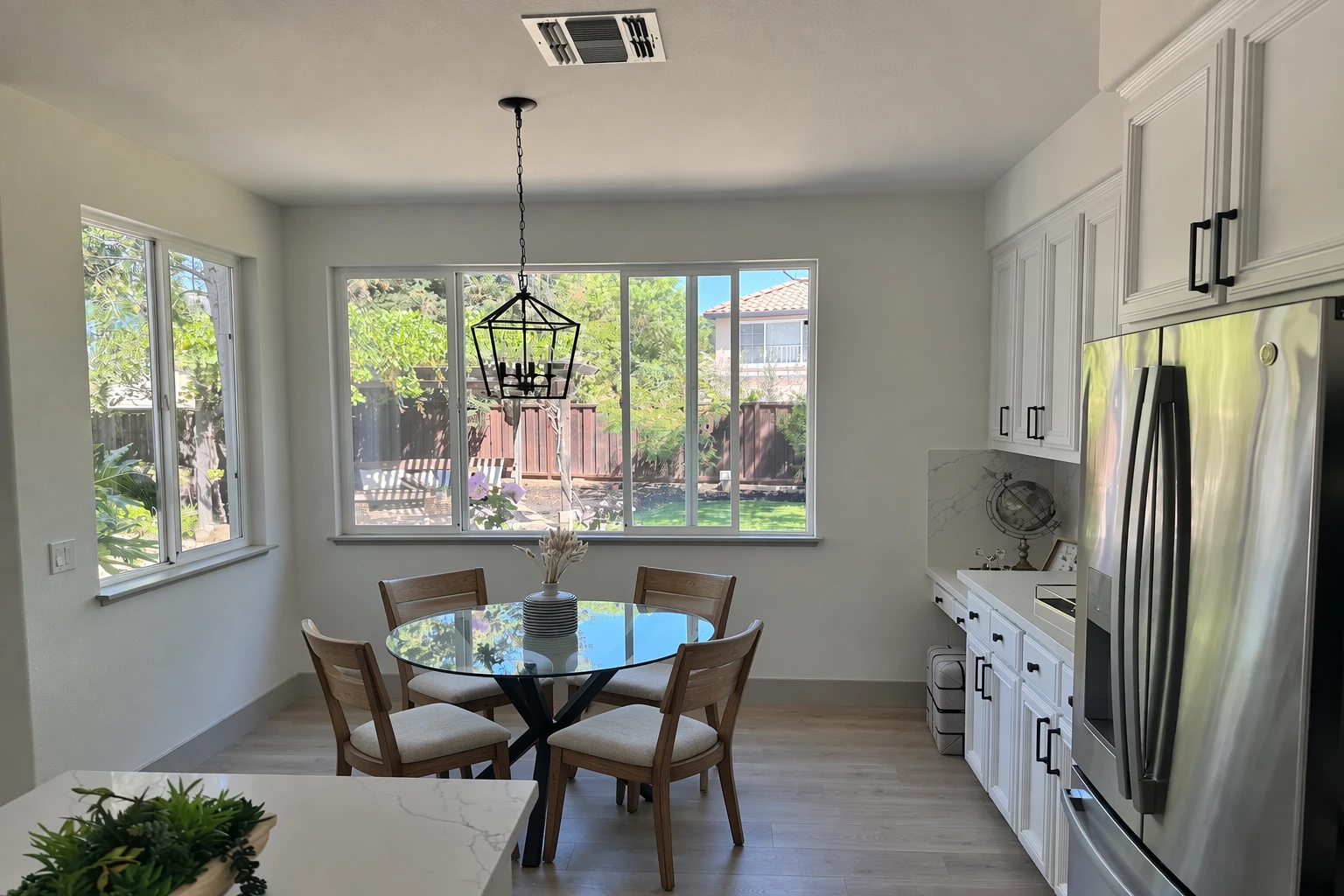
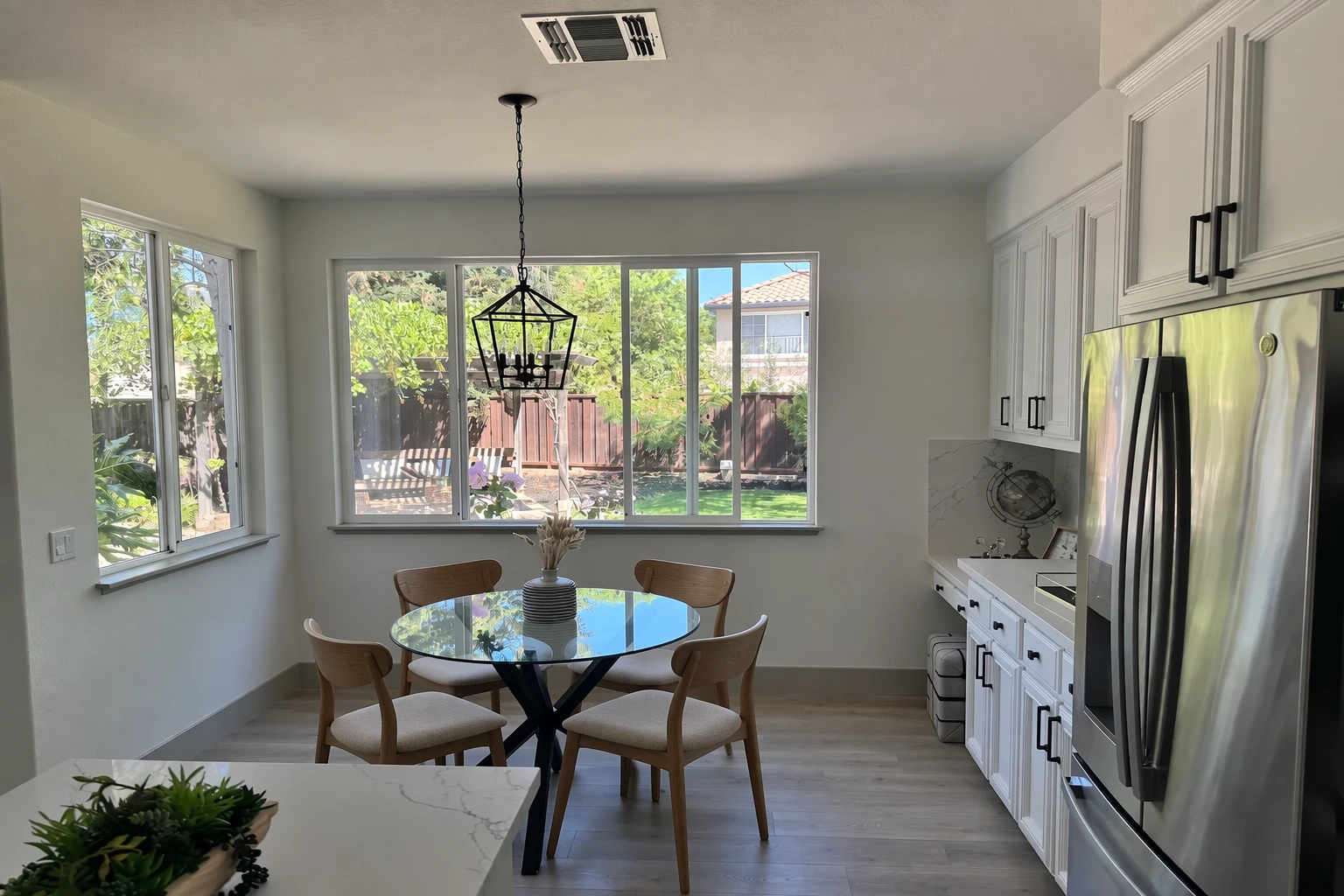
Change furniture in a room
Visualize furniture or décor changes in real spaces without recreating the entire scene. The goal is surgical realism: swap a single object while preserving camera angle, lighting, shadows, and surrounding context so the edit looks like a real photograph, not a redesign.
The example uses size="1536x1024", quality="medium".
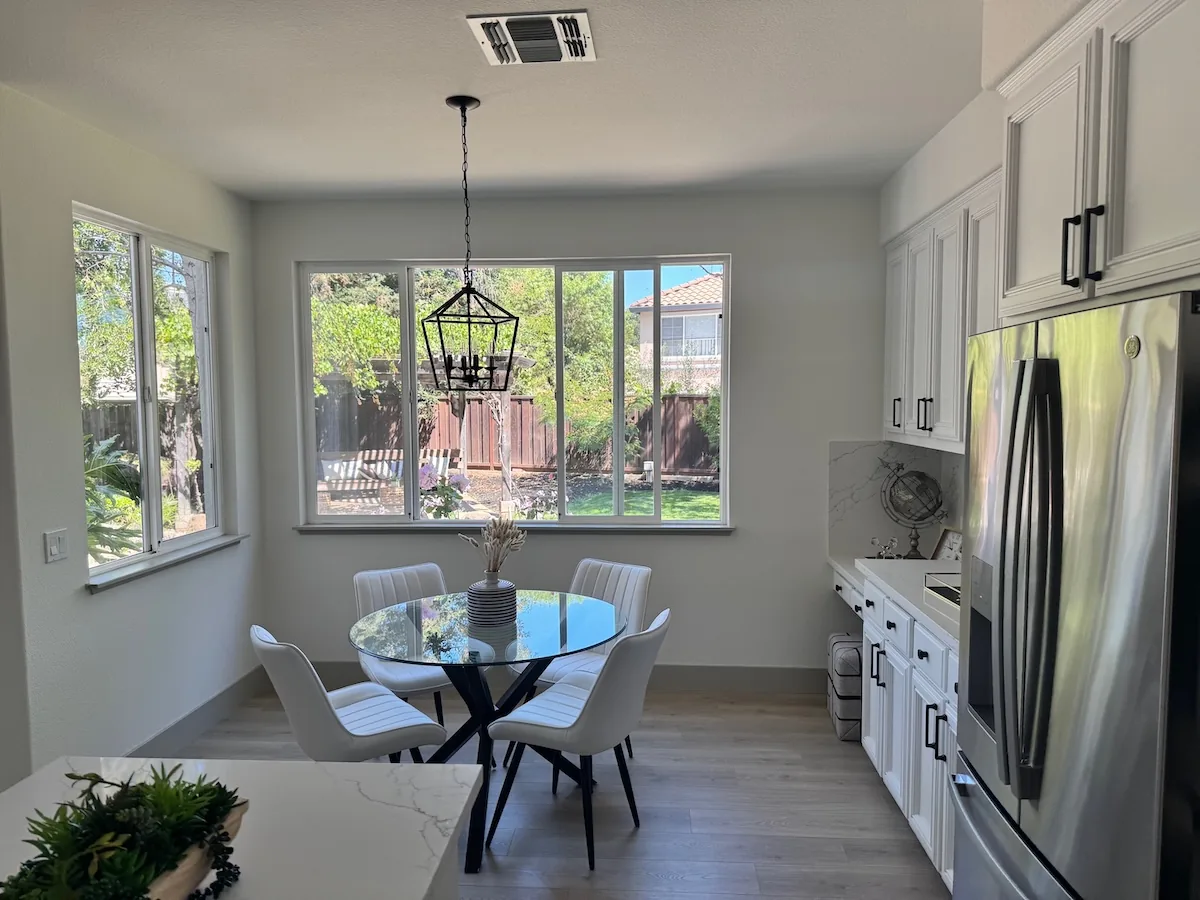
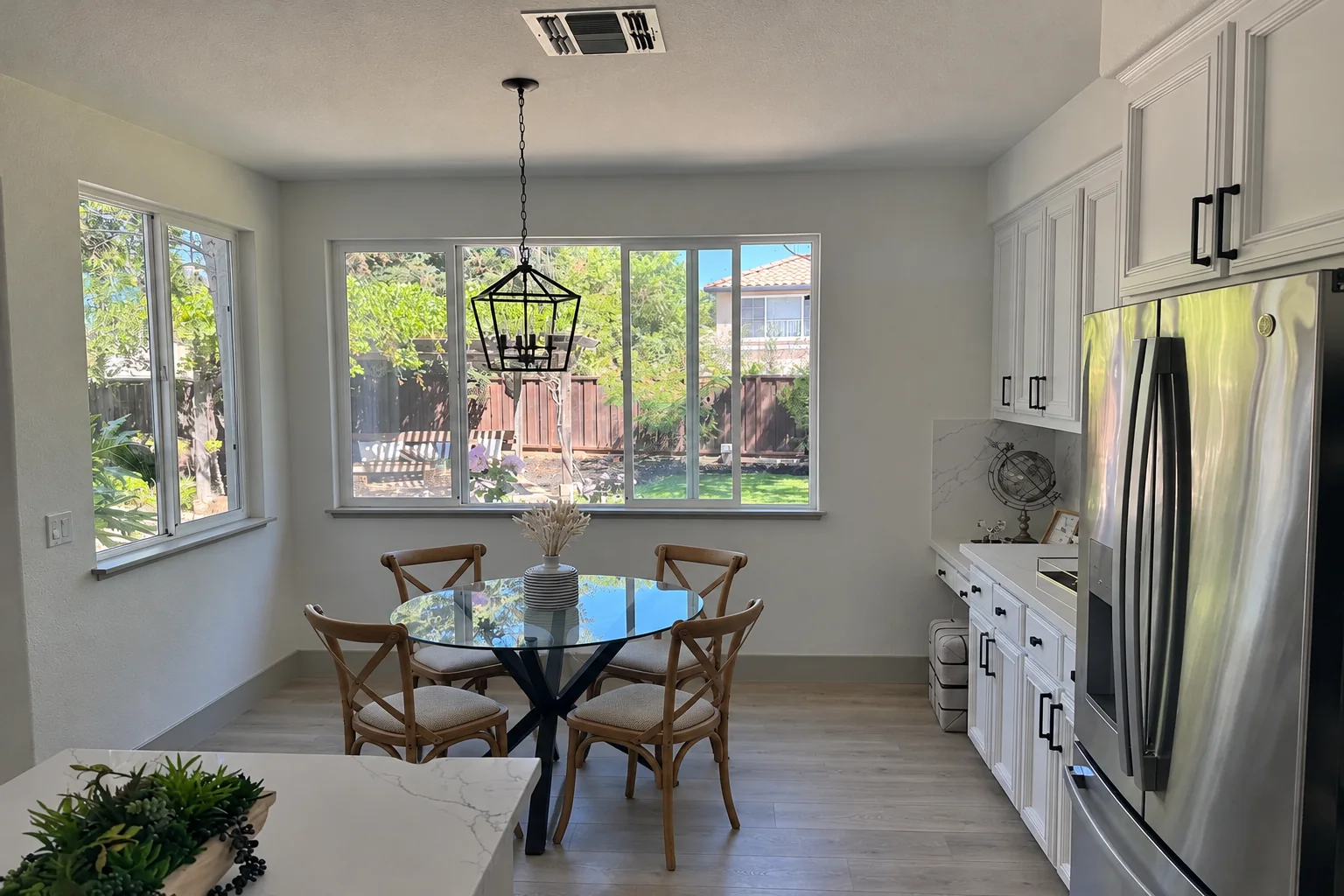
In this room photo, replace ONLY the white chairs with chairs made of wood.
Preserve camera angle, room lighting, floor shadows, and surrounding objects.
Keep all other aspects of the image unchanged.
Photorealistic contact shadows and fabric texture.
Reference image

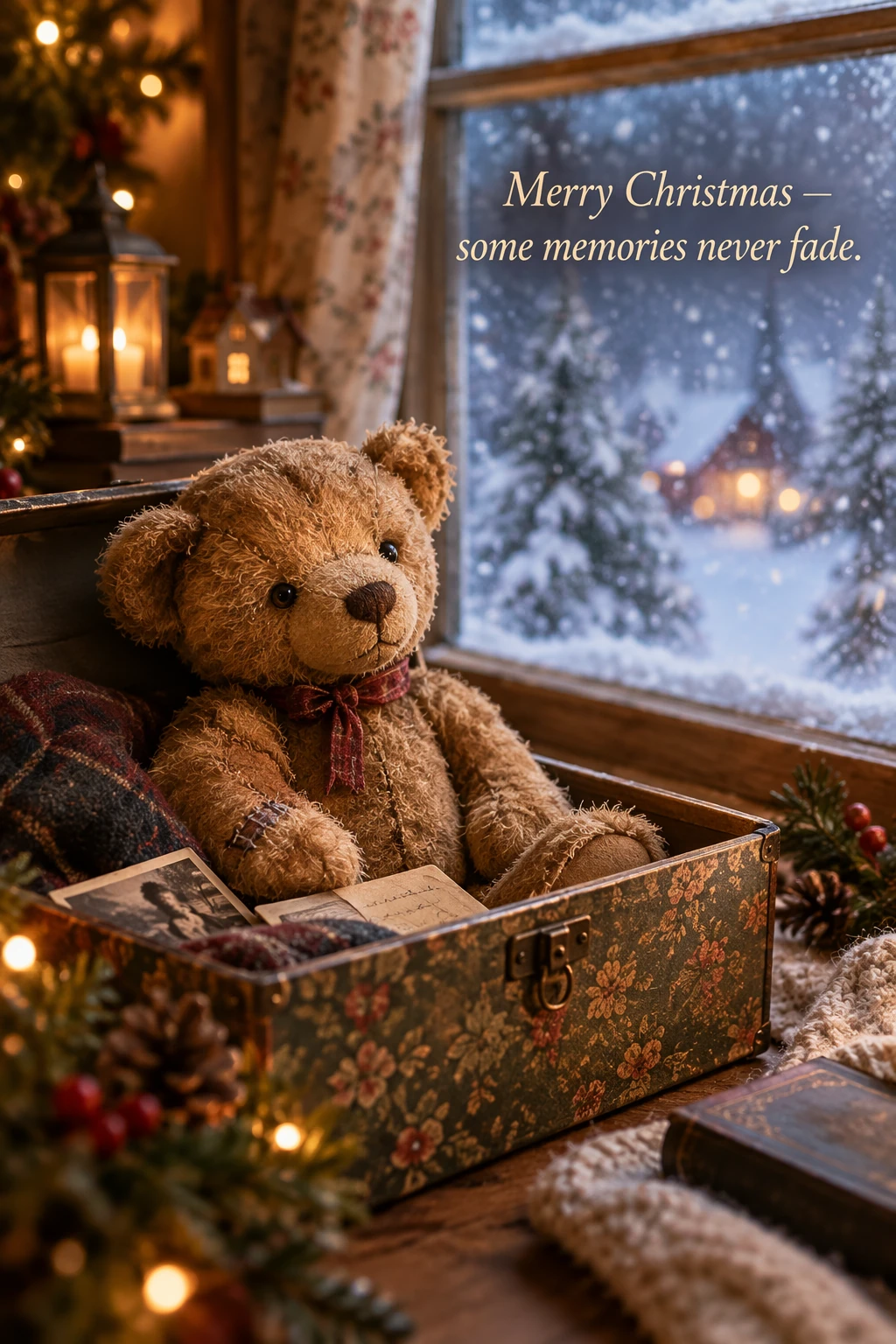
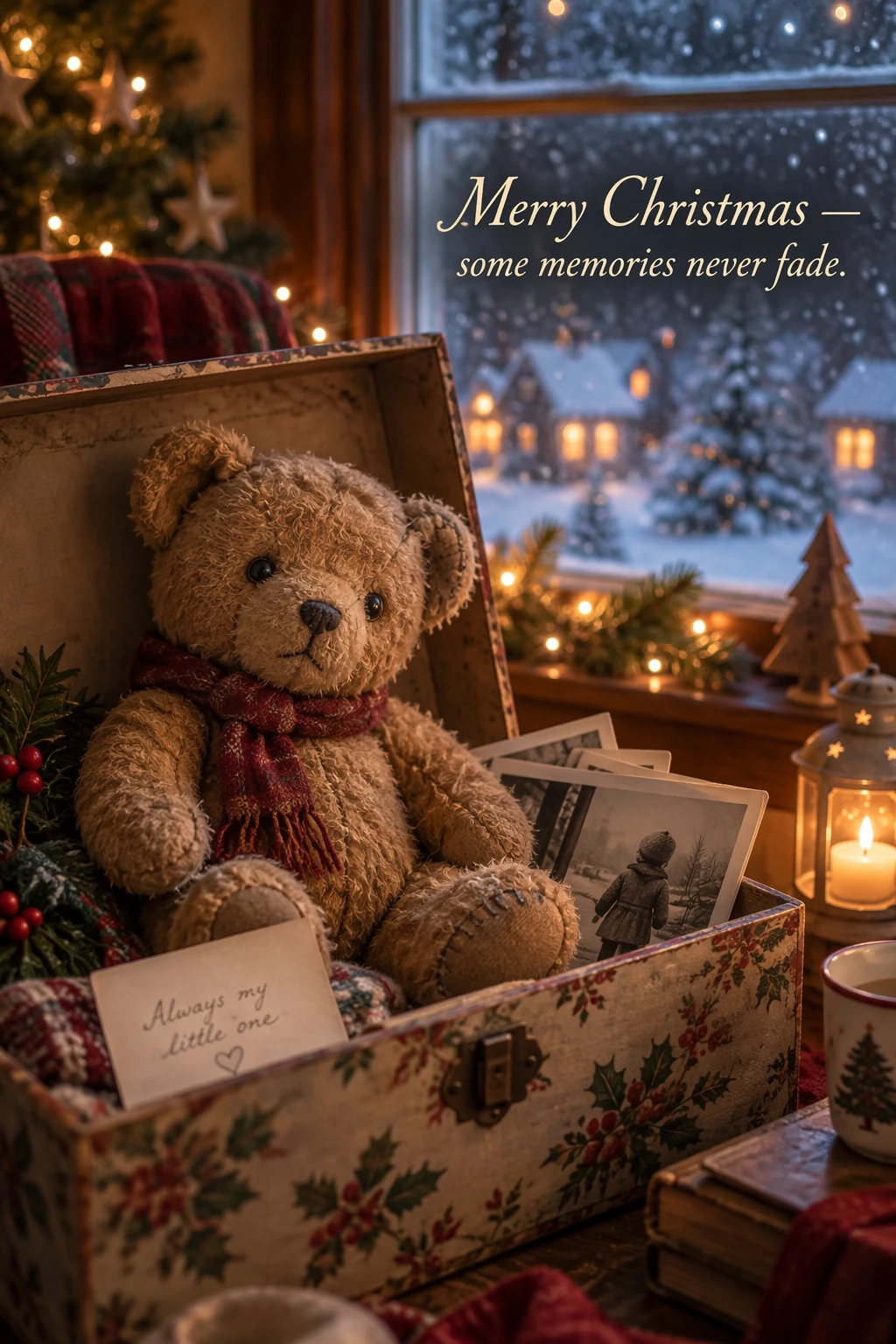
Design a holiday card
For seasonal card concepts, describe the scene, emotional tone, materials, lighting, and exact copy. For a 3D pop-up or photographed-card treatment, specify paper layers, fibers, folds, and soft studio lighting. The example below uses a nostalgic teddy-bear scene.
The example uses size="1024x1536", quality="medium".
Create a Christmas holiday card illustration.

Scene:
a cozy Christmas scene with an old teddy bear sitting inside a keepsake box, slightly worn fur, soft stitching repairs, placed near a window with falling snow outside. The scene suggests the child has grown up, but the memories remain.

Mood:
Warm, nostalgic, gentle, emotional.

Style:
Premium holiday card photography, soft cinematic lighting,
realistic textures, shallow depth of field,
tasteful bokeh lights, high print-quality composition.

Constraints:
- Original artwork only
- No trademarks
- No watermarks
- No logos

Include ONLY this card text (verbatim):
"Merry Christmas — some memories never fade."


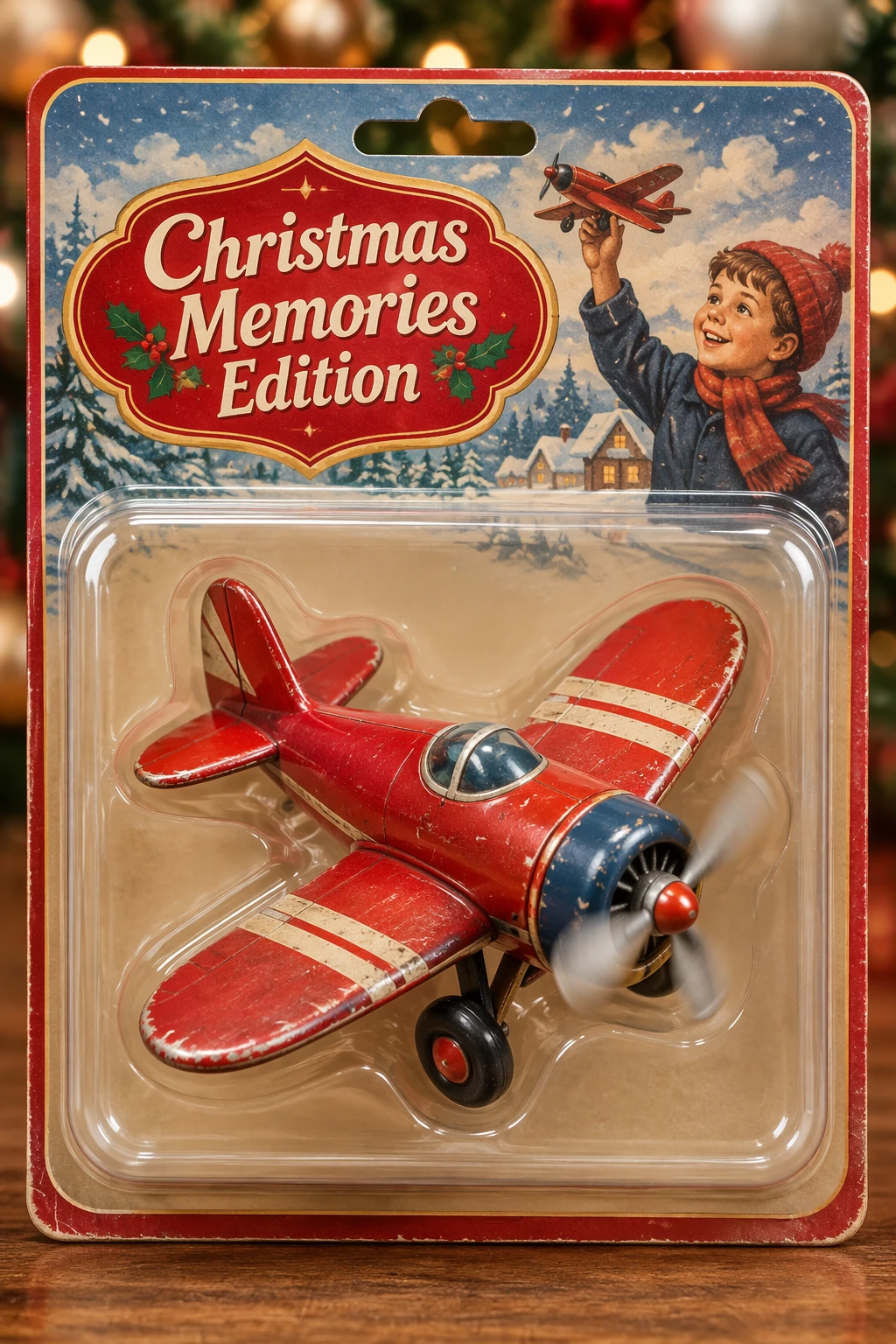
Design collectible merchandise
Explore merchandise and packaging concepts using product photography cues: materials, packaging, and print clarity. Keep designs original and non-infringing, and compare multiple character or packaging variants.
The example uses size="1024x1536", quality="medium".
Create a collectible action figure of a vintage-style toy propeller airplane with rounded wings, a front-mounted spinning propeller, slightly worn paint edges, classic childhood proportions, designed as a nostalgic holiday collectible, in blister packaging.

Concept:
A nostalgic holiday collectible inspired by the simple toy airplanes
children used to play with during winter holidays.
Evokes warmth, imagination, and childhood wonder.

Style:
Premium toy photography, realistic plastic and painted metal textures,
studio lighting, shallow depth of field,
sharp label printing, high-end retail presentation.

Constraints:
- Original design only
- No trademarks
- No watermarks
- No logos

Include ONLY this packaging text (verbatim):
"Christmas Memories Edition"


Run a complete example
Generate four logo variations and extract a product onto a transparent background with the 2.6 model you want to test.
Install the OpenAI SDK with pip install openai for Python or gem install openai for Ruby. Set OPENAI_API_KEY and save the product photograph as input_images/shampoo.webp.
Save the sample as demo.py or demo.rb. To try Flare, run python demo.py gpt-image-2.6-flare or ruby demo.rb gpt-image-2.6-flare. To try Sunburst, pass gpt-image-2.6-sunburst instead. The script writes four logo files in PNG format and extract-product.png.
View the complete example
Generate and edit transparent assets
import argparse
import base64
from pathlib import Path

from openai import OpenAI

parser = argparse.ArgumentParser()
parser.add_argument("model", help="Image model ID enabled for your project")
model = parser.parse_args().model
client = OpenAI()

prompt = """
Create an original, non-infringing logo for a company called Field & Flour, a local bakery.
The logo should feel warm, simple, and timeless. Use clean, vector-like shapes, a strong silhouette, and balanced negative space.
Favor simplicity over detail so it reads clearly at small and large sizes. Flat design, minimal strokes, no gradients unless essential.
Fully transparent background. Deliver a single centered logo with generous padding, clean alpha edges, and no solid backdrop, scenery, checkerboard, or watermark.
""".strip()
logos = client.images.generate(
    model=model,
    prompt=prompt,
    size="1024x1536",
    quality="medium",
    background="transparent",
    output_format="png",
    n=4,
)
for index, image in enumerate(logos.data, start=1):
    Path(f"logo-generation-{index}.png").write_bytes(base64.b64decode(image.b64_json))

prompt = """
Extract the product from the input image and isolate it on a fully transparent background.
Output: centered product, crisp silhouette, no halos/fringing.
Preserve product geometry and label legibility exactly.
Add only light polishing. Do not add a solid backdrop, checkerboard, scenery, or shadow.
Do not restyle the product; remove the background and preserve clean alpha transparency.
""".strip()
cutout = client.images.edit(
    model=model,
    image=[("shampoo.webp", Path("input_images/shampoo.webp"), "image/webp")],
    prompt=prompt,
    size="1024x1536",
    quality="medium",
    background="transparent",
    output_format="png",
)
Path("extract-product.png").write_bytes(base64.b64decode(cutout.data[0].b64_json))
require "base64"
require "openai"
require "pathname"

model = ARGV.fetch(0) { abort "Usage: ruby #{$PROGRAM_NAME} MODEL_ID" }
client = OpenAI::Client.new

prompt = <<~PROMPT.strip
  Create an original, non-infringing logo for a company called Field & Flour, a local bakery.
  The logo should feel warm, simple, and timeless. Use clean, vector-like shapes, a strong silhouette, and balanced negative space.
  Favor simplicity over detail so it reads clearly at small and large sizes. Flat design, minimal strokes, no gradients unless essential.
  Fully transparent background. Deliver a single centered logo with generous padding, clean alpha edges, and no solid backdrop, scenery, checkerboard, or watermark.
PROMPT
logos = client.images.generate(
  model: model,
  prompt: prompt,
  size: "1024x1536",
  quality: :medium,
  background: :transparent,
  output_format: :png,
  n: 4
)
Array(logos.data).each_with_index do |image, index|
  File.binwrite("logo-generation-#{index + 1}.png", Base64.strict_decode64(image.b64_json || raise("No PNG returned")))
end

prompt = <<~PROMPT.strip
  Extract the product from the input image and isolate it on a fully transparent background.
  Output: centered product, crisp silhouette, no halos/fringing.
  Preserve product geometry and label legibility exactly.
  Add only light polishing. Do not add a solid backdrop, checkerboard, scenery, or shadow.
  Do not restyle the product; remove the background and preserve clean alpha transparency.
PROMPT
cutout = client.images.edit(
  model: model,
  image: OpenAI::FilePart.new(Pathname("input_images/shampoo.webp"), content_type: "image/webp"),
  prompt: prompt,
  size: "1024x1536",
  quality: :medium,
  background: :transparent,
  output_format: :png
)
File.binwrite("extract-product.png", Base64.strict_decode64(Array(cutout.data).fetch(0).b64_json || raise("No PNG returned")))
For additional prompts and complete workflows, see the original notebook.
Check the result
Before you use an image, check it against your requirements.
- Can you read every word, and does it match the requested text? Are diagram labels and relationships correct?
- Do identities, product shapes, labels, and reference details remain intact?
- Did the edit change only what you requested?
- If you need transparency, does the decoded file contain transparent pixels?
Compare quality, latency, and cost on representative inputs when changing prompts or models. See image generation pricing for current costs.
  <header className="not-prose mb-8">
    <h2
      id="gpt-image-2.5-guide"
      className="m-0 text-3xl font-semibold text-default"
    >
      {"GPT-Image-2.5 prompting guide"}
    </h2>


      Choose a model, write effective prompts, and preserve details across
      edits.


  </header>
Overview
Start with the image you need, then describe the subject, composition, style, and constraints. For edits, identify what should change and what must stay the same. Refine one thing at a time and inspect the result.
GPT-Image-2.5 includes two model choices. GPT-Image-2.5 Flare is the small model, optimized for speed, with image quality comparable to GPT-Image-2. GPT-Image-2.5 Sunburst is the base model, optimized for quality, with higher image quality than GPT-Image-2. Both models offer improvements in precise editing and subject preservation.
For API setup and request examples, see the image generation guide.
Choose a model
For a new workflow, start with GPT-Image-2.5 Flare when speed is the priority, or GPT-Image-2.5 Sunburst when demanding quality requirements are the priority. Once the output meets your requirements, look for opportunities to reduce latency.
For migrating from a current image model, use your current image quality as the starting point. Both models support image generation, editing, and transparent backgrounds.
| Your current workflow | Start by testing |
|---|---|
| An existing, validated GPT-Image-2 workflow already meets your quality requirements | GPT-Image-2.5 Flare. Check whether you can retain acceptable quality while reducing latency. |
| A complex use case where GPT-Image-2 does not meet your quality requirements | GPT-Image-2.5 Sunburst. First establish that it delivers the quality you need. |
If GPT-Image-2.5 Sunburst meets your quality requirements, then test GPT-Image-2.5 Flare with the same prompts and inputs. Switch to GPT-Image-2.5 Flare if it also meets those requirements and improves latency. Keep GPT-Image-2.5 Sunburst when its quality advantage is necessary for your workflow.
Measure response time and quality on your own workload. Results depend on your prompts, reference images, output dimensions, and quality settings; a speed improvement on one workload doesn't establish a fixed improvement on another.
Model parameters
Set API parameters separately from the prompt.
| Parameter | GPT-Image-2.5 settings |
|---|---|
model |
gpt-image-2.5-flare (small model) or gpt-image-2.5-sunburst (base model) |
quality |
auto (default), low, medium, high, xhigh, or max |
size |
auto or a custom resolution. Common sizes: 1024x1024 (square), 1536x1024 (landscape), 1024x1536 (portrait), 2048x2048 (2K square), 2048x1152 (2K landscape), 3840x2160 (4K landscape), and 2160x3840 (4K portrait). |
background |
auto, opaque, or transparent |
For a custom resolution, use WIDTHxHEIGHT and follow these constraints:
- Each edge must be no more than 3,840 pixels.
- Both edges must be multiples of 16 pixels.
- The ratio of the longer edge to the shorter edge must not exceed 3:1.
- The total pixel count must be between 655,360 and 8,294,400.
Outputs with more than 3,686,400 total pixels (2560x1440) are experimental.
Choose the model using the workflow above before tuning quality. For the first comparison, keep an explicitly selected quality setting unchanged when both models support it, along with the prompt, reference images, and output dimensions. The same quality label does not imply the same image quality or response time across models.
If the output falls short, test a higher quality setting. Once it meets your requirements, test lower settings to see whether they preserve acceptable quality while reducing latency. Use xhigh or max only when they improve an unmet quality requirement within your latency budget. A higher setting doesn't guarantee a better result for every prompt.
For transparent assets, explicitly request background="transparent" and use PNG or WebP. Check the decoded image's alpha channel, including hair, glass, shadows, and object edges. Use output_compression only for JPEG or WebP output, not PNG.
Migrate an existing workflow
- Save a baseline. Collect representative production prompts and reference images, including difficult edits, exact text, faces, product geometry, and transparent assets. Record the current model, request settings, and results.
- Choose the first candidate. If GPT-Image-2 already meets your quality requirements, start with GPT-Image-2.5 Flare and test for a latency improvement. If GPT-Image-2 falls short on a complex use case, start with GPT-Image-2.5 Sunburst and first establish that it meets your quality requirements. Keep the prompt, references, dimensions, and output format unchanged for the first comparison.
- Check the complete result. Compare instruction following, identity and product preservation, text accuracy, unwanted changes, and transparency. Repeat requests to measure consistency. For editing workflows, test the complete sequence of edits as well as individual steps.
- Test for a latency gain after quality passes. If you started with GPT-Image-2.5 Sunburst and it meets your quality requirements, evaluate GPT-Image-2.5 Flare against the same requirements. Switch only if the quality remains acceptable and latency improves; otherwise, keep GPT-Image-2.5 Sunburst.
- Tune one setting at a time. Compare quality levels before rewriting the prompt. Measure typical and slow responses, failures, retries, and cost per accepted image. Confirm current pricing rather than assuming the faster model costs less.
- Roll out by workflow. Once the released model passes your acceptance criteria, move a small share of traffic, monitor the same measures, and expand gradually. Keep the previous model available for rollback while it remains supported.
When migrating from GPT-Image-1 or GPT-Image-1.5, use the reference tabs to check parameter differences and shutdown dates. Test the candidate model's supported request settings rather than copying older settings unchanged. For GPT-Image-2, keep your existing resolution and transparency requirements in the comparison.
Repeated edits can still change details you intended to preserve. Restate those constraints and inspect each result. If a region must remain pixel-identical, composite the approved edit into the original image instead of relying on prompting alone.
Prompting fundamentals
- Define the result. Name the subject and intended use, such as a product photograph, advertisement, or diagram. Specify the composition, aspect ratio, and important placement constraints. For complex requests, organize the prompt as scene, subject, details, and constraints, using labeled sections.
- Choose a maintainable format. Short prompts, descriptive paragraphs, JSON-like structures, instructions, and tags can all express the same intent. Choose the format that makes the requirements easiest to read and update rather than relying on special syntax.
- Describe visible details. Name materials, lighting, colors, and the visual medium. Request “photorealistic” or “real photograph” explicitly when that is the goal, and describe framing and texture. Treat camera specifications as cues for appearance, not a guarantee of exact physical simulation. For wide, cinematic, low-light, rainy, or neon scenes, specify scale, atmosphere, and color instead of relying on mood words alone.
- Specify people and actions. Describe body framing, relative scale, gaze, and interaction with objects. Instructions such as “full body visible, feet included,” “looking down at the open book,” or “hands naturally gripping the handlebars” make the intended pose and action clearer.
- Specify exact text. Put required wording in quotes and describe its position and typography. Spell unusual words or brand names letter by letter when needed. Ask for no extra text, then check spelling and legibility in the output. Compare medium or high quality for small text, dense information, or multiple fonts.
- Separate changes from constraints. For edits, say “change only X” and list the details to preserve, such as identity, geometry, layout, lighting, or labels. State exclusions such as unwanted text, logos, or watermarks. For precise local edits, also identify saturation, contrast, arrows, camera angle, and surrounding objects that must remain unchanged.
- Assign roles to references. Identify each input by number and purpose: subject, style, clothing, or background. Explain how the inputs should combine and which elements should move where.
- Iterate deliberately. Pass the previous output as the next edit input, request one change, and repeat the details to preserve. References such as “same style as before” can carry context, but restate critical constraints if the result drifts. Compare results before adding more instructions.
The examples below each demonstrate a different technique. Keep their prompts as starting points and adapt them to your own images and requirements.
Generate images
Control style and lighting
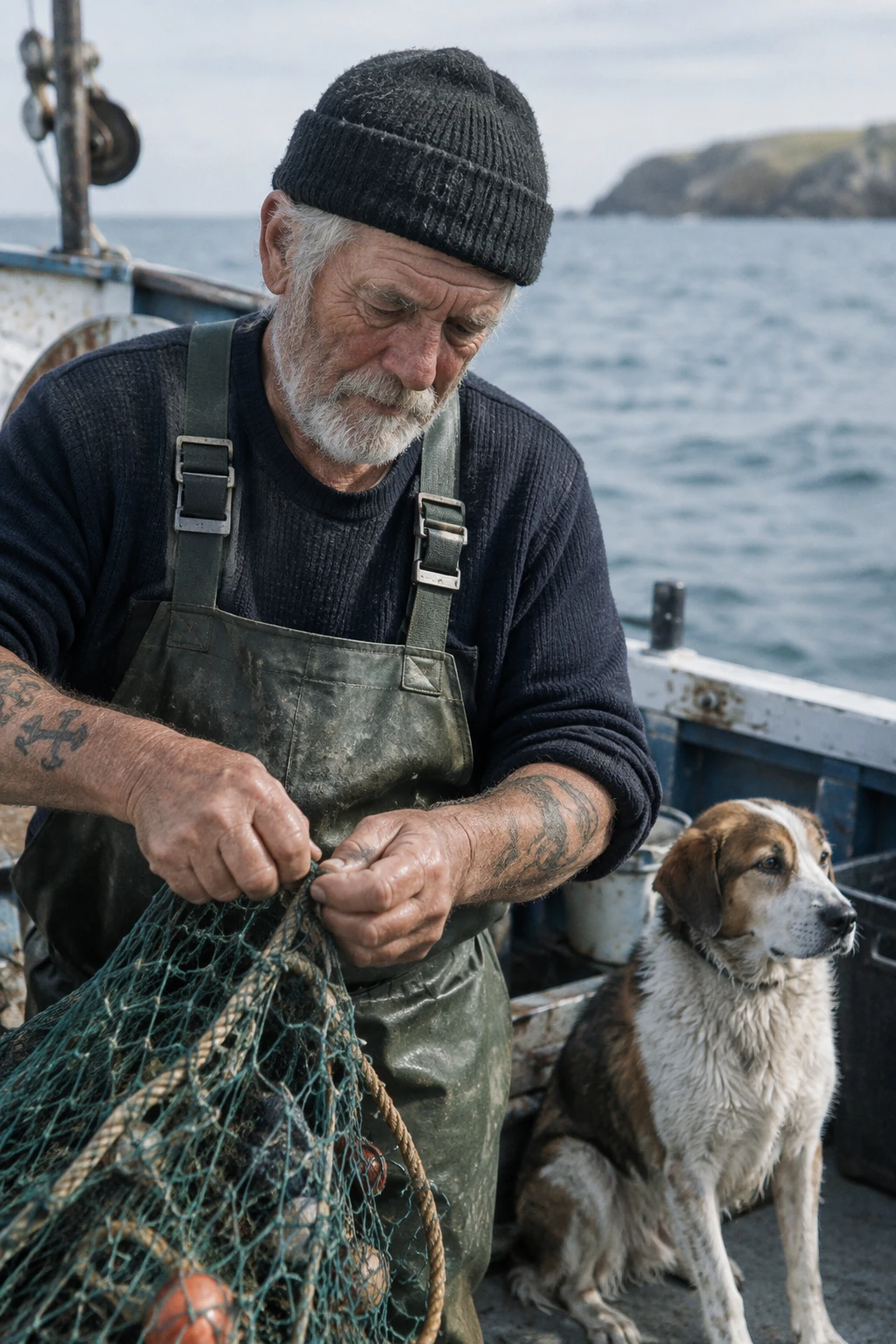
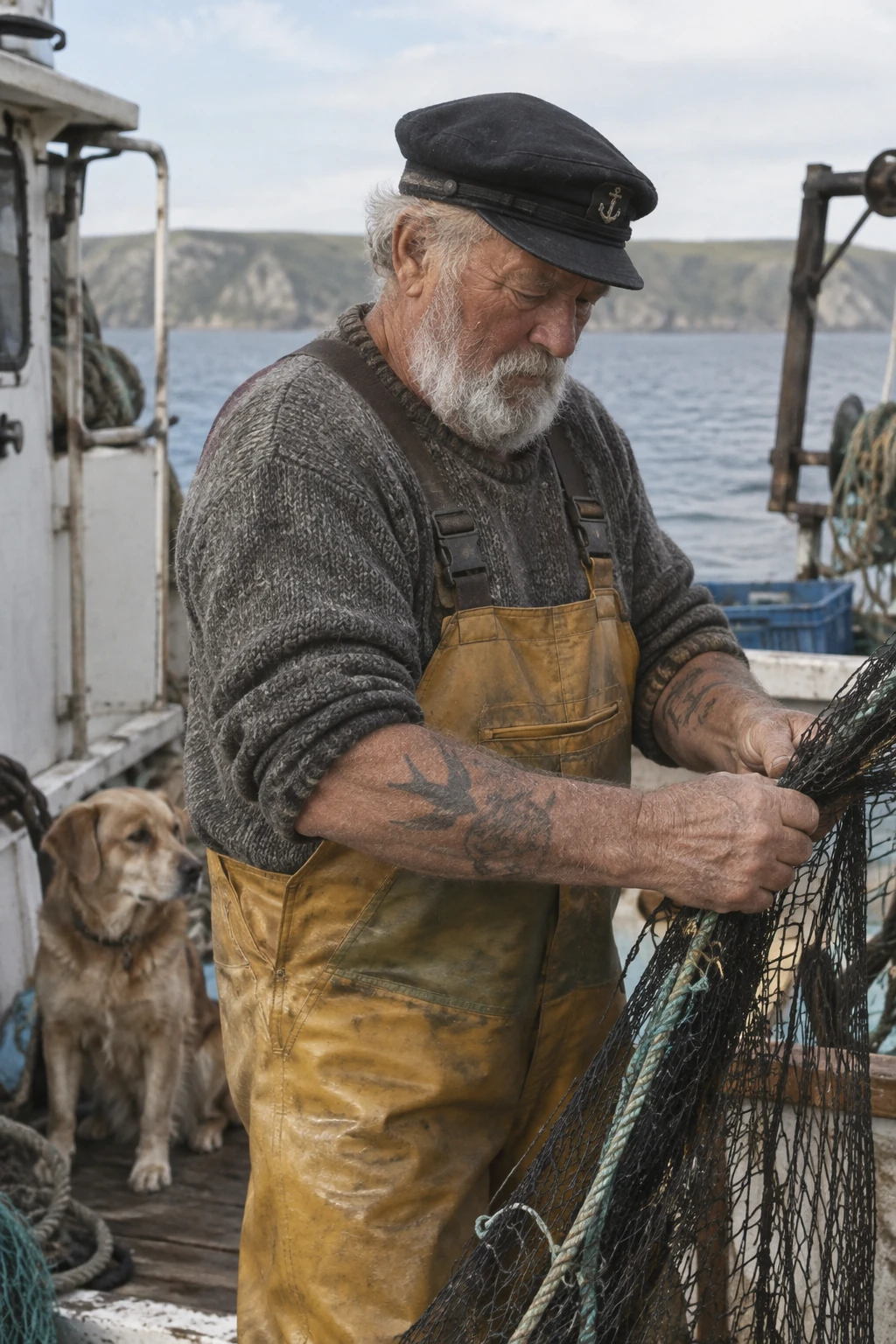
Describe a photograph through its subject, framing, light, and texture. This example specifies a candid composition and explicitly excludes heavy retouching.
Generation settings: size="1024x1536", quality="medium".
Create a photorealistic candid photograph of an elderly sailor standing on a small fishing boat.
He has weathered skin with visible wrinkles, pores, and sun texture, and a few faded traditional sailor tattoos on his arms.
He is calmly adjusting a net while his dog sits nearby on the deck. Shot like a 35mm film photograph, medium close-up at eye level, using a 50mm lens.
Soft coastal daylight, shallow depth of field, subtle film grain, natural color balance.
The image should feel honest and unposed, with real skin texture, worn materials, and everyday detail. No glamorization, no heavy retouching.
Example outputs:
Explain a process visually
Name the process, audience, and information the image should communicate. For diagrams and information graphics, verify labels and factual relationships as well as appearance.
Generation settings: size="1024x1536", quality="medium".
Create a detailed Infographic of the functioning and flow of an automatic coffee machine like a Jura.
From bean basket, to grinding, to scale, water tank, boiler, etc.
I'd like to understand technically and visually the flow.
Example outputs:
Render exact text
Quote the required copy and tell the model how many times it should appear. Specify the audience and visual treatment without adding unrelated instructions.
Generation settings: size="1024x1536", quality="medium".
Give me a cool in culture ad / fashion shot for a brand called Thread.
It's a hip young street brand. The ad shows a group of friends hanging out together with the tagline "Yours to Create."
Make it feel like a polished campaign image for a youth streetwear audience: stylish, contemporary, energetic, and tasteful.
Use clean composition, strong color direction, natural poses, and premium fashion photography cues.
Render the tagline exactly once, clearly and legibly, integrated into the ad layout.
No extra text, no watermarks, no unrelated logos.
Example outputs:
Design a reusable logo
Describe the brand and the shapes that should define the mark. Specify a clear composition that remains legible at different sizes. Use n to request multiple variations.
Generation settings: size="1024x1536", quality="medium", background="transparent", output_format="png", n=1.
Create an original, non-infringing logo for a company called Field & Flour, a local bakery.
The logo should feel warm, simple, and timeless. Use clean, vector-like shapes, a strong silhouette, and balanced negative space.
Favor simplicity over detail so it reads clearly at small and large sizes. Flat design, minimal strokes, no gradients unless essential.
Fully transparent background. Deliver a single centered logo with generous padding, clean alpha edges, and no solid backdrop, scenery, checkerboard, or watermark.
Each row compares one variation from each model.
Example outputs:








Use historical and real-world context
Name the place and date to establish a historical setting. The model can infer contextual details, but inspect clothing, staging, and surroundings for historical accuracy.
Generation settings: size="1024x1536", quality="medium".
Create a realistic outdoor crowd scene in Bethel, New York on August 16, 1969.
Photorealistic, period-accurate clothing, staging, and environment.
Example outputs:
Turn a story into a comic strip
For story-to-comic generation, define the narrative as a sequence of clear visual beats, one per panel. Keep descriptions concrete and action-focused so the model can translate the story into readable, well-paced panels.
Generation settings: size="1024x1536", quality="medium".
Create a short vertical comic-style reel with 4 panels.
Panel 1: The owner leaves through the front door. The pet is framed in the window behind them, small against the glass, eyes wide, paws pressed high, the house suddenly quiet.
Panel 2: The door clicks shut. Silence breaks. The pet slowly turns toward the empty house, posture shifting, eyes sharp with possibility.
Panel 3: The house transformed. The pet sprawls across the couch like it owns the place, crumbs nearby, sunlight cutting across the room like a spotlight.
Panel 4: The door opens. The pet is seated perfectly by the entrance, alert and composed, as if nothing happened.
Example outputs:
Create an interface preview
Interface previews work best when you describe the product as if it already exists. Focus on layout, hierarchy, spacing, and real interface elements, and avoid concept art language so the result looks like a usable, shipped interface rather than a design sketch.
Generation settings: size="1024x1536", quality="medium".
Create a realistic mobile app UI mockup for a local farmers market.
Show today’s market with a simple header, a short list of vendors with small photos and categories, a small “Today’s specials” section, and basic information for location and hours.
Design it to be practical, and easy to use. White background, subtle natural accent colors, clear typography, and minimal decoration.
It should look like a real, well-designed, beautiful app for a small local market.
Place the UI mockup in an iPhone frame.
Example outputs:


Create scientific and educational visuals
Scientific and educational visuals are strong fits for biology, chemistry, classroom explanations, flat scientific icon systems, diagrams, and learning assets. Prompt them like an instructional design brief: define the audience, lesson objective, visual format, required labels, and scientific constraints. For best results, ask for a clean, flat visual system with consistent icon style, clear arrows, readable labels, and enough white space for students to scan the concept quickly.
When accuracy matters, list the required components explicitly and say what should not be included. Use quality="high" for dense labels, diagrams, or assets that will be used in slides or course materials.
Generation settings: size="1536x1024", quality="high".
Create a simple biology diagram titled "Cellular Respiration at a Glance" for high school students.

Show how glucose turns into energy inside a cell. Include glycolysis, the Krebs cycle, and the electron transport chain.
Use arrows to connect the steps, and label the main molecules: glucose, pyruvate, ATP, NADH, FADH2, CO2, O2, and H2O.
Make it look like a clean classroom handout or slide, with a white background, simple icons, clear labels, and easy-to-read text.

Avoid tiny text, extra decoration, or anything that makes the diagram hard to understand.
Example outputs:
Build slides, diagrams, and charts
Productivity visuals work best when the prompt is written like an artifact spec rather than an illustration request. Name the exact deliverable (slide, workflow diagram, chart, page image), define the canvas and hierarchy, provide the real text or data, and describe the visual language. These prompts should include practical constraints: readable typography, polished spacing, no decorative clutter, and no generic stock-photo treatment.
For slides, charts, and diagram-heavy assets, include the numbers and labels directly in the prompt. Use a landscape size for deck-style outputs and quality="high" when the image contains small text, legends, axes, or footnotes.
The sample market figures and citations below are fictional design inputs. Replace them with verified data before using the slide.
Generation settings: size="1536x864", quality="high".
Create one pitch-deck slide titled **"Market Opportunity"** that feels like a real Series A fundraising slide from a YC-backed startup.

Use a clean white background, modern sans-serif typography like Inter, and a crisp, minimal layout. The slide should include:

* A TAM/SAM/SOM concentric-circle diagram in muted blues and grays
* Specific, believable market sizing numbers:

  * **TAM:** $42B
  * **SAM:** $8.7B
  * **SOM:** $340M
* A clean bar chart below showing market growth from **2021 to 2026**, with a subtle upward trend
* Small footnotes: **"AGI Research, 2024"** and **"Internal analysis"**
* A company logo placeholder in the bottom-right corner

The design should look like it belongs in a deck that actually raised money: highly readable text, clear data hierarchy, polished spacing, and professional startup-style visual language.

Avoid clip art, stock photography, gradients, shadows, decorative elements, or anything that feels generic or overdesigned.
Example outputs:
Edit images
Use client.images.edit with the referenced input images. For local edits that require a mask, see editing with a mask.
Translate while preserving layout
Use each model's coffee-machine diagram from Explain a process visually as the input. Ask to replace its text while keeping the design unchanged, then check the translation and any words left in the original language.
Edit settings: size="1024x1536", quality="high".
Translate the text in the infographic to Spanish. Do not change any other aspect of the image.
Example outputs:
Transfer a visual style
Assign the reference image a specific role: its palette, texture, or visual medium. Describe the new subject separately. Use the pixel-art image below as the input.
Edit settings: size="1024x1536", quality="medium".
Use the same style from the input image and generate a man riding a motorcycle on a white background.
Input image:
Example outputs:
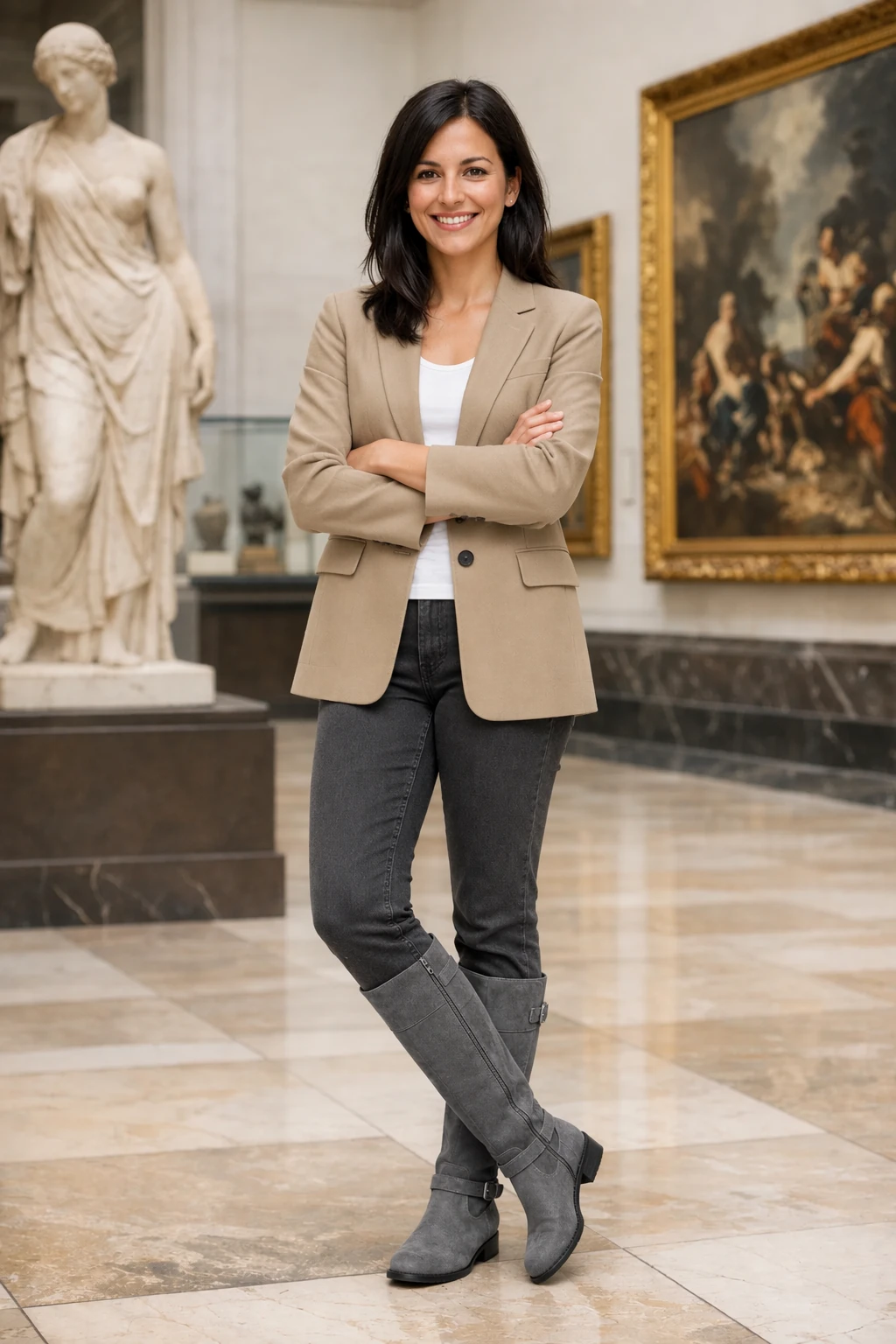
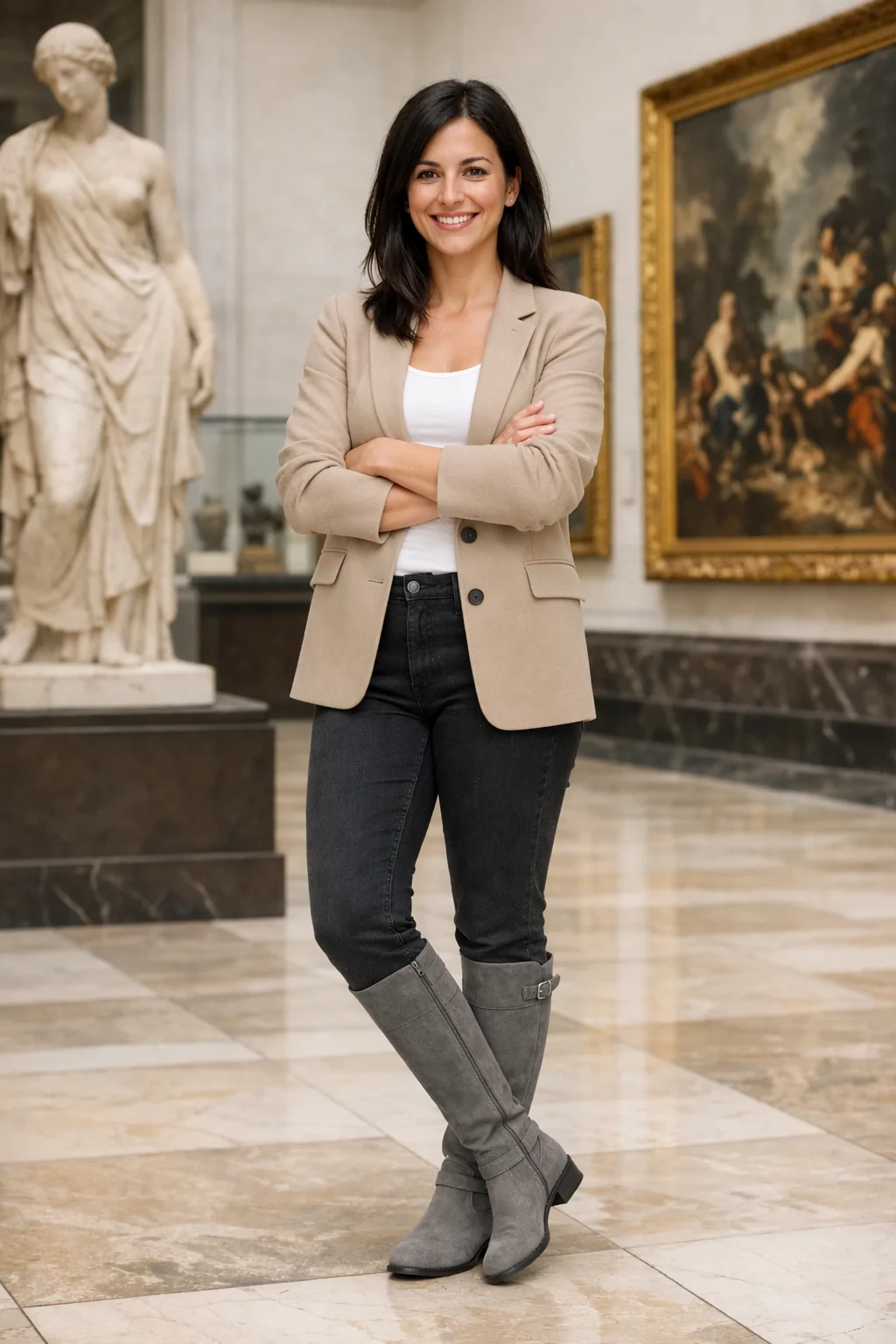
Preserve identity and change clothing
Use the person photograph and three clothing references below as inputs. State which aspects of the person must remain fixed, and allow only the clothing to change. This pattern also applies to edits where a product or object must remain recognizable.
Edit settings: size="1024x1536", quality="medium".
Edit the image to dress the woman using the provided clothing images. Do not change her face, facial features, skin tone, body shape, pose, or identity in any way. Preserve her exact likeness, expression, hairstyle, and proportions. Replace only the clothing, fitting the garments naturally to her existing pose and body geometry with realistic fabric behavior. Match lighting, shadows, and color temperature to the original photo so the outfit integrates photorealistically, without looking pasted on. Do not change the background, camera angle, framing, or image quality, and do not add accessories, text, logos, or watermarks.
Input images:
Example outputs:
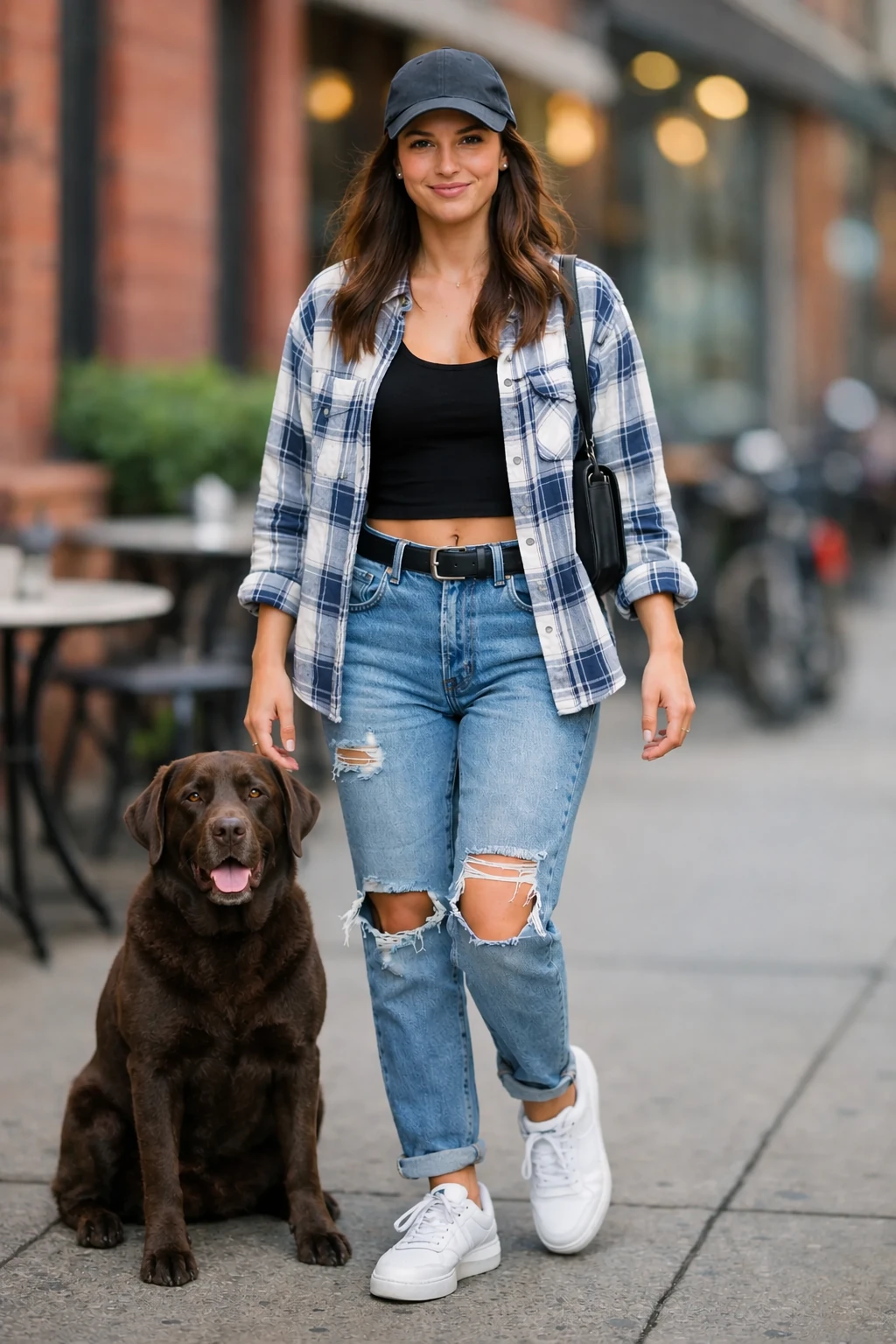
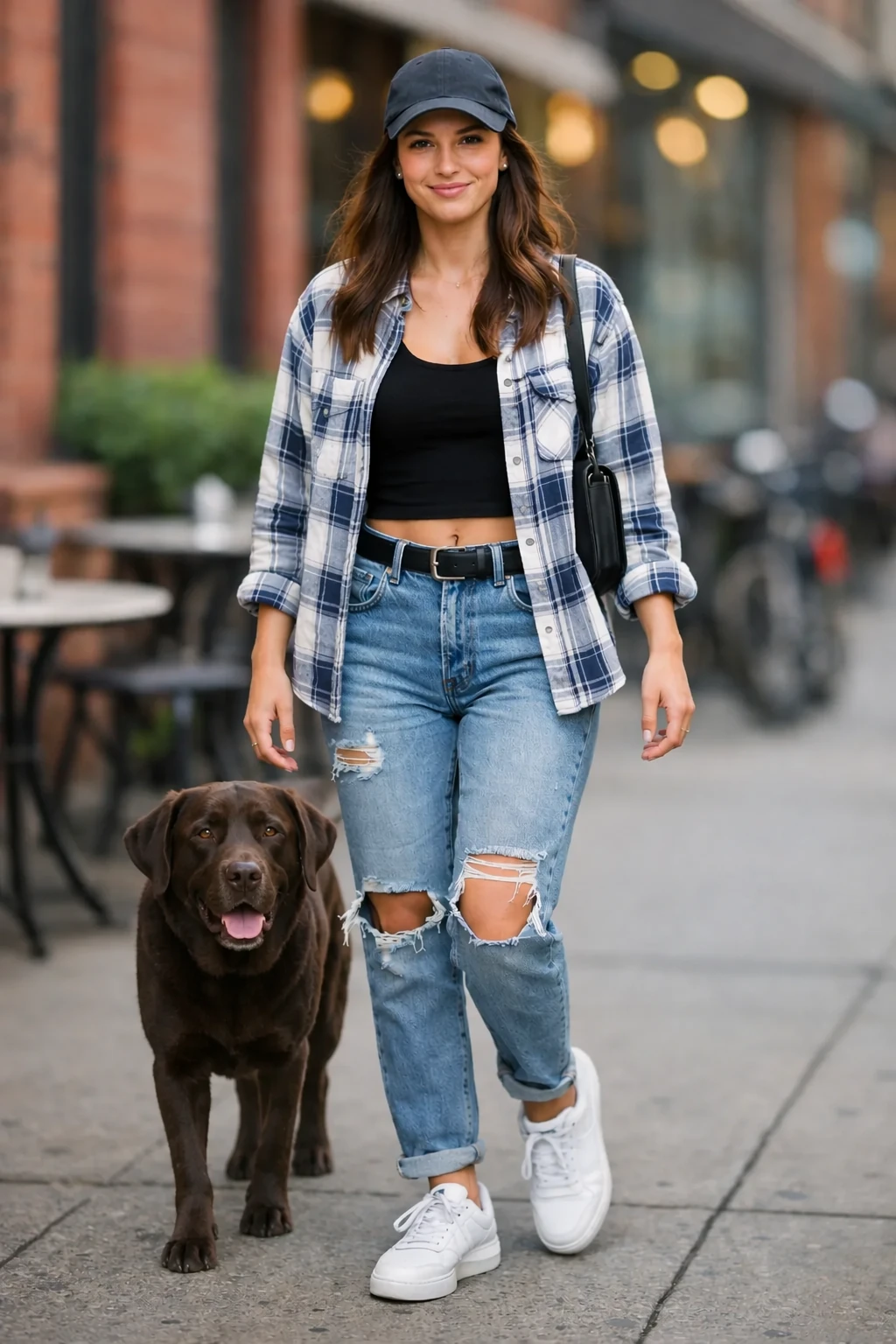
Combine references
Pass the scene photograph as image 1 and the dog photograph as image 2. Specify which element to move, its destination, and what must remain unchanged.
Edit settings: size="1024x1536", quality="medium".
Place the dog from the second image into the setting of image 1, right next to the woman, use the same style of lighting, composition and background. Do not change anything else.
Input images:
Example outputs:
Create a transparent product cutout
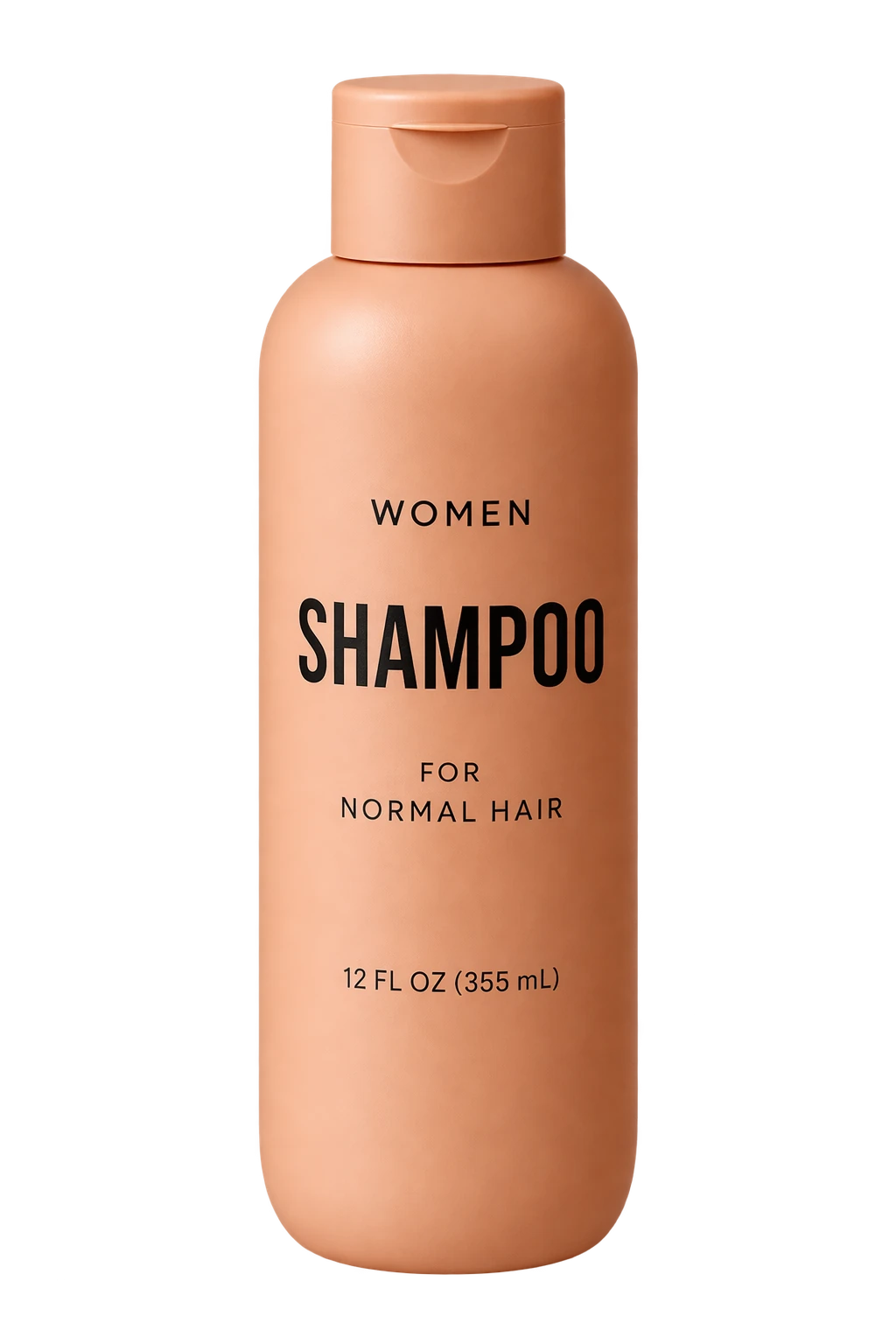
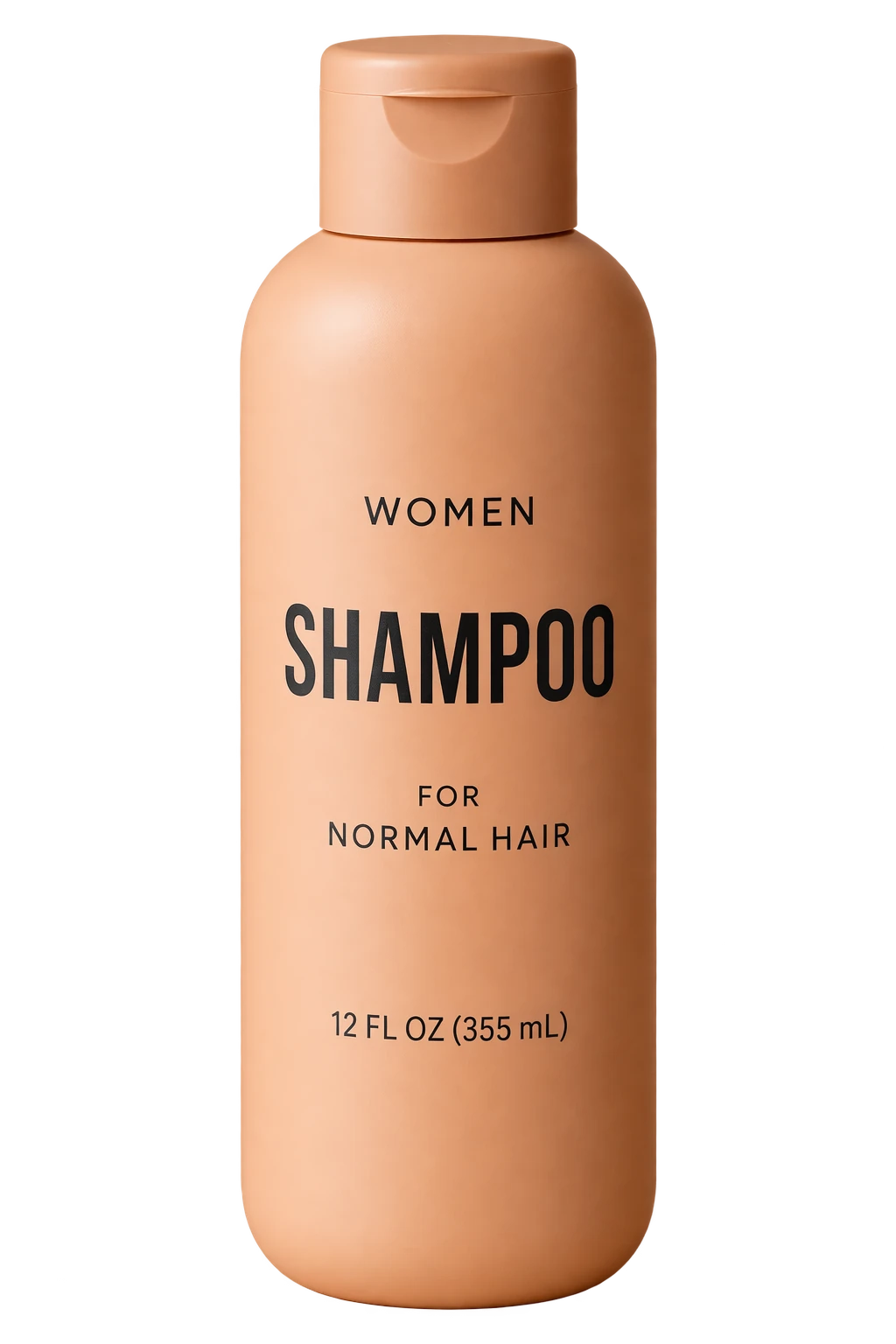
Request both an isolated subject in the prompt and background="transparent" in the API. Use PNG or WebP, preserve the returned alpha channel, and omit output_compression for PNG. A drawn checkerboard is not transparency. For subsequent edits, repeat the requirement to preserve the transparent background. Use the product photograph below as the input.
Edit settings: size="1024x1536", quality="medium", background="transparent", output_format="png".
Extract the product from the input image and isolate it on a fully transparent background.
Output: centered product, crisp silhouette, no halos/fringing.
Preserve product geometry and label legibility exactly.
Add only light polishing. Do not add a solid backdrop, checkerboard, scenery, or shadow.
Do not restyle the product; remove the background and preserve clean alpha transparency.
Input image:
Example outputs:
Turn a drawing into a realistic image
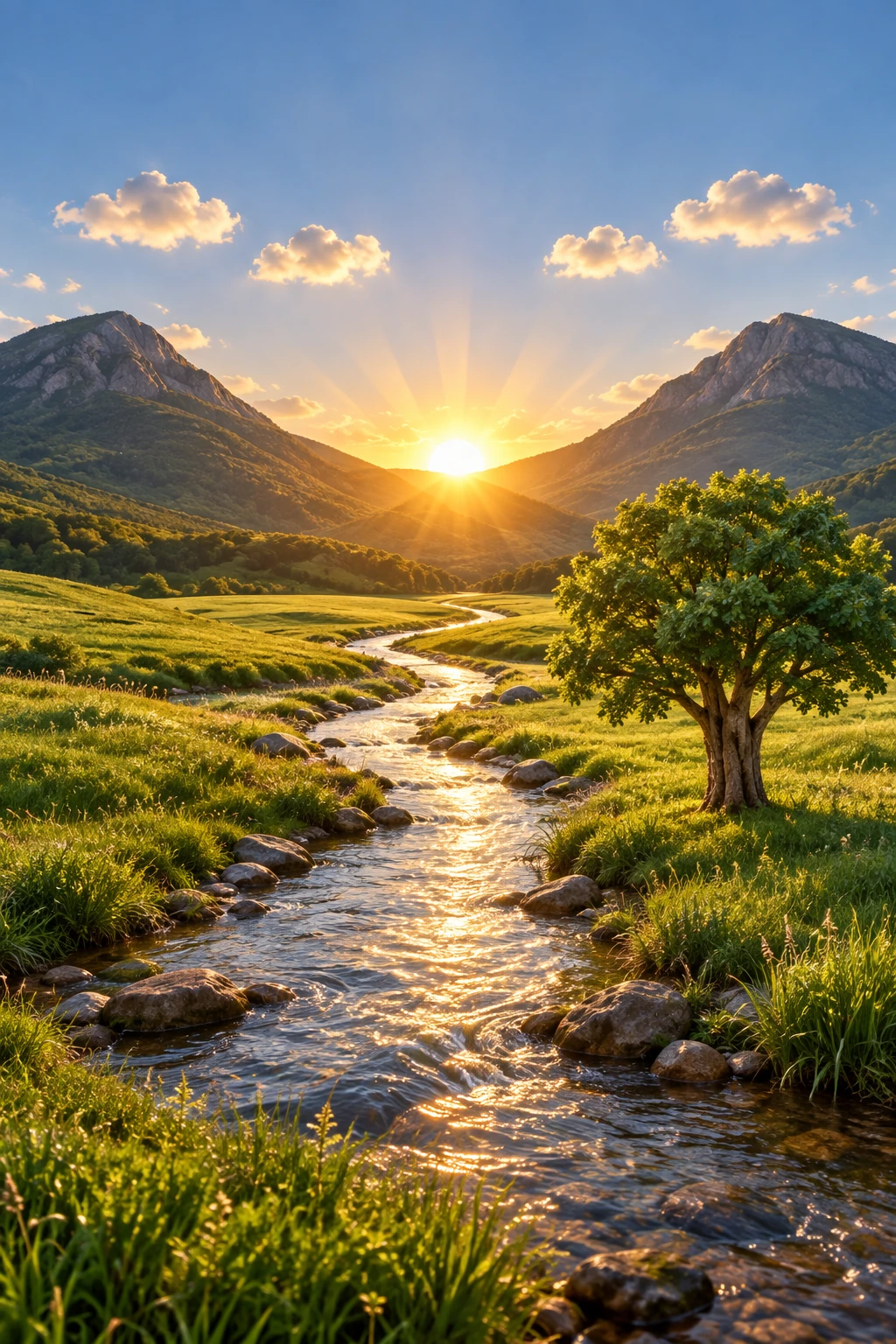
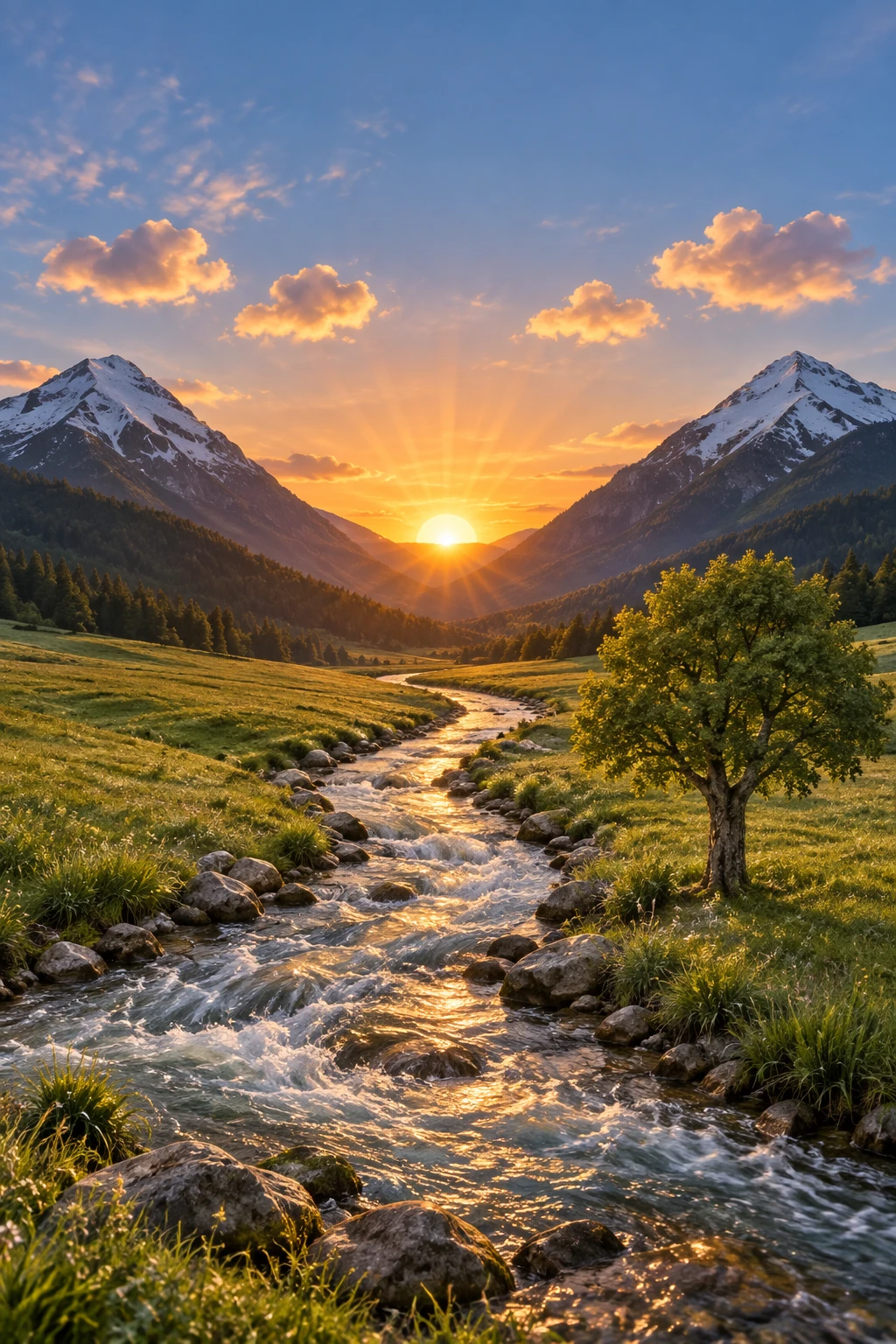
Sketch-to-render workflows are great for turning rough drawings into photorealistic concepts while keeping the original intent. Treat the prompt like a spec: preserve layout and perspective, then add realism by specifying plausible materials, lighting, and environment. Include "do not add new elements/text" to avoid creative reinterpretations.
Edit settings: size="1024x1536", quality="medium".
Turn this drawing into a photorealistic image.
Preserve the exact layout, proportions, and perspective.
Choose realistic materials and lighting consistent with the sketch intent.
Do not add new elements or text.
Input image:
Example outputs:
Remove an object
Remove one object by naming it explicitly and preserving everything around it. Keep the person, pose, lighting, and composition unchanged so the edit stays local.
Edit settings: size="1024x1536", quality="medium".
Remove the flower from man's hand. Do not change anything else.
Input image:
Example outputs:
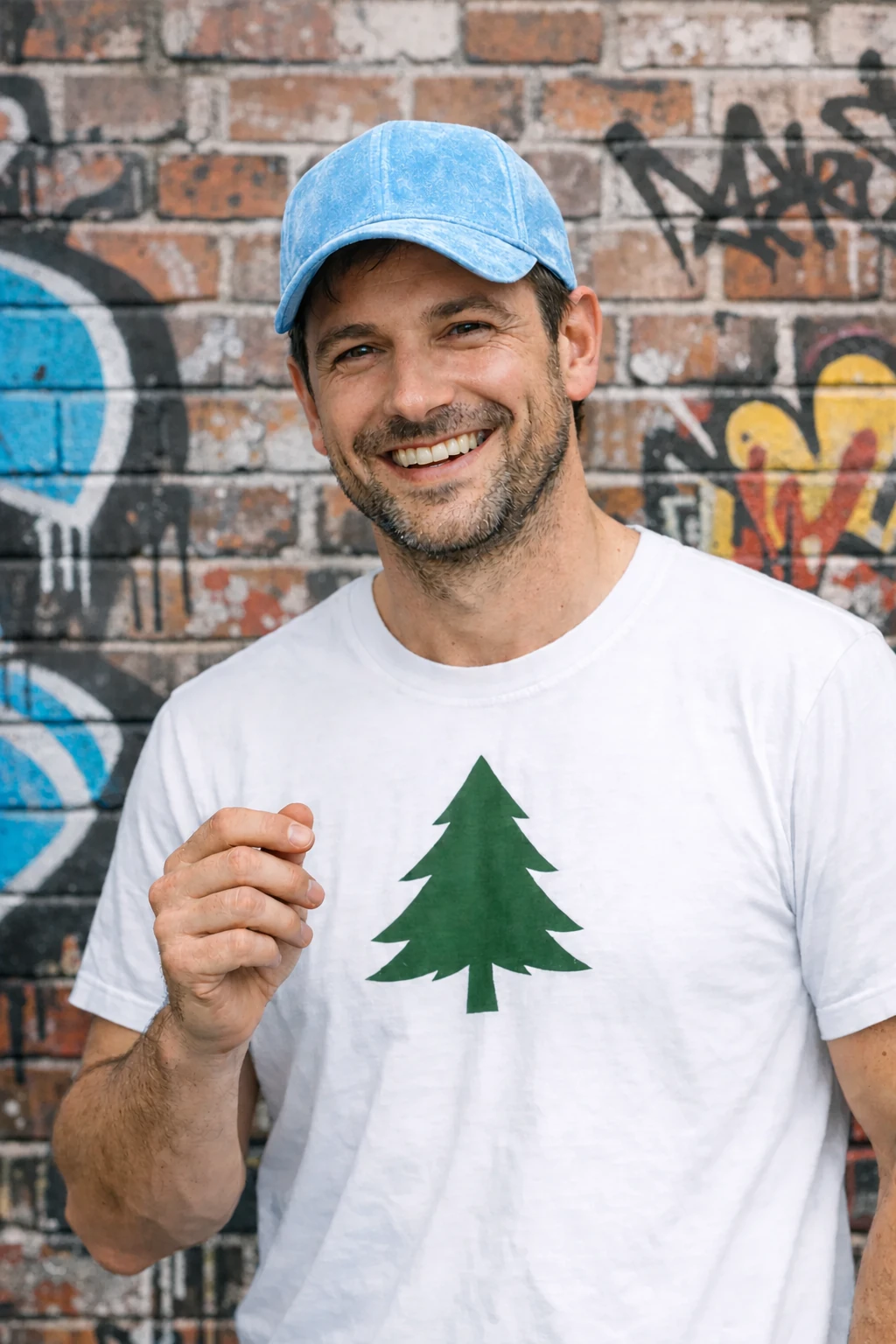
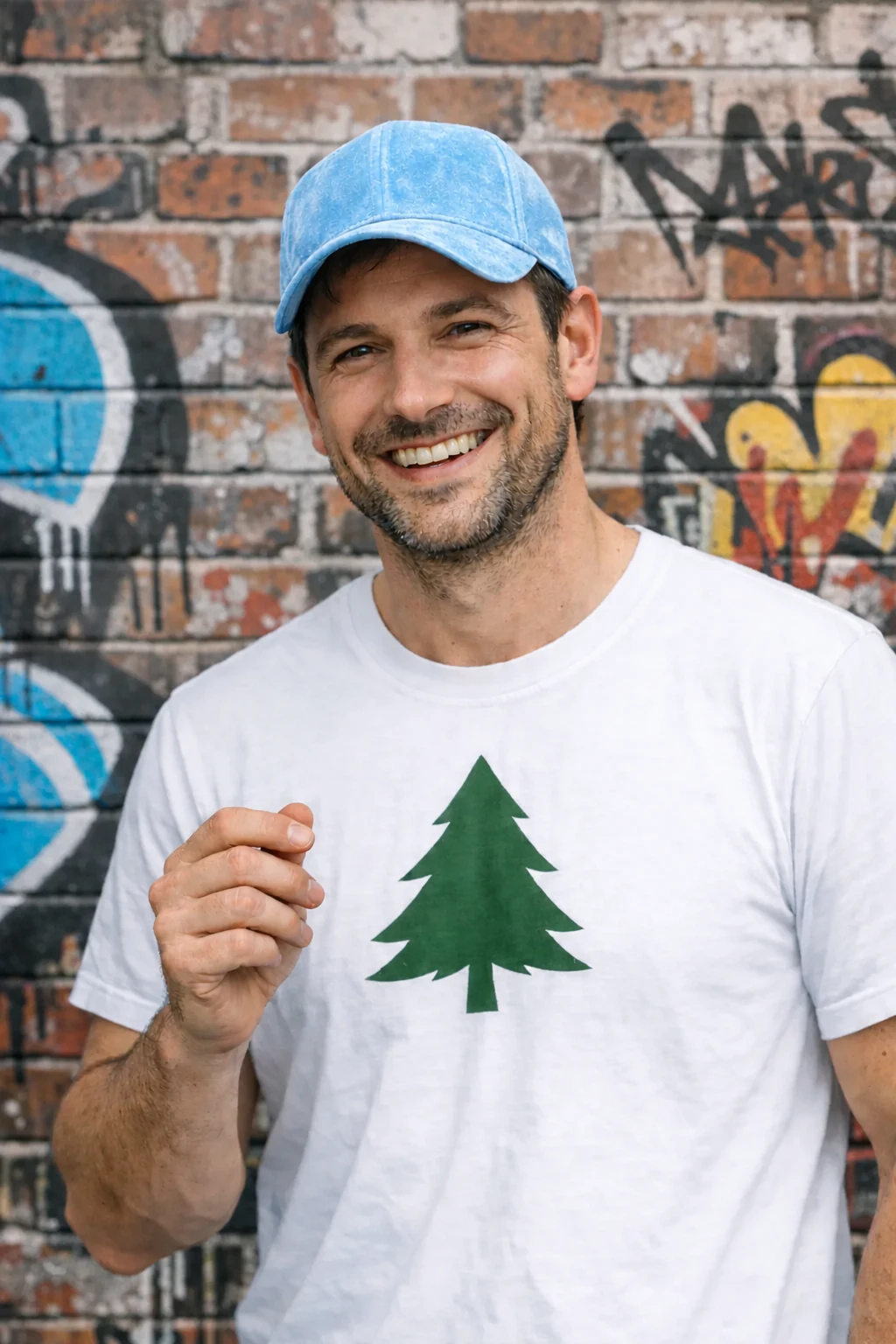
Insert a person into a scene
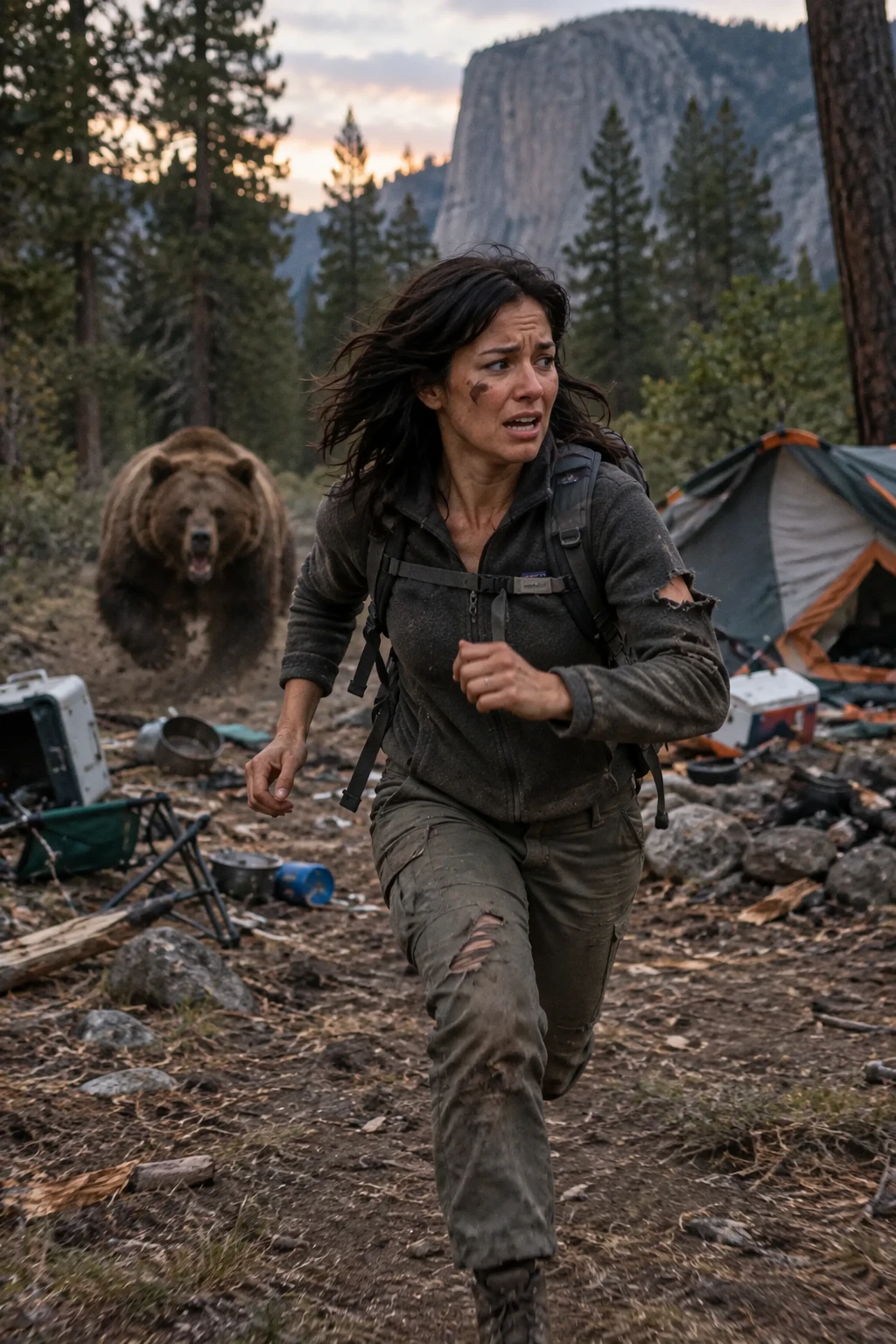
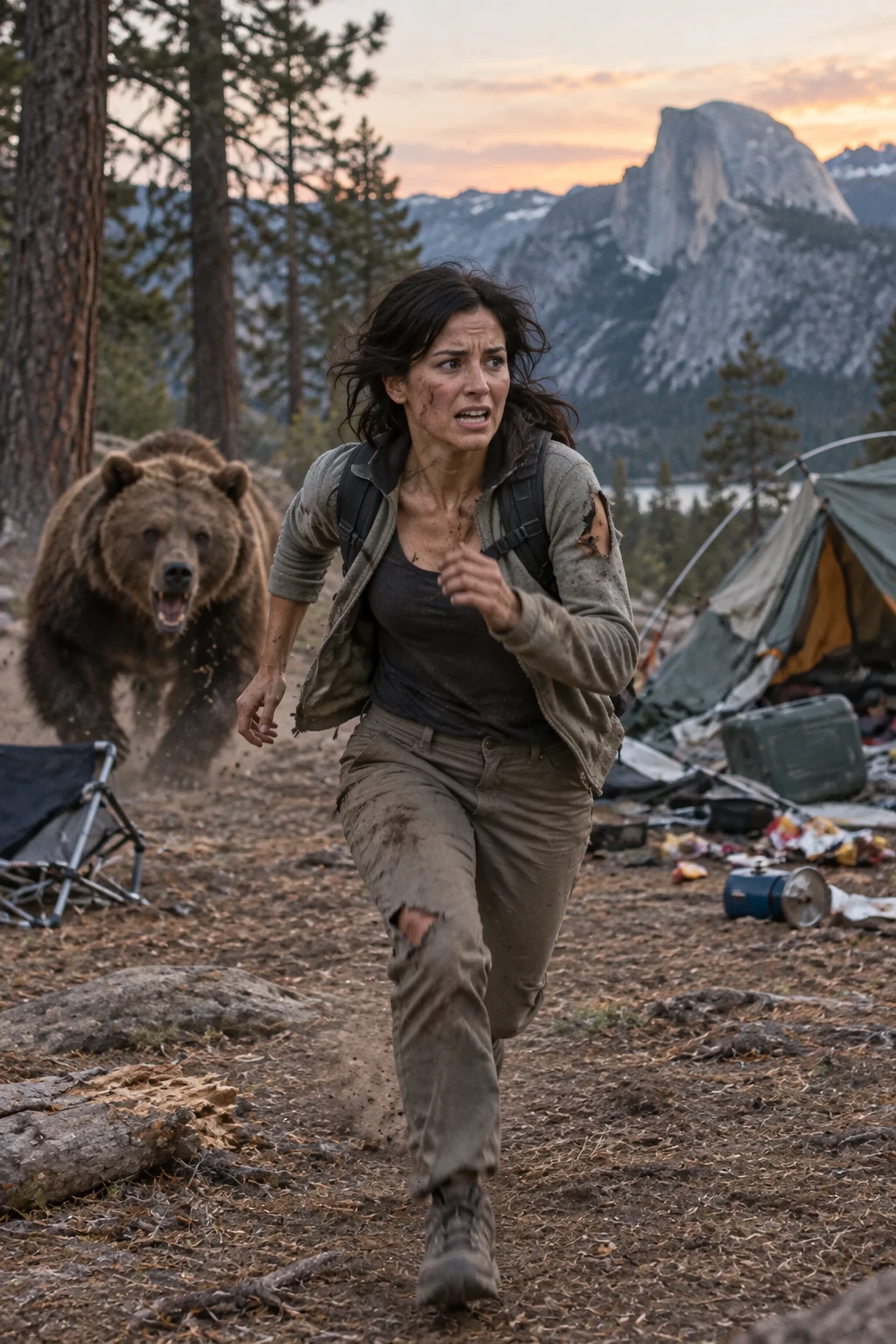
Insert a person into a new scene while preserving their identity. Specify natural lighting, believable detail, body framing, gaze, and interaction with the scene. State which facial features and proportions must remain unchanged. For gpt-image-2, omit input_fidelity; image inputs are always processed at high fidelity.
Use the woman in the museum as the input image.
Edit settings: size="1024x1536", quality="medium".
Generate a highly realistic action scene where this person is running away from a large, realistic brown bear attacking a campsite. The image should look like a real photograph someone could have taken, not an overly enhanced or cinematic movie-poster image.
She is centered in the image but looking away from the camera, wearing outdoorsy camping attire, with dirt on her face and tears in her clothing. She is clearly afraid but focused on escaping, running away from the bear as it destroys the campsite behind her.
The campsite is in Yosemite National Park, with believable natural details. The time of day is dusk, with natural lighting and realistic colors. Everything should feel grounded, authentic, and unstyled, as if captured in a real moment. Avoid cinematic lighting, dramatic color grading, or stylized composition.
Example outputs:
Refine an image across turns
Start with one output, inspect it, and use it as the next input. Keep each follow-up narrow so you can see which change helped.
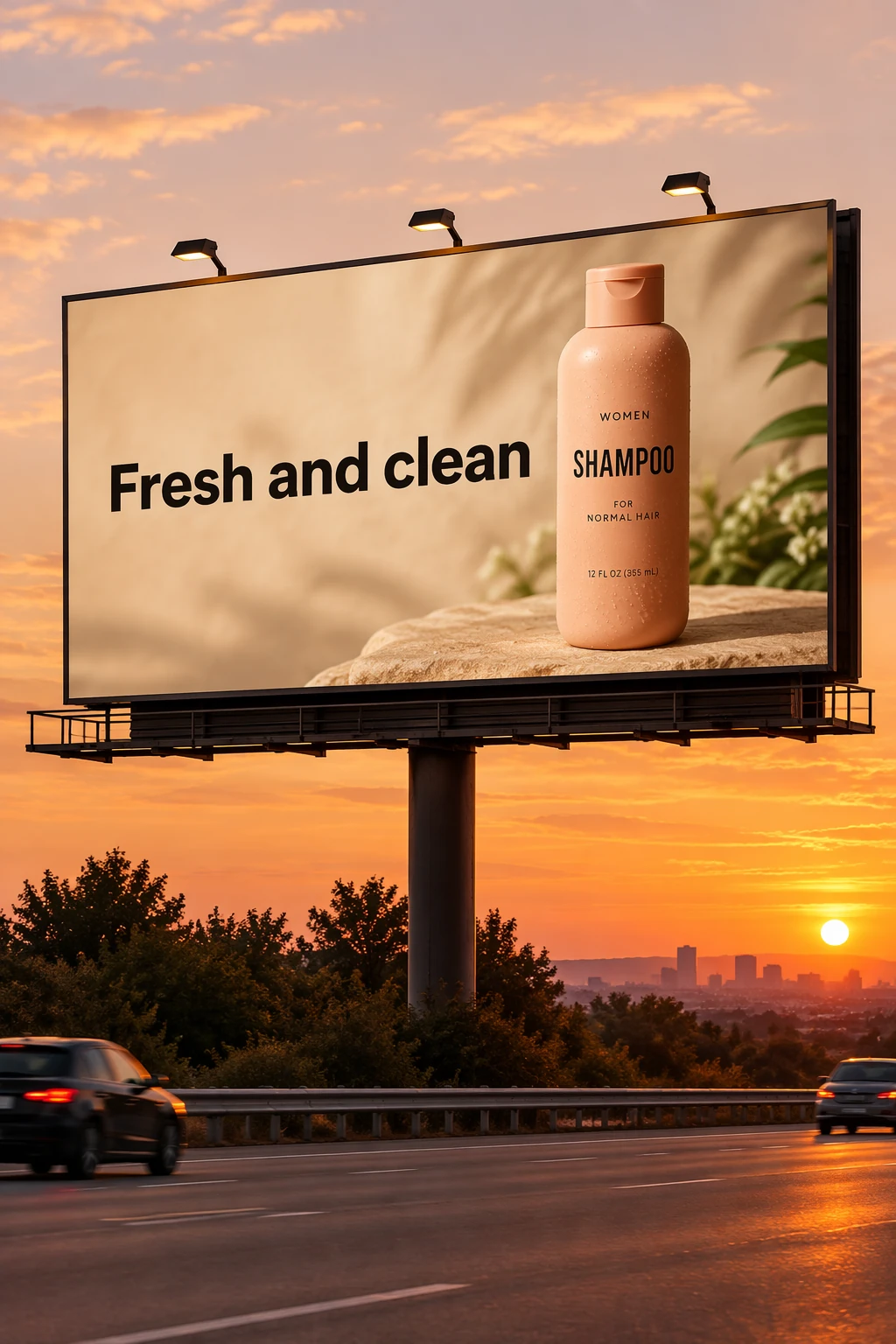
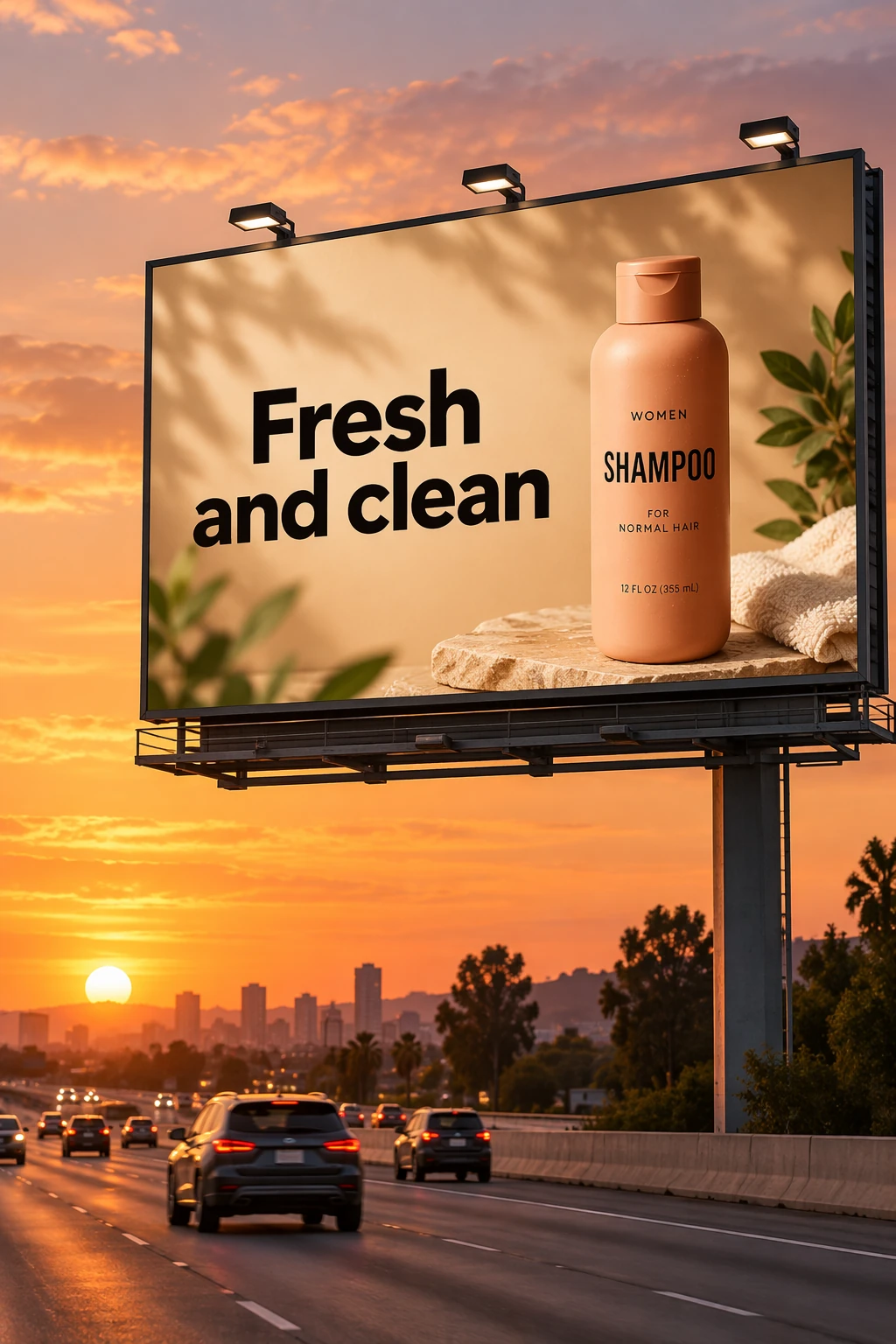
Create the starting image
Use the shampoo photograph from Create a transparent product cutout as the input for this billboard scene. Quote the label text exactly.
Edit settings: size="1024x1536", quality="medium".
Create a realistic billboard mockup of the shampoo on a highway scene during sunset.
Billboard text (EXACT, verbatim, no extra characters):
"Fresh and clean"
Typography: bold sans-serif, high contrast, centered, clean kerning.
Ensure text appears once and is perfectly legible.
No watermarks, no logos.
Input image:
Example outputs:
Change one condition
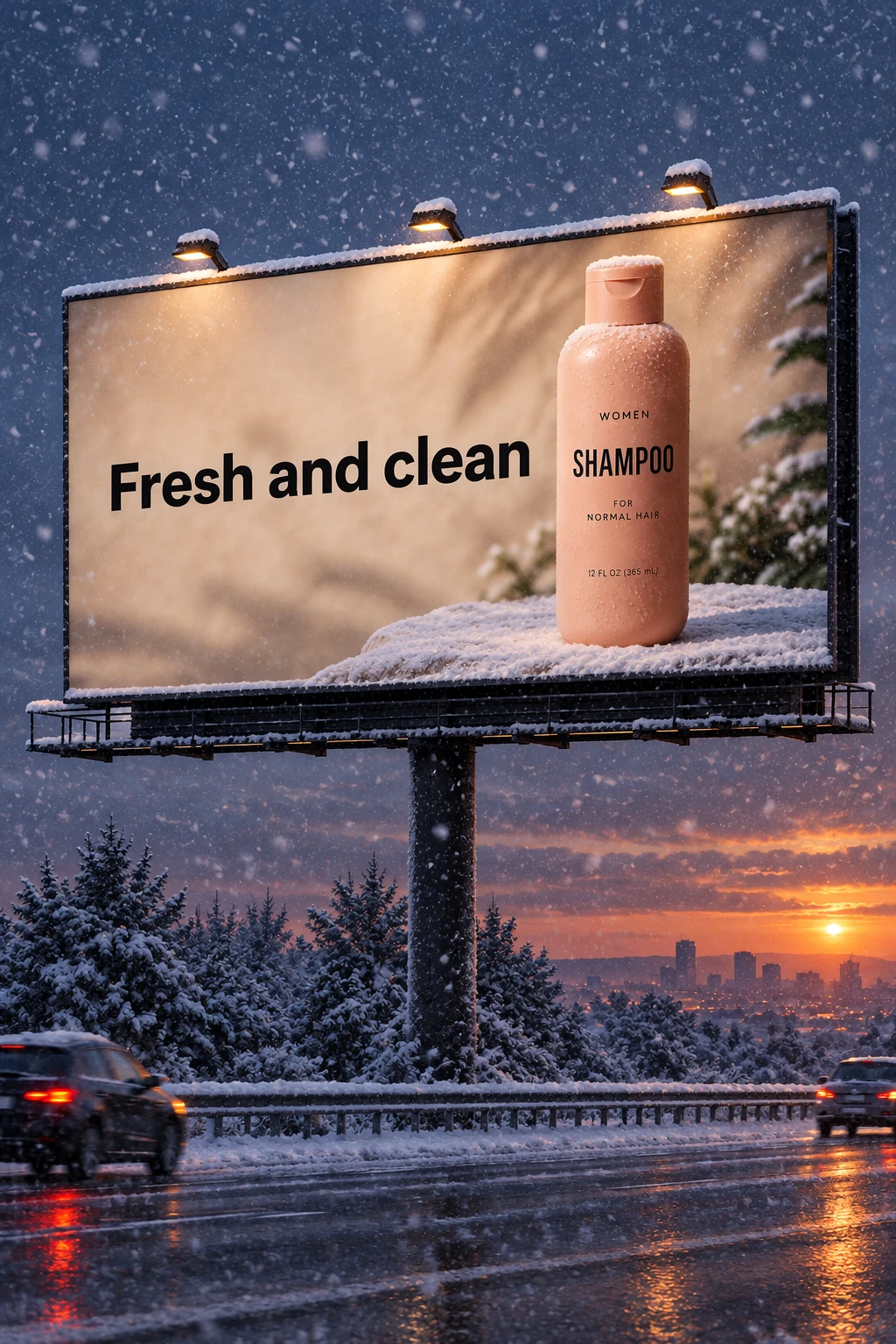
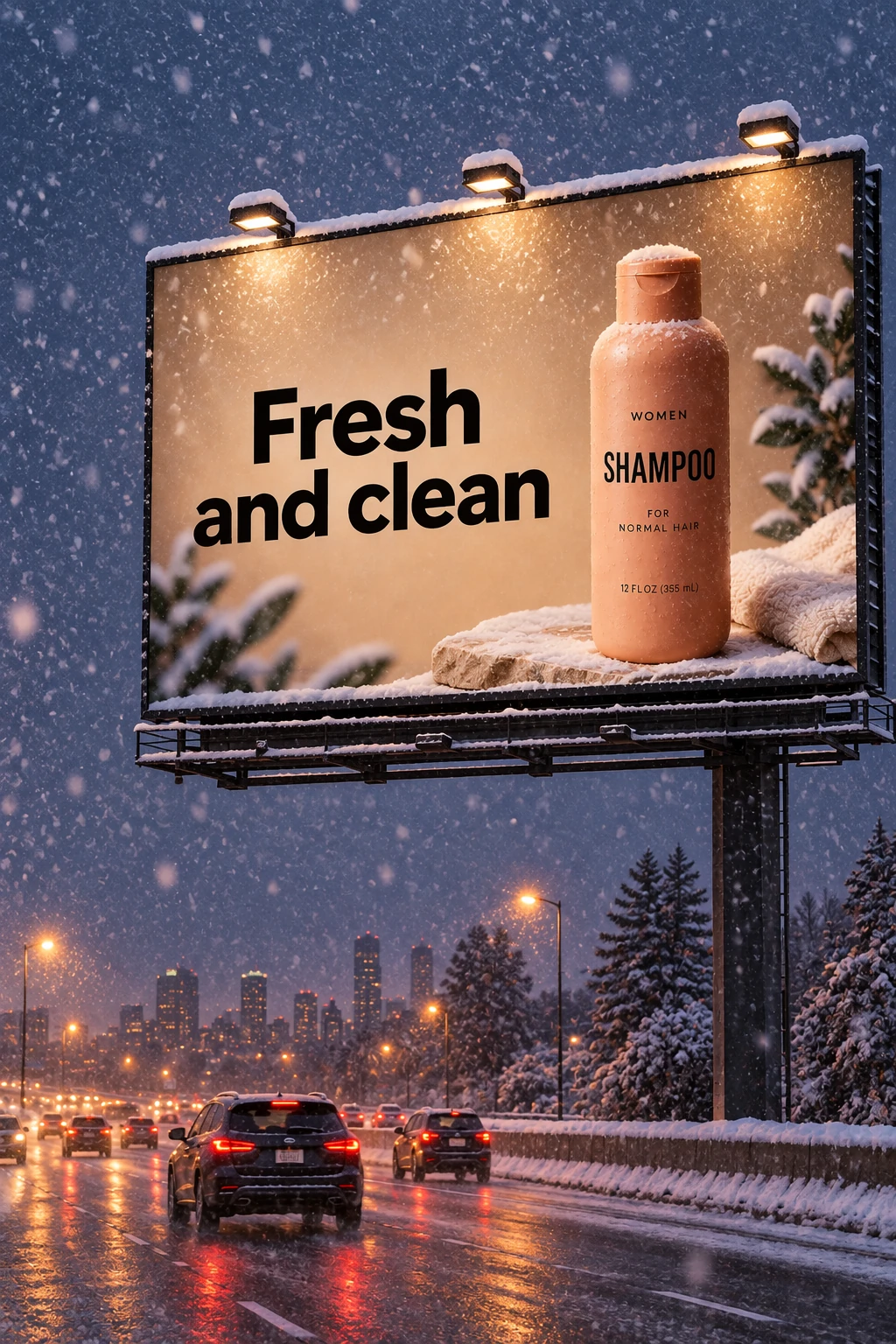
Pass each model's billboard output from the previous step into its next edit request. This short follow-up changes the weather while retaining the existing scene.
Edit settings: size="1024x1536", quality="medium".
Make it look like a winter evening with snowfall.
Example outputs:
Keep a character consistent
For a book with multiple illustrations, create a reusable character reference to help preserve appearance across scenes, poses, and pages. Change the environment and story while repeating the character’s defining details.
Establish the character
Define the character’s appearance, proportions, outfit, and tone.
Generation settings: size="1024x1536", quality="medium".
Create a children’s book illustration introducing a main character.

Character:
A young, storybook-style hero inspired by a little forest outlaw,
wearing a simple green hooded tunic, soft brown boots, and a small belt pouch.
The character has a kind expression, gentle eyes, and a brave but warm demeanor.
Carries a small wooden bow used only for helping, never harming.

Theme:
The character protects and rescues small forest animals like squirrels, birds, and rabbits.

Style:
Children’s book illustration, hand-painted watercolor look,
soft outlines, warm earthy colors, whimsical and friendly.
Proportions suitable for picture books (slightly oversized head, expressive face).

Constraints:
- Original character (no copyrighted characters)
- No text
- No watermarks
- Plain forest background to clearly showcase the character
Example outputs:
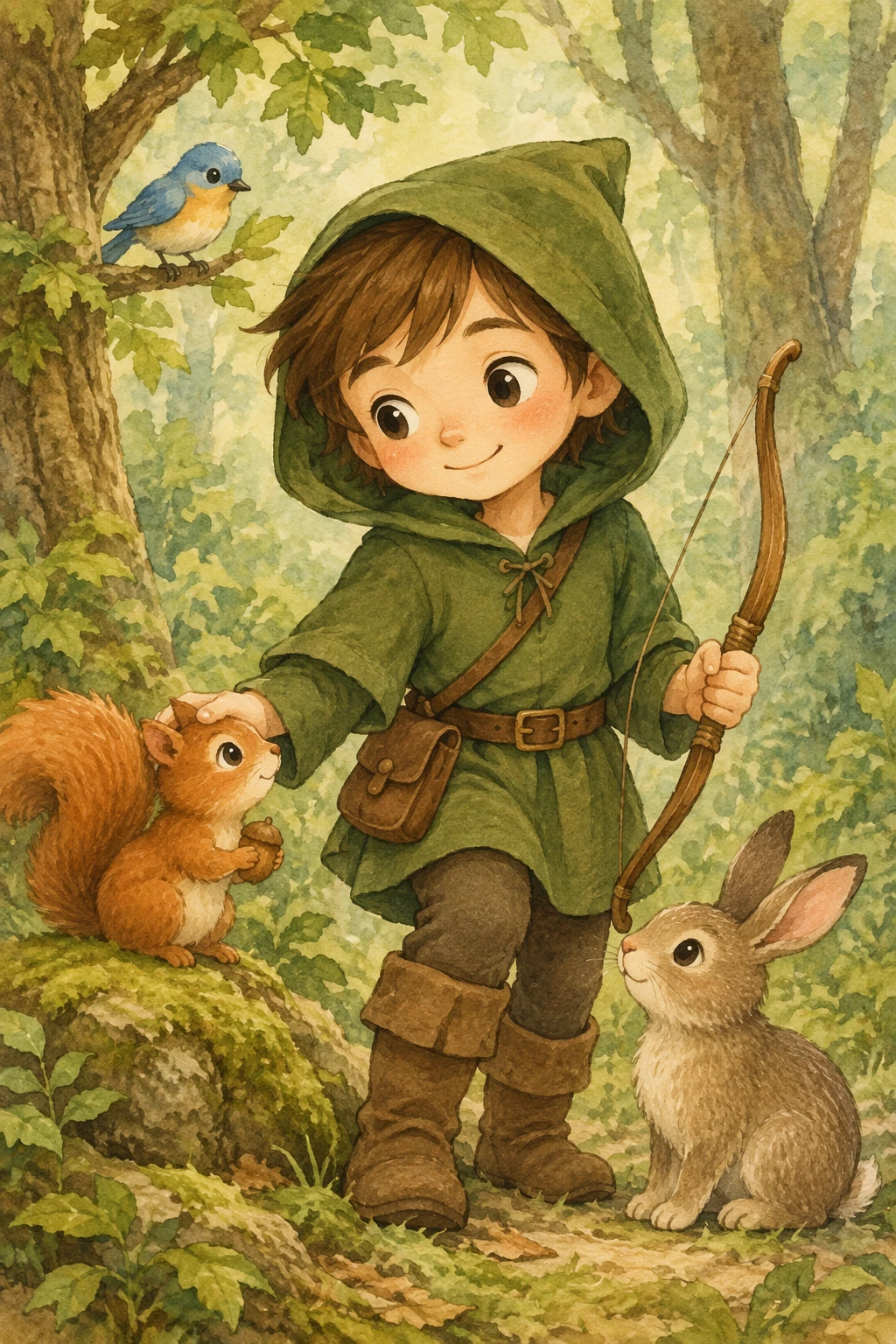
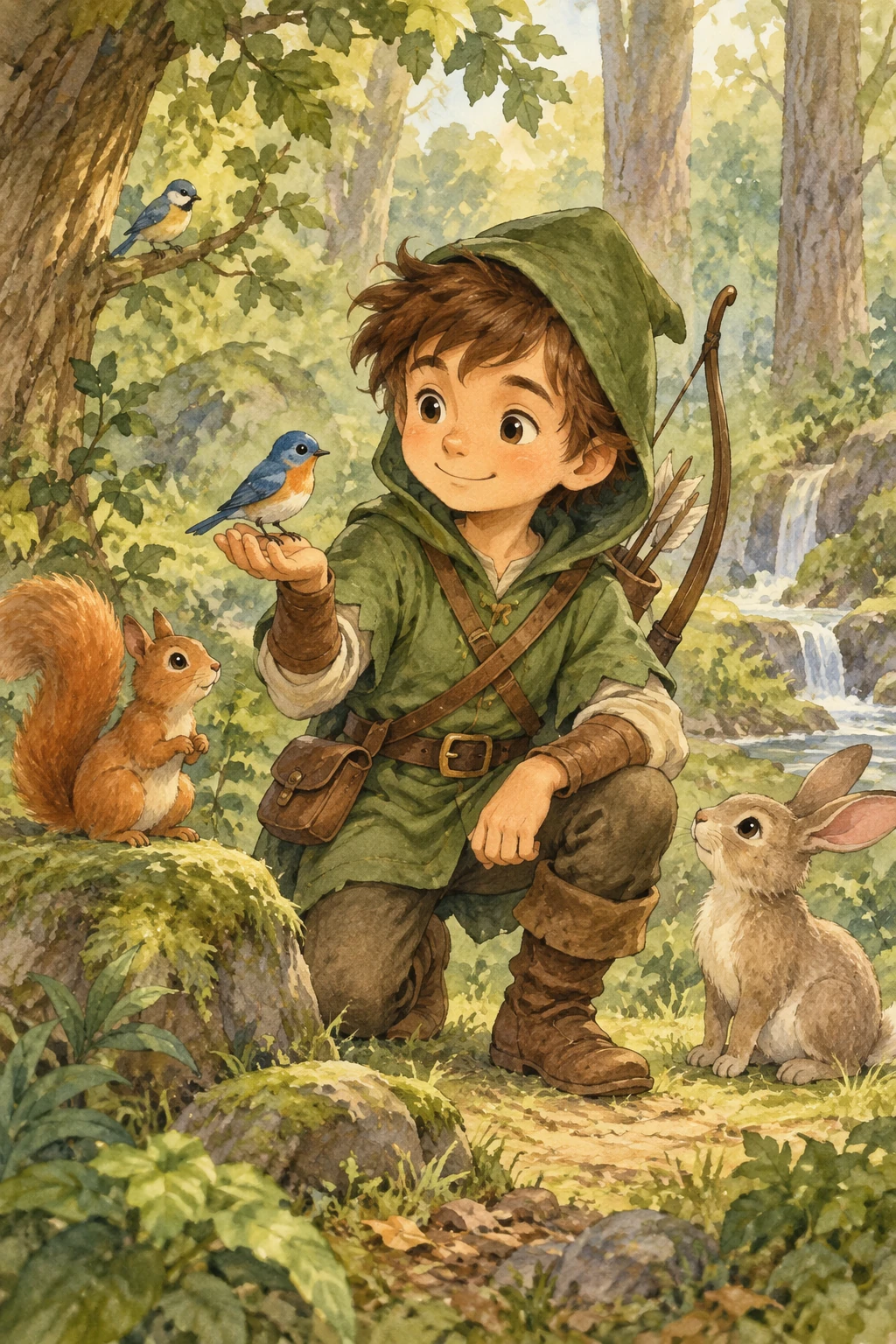
Continue the story
Reuse each model's generated character image and describe a new scene. Repeat the appearance constraints so the character stays consistent.
Edit settings: size="1024x1536", quality="medium".
Continue the children’s book story using the same character.

Scene:
The same young forest hero is gently helping a frightened squirrel
out of a fallen tree after a winter storm.
The character kneels beside the squirrel, offering reassurance.

Character Consistency:
- Same green hooded tunic
- Same facial features, proportions, and color palette
- Same gentle, heroic personality

Style:
Children’s book watercolor illustration,
soft lighting, snowy forest environment,
warm and comforting mood.

Constraints:
- Do not redesign the character
- No text
- No watermarks
Example outputs:
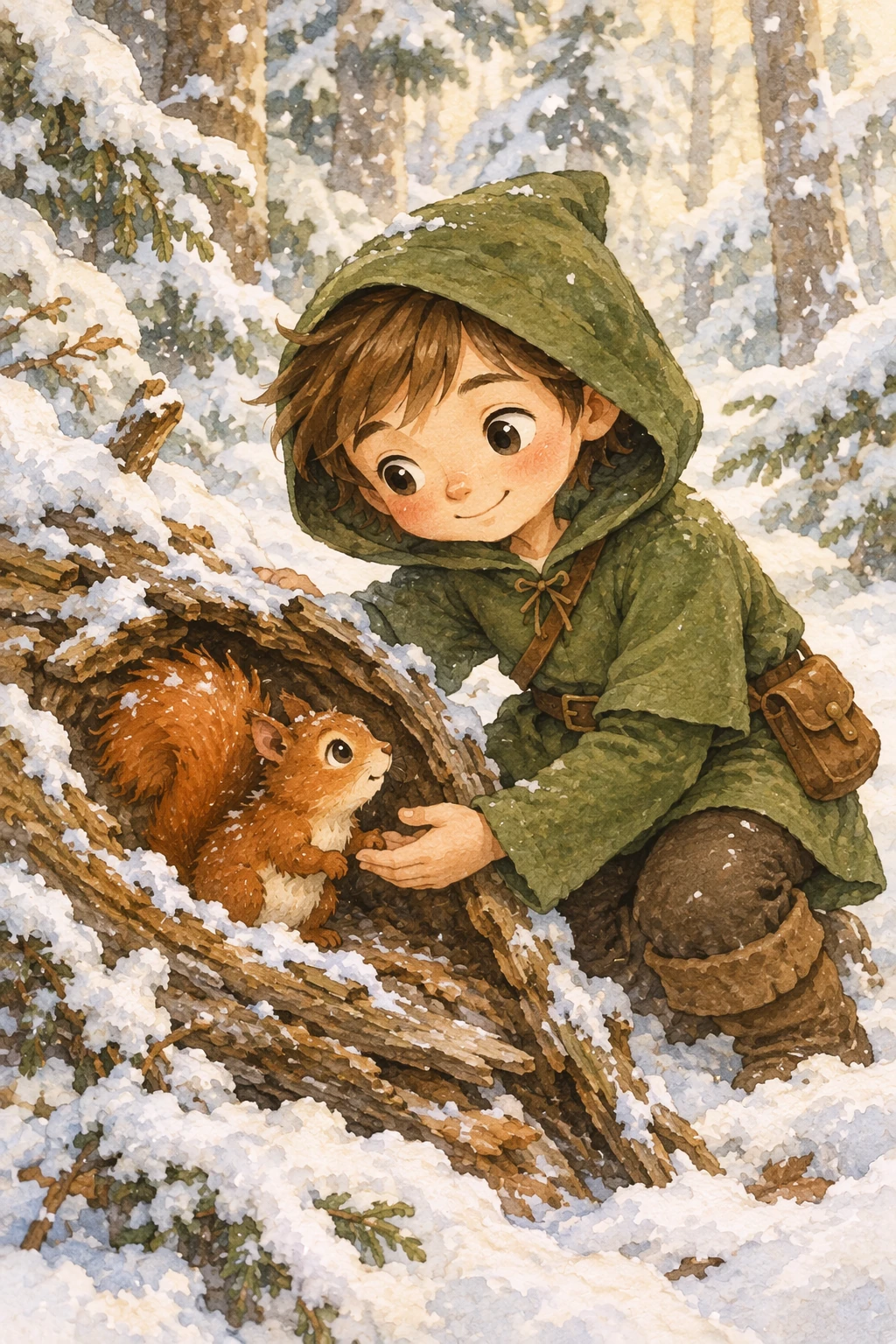
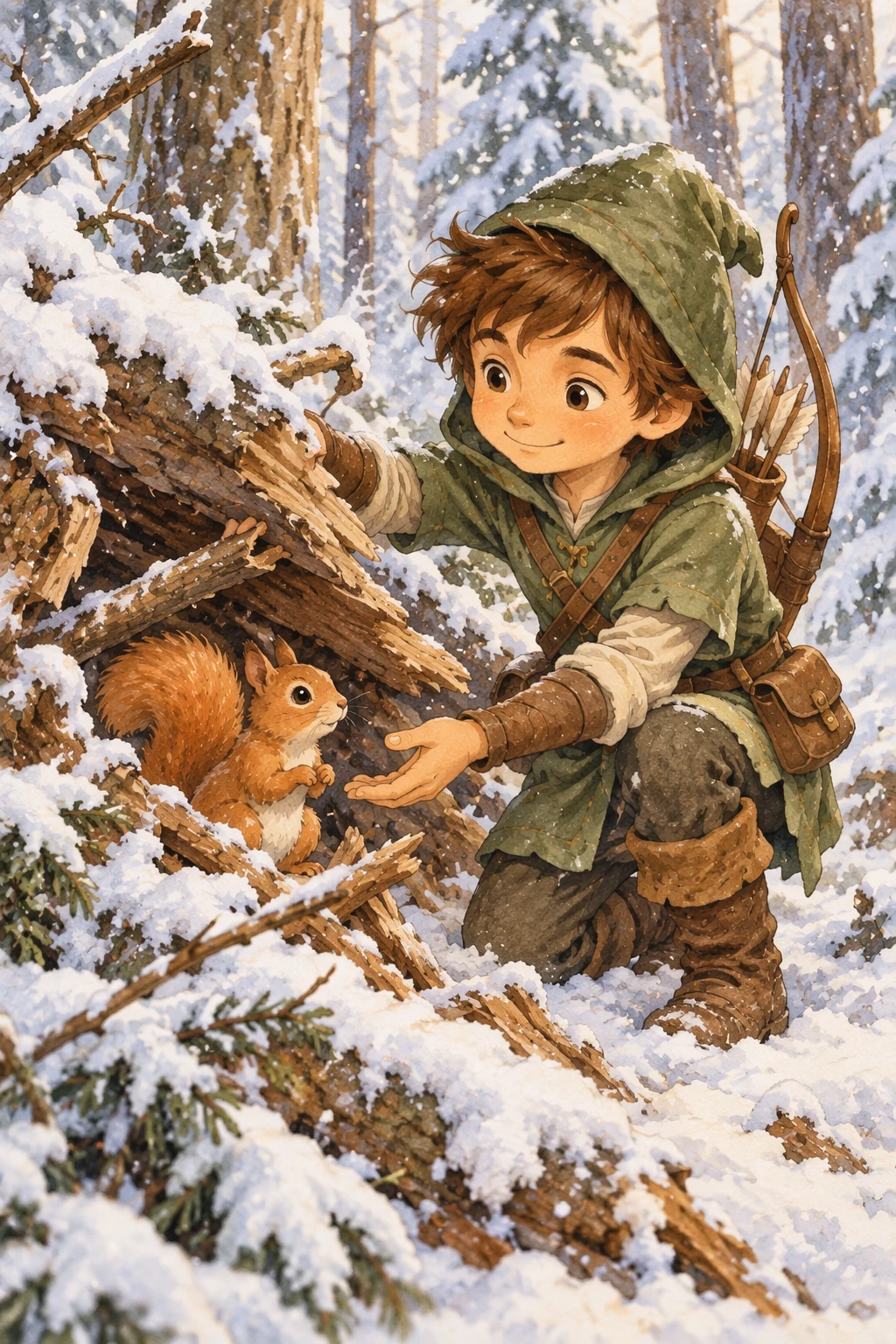
More workflows
Change furniture in a room
Visualize furniture or décor changes in real spaces without recreating the entire scene. The goal is surgical realism: swap a single object while preserving camera angle, lighting, shadows, and surrounding context so the edit looks like a real photograph, not a redesign.
Edit settings: size="1536x1024", quality="medium".
In this room photo, replace ONLY the white chairs with chairs made of wood.
Preserve camera angle, room lighting, floor shadows, and surrounding objects.
Keep all other aspects of the image unchanged.
Photorealistic contact shadows and fabric texture.
Input image:
Example outputs:
Design a holiday card
For seasonal card concepts, describe the scene, emotional tone, materials, lighting, and exact copy. For a 3D pop-up or photographed-card treatment, specify paper layers, fibers, folds, and soft studio lighting. The example below uses a nostalgic teddy-bear scene.
Generation settings: size="1024x1536", quality="medium".
Create a Christmas holiday card illustration.

Scene:
a cozy Christmas scene with an old teddy bear sitting inside a keepsake box, slightly worn fur, soft stitching repairs, placed near a window with falling snow outside. The scene suggests the child has grown up, but the memories remain.

Mood:
Warm, nostalgic, gentle, emotional.

Style:
Premium holiday card photography, soft cinematic lighting,
realistic textures, shallow depth of field,
tasteful bokeh lights, high print-quality composition.

Constraints:
- Original artwork only
- No trademarks
- No watermarks
- No logos

Include ONLY this card text (verbatim):
"Merry Christmas — some memories never fade."
Example outputs:
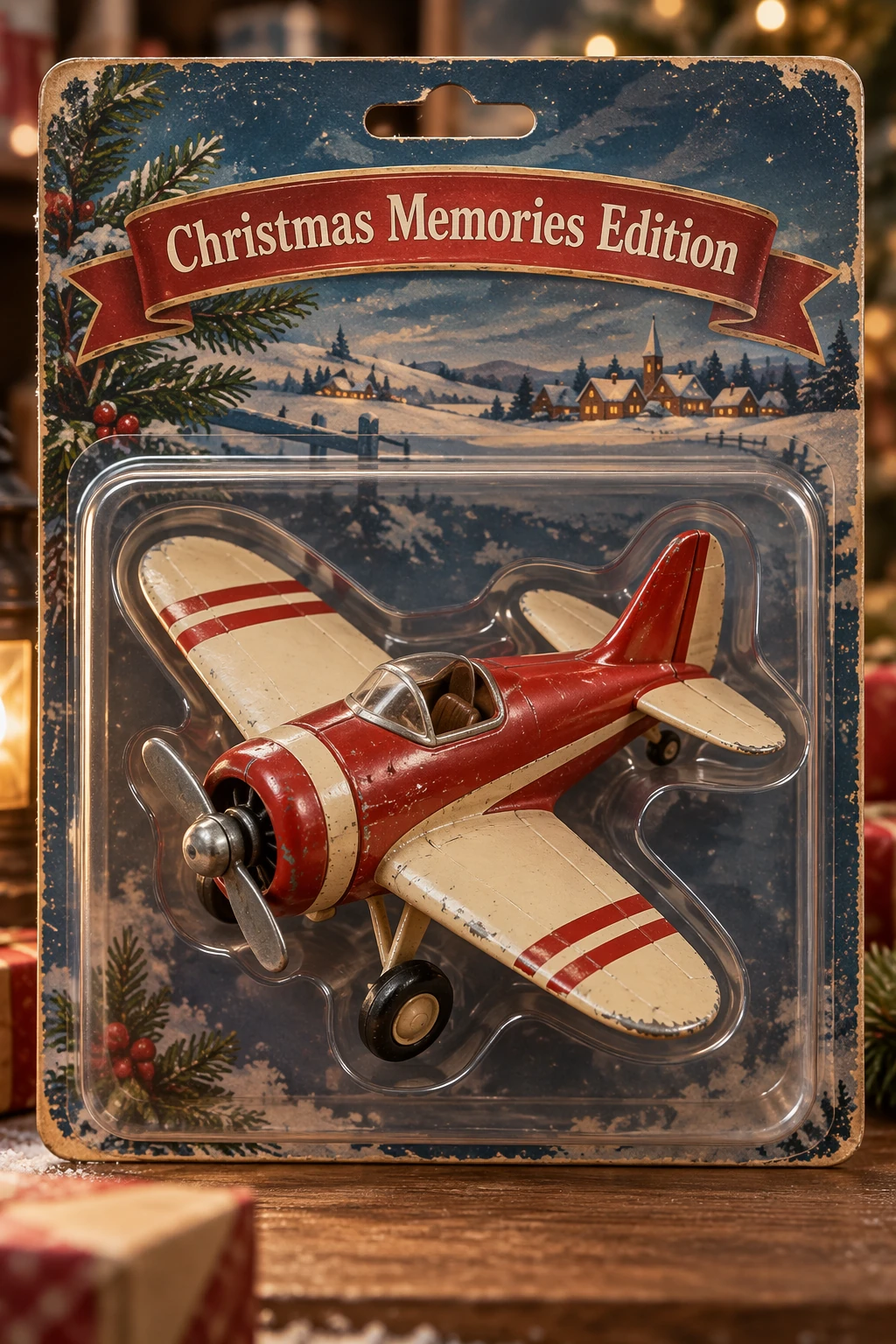
Design collectible merchandise
Explore merchandise and packaging concepts using product photography cues: materials, packaging, and print clarity. Keep designs original and non-infringing, and compare multiple character or packaging variants.
Generation settings: size="1024x1536", quality="medium".
Create a collectible action figure of a vintage-style toy propeller airplane with rounded wings, a front-mounted spinning propeller, slightly worn paint edges, classic childhood proportions, designed as a nostalgic holiday collectible, in blister packaging.

Concept:
A nostalgic holiday collectible inspired by the simple toy airplanes
children used to play with during winter holidays.
Evokes warmth, imagination, and childhood wonder.

Style:
Premium toy photography, realistic plastic and painted metal textures,
studio lighting, shallow depth of field,
sharp label printing, high-end retail presentation.

Constraints:
- Original design only
- No trademarks
- No watermarks
- No logos

Include ONLY this packaging text (verbatim):
"Christmas Memories Edition"
Example outputs:
Run a complete example
This runnable example remains pinned to gpt-image-2. Use it as a baseline, then choose an available model and its supported request settings for your evaluation.
The examples below generate four logo variations and extract a product onto a transparent background. Install the OpenAI SDK with pip install openai for Python or gem install openai for Ruby. Set OPENAI_API_KEY and save the product photograph as input_images/shampoo.webp. Live requests incur API usage charges.
View the complete example
Generate and edit transparent assets
import base64
from pathlib import Path

from openai import OpenAI

client = OpenAI()


prompt = """
Create an original, non-infringing logo for a company called Field & Flour, a local bakery.
The logo should feel warm, simple, and timeless. Use clean, vector-like shapes, a strong silhouette, and balanced negative space.
Favor simplicity over detail so it reads clearly at small and large sizes. Flat design, minimal strokes, no gradients unless essential.
Fully transparent background. Deliver a single centered logo with generous padding, clean alpha edges, and no solid backdrop, scenery, checkerboard, or watermark.
"""

result = client.images.generate(
    model="gpt-image-2.5-sunburst",
    prompt=prompt,
    size="1024x1536",
    quality="medium",
    background="transparent",
    output_format="png",
    n=4,  # Generate 4 versions of the logo
)

# Preserve the returned PNG bytes, including the alpha channel.
for index, item in enumerate(result.data, start=1):
    Path(f"logo-generation-{index}-gpt-image-2.5-sunburst.png").write_bytes(
        base64.b64decode(item.b64_json)
    )

# Extract a product from a reference image.
prompt = """
Extract the product from the input image and isolate it on a fully transparent background.
Output: centered product, crisp silhouette, no halos/fringing.
Preserve product geometry and label legibility exactly.
Add only light polishing. Do not add a solid backdrop, checkerboard, scenery, or shadow.
Do not restyle the product; remove the background and preserve clean alpha transparency.
"""

result = client.images.edit(
    model="gpt-image-2.5-sunburst",
    image=[
        ("shampoo.webp", Path("input_images/shampoo.webp"), "image/webp"),
    ],
    prompt=prompt,
    size="1024x1536",
    quality="medium",
    background="transparent",
    output_format="png",
)

Path("extract-product-gpt-image-2.5-sunburst.png").write_bytes(
    base64.b64decode(result.data[0].b64_json)
)
require "base64"
require "openai"
require "pathname"

client = OpenAI::Client.new
result = client.images.generate(
  model: "gpt-image-2.5-sunburst",
  prompt: "Create an original logo for Field & Flour, a local bakery. Use warm, simple shapes on a fully transparent background, with clean alpha edges and no shadow or checkerboard.",
  size: "1024x1536", quality: :medium, background: :transparent, output_format: :png, n: 4
)
Array(result.data).each_with_index do |item, index|
  File.binwrite("logo-generation-#{index + 1}-gpt-image-2.5-sunburst.png", Base64.strict_decode64(item.b64_json || raise("No PNG returned")))
end
result = client.images.edit(
  model: "gpt-image-2.5-sunburst", image: OpenAI::FilePart.new(Pathname("input_images/shampoo.webp"), content_type: "image/webp"),
  prompt: "Extract the product onto a fully transparent background. Preserve its geometry and label, with clean edges and no shadow or restyling.",
  size: "1024x1536", quality: :medium, background: :transparent, output_format: :png
)
File.binwrite("extract-product-gpt-image-2.5-sunburst.png", Base64.strict_decode64(Array(result.data).fetch(0).b64_json || raise("No PNG returned")))
For additional prompts and complete workflows, see the original notebook.
Check the result
Check the output against the requirements before using it:
- Is required text accurate and legible? Are diagram labels and relationships correct?
- Do identities, product shapes, labels, and reference details remain intact?
- Did the edit change only what you requested?
- If transparency is required, does the file contain an alpha channel rather than a painted background?
Compare quality, latency, and cost on representative inputs when changing prompts or models. See image generation pricing for current costs.
  <header className="not-prose mb-8">
    <h2
      id="gpt-image-2-guide"
      className="m-0 text-3xl font-semibold text-default"
    >
      {"GPT-Image-2 reference"}
    </h2>


      Overview and request settings for existing GPT-Image-2 workflows.


  </header>
Overview
GPT-Image-2 supports image generation and editing, including text rendering, reference-based edits, and flexible output sizes. Use this reference to maintain existing integrations. The prompting guide covers shared techniques for composition, text, reference images, and preserving details during edits. Its illustrated examples use GPT-Image-2.5 Flare and GPT-Image-2.5 Sunburst; outputs can differ across models. For migration, use the guide's model selection and evaluation workflow.
Model parameters
Use client.images.generate for generation and client.images.edit for edits. See the image generation guide for API setup and request examples.
| Parameter | GPT-Image-2 |
|---|---|
model |
gpt-image-2 |
quality |
low, medium, high, or auto |
size |
auto or a supported resolution; see size constraints |
input_fidelity |
Omit it. Image inputs are always processed at high fidelity. |
output_format |
png, jpeg, or webp |
background |
For transparent output, explicitly set transparent and use PNG or WebP. |
output_compression |
Use only for JPEG or WebP output, not PNG. |
Transparent backgrounds are available in preview for gpt-image-2.
For the original prompts, inputs, and runnable workflows, see the pinned GPT-Image-2 notebook.
  <header className="not-prose mb-8">
    <h2
      id="gpt-image-1.5-guide"
      className="m-0 text-3xl font-semibold text-default"
    >
      {"GPT-Image-1.5 reference"}
    </h2>


      Overview and request settings for existing GPT-Image-1.5 workflows.


  </header>
Overview
Deprecated model. gpt-image-1.5 is scheduled to shut down on December 1,
2026. See the deprecation
notice and
validate existing workflows with gpt-image-2 before migrating.
GPT-Image-1.5 supports image generation and editing, including text rendering, photorealistic images, and reference-based edits. Use this reference to maintain existing integrations. The prompting guide covers shared techniques for composition, text, reference images, and preserving details during edits. Test those techniques with your model and inputs; outputs can differ across models.
Model parameters
Use client.images.generate for generation and client.images.edit for edits. See the image generation guide for API setup and request examples.
| Parameter | GPT-Image-1.5 |
|---|---|
model |
gpt-image-1.5 |
quality |
low, medium, high, or auto |
size |
1024x1024, 1024x1536, 1536x1024, or auto |
output_format |
png, jpeg, or webp |
output_compression |
0 to 100, for JPEG or WebP output only |
background |
Set transparent explicitly for transparent output; use PNG or WebP |
input_fidelity |
low or high; high preserves input details, while quality controls output generation. Omit this parameter when migrating to GPT-Image-2, which always uses high input fidelity. |
  <header className="not-prose mb-8">
    <h2
      id="gpt-image-1-guide"
      className="m-0 text-3xl font-semibold text-default"
    >
      {"GPT-Image-1 reference"}
    </h2>


      Legacy request settings for migrating GPT-Image-1 workflows.


  </header>
Overview
Retired model. gpt-image-1 was shut down on October 23, 2026. Use
gpt-image-2.5-sunburst or gpt-image-2.5-flare instead. See the
deprecation
notice for
migration details.
GPT-Image-1 supported image generation and editing with reference images and masks. Use this reference when migrating existing integrations. For shared techniques such as describing a scene, preserving details, and refining an edit, see the prompting guide.
Model parameters
These settings describe legacy GPT-Image-1 requests. See the image generation guide for supported models, API setup, and current request examples.
| Parameter | GPT-Image-1 |
|---|---|
model |
gpt-image-1 |
quality |
low, medium, high, or auto |
size |
1024x1024, 1024x1536, 1536x1024, or auto |
output_format |
png, jpeg, or webp |
output_compression |
0 to 100, for JPEG or WebP output only |
background |
Set transparent explicitly for transparent output; use PNG or WebP |
input_fidelity |
low or high; high preserves input details, while quality controls output generation. High input fidelity uses more image input tokens. Omit this parameter when migrating to GPT-Image-2, which always uses high input fidelity. |
guides/image-prompting.md +242 −242
13 id="gpt-image-2.6-guide"13 id="gpt-image-2.6-guide"
14 className="m-0 text-3xl font-semibold text-default"14 className="m-0 text-3xl font-semibold text-default"
15 >15 >
1616 {"GPT Image 2.6 prompting guide"} {"GPT-Image-2.6 prompting guide"}
17 </h2>17 </h2>
18 18
19 19
27 27
28Start with the image you need, then describe the subject, composition, style, and constraints. For edits, identify what should change and what must stay the same. Refine one thing at a time and inspect the result.28Start with the image you need, then describe the subject, composition, style, and constraints. For edits, identify what should change and what must stay the same. Refine one thing at a time and inspect the result.
29 29
3030GPT Image 2.6 Flare is the smaller model for workflows where speed matters most. GPT Image 2.6 Sunburst is the base model for workflows that need more detail or precise edits. Both support image generation, editing, and transparent backgrounds.GPT-Image-2.6 Flare is the smaller model for workflows where speed matters most. GPT-Image-2.6 Sunburst is the base model for workflows that need more detail or precise edits. Both support image generation, editing, and transparent backgrounds.
31 31
32For API setup and request examples, see the [image generation guide](https://developers.openai.com/api/docs/guides/image-generation).32For API setup and request examples, see the [image generation guide](https://developers.openai.com/api/docs/guides/image-generation).
33 33
34## Choose a model34## Choose a model
35 35
3636For a new workflow, start with **GPT Image 2.6 Flare** if response time matters most. Start with **GPT Image 2.6 Sunburst** if the image must meet demanding requirements for detail, layout, or edit accuracy.For a new workflow, start with **GPT-Image-2.6 Flare** if response time matters most. Start with **GPT-Image-2.6 Sunburst** if the image must meet demanding requirements for detail, layout, or edit accuracy.
37 37
38| Your current workflow | Start by testing |38| Your current workflow | Start by testing |
39| --------------------------------------------------------------------------------------------------- | ----------------------------------------------------------------------------------------- |39| --------------------------------------------------------------------------------------------------- | ----------------------------------------------------------------------------------------- |
4040| Your existing GPT Image 2 workflow meets your quality requirements, or you use GPT Image 2.5 Flare. | `gpt-image-2.6-flare`. Check quality and response time on the prompts you already use. || Your existing GPT-Image-2 workflow meets your quality requirements, or you use GPT-Image-2.5 Flare. | `gpt-image-2.6-flare`. Check quality and response time on the prompts you already use. |
4141| GPT Image 2 falls short on a complex task, or you use GPT Image 2.5 Sunburst. | `gpt-image-2.6-sunburst`. Check the details that determine whether you can use the image. || GPT-Image-2 falls short on a complex task, or you use GPT-Image-2.5 Sunburst. | `gpt-image-2.6-sunburst`. Check the details that determine whether you can use the image. |
42 42
43If Sunburst meets your requirements, try Flare with the same prompts, reference images, dimensions, and quality setting. Compare the results and response times on your workload.43If Sunburst meets your requirements, try Flare with the same prompts, reference images, dimensions, and quality setting. Compare the results and response times on your workload.
44 44
46 46
47Set these fields in the API request. Use the prompt to describe the image you want.47Set these fields in the API request. Use the prompt to describe the image you want.
48 48
4949| Parameter | GPT Image 2.6 settings || Parameter | GPT-Image-2.6 settings |
50| --------------- | --------------------------------------------------------------------------------------------------------------------------------------------------------------------------- |50| --------------- | --------------------------------------------------------------------------------------------------------------------------------------------------------------------------- |
51| `model` | Use `gpt-image-2.6-flare` or `gpt-image-2.6-sunburst`. |51| `model` | Use `gpt-image-2.6-flare` or `gpt-image-2.6-sunburst`. |
52| `quality` | Controls how much visual detail the model can render, such as texture or small lettering. Choose `auto`, `low`, `medium`, `high`, `xhigh`, or `max`. |52| `quality` | Controls how much visual detail the model can render, such as texture or small lettering. Choose `auto`, `low`, `medium`, `high`, `xhigh`, or `max`. |
60 60
61For a custom `size`, use multiples of 16 for both dimensions and an aspect ratio from 1:3 to 3:1. The landscape slide example uses `1536x864`.61For a custom `size`, use multiples of 16 for both dimensions and an aspect ratio from 1:3 to 3:1. The landscape slide example uses `1536x864`.
62 62
6363Omit `input_fidelity` on image edits. GPT Image 2.6 does not support `reasoning.summary`.Omit `input_fidelity` on image edits. GPT-Image-2.6 does not support `reasoning.summary`.
64 64
65## Migrate an existing workflow65## Migrate an existing workflow
66 66
671. **Save a baseline.** Collect representative prompts, reference images, and outputs from your current model. Include difficult edits, exact text, product geometry, and transparent assets where relevant.671. **Save a baseline.** Collect representative prompts, reference images, and outputs from your current model. Include difficult edits, exact text, product geometry, and transparent assets where relevant.
68682. **Test the corresponding model.** For a 2.5 Flare workflow, try 2.6 Flare first. For a 2.5 Sunburst workflow, try 2.6 Sunburst first. For a GPT Image 2 workflow, use the [model selection table](#choose-a-model).2. **Test the corresponding model.** For a 2.5 Flare workflow, try 2.6 Flare first. For a 2.5 Sunburst workflow, try 2.6 Sunburst first. For a GPT-Image-2 workflow, use the [model selection table](#choose-a-model).
693. **Keep the first comparison consistent.** Use the same prompt, reference images, size, quality, and output format. Leave complexity at the model default.693. **Keep the first comparison consistent.** Use the same prompt, reference images, size, quality, and output format. Leave complexity at the model default.
704. **Inspect the result.** Check text, layout, identity, and details that should survive an edit. For a sequence of edits, check the final image as well as each intermediate result.704. **Inspect the result.** Check text, layout, identity, and details that should survive an edit. For a sequence of edits, check the final image as well as each intermediate result.
715. **Tune one setting at a time.** Change either quality or complexity. Repeat each request and compare how often the output meets your criteria and how long it takes.715. **Tune one setting at a time.** Change either quality or complexity. Repeat each request and compare how often the output meets your criteria and how long it takes.
726. **Roll out by workflow.** Move a small share of traffic after the new model meets your criteria. Track response time, failures, retries, and cost per accepted image before you expand.726. **Roll out by workflow.** Move a small share of traffic after the new model meets your criteria. Track response time, failures, retries, and cost per accepted image before you expand.
73 73
7474When migrating from GPT Image 1 or 1.5, use its reference tab to check parameter differences and shutdown dates. If part of an image must remain pixel-identical, composite the approved edit into the original.When migrating from GPT-Image-1 or GPT-Image-1.5, use its reference tab to check parameter differences and shutdown dates. If part of an image must remain pixel-identical, composite the approved edit into the original.
75 75
76## Prompting fundamentals76## Prompting fundamentals
77 77
94 94
95> A premium handcrafted layered paper-cut illustration of a football team celebrating a championship victory inside a packed stadium.95> A premium handcrafted layered paper-cut illustration of a football team celebrating a championship victory inside a packed stadium.
96 96
9797GPT Image 2.6 Sunburst generated one image at each complexity level with the same prompt, `size="1024x1536"`, `quality="medium"`, and PNG output. Compare the trophy and where the word “CHAMPIONS” appears.GPT-Image-2.6 Sunburst generated one image at each complexity level with the same prompt, `size="1024x1536"`, `quality="medium"`, and PNG output. Compare the trophy and where the word “CHAMPIONS” appears.
98 98
99 99
100 100
146 146
147 <figure className="m-0 min-w-0 [&_[data-codex-screenshot-overlay]_img]:bg-surface">147 <figure className="m-0 min-w-0 [&_[data-codex-screenshot-overlay]_img]:bg-surface">
148 <figcaption className="mb-2 text-sm font-semibold">148 <figcaption className="mb-2 text-sm font-semibold">
149149 GPT Image 2.6 Flare GPT-Image-2.6 Flare
150 </figcaption>150 </figcaption>
151 151
152 152
156 </figure>156 </figure>
157 <figure className="m-0 min-w-0 [&_img]:bg-white">157 <figure className="m-0 min-w-0 [&_img]:bg-white">
158 <figcaption className="mb-2 text-sm font-semibold">158 <figcaption className="mb-2 text-sm font-semibold">
159159 GPT Image 2.6 Sunburst GPT-Image-2.6 Sunburst
160 </figcaption>160 </figcaption>
161 161
162 162
201 201
202 <figure className="m-0 min-w-0">202 <figure className="m-0 min-w-0">
203 <figcaption className="mb-2 min-h-10 text-sm font-semibold">203 <figcaption className="mb-2 min-h-10 text-sm font-semibold">
204204 GPT Image 2.6 Flare GPT-Image-2.6 Flare
205 </figcaption>205 </figcaption>
206 206
207 207
208208
209 209
210 210
211 </figure>211 </figure>
212 <figure className="m-0 min-w-0">212 <figure className="m-0 min-w-0">
213 <figcaption className="mb-2 min-h-10 text-sm font-semibold">213 <figcaption className="mb-2 min-h-10 text-sm font-semibold">
214214 GPT Image 2.6 Sunburst GPT-Image-2.6 Sunburst
215 </figcaption>215 </figcaption>
216 216
217 217
218218
219 219
220 220
221 </figure>221 </figure>
238 238
239 <figure className="m-0 min-w-0">239 <figure className="m-0 min-w-0">
240 <figcaption className="mb-2 min-h-10 text-sm font-semibold">240 <figcaption className="mb-2 min-h-10 text-sm font-semibold">
241241 GPT Image 2.6 Flare GPT-Image-2.6 Flare
242 </figcaption>242 </figcaption>
243 243
244 244
245245
246 246
247 247
248 </figure>248 </figure>
249 <figure className="m-0 min-w-0">249 <figure className="m-0 min-w-0">
250 <figcaption className="mb-2 min-h-10 text-sm font-semibold">250 <figcaption className="mb-2 min-h-10 text-sm font-semibold">
251251 GPT Image 2.6 Sunburst GPT-Image-2.6 Sunburst
252 </figcaption>252 </figcaption>
253 253
254 254
255255
256 256
257 257
258 </figure>258 </figure>
278 278
279 <figure className="m-0 min-w-0">279 <figure className="m-0 min-w-0">
280 <figcaption className="mb-2 min-h-10 text-sm font-semibold">280 <figcaption className="mb-2 min-h-10 text-sm font-semibold">
281281 GPT Image 2.6 Flare GPT-Image-2.6 Flare
282 </figcaption>282 </figcaption>
283 283
284 284
285285
286 286
287 287
288 </figure>288 </figure>
289 <figure className="m-0 min-w-0">289 <figure className="m-0 min-w-0">
290 <figcaption className="mb-2 min-h-10 text-sm font-semibold">290 <figcaption className="mb-2 min-h-10 text-sm font-semibold">
291291 GPT Image 2.6 Sunburst GPT-Image-2.6 Sunburst
292 </figcaption>292 </figcaption>
293 293
294 294
295295
296 296
297 297
298 </figure>298 </figure>
318 318
319 <figure className="m-0 min-w-0">319 <figure className="m-0 min-w-0">
320 <figcaption className="mb-2 text-sm font-semibold">320 <figcaption className="mb-2 text-sm font-semibold">
321321 GPT Image 2.6 Flare GPT-Image-2.6 Flare
322 </figcaption>322 </figcaption>
323 323
324 324
328 </figure>328 </figure>
329 <figure className="m-0 min-w-0">329 <figure className="m-0 min-w-0">
330 <figcaption className="mb-2 text-sm font-semibold">330 <figcaption className="mb-2 text-sm font-semibold">
331331 GPT Image 2.6 Sunburst GPT-Image-2.6 Sunburst
332 </figcaption>332 </figcaption>
333 333
334 334
354 354
355 <figure className="m-0 min-w-0">355 <figure className="m-0 min-w-0">
356 <figcaption className="mb-2 min-h-10 text-sm font-semibold">356 <figcaption className="mb-2 min-h-10 text-sm font-semibold">
357357 GPT Image 2.6 Flare GPT-Image-2.6 Flare
358 </figcaption>358 </figcaption>
359 359
360 360
361361
362 362
363 363
364 </figure>364 </figure>
365 <figure className="m-0 min-w-0">365 <figure className="m-0 min-w-0">
366 <figcaption className="mb-2 min-h-10 text-sm font-semibold">366 <figcaption className="mb-2 min-h-10 text-sm font-semibold">
367367 GPT Image 2.6 Sunburst GPT-Image-2.6 Sunburst
368 </figcaption>368 </figcaption>
369 369
370 370
371371
372 372
373 373
374 </figure>374 </figure>
393 393
394 <figure className="m-0 min-w-0">394 <figure className="m-0 min-w-0">
395 <figcaption className="mb-2 min-h-10 text-sm font-semibold">395 <figcaption className="mb-2 min-h-10 text-sm font-semibold">
396396 GPT Image 2.6 Flare GPT-Image-2.6 Flare
397 </figcaption>397 </figcaption>
398 398
399 399
400400
401 401
402 402
403 </figure>403 </figure>
404 <figure className="m-0 min-w-0">404 <figure className="m-0 min-w-0">
405 <figcaption className="mb-2 min-h-10 text-sm font-semibold">405 <figcaption className="mb-2 min-h-10 text-sm font-semibold">
406406 GPT Image 2.6 Sunburst GPT-Image-2.6 Sunburst
407 </figcaption>407 </figcaption>
408 408
409 409
410410
411 411
412 412
413 </figure>413 </figure>
432 432
433 <figure className="m-0 min-w-0">433 <figure className="m-0 min-w-0">
434 <figcaption className="mb-2 min-h-10 text-sm font-semibold">434 <figcaption className="mb-2 min-h-10 text-sm font-semibold">
435435 GPT Image 2.6 Flare GPT-Image-2.6 Flare
436 </figcaption>436 </figcaption>
437 437
438 438
439439
440 440
441 441
442 </figure>442 </figure>
443 <figure className="m-0 min-w-0">443 <figure className="m-0 min-w-0">
444 <figcaption className="mb-2 min-h-10 text-sm font-semibold">444 <figcaption className="mb-2 min-h-10 text-sm font-semibold">
445445 GPT Image 2.6 Sunburst GPT-Image-2.6 Sunburst
446 </figcaption>446 </figcaption>
447 447
448 448
449449
450 450
451 451
452 </figure>452 </figure>
475 475
476 <figure className="m-0 min-w-0">476 <figure className="m-0 min-w-0">
477 <figcaption className="mb-2 min-h-10 text-sm font-semibold">477 <figcaption className="mb-2 min-h-10 text-sm font-semibold">
478478 GPT Image 2.6 Flare GPT-Image-2.6 Flare
479 </figcaption>479 </figcaption>
480 480
481 481
482482
483 483
484 484
485 </figure>485 </figure>
486 <figure className="m-0 min-w-0">486 <figure className="m-0 min-w-0">
487 <figcaption className="mb-2 min-h-10 text-sm font-semibold">487 <figcaption className="mb-2 min-h-10 text-sm font-semibold">
488488 GPT Image 2.6 Sunburst GPT-Image-2.6 Sunburst
489 </figcaption>489 </figcaption>
490 490
491 491
492492
493 493
494 494
495 </figure>495 </figure>
530 530
531 <figure className="m-0 min-w-0">531 <figure className="m-0 min-w-0">
532 <figcaption className="mb-2 min-h-10 text-sm font-semibold">532 <figcaption className="mb-2 min-h-10 text-sm font-semibold">
533533 GPT Image 2.6 Flare GPT-Image-2.6 Flare
534 </figcaption>534 </figcaption>
535 535
536 536
537537
538 538
539 539
540 </figure>540 </figure>
541 <figure className="m-0 min-w-0">541 <figure className="m-0 min-w-0">
542 <figcaption className="mb-2 min-h-10 text-sm font-semibold">542 <figcaption className="mb-2 min-h-10 text-sm font-semibold">
543543 GPT Image 2.6 Sunburst GPT-Image-2.6 Sunburst
544 </figcaption>544 </figcaption>
545 545
546 546
547547
548 548
549 549
550 </figure>550 </figure>
579 579
580 <figure className="m-0 min-w-0">580 <figure className="m-0 min-w-0">
581 <figcaption className="mb-2 min-h-10 text-sm font-semibold">581 <figcaption className="mb-2 min-h-10 text-sm font-semibold">
582582 GPT Image 2.6 Flare GPT-Image-2.6 Flare
583 </figcaption>583 </figcaption>
584 584
585 585
589 </figure>589 </figure>
590 <figure className="m-0 min-w-0">590 <figure className="m-0 min-w-0">
591 <figcaption className="mb-2 min-h-10 text-sm font-semibold">591 <figcaption className="mb-2 min-h-10 text-sm font-semibold">
592592 GPT Image 2.6 Sunburst GPT-Image-2.6 Sunburst
593 </figcaption>593 </figcaption>
594 594
595 595
616 616
617 <figure className="m-0 min-w-0">617 <figure className="m-0 min-w-0">
618 <figcaption className="mb-2 min-h-10 text-sm font-semibold">618 <figcaption className="mb-2 min-h-10 text-sm font-semibold">
619619 GPT Image 2.6 Flare GPT-Image-2.6 Flare
620 </figcaption>620 </figcaption>
621 621
622 622
623623
624 624
625 625
626 </figure>626 </figure>
627 <figure className="m-0 min-w-0">627 <figure className="m-0 min-w-0">
628 <figcaption className="mb-2 min-h-10 text-sm font-semibold">628 <figcaption className="mb-2 min-h-10 text-sm font-semibold">
629629 GPT Image 2.6 Sunburst GPT-Image-2.6 Sunburst
630 </figcaption>630 </figcaption>
631 631
632 632
633633
634 634
635 635
636 </figure>636 </figure>
659 659
660 <figure className="m-0 min-w-0">660 <figure className="m-0 min-w-0">
661 <figcaption className="mb-2 min-h-10 text-sm font-semibold">661 <figcaption className="mb-2 min-h-10 text-sm font-semibold">
662662 GPT Image 2.6 Flare GPT-Image-2.6 Flare
663 </figcaption>663 </figcaption>
664 664
665 665
666666
667 667
668 668
669 </figure>669 </figure>
670 <figure className="m-0 min-w-0">670 <figure className="m-0 min-w-0">
671 <figcaption className="mb-2 min-h-10 text-sm font-semibold">671 <figcaption className="mb-2 min-h-10 text-sm font-semibold">
672672 GPT Image 2.6 Sunburst GPT-Image-2.6 Sunburst
673 </figcaption>673 </figcaption>
674 674
675 675
676676
677 677
678 678
679 </figure>679 </figure>
721 721
722 <figure className="m-0 min-w-0">722 <figure className="m-0 min-w-0">
723 <figcaption className="mb-2 min-h-10 text-sm font-semibold">723 <figcaption className="mb-2 min-h-10 text-sm font-semibold">
724724 GPT Image 2.6 Flare GPT-Image-2.6 Flare
725 </figcaption>725 </figcaption>
726 726
727 727
728728
729 729
730 730
731 </figure>731 </figure>
732 <figure className="m-0 min-w-0">732 <figure className="m-0 min-w-0">
733 <figcaption className="mb-2 min-h-10 text-sm font-semibold">733 <figcaption className="mb-2 min-h-10 text-sm font-semibold">
734734 GPT Image 2.6 Sunburst GPT-Image-2.6 Sunburst
735 </figcaption>735 </figcaption>
736 736
737 737
738738
739 739
740 740
741 </figure>741 </figure>
773 773
774 <figure className="m-0 min-w-0">774 <figure className="m-0 min-w-0">
775 <figcaption className="mb-2 min-h-10 text-sm font-semibold">775 <figcaption className="mb-2 min-h-10 text-sm font-semibold">
776776 GPT Image 2.6 Flare GPT-Image-2.6 Flare
777 </figcaption>777 </figcaption>
778 778
779 779
780780
781 781
782 782
783 </figure>783 </figure>
784 <figure className="m-0 min-w-0">784 <figure className="m-0 min-w-0">
785 <figcaption className="mb-2 min-h-10 text-sm font-semibold">785 <figcaption className="mb-2 min-h-10 text-sm font-semibold">
786786 GPT Image 2.6 Sunburst GPT-Image-2.6 Sunburst
787 </figcaption>787 </figcaption>
788 788
789 789
790790
791 791
792 792
793 </figure>793 </figure>
820 820
821 <figure className="m-0 min-w-0">821 <figure className="m-0 min-w-0">
822 <figcaption className="mb-2 min-h-10 text-sm font-semibold">822 <figcaption className="mb-2 min-h-10 text-sm font-semibold">
823823 GPT Image 2.6 Flare GPT-Image-2.6 Flare
824 </figcaption>824 </figcaption>
825 825
826 826
827827
828 828
829 829
830 </figure>830 </figure>
831 <figure className="m-0 min-w-0">831 <figure className="m-0 min-w-0">
832 <figcaption className="mb-2 min-h-10 text-sm font-semibold">832 <figcaption className="mb-2 min-h-10 text-sm font-semibold">
833833 GPT Image 2.6 Sunburst GPT-Image-2.6 Sunburst
834 </figcaption>834 </figcaption>
835 835
836 836
837837
838 838
839 839
840 </figure>840 </figure>
866 866
867 <figure className="m-0 min-w-0">867 <figure className="m-0 min-w-0">
868 <figcaption className="mb-2 min-h-10 text-sm font-semibold">868 <figcaption className="mb-2 min-h-10 text-sm font-semibold">
869869 GPT Image 2.6 Flare GPT-Image-2.6 Flare
870 </figcaption>870 </figcaption>
871 871
872 872
873873
874 874
875 875
876 </figure>876 </figure>
877 <figure className="m-0 min-w-0">877 <figure className="m-0 min-w-0">
878 <figcaption className="mb-2 min-h-10 text-sm font-semibold">878 <figcaption className="mb-2 min-h-10 text-sm font-semibold">
879879 GPT Image 2.6 Sunburst GPT-Image-2.6 Sunburst
880 </figcaption>880 </figcaption>
881 881
882 882
883883
884 884
885 885
886 </figure>886 </figure>
909 909
910 <figure className="m-0 min-w-0">910 <figure className="m-0 min-w-0">
911 <figcaption className="mb-2 min-h-10 text-sm font-semibold">911 <figcaption className="mb-2 min-h-10 text-sm font-semibold">
912912 GPT Image 2.6 Flare GPT-Image-2.6 Flare
913 </figcaption>913 </figcaption>
914 914
915 915
916916
917 917
918 918
919 </figure>919 </figure>
920 <figure className="m-0 min-w-0">920 <figure className="m-0 min-w-0">
921 <figcaption className="mb-2 min-h-10 text-sm font-semibold">921 <figcaption className="mb-2 min-h-10 text-sm font-semibold">
922922 GPT Image 2.6 Sunburst GPT-Image-2.6 Sunburst
923 </figcaption>923 </figcaption>
924 924
925 925
926926
927 927
928 928
929 </figure>929 </figure>
948 948
949 <figure className="m-0 min-w-0">949 <figure className="m-0 min-w-0">
950 <figcaption className="mb-2 min-h-10 text-sm font-semibold">950 <figcaption className="mb-2 min-h-10 text-sm font-semibold">
951951 GPT Image 2.6 Flare GPT-Image-2.6 Flare
952 </figcaption>952 </figcaption>
953 953
954 954
955955
956 956
957 957
958 </figure>958 </figure>
959 <figure className="m-0 min-w-0">959 <figure className="m-0 min-w-0">
960 <figcaption className="mb-2 min-h-10 text-sm font-semibold">960 <figcaption className="mb-2 min-h-10 text-sm font-semibold">
961961 GPT Image 2.6 Sunburst GPT-Image-2.6 Sunburst
962 </figcaption>962 </figcaption>
963 963
964 964
965965
966 966
967 967
968 </figure>968 </figure>
1000 1000
1001 <figure className="m-0 min-w-0">1001 <figure className="m-0 min-w-0">
1002 <figcaption className="mb-2 min-h-10 text-sm font-semibold">1002 <figcaption className="mb-2 min-h-10 text-sm font-semibold">
10031003 GPT Image 2.6 Flare GPT-Image-2.6 Flare
1004 </figcaption>1004 </figcaption>
1005 1005
1006 1006
10071007
1008 1008
1009 1009
1010 </figure>1010 </figure>
1011 <figure className="m-0 min-w-0">1011 <figure className="m-0 min-w-0">
1012 <figcaption className="mb-2 min-h-10 text-sm font-semibold">1012 <figcaption className="mb-2 min-h-10 text-sm font-semibold">
10131013 GPT Image 2.6 Sunburst GPT-Image-2.6 Sunburst
1014 </figcaption>1014 </figcaption>
1015 1015
1016 1016
10171017
1018 1018
1019 1019
1020 </figure>1020 </figure>
1035 1035
1036 <figure className="m-0 min-w-0">1036 <figure className="m-0 min-w-0">
1037 <figcaption className="mb-2 min-h-10 text-sm font-semibold">1037 <figcaption className="mb-2 min-h-10 text-sm font-semibold">
10381038 GPT Image 2.6 Flare GPT-Image-2.6 Flare
1039 </figcaption>1039 </figcaption>
1040 1040
1041 1041
10421042
1043 1043
1044 1044
1045 </figure>1045 </figure>
1046 <figure className="m-0 min-w-0">1046 <figure className="m-0 min-w-0">
1047 <figcaption className="mb-2 min-h-10 text-sm font-semibold">1047 <figcaption className="mb-2 min-h-10 text-sm font-semibold">
10481048 GPT Image 2.6 Sunburst GPT-Image-2.6 Sunburst
1049 </figcaption>1049 </figcaption>
1050 1050
1051 1051
10521052
1053 1053
1054 1054
1055 </figure>1055 </figure>
1094 1094
1095 <figure className="m-0 min-w-0">1095 <figure className="m-0 min-w-0">
1096 <figcaption className="mb-2 min-h-10 text-sm font-semibold">1096 <figcaption className="mb-2 min-h-10 text-sm font-semibold">
10971097 GPT Image 2.6 Flare GPT-Image-2.6 Flare
1098 </figcaption>1098 </figcaption>
1099 1099
1100 1100
11011101
1102 1102
1103 1103
1104 </figure>1104 </figure>
1105 <figure className="m-0 min-w-0">1105 <figure className="m-0 min-w-0">
1106 <figcaption className="mb-2 min-h-10 text-sm font-semibold">1106 <figcaption className="mb-2 min-h-10 text-sm font-semibold">
11071107 GPT Image 2.6 Sunburst GPT-Image-2.6 Sunburst
1108 </figcaption>1108 </figcaption>
1109 1109
1110 1110
11111111
1112 1112
1113 1113
1114 </figure>1114 </figure>
1149 1149
1150 <figure className="m-0 min-w-0">1150 <figure className="m-0 min-w-0">
1151 <figcaption className="mb-2 min-h-10 text-sm font-semibold">1151 <figcaption className="mb-2 min-h-10 text-sm font-semibold">
11521152 GPT Image 2.6 Flare GPT-Image-2.6 Flare
1153 </figcaption>1153 </figcaption>
1154 1154
1155 1155
11561156
1157 1157
1158 1158
1159 </figure>1159 </figure>
1160 <figure className="m-0 min-w-0">1160 <figure className="m-0 min-w-0">
1161 <figcaption className="mb-2 min-h-10 text-sm font-semibold">1161 <figcaption className="mb-2 min-h-10 text-sm font-semibold">
11621162 GPT Image 2.6 Sunburst GPT-Image-2.6 Sunburst
1163 </figcaption>1163 </figcaption>
1164 1164
1165 1165
11661166
1167 1167
1168 1168
1169 </figure>1169 </figure>
1197 1197
1198 <figure className="m-0 min-w-0">1198 <figure className="m-0 min-w-0">
1199 <figcaption className="mb-2 min-h-10 text-sm font-semibold">1199 <figcaption className="mb-2 min-h-10 text-sm font-semibold">
12001200 GPT Image 2.6 Flare GPT-Image-2.6 Flare
1201 </figcaption>1201 </figcaption>
1202 1202
1203 1203
12041204
1205 1205
1206 1206
1207 </figure>1207 </figure>
1208 <figure className="m-0 min-w-0">1208 <figure className="m-0 min-w-0">
1209 <figcaption className="mb-2 min-h-10 text-sm font-semibold">1209 <figcaption className="mb-2 min-h-10 text-sm font-semibold">
12101210 GPT Image 2.6 Sunburst GPT-Image-2.6 Sunburst
1211 </figcaption>1211 </figcaption>
1212 1212
1213 1213
12141214
1215 1215
1216 1216
1217 </figure>1217 </figure>
1252 1252
1253 <figure className="m-0 min-w-0">1253 <figure className="m-0 min-w-0">
1254 <figcaption className="mb-2 min-h-10 text-sm font-semibold">1254 <figcaption className="mb-2 min-h-10 text-sm font-semibold">
12551255 GPT Image 2.6 Flare GPT-Image-2.6 Flare
1256 </figcaption>1256 </figcaption>
1257 1257
1258 1258
12591259
1260 1260
1261 1261
1262 </figure>1262 </figure>
1263 <figure className="m-0 min-w-0">1263 <figure className="m-0 min-w-0">
1264 <figcaption className="mb-2 min-h-10 text-sm font-semibold">1264 <figcaption className="mb-2 min-h-10 text-sm font-semibold">
12651265 GPT Image 2.6 Sunburst GPT-Image-2.6 Sunburst
1266 </figcaption>1266 </figcaption>
1267 1267
1268 1268
12691269
1270 1270
1271 1271
1272 </figure>1272 </figure>
1306 1306
1307 <figure className="m-0 min-w-0">1307 <figure className="m-0 min-w-0">
1308 <figcaption className="mb-2 min-h-10 text-sm font-semibold">1308 <figcaption className="mb-2 min-h-10 text-sm font-semibold">
13091309 GPT Image 2.6 Flare GPT-Image-2.6 Flare
1310 </figcaption>1310 </figcaption>
1311 1311
1312 1312
13131313
1314 1314
1315 1315
1316 </figure>1316 </figure>
1317 <figure className="m-0 min-w-0">1317 <figure className="m-0 min-w-0">
1318 <figcaption className="mb-2 min-h-10 text-sm font-semibold">1318 <figcaption className="mb-2 min-h-10 text-sm font-semibold">
13191319 GPT Image 2.6 Sunburst GPT-Image-2.6 Sunburst
1320 </figcaption>1320 </figcaption>
1321 1321
1322 1322
13231323
1324 1324
1325 1325
1326 </figure>1326 </figure>
1464 id="gpt-image-2.5-guide"1464 id="gpt-image-2.5-guide"
1465 className="m-0 text-3xl font-semibold text-default"1465 className="m-0 text-3xl font-semibold text-default"
1466 >1466 >
14671467 {"GPT Image 2.5 prompting guide"} {"GPT-Image-2.5 prompting guide"}
1468 </h2>1468 </h2>
1469 1469
1470 1470
1479 1479
1480Start with the image you need, then describe the subject, composition, style, and constraints. For edits, identify what should change and what must stay the same. Refine one thing at a time and inspect the result.1480Start with the image you need, then describe the subject, composition, style, and constraints. For edits, identify what should change and what must stay the same. Refine one thing at a time and inspect the result.
1481 1481
14821482GPT Image 2.5 includes two model choices. GPT Image 2.5 Flare is the small model, optimized for speed, with image quality comparable to GPT Image 2. GPT Image 2.5 Sunburst is the base model, optimized for quality, with higher image quality than GPT Image 2. Both models offer improvements in precise editing and subject preservation.GPT-Image-2.5 includes two model choices. GPT-Image-2.5 Flare is the small model, optimized for speed, with image quality comparable to GPT-Image-2. GPT-Image-2.5 Sunburst is the base model, optimized for quality, with higher image quality than GPT-Image-2. Both models offer improvements in precise editing and subject preservation.
1483 1483
1484For API setup and request examples, see the [image generation guide](https://developers.openai.com/api/docs/guides/image-generation).1484For API setup and request examples, see the [image generation guide](https://developers.openai.com/api/docs/guides/image-generation).
1485 1485
1486## Choose a model1486## Choose a model
1487 1487
14881488For a new workflow, start with GPT Image 2.5 Flare when speed is the priority, or GPT Image 2.5 Sunburst when demanding quality requirements are the priority. Once the output meets your requirements, look for opportunities to reduce latency.For a new workflow, start with GPT-Image-2.5 Flare when speed is the priority, or GPT-Image-2.5 Sunburst when demanding quality requirements are the priority. Once the output meets your requirements, look for opportunities to reduce latency.
1489 1489
1490For migrating from a current image model, use your current image quality as the starting point. Both models support image generation, editing, and transparent backgrounds.1490For migrating from a current image model, use your current image quality as the starting point. Both models support image generation, editing, and transparent backgrounds.
1491 1491
1492| Your current workflow | Start by testing |1492| Your current workflow | Start by testing |
1493| ----------------------------------------------------------------------------------- | -------------------------------------------------------------------------------------------- |1493| ----------------------------------------------------------------------------------- | -------------------------------------------------------------------------------------------- |
14941494| An existing, validated GPT Image 2 workflow already meets your quality requirements | GPT Image 2.5 Flare. Check whether you can retain acceptable quality while reducing latency. || An existing, validated GPT-Image-2 workflow already meets your quality requirements | GPT-Image-2.5 Flare. Check whether you can retain acceptable quality while reducing latency. |
14951495| A complex use case where GPT Image 2 does not meet your quality requirements | GPT Image 2.5 Sunburst. First establish that it delivers the quality you need. || A complex use case where GPT-Image-2 does not meet your quality requirements | GPT-Image-2.5 Sunburst. First establish that it delivers the quality you need. |
1496 1496
14971497If GPT Image 2.5 Sunburst meets your quality requirements, then test GPT Image 2.5 Flare with the same prompts and inputs. Switch to GPT Image 2.5 Flare if it also meets those requirements and improves latency. Keep GPT Image 2.5 Sunburst when its quality advantage is necessary for your workflow.If GPT-Image-2.5 Sunburst meets your quality requirements, then test GPT-Image-2.5 Flare with the same prompts and inputs. Switch to GPT-Image-2.5 Flare if it also meets those requirements and improves latency. Keep GPT-Image-2.5 Sunburst when its quality advantage is necessary for your workflow.
1498 1498
1499Measure response time and quality on your own workload. Results depend on your prompts, reference images, output dimensions, and quality settings; a speed improvement on one workload doesn't establish a fixed improvement on another.1499Measure response time and quality on your own workload. Results depend on your prompts, reference images, output dimensions, and quality settings; a speed improvement on one workload doesn't establish a fixed improvement on another.
1500 1500
1502 1502
1503Set API parameters separately from the prompt.1503Set API parameters separately from the prompt.
1504 1504
15051505| Parameter | GPT Image 2.5 settings || Parameter | GPT-Image-2.5 settings |
1506| ------------ | ----------------------------------------------------------------------------------------------------------------------------------------------------------------------------------------------------------------------------------- |1506| ------------ | ----------------------------------------------------------------------------------------------------------------------------------------------------------------------------------------------------------------------------------- |
1507| `model` | `gpt-image-2.5-flare` (small model) or `gpt-image-2.5-sunburst` (base model) |1507| `model` | `gpt-image-2.5-flare` (small model) or `gpt-image-2.5-sunburst` (base model) |
1508| `quality` | `auto` (default), `low`, `medium`, `high`, `xhigh`, or `max` |1508| `quality` | `auto` (default), `low`, `medium`, `high`, `xhigh`, or `max` |
1527## Migrate an existing workflow1527## Migrate an existing workflow
1528 1528
15291. **Save a baseline.** Collect representative production prompts and reference images, including difficult edits, exact text, faces, product geometry, and transparent assets. Record the current model, request settings, and results.15291. **Save a baseline.** Collect representative production prompts and reference images, including difficult edits, exact text, faces, product geometry, and transparent assets. Record the current model, request settings, and results.
153015302. **Choose the first candidate.** If GPT Image 2 already meets your quality requirements, start with GPT Image 2.5 Flare and test for a latency improvement. If GPT Image 2 falls short on a complex use case, start with GPT Image 2.5 Sunburst and first establish that it meets your quality requirements. Keep the prompt, references, dimensions, and output format unchanged for the first comparison.2. **Choose the first candidate.** If GPT-Image-2 already meets your quality requirements, start with GPT-Image-2.5 Flare and test for a latency improvement. If GPT-Image-2 falls short on a complex use case, start with GPT-Image-2.5 Sunburst and first establish that it meets your quality requirements. Keep the prompt, references, dimensions, and output format unchanged for the first comparison.
15313. **Check the complete result.** Compare instruction following, identity and product preservation, text accuracy, unwanted changes, and transparency. Repeat requests to measure consistency. For editing workflows, test the complete sequence of edits as well as individual steps.15313. **Check the complete result.** Compare instruction following, identity and product preservation, text accuracy, unwanted changes, and transparency. Repeat requests to measure consistency. For editing workflows, test the complete sequence of edits as well as individual steps.
153215324. **Test for a latency gain after quality passes.** If you started with GPT Image 2.5 Sunburst and it meets your quality requirements, evaluate GPT Image 2.5 Flare against the same requirements. Switch only if the quality remains acceptable and latency improves; otherwise, keep GPT Image 2.5 Sunburst.4. **Test for a latency gain after quality passes.** If you started with GPT-Image-2.5 Sunburst and it meets your quality requirements, evaluate GPT-Image-2.5 Flare against the same requirements. Switch only if the quality remains acceptable and latency improves; otherwise, keep GPT-Image-2.5 Sunburst.
15335. **Tune one setting at a time.** Compare quality levels before rewriting the prompt. Measure typical and slow responses, failures, retries, and cost per accepted image. Confirm current pricing rather than assuming the faster model costs less.15335. **Tune one setting at a time.** Compare quality levels before rewriting the prompt. Measure typical and slow responses, failures, retries, and cost per accepted image. Confirm current pricing rather than assuming the faster model costs less.
15346. **Roll out by workflow.** Once the released model passes your acceptance criteria, move a small share of traffic, monitor the same measures, and expand gradually. Keep the previous model available for rollback while it remains supported.15346. **Roll out by workflow.** Once the released model passes your acceptance criteria, move a small share of traffic, monitor the same measures, and expand gradually. Keep the previous model available for rollback while it remains supported.
1535 1535
15361536When migrating from GPT Image 1 or 1.5, use the reference tabs to check parameter differences and shutdown dates. Test the candidate model's supported request settings rather than copying older settings unchanged. For GPT Image 2, keep your existing resolution and transparency requirements in the comparison.When migrating from GPT-Image-1 or GPT-Image-1.5, use the reference tabs to check parameter differences and shutdown dates. Test the candidate model's supported request settings rather than copying older settings unchanged. For GPT-Image-2, keep your existing resolution and transparency requirements in the comparison.
1537 1537
1538Repeated edits can still change details you intended to preserve. Restate those constraints and inspect each result. If a region must remain pixel-identical, composite the approved edit into the original image instead of relying on prompting alone.1538Repeated edits can still change details you intended to preserve. Restate those constraints and inspect each result. If a region must remain pixel-identical, composite the approved edit into the original image instead of relying on prompting alone.
1539 1539
1572 1572
1573 <figure className="m-0 min-w-0">1573 <figure className="m-0 min-w-0">
1574 <figcaption className="mb-2 min-h-10 text-sm font-semibold">1574 <figcaption className="mb-2 min-h-10 text-sm font-semibold">
15751575 GPT Image 2.5 Flare GPT-Image-2.5 Flare
1576 </figcaption>1576 </figcaption>
1577 1577
1578 1578
15791579
1580 1580
1581 1581
1582 </figure>1582 </figure>
1583 <figure className="m-0 min-w-0">1583 <figure className="m-0 min-w-0">
1584 <figcaption className="mb-2 min-h-10 text-sm font-semibold">1584 <figcaption className="mb-2 min-h-10 text-sm font-semibold">
15851585 GPT Image 2.5 Sunburst GPT-Image-2.5 Sunburst
1586 </figcaption>1586 </figcaption>
1587 1587
1588 1588
15891589
1590 1590
1591 1591
1592 </figure>1592 </figure>
1611 1611
1612 <figure className="m-0 min-w-0">1612 <figure className="m-0 min-w-0">
1613 <figcaption className="mb-2 min-h-10 text-sm font-semibold">1613 <figcaption className="mb-2 min-h-10 text-sm font-semibold">
16141614 GPT Image 2.5 Flare GPT-Image-2.5 Flare
1615 </figcaption>1615 </figcaption>
1616 1616
1617 1617
16181618
1619 1619
1620 1620
1621 </figure>1621 </figure>
1622 <figure className="m-0 min-w-0">1622 <figure className="m-0 min-w-0">
1623 <figcaption className="mb-2 min-h-10 text-sm font-semibold">1623 <figcaption className="mb-2 min-h-10 text-sm font-semibold">
16241624 GPT Image 2.5 Sunburst GPT-Image-2.5 Sunburst
1625 </figcaption>1625 </figcaption>
1626 1626
1627 1627
16281628
1629 1629
1630 1630
1631 </figure>1631 </figure>
1653 1653
1654 <figure className="m-0 min-w-0">1654 <figure className="m-0 min-w-0">
1655 <figcaption className="mb-2 min-h-10 text-sm font-semibold">1655 <figcaption className="mb-2 min-h-10 text-sm font-semibold">
16561656 GPT Image 2.5 Flare GPT-Image-2.5 Flare
1657 </figcaption>1657 </figcaption>
1658 1658
1659 1659
16601660
1661 1661
1662 1662
1663 </figure>1663 </figure>
1664 <figure className="m-0 min-w-0">1664 <figure className="m-0 min-w-0">
1665 <figcaption className="mb-2 min-h-10 text-sm font-semibold">1665 <figcaption className="mb-2 min-h-10 text-sm font-semibold">
16661666 GPT Image 2.5 Sunburst GPT-Image-2.5 Sunburst
1667 </figcaption>1667 </figcaption>
1668 1668
1669 1669
16701670
1671 1671
1672 1672
1673 </figure>1673 </figure>
1695 1695
1696 <figure className="m-0 min-w-0">1696 <figure className="m-0 min-w-0">
1697 <figcaption className="mb-2 min-h-10 text-sm font-semibold">1697 <figcaption className="mb-2 min-h-10 text-sm font-semibold">
16981698 GPT Image 2.5 Flare GPT-Image-2.5 Flare
1699 </figcaption>1699 </figcaption>
1700 1700
1701 1701
17021702
1703 1703
1704 1704
1705 </figure>1705 </figure>
1706 <figure className="m-0 min-w-0">1706 <figure className="m-0 min-w-0">
1707 <figcaption className="mb-2 min-h-10 text-sm font-semibold">1707 <figcaption className="mb-2 min-h-10 text-sm font-semibold">
17081708 GPT Image 2.5 Sunburst GPT-Image-2.5 Sunburst
1709 </figcaption>1709 </figcaption>
1710 1710
1711 1711
17121712
1713 1713
1714 1714
1715 </figure>1715 </figure>
1720 1720
1721 <figure className="m-0 min-w-0">1721 <figure className="m-0 min-w-0">
1722 <figcaption className="mb-2 min-h-10 text-sm font-semibold">1722 <figcaption className="mb-2 min-h-10 text-sm font-semibold">
17231723 GPT Image 2.5 Flare GPT-Image-2.5 Flare
1724 </figcaption>1724 </figcaption>
1725 1725
1726 1726
17271727
1728 1728
1729 1729
1730 </figure>1730 </figure>
1731 <figure className="m-0 min-w-0">1731 <figure className="m-0 min-w-0">
1732 <figcaption className="mb-2 min-h-10 text-sm font-semibold">1732 <figcaption className="mb-2 min-h-10 text-sm font-semibold">
17331733 GPT Image 2.5 Sunburst GPT-Image-2.5 Sunburst
1734 </figcaption>1734 </figcaption>
1735 1735
1736 1736
17371737
1738 1738
1739 1739
1740 </figure>1740 </figure>
1745 1745
1746 <figure className="m-0 min-w-0">1746 <figure className="m-0 min-w-0">
1747 <figcaption className="mb-2 min-h-10 text-sm font-semibold">1747 <figcaption className="mb-2 min-h-10 text-sm font-semibold">
17481748 GPT Image 2.5 Flare GPT-Image-2.5 Flare
1749 </figcaption>1749 </figcaption>
1750 1750
1751 1751
17521752
1753 1753
1754 1754
1755 </figure>1755 </figure>
1756 <figure className="m-0 min-w-0">1756 <figure className="m-0 min-w-0">
1757 <figcaption className="mb-2 min-h-10 text-sm font-semibold">1757 <figcaption className="mb-2 min-h-10 text-sm font-semibold">
17581758 GPT Image 2.5 Sunburst GPT-Image-2.5 Sunburst
1759 </figcaption>1759 </figcaption>
1760 1760
1761 1761
17621762
1763 1763
1764 1764
1765 </figure>1765 </figure>
1770 1770
1771 <figure className="m-0 min-w-0">1771 <figure className="m-0 min-w-0">
1772 <figcaption className="mb-2 min-h-10 text-sm font-semibold">1772 <figcaption className="mb-2 min-h-10 text-sm font-semibold">
17731773 GPT Image 2.5 Flare GPT-Image-2.5 Flare
1774 </figcaption>1774 </figcaption>
1775 1775
1776 1776
17771777
1778 1778
1779 1779
1780 </figure>1780 </figure>
1781 <figure className="m-0 min-w-0">1781 <figure className="m-0 min-w-0">
1782 <figcaption className="mb-2 min-h-10 text-sm font-semibold">1782 <figcaption className="mb-2 min-h-10 text-sm font-semibold">
17831783 GPT Image 2.5 Sunburst GPT-Image-2.5 Sunburst
1784 </figcaption>1784 </figcaption>
1785 1785
1786 1786
17871787
1788 1788
1789 1789
1790 </figure>1790 </figure>
1808 1808
1809 <figure className="m-0 min-w-0">1809 <figure className="m-0 min-w-0">
1810 <figcaption className="mb-2 min-h-10 text-sm font-semibold">1810 <figcaption className="mb-2 min-h-10 text-sm font-semibold">
18111811 GPT Image 2.5 Flare GPT-Image-2.5 Flare
1812 </figcaption>1812 </figcaption>
1813 1813
1814 1814
18151815
1816 1816
1817 1817
1818 </figure>1818 </figure>
1819 <figure className="m-0 min-w-0">1819 <figure className="m-0 min-w-0">
1820 <figcaption className="mb-2 min-h-10 text-sm font-semibold">1820 <figcaption className="mb-2 min-h-10 text-sm font-semibold">
18211821 GPT Image 2.5 Sunburst GPT-Image-2.5 Sunburst
1822 </figcaption>1822 </figcaption>
1823 1823
1824 1824
18251825
1826 1826
1827 1827
1828 </figure>1828 </figure>
1849 1849
1850 <figure className="m-0 min-w-0">1850 <figure className="m-0 min-w-0">
1851 <figcaption className="mb-2 min-h-10 text-sm font-semibold">1851 <figcaption className="mb-2 min-h-10 text-sm font-semibold">
18521852 GPT Image 2.5 Flare GPT-Image-2.5 Flare
1853 </figcaption>1853 </figcaption>
1854 1854
1855 1855
18561856
1857 1857
1858 1858
1859 </figure>1859 </figure>
1860 <figure className="m-0 min-w-0">1860 <figure className="m-0 min-w-0">
1861 <figcaption className="mb-2 min-h-10 text-sm font-semibold">1861 <figcaption className="mb-2 min-h-10 text-sm font-semibold">
18621862 GPT Image 2.5 Sunburst GPT-Image-2.5 Sunburst
1863 </figcaption>1863 </figcaption>
1864 1864
1865 1865
18661866
1867 1867
1868 1868
1869 </figure>1869 </figure>
1890 1890
1891 <figure className="m-0 min-w-0">1891 <figure className="m-0 min-w-0">
1892 <figcaption className="mb-2 min-h-10 text-sm font-semibold">1892 <figcaption className="mb-2 min-h-10 text-sm font-semibold">
18931893 GPT Image 2.5 Flare GPT-Image-2.5 Flare
1894 </figcaption>1894 </figcaption>
1895 1895
1896 1896
18971897
1898 1898
1899 1899
1900 </figure>1900 </figure>
1901 <figure className="m-0 min-w-0">1901 <figure className="m-0 min-w-0">
1902 <figcaption className="mb-2 min-h-10 text-sm font-semibold">1902 <figcaption className="mb-2 min-h-10 text-sm font-semibold">
19031903 GPT Image 2.5 Sunburst GPT-Image-2.5 Sunburst
1904 </figcaption>1904 </figcaption>
1905 1905
1906 1906
19071907
1908 1908
1909 1909
1910 </figure>1910 </figure>
1935 1935
1936 <figure className="m-0 min-w-0">1936 <figure className="m-0 min-w-0">
1937 <figcaption className="mb-2 min-h-10 text-sm font-semibold">1937 <figcaption className="mb-2 min-h-10 text-sm font-semibold">
19381938 GPT Image 2.5 Flare GPT-Image-2.5 Flare
1939 </figcaption>1939 </figcaption>
1940 1940
1941 1941
19421942
1943 1943
1944 1944
1945 </figure>1945 </figure>
1946 <figure className="m-0 min-w-0">1946 <figure className="m-0 min-w-0">
1947 <figcaption className="mb-2 min-h-10 text-sm font-semibold">1947 <figcaption className="mb-2 min-h-10 text-sm font-semibold">
19481948 GPT Image 2.5 Sunburst GPT-Image-2.5 Sunburst
1949 </figcaption>1949 </figcaption>
1950 1950
1951 1951
19521952
1953 1953
1954 1954
1955 </figure>1955 </figure>
1992 1992
1993 <figure className="m-0 min-w-0">1993 <figure className="m-0 min-w-0">
1994 <figcaption className="mb-2 min-h-10 text-sm font-semibold">1994 <figcaption className="mb-2 min-h-10 text-sm font-semibold">
19951995 GPT Image 2.5 Flare GPT-Image-2.5 Flare
1996 </figcaption>1996 </figcaption>
1997 1997
1998 1998
19991999
2000 2000
2001 2001
2002 </figure>2002 </figure>
2003 <figure className="m-0 min-w-0">2003 <figure className="m-0 min-w-0">
2004 <figcaption className="mb-2 min-h-10 text-sm font-semibold">2004 <figcaption className="mb-2 min-h-10 text-sm font-semibold">
20052005 GPT Image 2.5 Sunburst GPT-Image-2.5 Sunburst
2006 </figcaption>2006 </figcaption>
2007 2007
2008 2008
20092009
2010 2010
2011 2011
2012 </figure>2012 </figure>
2033 2033
2034 <figure className="m-0 min-w-0">2034 <figure className="m-0 min-w-0">
2035 <figcaption className="mb-2 min-h-10 text-sm font-semibold">2035 <figcaption className="mb-2 min-h-10 text-sm font-semibold">
20362036 GPT Image 2.5 Flare GPT-Image-2.5 Flare
2037 </figcaption>2037 </figcaption>
2038 2038
2039 2039
20402040
2041 2041
2042 2042
2043 </figure>2043 </figure>
2044 <figure className="m-0 min-w-0">2044 <figure className="m-0 min-w-0">
2045 <figcaption className="mb-2 min-h-10 text-sm font-semibold">2045 <figcaption className="mb-2 min-h-10 text-sm font-semibold">
20462046 GPT Image 2.5 Sunburst GPT-Image-2.5 Sunburst
2047 </figcaption>2047 </figcaption>
2048 2048
2049 2049
20502050
2051 2051
2052 2052
2053 </figure>2053 </figure>
2078 2078
2079 <figure className="m-0 min-w-0">2079 <figure className="m-0 min-w-0">
2080 <figcaption className="mb-2 min-h-10 text-sm font-semibold">2080 <figcaption className="mb-2 min-h-10 text-sm font-semibold">
20812081 GPT Image 2.5 Flare GPT-Image-2.5 Flare
2082 </figcaption>2082 </figcaption>
2083 2083
2084 2084
20852085
2086 2086
2087 2087
2088 </figure>2088 </figure>
2089 <figure className="m-0 min-w-0">2089 <figure className="m-0 min-w-0">
2090 <figcaption className="mb-2 min-h-10 text-sm font-semibold">2090 <figcaption className="mb-2 min-h-10 text-sm font-semibold">
20912091 GPT Image 2.5 Sunburst GPT-Image-2.5 Sunburst
2092 </figcaption>2092 </figcaption>
2093 2093
2094 2094
20952095
2096 2096
2097 2097
2098 </figure>2098 </figure>
2142 2142
2143 <figure className="m-0 min-w-0">2143 <figure className="m-0 min-w-0">
2144 <figcaption className="mb-2 min-h-10 text-sm font-semibold">2144 <figcaption className="mb-2 min-h-10 text-sm font-semibold">
21452145 GPT Image 2.5 Flare GPT-Image-2.5 Flare
2146 </figcaption>2146 </figcaption>
2147 2147
2148 2148
21492149
2150 2150
2151 2151
2152 </figure>2152 </figure>
2153 <figure className="m-0 min-w-0">2153 <figure className="m-0 min-w-0">
2154 <figcaption className="mb-2 min-h-10 text-sm font-semibold">2154 <figcaption className="mb-2 min-h-10 text-sm font-semibold">
21552155 GPT Image 2.5 Sunburst GPT-Image-2.5 Sunburst
2156 </figcaption>2156 </figcaption>
2157 2157
2158 2158
21592159
2160 2160
2161 2161
2162 </figure>2162 </figure>
2196 2196
2197 <figure className="m-0 min-w-0">2197 <figure className="m-0 min-w-0">
2198 <figcaption className="mb-2 min-h-10 text-sm font-semibold">2198 <figcaption className="mb-2 min-h-10 text-sm font-semibold">
21992199 GPT Image 2.5 Flare GPT-Image-2.5 Flare
2200 </figcaption>2200 </figcaption>
2201 2201
2202 2202
22032203
2204 2204
2205 2205
2206 </figure>2206 </figure>
2207 <figure className="m-0 min-w-0">2207 <figure className="m-0 min-w-0">
2208 <figcaption className="mb-2 min-h-10 text-sm font-semibold">2208 <figcaption className="mb-2 min-h-10 text-sm font-semibold">
22092209 GPT Image 2.5 Sunburst GPT-Image-2.5 Sunburst
2210 </figcaption>2210 </figcaption>
2211 2211
2212 2212
22132213
2214 2214
2215 2215
2216 </figure>2216 </figure>
2248 2248
2249 <figure className="m-0 min-w-0">2249 <figure className="m-0 min-w-0">
2250 <figcaption className="mb-2 min-h-10 text-sm font-semibold">2250 <figcaption className="mb-2 min-h-10 text-sm font-semibold">
22512251 GPT Image 2.5 Flare GPT-Image-2.5 Flare
2252 </figcaption>2252 </figcaption>
2253 2253
2254 2254
22552255
2256 2256
2257 2257
2258 </figure>2258 </figure>
2259 <figure className="m-0 min-w-0">2259 <figure className="m-0 min-w-0">
2260 <figcaption className="mb-2 min-h-10 text-sm font-semibold">2260 <figcaption className="mb-2 min-h-10 text-sm font-semibold">
22612261 GPT Image 2.5 Sunburst GPT-Image-2.5 Sunburst
2262 </figcaption>2262 </figcaption>
2263 2263
2264 2264
22652265
2266 2266
2267 2267
2268 </figure>2268 </figure>
2296 2296
2297 <figure className="m-0 min-w-0">2297 <figure className="m-0 min-w-0">
2298 <figcaption className="mb-2 min-h-10 text-sm font-semibold">2298 <figcaption className="mb-2 min-h-10 text-sm font-semibold">
22992299 GPT Image 2.5 Flare GPT-Image-2.5 Flare
2300 </figcaption>2300 </figcaption>
2301 2301
2302 2302
23032303
2304 2304
2305 2305
2306 </figure>2306 </figure>
2307 <figure className="m-0 min-w-0">2307 <figure className="m-0 min-w-0">
2308 <figcaption className="mb-2 min-h-10 text-sm font-semibold">2308 <figcaption className="mb-2 min-h-10 text-sm font-semibold">
23092309 GPT Image 2.5 Sunburst GPT-Image-2.5 Sunburst
2310 </figcaption>2310 </figcaption>
2311 2311
2312 2312
23132313
2314 2314
2315 2315
2316 </figure>2316 </figure>
2341 2341
2342 <figure className="m-0 min-w-0">2342 <figure className="m-0 min-w-0">
2343 <figcaption className="mb-2 min-h-10 text-sm font-semibold">2343 <figcaption className="mb-2 min-h-10 text-sm font-semibold">
23442344 GPT Image 2.5 Flare GPT-Image-2.5 Flare
2345 </figcaption>2345 </figcaption>
2346 2346
2347 2347
23482348
2349 2349
2350 2350
2351 </figure>2351 </figure>
2352 <figure className="m-0 min-w-0">2352 <figure className="m-0 min-w-0">
2353 <figcaption className="mb-2 min-h-10 text-sm font-semibold">2353 <figcaption className="mb-2 min-h-10 text-sm font-semibold">
23542354 GPT Image 2.5 Sunburst GPT-Image-2.5 Sunburst
2355 </figcaption>2355 </figcaption>
2356 2356
2357 2357
23582358
2359 2359
2360 2360
2361 </figure>2361 </figure>
2382 2382
2383 <figure className="m-0 min-w-0">2383 <figure className="m-0 min-w-0">
2384 <figcaption className="mb-2 min-h-10 text-sm font-semibold">2384 <figcaption className="mb-2 min-h-10 text-sm font-semibold">
23852385 GPT Image 2.5 Flare GPT-Image-2.5 Flare
2386 </figcaption>2386 </figcaption>
2387 2387
2388 2388
23892389
2390 2390
2391 2391
2392 </figure>2392 </figure>
2393 <figure className="m-0 min-w-0">2393 <figure className="m-0 min-w-0">
2394 <figcaption className="mb-2 min-h-10 text-sm font-semibold">2394 <figcaption className="mb-2 min-h-10 text-sm font-semibold">
23952395 GPT Image 2.5 Sunburst GPT-Image-2.5 Sunburst
2396 </figcaption>2396 </figcaption>
2397 2397
2398 2398
23992399
2400 2400
2401 2401
2402 </figure>2402 </figure>
2436 2436
2437 <figure className="m-0 min-w-0">2437 <figure className="m-0 min-w-0">
2438 <figcaption className="mb-2 min-h-10 text-sm font-semibold">2438 <figcaption className="mb-2 min-h-10 text-sm font-semibold">
24392439 GPT Image 2.5 Flare GPT-Image-2.5 Flare
2440 </figcaption>2440 </figcaption>
2441 2441
2442 2442
24432443
2444 2444
2445 2445
2446 </figure>2446 </figure>
2447 <figure className="m-0 min-w-0">2447 <figure className="m-0 min-w-0">
2448 <figcaption className="mb-2 min-h-10 text-sm font-semibold">2448 <figcaption className="mb-2 min-h-10 text-sm font-semibold">
24492449 GPT Image 2.5 Sunburst GPT-Image-2.5 Sunburst
2450 </figcaption>2450 </figcaption>
2451 2451
2452 2452
24532453
2454 2454
2455 2455
2456 </figure>2456 </figure>
2473 2473
2474 <figure className="m-0 min-w-0">2474 <figure className="m-0 min-w-0">
2475 <figcaption className="mb-2 min-h-10 text-sm font-semibold">2475 <figcaption className="mb-2 min-h-10 text-sm font-semibold">
24762476 GPT Image 2.5 Flare GPT-Image-2.5 Flare
2477 </figcaption>2477 </figcaption>
2478 2478
2479 2479
24802480
2481 2481
2482 2482
2483 </figure>2483 </figure>
2484 <figure className="m-0 min-w-0">2484 <figure className="m-0 min-w-0">
2485 <figcaption className="mb-2 min-h-10 text-sm font-semibold">2485 <figcaption className="mb-2 min-h-10 text-sm font-semibold">
24862486 GPT Image 2.5 Sunburst GPT-Image-2.5 Sunburst
2487 </figcaption>2487 </figcaption>
2488 2488
2489 2489
24902490
2491 2491
2492 2492
2493 </figure>2493 </figure>
2534 2534
2535 <figure className="m-0 min-w-0">2535 <figure className="m-0 min-w-0">
2536 <figcaption className="mb-2 min-h-10 text-sm font-semibold">2536 <figcaption className="mb-2 min-h-10 text-sm font-semibold">
25372537 GPT Image 2.5 Flare GPT-Image-2.5 Flare
2538 </figcaption>2538 </figcaption>
2539 2539
2540 2540
25412541
2542 2542
2543 2543
2544 </figure>2544 </figure>
2545 <figure className="m-0 min-w-0">2545 <figure className="m-0 min-w-0">
2546 <figcaption className="mb-2 min-h-10 text-sm font-semibold">2546 <figcaption className="mb-2 min-h-10 text-sm font-semibold">
25472547 GPT Image 2.5 Sunburst GPT-Image-2.5 Sunburst
2548 </figcaption>2548 </figcaption>
2549 2549
2550 2550
25512551
2552 2552
2553 2553
2554 </figure>2554 </figure>
2591 2591
2592 <figure className="m-0 min-w-0">2592 <figure className="m-0 min-w-0">
2593 <figcaption className="mb-2 min-h-10 text-sm font-semibold">2593 <figcaption className="mb-2 min-h-10 text-sm font-semibold">
25942594 GPT Image 2.5 Flare GPT-Image-2.5 Flare
2595 </figcaption>2595 </figcaption>
2596 2596
2597 2597
25982598
2599 2599
2600 2600
2601 </figure>2601 </figure>
2602 <figure className="m-0 min-w-0">2602 <figure className="m-0 min-w-0">
2603 <figcaption className="mb-2 min-h-10 text-sm font-semibold">2603 <figcaption className="mb-2 min-h-10 text-sm font-semibold">
26042604 GPT Image 2.5 Sunburst GPT-Image-2.5 Sunburst
2605 </figcaption>2605 </figcaption>
2606 2606
2607 2607
26082608
2609 2609
2610 2610
2611 </figure>2611 </figure>
2641 2641
2642 <figure className="m-0 min-w-0">2642 <figure className="m-0 min-w-0">
2643 <figcaption className="mb-2 min-h-10 text-sm font-semibold">2643 <figcaption className="mb-2 min-h-10 text-sm font-semibold">
26442644 GPT Image 2.5 Flare GPT-Image-2.5 Flare
2645 </figcaption>2645 </figcaption>
2646 2646
2647 2647
26482648
2649 2649
2650 2650
2651 </figure>2651 </figure>
2652 <figure className="m-0 min-w-0">2652 <figure className="m-0 min-w-0">
2653 <figcaption className="mb-2 min-h-10 text-sm font-semibold">2653 <figcaption className="mb-2 min-h-10 text-sm font-semibold">
26542654 GPT Image 2.5 Sunburst GPT-Image-2.5 Sunburst
2655 </figcaption>2655 </figcaption>
2656 2656
2657 2657
26582658
2659 2659
2660 2660
2661 </figure>2661 </figure>
2698 2698
2699 <figure className="m-0 min-w-0">2699 <figure className="m-0 min-w-0">
2700 <figcaption className="mb-2 min-h-10 text-sm font-semibold">2700 <figcaption className="mb-2 min-h-10 text-sm font-semibold">
27012701 GPT Image 2.5 Flare GPT-Image-2.5 Flare
2702 </figcaption>2702 </figcaption>
2703 2703
2704 2704
27052705
2706 2706
2707 2707
2708 </figure>2708 </figure>
2709 <figure className="m-0 min-w-0">2709 <figure className="m-0 min-w-0">
2710 <figcaption className="mb-2 min-h-10 text-sm font-semibold">2710 <figcaption className="mb-2 min-h-10 text-sm font-semibold">
27112711 GPT Image 2.5 Sunburst GPT-Image-2.5 Sunburst
2712 </figcaption>2712 </figcaption>
2713 2713
2714 2714
27152715
2716 2716
2717 2717
2718 </figure>2718 </figure>
2754 2754
2755 <figure className="m-0 min-w-0">2755 <figure className="m-0 min-w-0">
2756 <figcaption className="mb-2 min-h-10 text-sm font-semibold">2756 <figcaption className="mb-2 min-h-10 text-sm font-semibold">
27572757 GPT Image 2.5 Flare GPT-Image-2.5 Flare
2758 </figcaption>2758 </figcaption>
2759 2759
2760 2760
27612761
2762 2762
2763 2763
2764 </figure>2764 </figure>
2765 <figure className="m-0 min-w-0">2765 <figure className="m-0 min-w-0">
2766 <figcaption className="mb-2 min-h-10 text-sm font-semibold">2766 <figcaption className="mb-2 min-h-10 text-sm font-semibold">
27672767 GPT Image 2.5 Sunburst GPT-Image-2.5 Sunburst
2768 </figcaption>2768 </figcaption>
2769 2769
2770 2770
27712771
2772 2772
2773 2773
2774 </figure>2774 </figure>
2895 id="gpt-image-2-guide"2895 id="gpt-image-2-guide"
2896 className="m-0 text-3xl font-semibold text-default"2896 className="m-0 text-3xl font-semibold text-default"
2897 >2897 >
28982898 {"GPT Image 2 reference"} {"GPT-Image-2 reference"}
2899 </h2>2899 </h2>
2900 2900
2901 2901
29022902 Overview and request settings for existing GPT Image 2 workflows. Overview and request settings for existing GPT-Image-2 workflows.
2903 2903
2904 2904
2905 </header>2905 </header>
2907 2907
2908## Overview2908## Overview
2909 2909
29102910GPT Image 2 supports image generation and editing, including text rendering, reference-based edits, and flexible output sizes. Use this reference to maintain existing integrations. The [prompting guide](https://developers.openai.com/api/docs/guides/image-prompting?model=gpt-image-2.5) covers shared techniques for composition, text, reference images, and preserving details during edits. Its illustrated examples use GPT Image 2.5 Flare and GPT Image 2.5 Sunburst; outputs can differ across models. For migration, use the guide's [model selection](https://developers.openai.com/api/docs/guides/image-prompting?model=gpt-image-2.5#choose-a-model) and [evaluation workflow](https://developers.openai.com/api/docs/guides/image-prompting?model=gpt-image-2.5#migrate-an-existing-workflow).GPT-Image-2 supports image generation and editing, including text rendering, reference-based edits, and flexible output sizes. Use this reference to maintain existing integrations. The [prompting guide](https://developers.openai.com/api/docs/guides/image-prompting?model=gpt-image-2.5) covers shared techniques for composition, text, reference images, and preserving details during edits. Its illustrated examples use GPT-Image-2.5 Flare and GPT-Image-2.5 Sunburst; outputs can differ across models. For migration, use the guide's [model selection](https://developers.openai.com/api/docs/guides/image-prompting?model=gpt-image-2.5#choose-a-model) and [evaluation workflow](https://developers.openai.com/api/docs/guides/image-prompting?model=gpt-image-2.5#migrate-an-existing-workflow).
2911 2911
2912## Model parameters2912## Model parameters
2913 2913
2914Use `client.images.generate` for generation and `client.images.edit` for edits. See the [image generation guide](https://developers.openai.com/api/docs/guides/image-generation) for API setup and request examples.2914Use `client.images.generate` for generation and `client.images.edit` for edits. See the [image generation guide](https://developers.openai.com/api/docs/guides/image-generation) for API setup and request examples.
2915 2915
29162916| Parameter | GPT Image 2 || Parameter | GPT-Image-2 |
2917| -------------------- | -------------------------------------------------------------------------------------------------------------------- |2917| -------------------- | -------------------------------------------------------------------------------------------------------------------- |
2918| `model` | `gpt-image-2` |2918| `model` | `gpt-image-2` |
2919| `quality` | `low`, `medium`, `high`, or `auto` |2919| `quality` | `low`, `medium`, `high`, or `auto` |
2925 2925
2926Transparent backgrounds are available in preview for `gpt-image-2`.2926Transparent backgrounds are available in preview for `gpt-image-2`.
2927 2927
29282928For the original prompts, inputs, and runnable workflows, see the pinned [GPT Image 2 notebook](https://github.com/openai/openai-cookbook/blob/d310dfa05d20fb653caa9c1c4b89ac1a4aeeeae4/examples/multimodal/image-gen-models-prompting-guide.ipynb).For the original prompts, inputs, and runnable workflows, see the pinned [GPT-Image-2 notebook](https://github.com/openai/openai-cookbook/blob/d310dfa05d20fb653caa9c1c4b89ac1a4aeeeae4/examples/multimodal/image-gen-models-prompting-guide.ipynb).
2929 2929
2930 2930
2931 2931
2937 id="gpt-image-1.5-guide"2937 id="gpt-image-1.5-guide"
2938 className="m-0 text-3xl font-semibold text-default"2938 className="m-0 text-3xl font-semibold text-default"
2939 >2939 >
29402940 {"GPT Image 1.5 reference"} {"GPT-Image-1.5 reference"}
2941 </h2>2941 </h2>
2942 2942
2943 2943
29442944 Overview and request settings for existing GPT Image 1.5 workflows. Overview and request settings for existing GPT-Image-1.5 workflows.
2945 2945
2946 2946
2947 </header>2947 </header>
2954 notice](https://developers.openai.com/api/docs/deprecations#2026-06-02-gpt-image-model-deprecations) and2954 notice](https://developers.openai.com/api/docs/deprecations#2026-06-02-gpt-image-model-deprecations) and
2955 validate existing workflows with `gpt-image-2` before migrating.2955 validate existing workflows with `gpt-image-2` before migrating.
2956 2956
29572957GPT Image 1.5 supports image generation and editing, including text rendering, photorealistic images, and reference-based edits. Use this reference to maintain existing integrations. The [prompting guide](https://developers.openai.com/api/docs/guides/image-prompting?model=gpt-image-2.5) covers shared techniques for composition, text, reference images, and preserving details during edits. Test those techniques with your model and inputs; outputs can differ across models.GPT-Image-1.5 supports image generation and editing, including text rendering, photorealistic images, and reference-based edits. Use this reference to maintain existing integrations. The [prompting guide](https://developers.openai.com/api/docs/guides/image-prompting?model=gpt-image-2.5) covers shared techniques for composition, text, reference images, and preserving details during edits. Test those techniques with your model and inputs; outputs can differ across models.
2958 2958
2959## Model parameters2959## Model parameters
2960 2960
2961Use `client.images.generate` for generation and `client.images.edit` for edits. See the [image generation guide](https://developers.openai.com/api/docs/guides/image-generation) for API setup and request examples.2961Use `client.images.generate` for generation and `client.images.edit` for edits. See the [image generation guide](https://developers.openai.com/api/docs/guides/image-generation) for API setup and request examples.
2962 2962
29632963| Parameter | GPT Image 1.5 || Parameter | GPT-Image-1.5 |
2964| -------------------- | -------------------------------------------------------------------------------------------------------------------------------------------------------------------------------------- |2964| -------------------- | -------------------------------------------------------------------------------------------------------------------------------------------------------------------------------------- |
2965| `model` | `gpt-image-1.5` |2965| `model` | `gpt-image-1.5` |
2966| `quality` | `low`, `medium`, `high`, or `auto` |2966| `quality` | `low`, `medium`, `high`, or `auto` |
2968| `output_format` | `png`, `jpeg`, or `webp` |2968| `output_format` | `png`, `jpeg`, or `webp` |
2969| `output_compression` | 0 to 100, for JPEG or WebP output only |2969| `output_compression` | 0 to 100, for JPEG or WebP output only |
2970| `background` | Set `transparent` explicitly for transparent output; use PNG or WebP |2970| `background` | Set `transparent` explicitly for transparent output; use PNG or WebP |
29712971| `input_fidelity` | `low` or `high`; `high` preserves input details, while `quality` controls output generation. Omit this parameter when migrating to GPT Image 2, which always uses high input fidelity. || `input_fidelity` | `low` or `high`; `high` preserves input details, while `quality` controls output generation. Omit this parameter when migrating to GPT-Image-2, which always uses high input fidelity. |
2972 2972
2973 2973
2974 2974
2980 id="gpt-image-1-guide"2980 id="gpt-image-1-guide"
2981 className="m-0 text-3xl font-semibold text-default"2981 className="m-0 text-3xl font-semibold text-default"
2982 >2982 >
29832983 {"GPT Image 1 reference"} {"GPT-Image-1 reference"}
2984 </h2>2984 </h2>
2985 2985
2986 2986
29872987 Legacy request settings for migrating GPT Image 1 workflows. Legacy request settings for migrating GPT-Image-1 workflows.
2988 2988
2989 2989
2990 </header>2990 </header>
2998 notice](https://developers.openai.com/api/docs/deprecations#2026-04-22-legacy-gpt-model-snapshots) for2998 notice](https://developers.openai.com/api/docs/deprecations#2026-04-22-legacy-gpt-model-snapshots) for
2999 migration details.2999 migration details.
3000 3000
30013001GPT Image 1 supported image generation and editing with reference images and masks. Use this reference when migrating existing integrations. For shared techniques such as describing a scene, preserving details, and refining an edit, see the [prompting guide](https://developers.openai.com/api/docs/guides/image-prompting?model=gpt-image-2.5).GPT-Image-1 supported image generation and editing with reference images and masks. Use this reference when migrating existing integrations. For shared techniques such as describing a scene, preserving details, and refining an edit, see the [prompting guide](https://developers.openai.com/api/docs/guides/image-prompting?model=gpt-image-2.5).
3002 3002
3003## Model parameters3003## Model parameters
3004 3004
30053005These settings describe legacy GPT Image 1 requests. See the [image generation guide](https://developers.openai.com/api/docs/guides/image-generation) for supported models, API setup, and current request examples.These settings describe legacy GPT-Image-1 requests. See the [image generation guide](https://developers.openai.com/api/docs/guides/image-generation) for supported models, API setup, and current request examples.
3006 3006
30073007| Parameter | GPT Image 1 || Parameter | GPT-Image-1 |
3008| -------------------- | ---------------------------------------------------------------------------------------------------------------------------------------------------------------------------------------------------------------------------------------- |3008| -------------------- | ---------------------------------------------------------------------------------------------------------------------------------------------------------------------------------------------------------------------------------------- |
3009| `model` | `gpt-image-1` |3009| `model` | `gpt-image-1` |
3010| `quality` | `low`, `medium`, `high`, or `auto` |3010| `quality` | `low`, `medium`, `high`, or `auto` |
3012| `output_format` | `png`, `jpeg`, or `webp` |3012| `output_format` | `png`, `jpeg`, or `webp` |
3013| `output_compression` | 0 to 100, for JPEG or WebP output only |3013| `output_compression` | 0 to 100, for JPEG or WebP output only |
3014| `background` | Set `transparent` explicitly for transparent output; use PNG or WebP |3014| `background` | Set `transparent` explicitly for transparent output; use PNG or WebP |
30153015| `input_fidelity` | `low` or `high`; `high` preserves input details, while `quality` controls output generation. High input fidelity uses more image input tokens. Omit this parameter when migrating to GPT Image 2, which always uses high input fidelity. || `input_fidelity` | `low` or `high`; `high` preserves input details, while `quality` controls output generation. High input fidelity uses more image input tokens. Omit this parameter when migrating to GPT-Image-2, which always uses high input fidelity. |