
ide.md +9 −98
11# IDE extension – Codex# Codex IDE extension
22
33Codex is OpenAI’s coding agent that can read, edit, and run code. It helps you build faster, squash bugs, and understand unfamiliar code. With the Codex VS Code extension, you can use Codex side by side in your IDE or delegate tasks to Codex Cloud.<CodexSurfaceLanding surface="ide">
44 <div slot="hero-media">
55ChatGPT Plus, Pro, Business, Edu, and Enterprise plans include Codex. Learn more about [what’s included](https://developers.openai.com/codex/pricing). <Illustration description="Interactive Codex IDE extension beside a code editor">
66 <CodexIdeHeroDemo client:load />
77## Extension setup </Illustration>
88 </div>
99The Codex IDE extension works with VS Code forks like Cursor and Windsurf.</CodexSurfaceLanding>
10
11You can get the Codex extension from the [Visual Studio Code Marketplace](https://marketplace.visualstudio.com/items?itemName=openai.chatgpt), or download it for your IDE:
12
13- [Download for Visual Studio Code](vscode:extension/openai.chatgpt)
14- [Download for Cursor](cursor:extension/openai.chatgpt)
15- [Download for Windsurf](windsurf:extension/openai.chatgpt)
16- [Download for Visual Studio Code Insiders](https://marketplace.visualstudio.com/items?itemName=openai.chatgpt)
17- [Download for JetBrains IDEs](#jetbrains-ide-integration)
18
19Codex IDE integrations for VS Code-compatible editors and JetBrains IDEs are
20available on macOS, Windows, and Linux. On Windows, run Codex natively with
21the Windows sandbox, or use WSL2 when you need a Linux-native environment. For
22setup details, see the [Windows setup guide](https://developers.openai.com/codex/windows).
23
24After you install it, you’ll find Codex in your editor sidebar.
25In VS Code, Codex opens in the right sidebar by default.
26If you’re using VS Code, restart the editor if you don’t see Codex right away.
27
28If you’re using Cursor, the activity bar displays horizontally by default. Collapsed items can hide Codex, so you can pin it and reorganize the order of the extensions.
29
30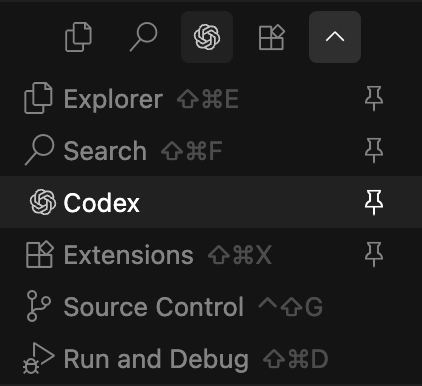
31
32## JetBrains IDE integration
33
34If you want to use Codex in JetBrains IDEs like Rider, IntelliJ, PyCharm, or WebStorm, install the JetBrains IDE integration. It supports signing in with ChatGPT, an API key, or a JetBrains AI subscription.
35
36[Install Codex for JetBrains IDEs](https://blog.jetbrains.com/ai/2026/01/codex-in-jetbrains-ides/)
37
38### Move Codex to the right sidebar
39
40In VS Code, Codex appears in the right sidebar automatically.
41If you prefer it in the primary (left) sidebar, drag the Codex icon back to the left activity bar.
42
43In VS Code forks like Cursor, you may need to move Codex to the right sidebar manually.
44To do that, you may need to temporarily change the activity bar orientation first:
45
461. Open your editor settings and search for `activity bar` (in Workbench settings).
472. Change the orientation to `vertical`.
483. Restart your editor.
49
50
51
52Now drag the Codex icon to the right sidebar (for example, next to your Cursor chat). Codex appears as another tab in the sidebar.
53
54After you move it, reset the activity bar orientation to `horizontal` to restore the default behavior.
55If you change your mind later, you can drag Codex back to the primary (left) sidebar at any time.
56
57### Sign in
58
59After you install the extension, it prompts you to sign in with your ChatGPT account or API key. Your ChatGPT plan includes usage credits, so you can use Codex without extra setup. Learn more on the [pricing page](https://developers.openai.com/codex/pricing).
60
61### Update the extension
62
63The extension updates automatically, but you can also open the extension page in your IDE to check for updates.
64
65### Set up keyboard shortcuts
66
67Codex includes commands you can bind as keyboard shortcuts in your IDE settings (for example, toggle the Codex chat or add items to the Codex context).
68
69To see all available commands and bind them as keyboard shortcuts, select the settings icon in the Codex chat and select **Keyboard shortcuts**.
70You can also refer to the [Codex IDE extension commands](https://developers.openai.com/codex/ide/commands) page.
71For a list of supported slash commands, see [Codex IDE extension slash commands](https://developers.openai.com/codex/ide/slash-commands).
72If you’re new to Codex, read the [best practices guide](https://developers.openai.com/codex/learn/best-practices).
73
74
75## Work with the Codex IDE extension
76
77[### Prompt with editor context
78
79Use open files, selections, and `@file` references to get more relevant results with shorter prompts.](https://developers.openai.com/codex/ide/features#prompting-codex)[### Switch models
80
81Use the default model or switch to other models to leverage their respective strengths.](https://developers.openai.com/codex/ide/features#switch-between-models)[### Adjust reasoning effort
82
83Choose `low`, `medium`, or `high` to trade off speed and depth based on the task.](https://developers.openai.com/codex/ide/features#adjust-reasoning-effort)[### Image generation
84
85Generate or edit images without leaving your editor, and use reference assets when you need iteration.](https://developers.openai.com/codex/ide/features#image-generation)[### Choose an approval mode
86
87Switch between `Chat`, `Agent`, and `Agent (Full Access)` depending on how much autonomy you want Codex to have.](https://developers.openai.com/codex/ide/features#choose-an-approval-mode)[### Delegate to the cloud
88
89Offload longer jobs to a cloud environment, then monitor progress and review results without leaving your IDE.](https://developers.openai.com/codex/ide/features#cloud-delegation)[### Follow up on cloud work
90
91Preview cloud changes, ask for follow-ups, and apply the resulting diffs locally to test and finish.](https://developers.openai.com/codex/ide/features#cloud-task-follow-up)[### IDE extension commands
92
93Browse the full list of commands you can run from the command palette and bind to keyboard shortcuts.](https://developers.openai.com/codex/ide/commands)[### Slash commands
94
95Use slash commands to control how Codex behaves and quickly change common settings from chat.](https://developers.openai.com/codex/ide/slash-commands)[### Extension settings
96
97Tune Codex to your workflow with editor settings for models, approvals, and other defaults.](https://developers.openai.com/codex/ide/settings)
98