
Connect to a gateway
For the complete documentation index, see llms.txt. Markdown versions of documentation pages are available by appending
.mdto the page URL.
Connect Codex to your organization's model gateway using the provider settings and authentication method your gateway team supplies. The gateway routes model requests to your backend, such as Amazon Bedrock.
For an organization-wide rollout, see Roll out a gateway. For the required API behavior, see Gateway compatibility. To connect directly to Bedrock without a gateway, see Amazon Bedrock.
Check for an existing configuration
Install the Codex client and version your administrator tested. If your organization manages the settings, open that client and complete the sign-in steps in your handoff. You can skip the provider configuration examples below.
- For the CLI, inspect the selected profile and run
codex doctor. After startup, use/statusto confirm the active model and provider. - For the macOS app, inspect
~/.codex/config.tomlor the managed configuration your organization delivers. - For the Windows app, inspect
%USERPROFILE%\.codex\config.tomlor the system configuration your organization delivers.
If the expected gateway provider and model are already active, complete any sign-in steps supplied by your administrator, then continue to Verify the connection. Avoid adding a second provider configuration to a managed machine. If the settings differ from your administrator's handoff, ask which configuration layer should supply them before editing local files.
Get your gateway connection details
For manual setup, confirm whether you need ChatGPT workspace sign-in, gateway authentication, or both.
To configure Codex yourself, get these values from your gateway team:
- The HTTPS gateway base URL, including its API path, such as
https://gateway.example.com/v1. - The model name and provider ID to use.
- The authentication method: native gateway OAuth, a scoped API key and its environment variable, or an installed credential helper.
- For OAuth, the authorization URL, token URL, public client ID, and any required scopes. For gateways that use a cookie or custom header, its name.
- Any required model catalog URL, or a catalog file and its absolute local path.
Configure the provider
Open config.toml at ~/.codex/config.toml on macOS or Linux, or
%USERPROFILE%\.codex\config.toml on Windows.
Merge this example into your existing configuration, replacing the URL and model
with the values your administrator supplied. Don't add a second definition of an
existing key or table. This example uses gpt-6-sol; use it without a custom
catalog only if your administrator confirms that your Codex version recognizes
the model and its bundled metadata matches the gateway.
Keep model, model_provider, model_catalog_json, and web_search before
the first TOML table. Keys placed after a table header belong to that table,
so Codex won't read them as top-level settings.
model = "gpt-6-sol"
model_provider = "enterprise-gateway"
web_search = "disabled"

[model_providers.enterprise-gateway]
name = "Organization Gateway"
base_url = "https://gateway.example.com/v1"
wire_api = "responses"
requires_openai_auth = false
Then add the authentication settings your gateway team supplies.
enterprise-gateway is an illustrative provider ID. Use the same ID in
model_provider and its provider and authentication tables.
This example disables web search
for the initial connection test; your administrator should verify feature support
before enabling it.
Configure your model catalog
Confirm with your gateway team how Codex gets the capabilities and instructions for your selected model:
- Built-in name: If the gateway accepts the exact model name bundled with your Codex version and routes it to the matching model, set
modelto that name. Codex already has its metadata. - Catalog endpoint: If the gateway serves Codex-compatible metadata, use its full catalog URL. This can be a
/v1/modelsendpoint that implements the Codex catalog response. A response that only lists model IDs is insufficient for custom aliases. - Catalog file: If your gateway uses custom aliases and your administrator distributes a file, use the local models.json example. Use a local file when native gateway OAuth is your only credential and you need custom metadata.
For API-key or helper authentication, if your administrator supplies a catalog
URL, add it to the existing
[model_providers.enterprise-gateway] table:
model_catalog_url = "https://gateway.example.com/codex/models.json"
Remove any effective model_catalog_json setting; it takes precedence over the
URL. Administrators can find endpoint requirements in
remote catalog setup.
If your administrator supplies a local model catalog file, save it and add
model_catalog_json before the first TOML table, using the file's absolute path.
Custom aliases need matching catalog metadata. For example:
model_catalog_json = "/etc/codex/gateway-models.json"
Use the model name and catalog supplied together by your administrator. Don't add a catalog path unless the file exists at that location.
Choose an authentication method
Use native gateway OAuth for browser sign-in, an API key for a scoped credential, or a credential helper if your organization supplies a command.
{/* prettier-ignore */} <Tabs id="gateway-authentication" ariaLabel="Gateway authentication method" param="gateway-auth" defaultTab="oauth" tabs={[ { id: "oauth", label: "Gateway OAuth" }, { id: "api-key", label: "API key" }, { id: "helper", label: "Credential helper" }, ]}
Use native gateway OAuth
Gateway OAuth works independently of ChatGPT sign-in. Use it when your gateway accepts access tokens issued by your organization's identity provider, such as Microsoft Entra ID. Codex handles the browser sign-in, encrypted credential storage, and token refresh when the authorization server issues a refresh token.
For gateway-only authentication, Codex CLI 0.166.0 and later sends the access token in Authorization: Bearer <gateway access token> by default. Remove any Authorization entry from this provider's http_headers or env_http_headers.
Your gateway team must register a public OAuth client that supports the
authorization code flow with PKCE. Add this table to the provider configuration
in config.toml, replacing the URLs and client ID with their values:
[model_providers.enterprise-gateway.gateway_oauth]
authorization_url = "https://login.example.com/oauth/authorize"
token_url = "https://login.example.com/oauth/token"
client_id = "YOUR_PUBLIC_CLIENT_ID"
# redirect_port = 43127
Add scopes and, if required, resource to this table using the values your
identity provider and gateway require. Request the scopes needed for refresh
tokens if your provider requires them. Codex uses an available loopback port by default.
If your identity provider requires a fixed redirect URI, set redirect_port and
register http://127.0.0.1:43127/callback for this example.
If your gateway expects a cookie or custom header, set the optional delivery field in the OAuth table. Choose the method your gateway validates:
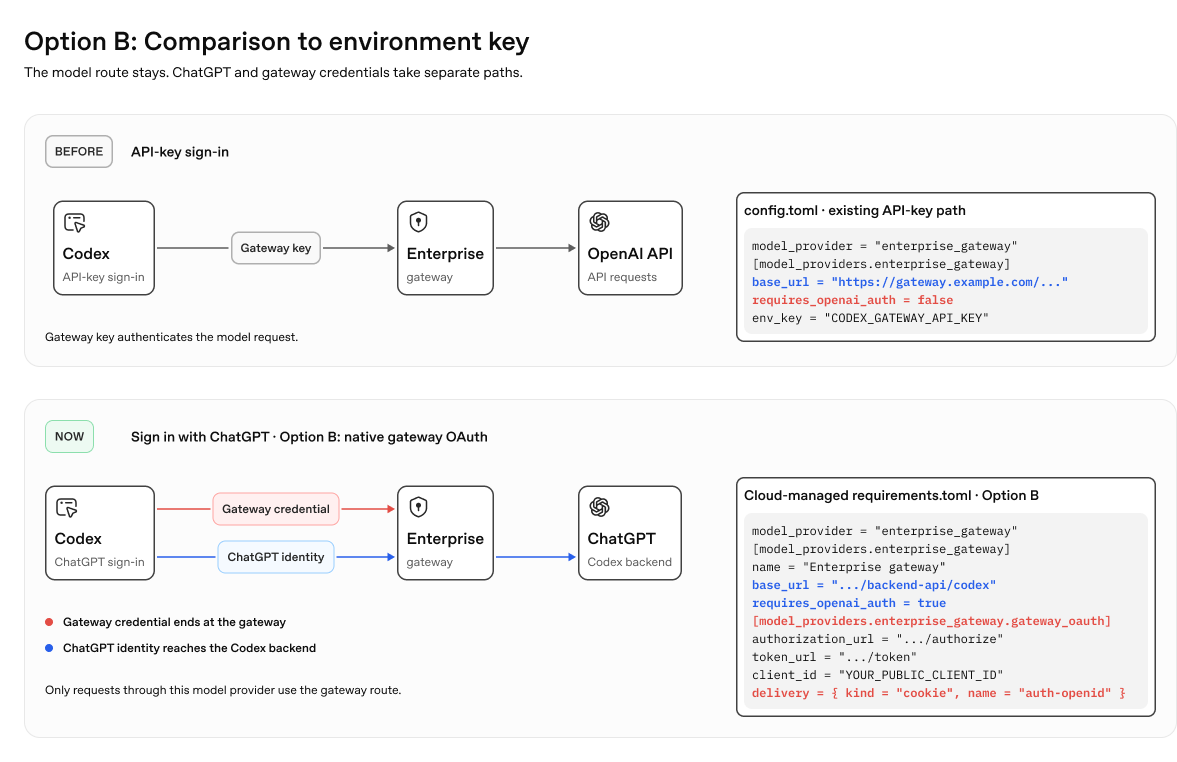
delivery = { kind = "cookie", name = "auth-openid" }
delivery = { kind = "header", name = "X-Gateway-Token", scheme = "Bearer" }
If your deployment also requires ChatGPT sign-in, use the cookie or a separate gateway header shown above. See Enable ChatGPT sign-in.
A gateway that accepts only a static API key must add support for the OAuth token and its delivery method before you can use this flow. The gateway continues to manage its own upstream credentials, such as its AWS credentials for Bedrock.
When OAuth is your only credential, keep requires_openai_auth = false and remove the
previous env_key, experimental_bearer_token, or auth settings used for the
gateway credential. Use a local model catalog if you need custom model
metadata; OAuth alone doesn't enable remote catalog discovery.
Restart the desktop app and follow its gateway sign-in prompt to open the browser.
In the CLI, start codex and follow the browser sign-in when Codex first accesses
the gateway. Complete your organization's sign-in and MFA, then return to the
client. If the grant expires or Codex can't refresh it, sign in again when prompted.
Native gateway OAuth requires a browser and a reachable loopback callback. It has
no device-code fallback. If the CLI runs over SSH, set redirect_port = 43127 in
the OAuth table and register the matching redirect URI described above. From the
machine with your browser, forward that port before starting Codex:
ssh -L 43127:127.0.0.1:43127 user@remote
In that SSH session, start codex and open the gateway sign-in URL in your local
browser. A CLI inside a container also needs a callback reachable from the
browser. If you can't make the callback reachable, use an API key or credential
helper instead.
Use an API key
Use this setting when the gateway expects an API key in the Authorization header.
Add the following setting inside the existing
[model_providers.enterprise-gateway] table:
env_key = "CODEX_GATEWAY_API_KEY"
Make your gateway credential available as CODEX_GATEWAY_API_KEY in the
environment of the process that launches Codex, using your organization's secret
delivery mechanism. Don't put the credential in TOML or a repository. A variable
set in a terminal may not be available to an app launched from the desktop.
Use a custom authentication header
If your gateway requires a header such as X-API-Key instead of a bearer token,
replace env_key in the provider table with:
env_http_headers = { "X-API-Key" = "CODEX_GATEWAY_API_KEY" }
Use the exact header name your administrator provides. Codex reads the value from
the named environment variable; keep the credential out of the configuration file.
See the configuration reference for
model_providers.<id>.env_http_headers.
With ChatGPT sign-in, use the custom header for the gateway key so Codex can send the user's OpenAI credential in Authorization.
If the custom header is your only authentication mechanism, use
model_catalog_json; remote catalog discovery won't run.
Use an organization credential helper
If your administrator provides command-backed authentication, use their installed
helper and configuration instead of env_key. Don't configure both mechanisms.
The helper must exist on your machine; Codex doesn't install it. For example,
add this table without env_key, using the resolver path and
arguments your administrator supplies:
[model_providers.enterprise-gateway.auth]
command = "/usr/local/bin/fetch-codex-gateway-token"
args = ["print-token"]
timeout_ms = 30000
refresh_interval_ms = 300000
The custom provider authentication reference defines the command, arguments, timeout, refresh interval, and token output contract. Ask your administrator how to renew your sign-in if the helper can no longer retrieve a token.
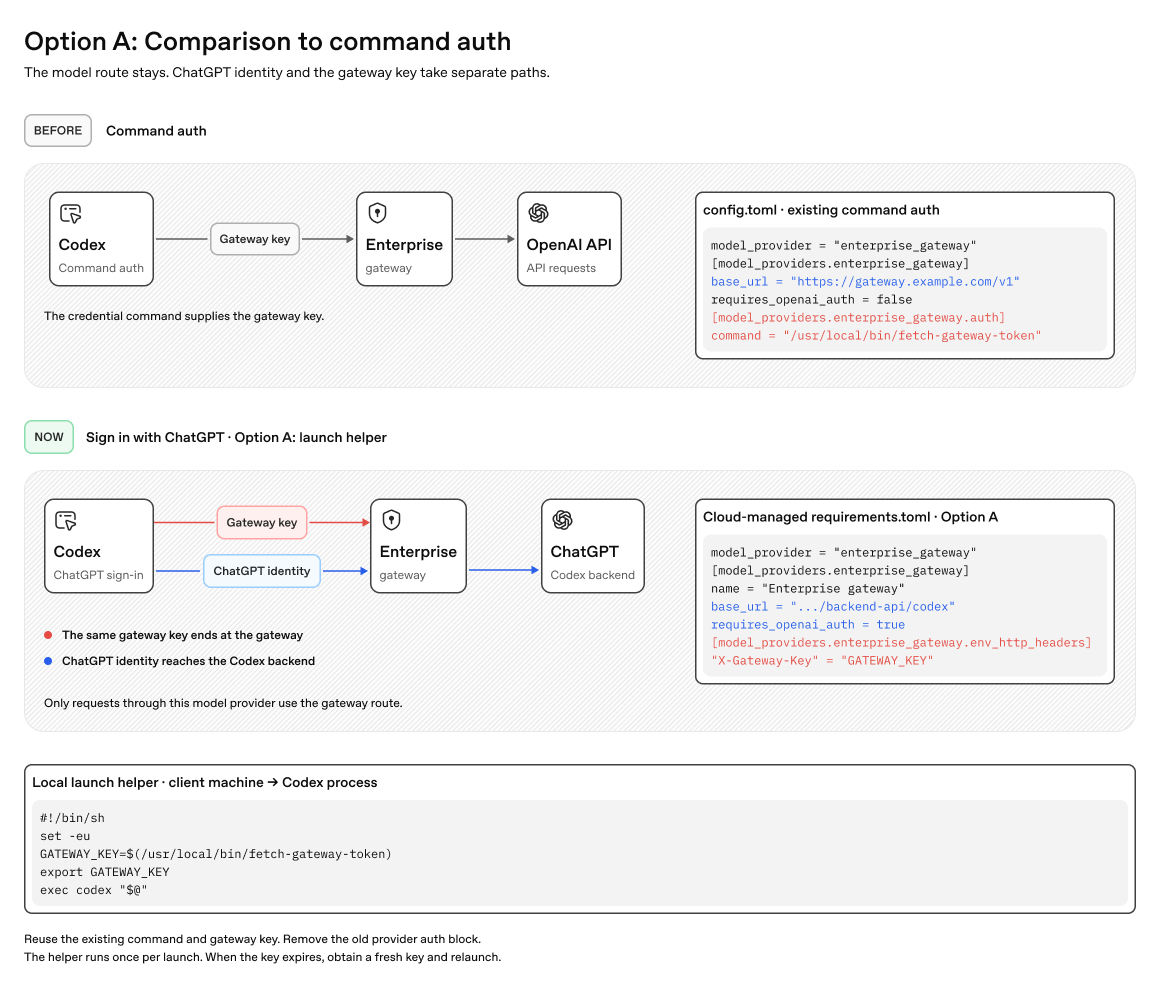
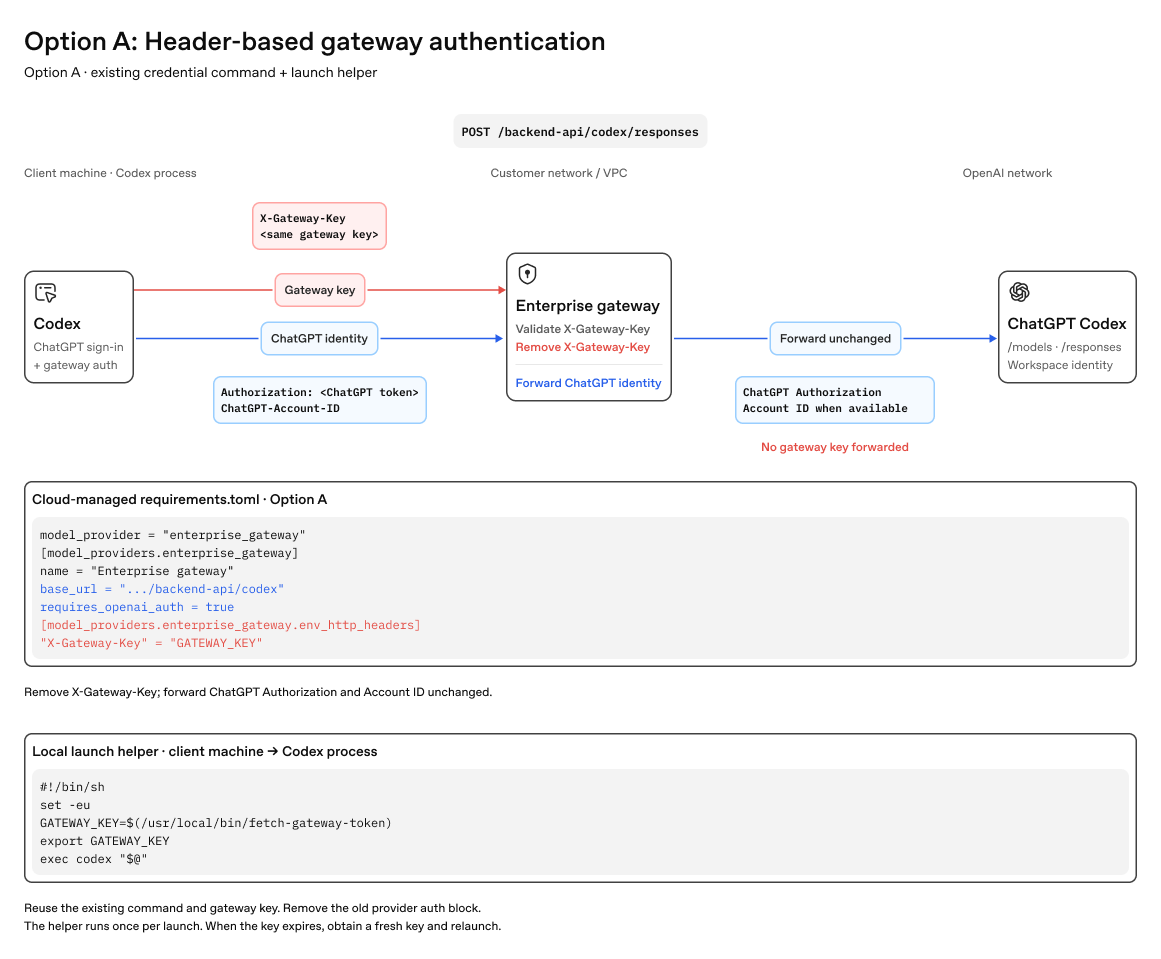
With ChatGPT sign-in, run the helper before launching Codex and pass its output through a custom gateway header instead of configuring the auth table. When the key expires, get a new key and relaunch Codex.
Use resolved absolute paths for helper executables and catalog files.
Enable ChatGPT sign-in (recommended)
If your organization uses a ChatGPT workspace, signing in gives users access to eligible features such as first-party plugins. Your workspace controls apply, and your gateway still handles model requests. Compare feature availability.
For manual setup, update the existing [model_providers.enterprise-gateway] table before signing in:
- Set
requires_openai_auth = trueand keepbase_urlpointing to your gateway. Remove anyenv_key,experimental_bearer_token, and providerauthsettings so Codex uses your OpenAI credential for primary authentication. - Send the gateway credential separately. For native gateway OAuth, configure
gateway_oauth.deliveryto use the cookie or custom header your gateway accepts. For an API key or credential helper, use a custom authentication header. ReserveAuthorizationfor the OpenAI credential.
Sign in to the ChatGPT workspace your administrator named. Complete the gateway sign-in if prompted, then verify your connection.
Administrators can distribute managed provider settings and verify credential forwarding.
Handle credentials at the gateway
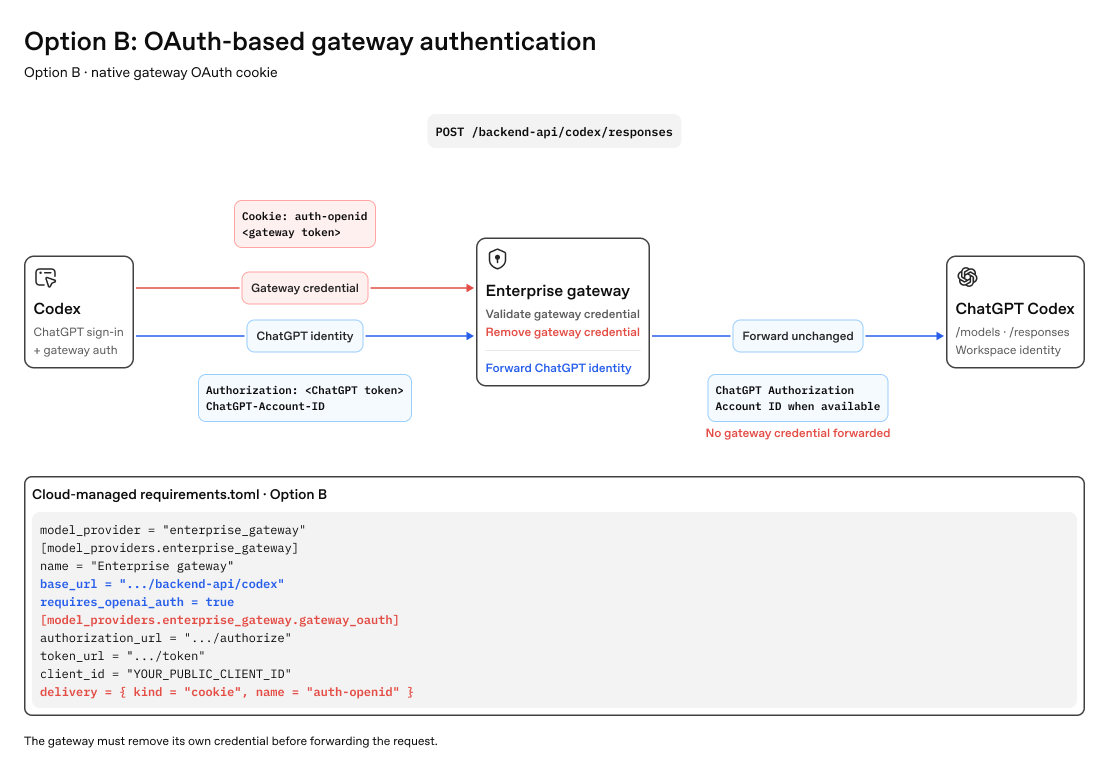
The gateway receives two credentials on each model request. For example, when Codex sends the gateway OAuth token in a cookie:
POST /backend-api/codex/responses
Authorization: Bearer <ChatGPT token>
ChatGPT-Account-ID: <workspace ID, when available>
Cookie: auth-openid=<gateway token>
Validate the gateway credential and strip its cookie or custom header. Redact credentials and sensitive request data from logs. Choose which credential to use upstream:
- Forward the user's credential for direct OpenAI inference (recommended). This lets OpenAI attribute usage and apply inference settings for that user. For this route, the gateway must proxy
/modelsand/responsestohttps://chatgpt.com/backend-api/codexand forwardAuthorizationand anyChatGPT-Account-IDheader unchanged. - Let the gateway authenticate to the inference provider. Use the credentials configured on the gateway for that provider. Leave the user's OpenAI token and any
ChatGPT-Account-IDheader out of the upstream request.
These diagrams show the recommended route for OpenAI inference.
How a gateway key works with ChatGPT sign-in
How gateway OAuth works with ChatGPT sign-in
Add routing headers (optional)
Use the routing settings supplied by your administrator. Gateway operators can distribute these settings and check the selected route in gateway logs.
Only model-provider requests use this gateway route. Voice sessions use a separate route. Workspace sign-in, MCP servers, and plugins can also use other network paths.
Start the client
With ChatGPT sign-in, start the client and sign in to the workspace that provides the managed configuration. If you use native gateway OAuth, also complete your organization's gateway sign-in when prompted. Then verify the connection.
For a locally configured provider, follow the instructions for your client.
Configure the CLI
The CLI reads ~/.codex/config.toml by default on macOS or Linux. After saving
the provider settings, run codex. Inside WSL, use the Linux configuration and
paths unless CODEX_HOME points elsewhere.
Configure the macOS app
The macOS app reads the same ~/.codex/config.toml. After saving the provider
settings, restart the app. If you use an environment variable for the credential,
make sure it's available to the app process.
Configure the Windows app
Place the provider settings in %USERPROFILE%\.codex\config.toml, then restart
the app. For command-backed authentication, use the resolver installed by your
administrator. For example, replace the Unix auth table with:
[model_providers.enterprise-gateway.auth]
command = 'C:\Program Files\OpenAI\Codex\fetch-codex-gateway-token.exe'
args = ["print-token"]
timeout_ms = 30000
refresh_interval_ms = 300000
In Windows TOML, single-quoted literal strings preserve backslashes. Replace
Unix catalog paths too, for example with
'C:\ProgramData\OpenAI\Codex\models.json', using the actual path your
administrator supplied.
Configure MCP servers and plugins separately. A model gateway credential doesn't authorize access to your tools or connected systems.
Verify the connection
Use the provider ID and model alias in your administrator's handoff. The provider identifies the configured connection; the model alias identifies a model routed through that connection. ChatGPT sign-in and gateway authentication control access and may both be required.
Restart the client after changing the configuration. In the CLI, start codex
and use /status to inspect the active model and provider. In the desktop app,
check the selected model and configuration.
Send this prompt in a new task:
Reply with exactly: gateway-ok
Expect gateway-ok. A response alone doesn't prove which route handled it: ask
your administrator to confirm that the gateway recorded your user, model alias,
and intended upstream route. Don't identify the model by asking it its name.
Troubleshoot the connection
| Symptom | What to check |
|---|---|
| The expected provider isn't active. | Check the selected profile and configuration precedence. Confirm that top-level keys aren't inside a provider table. |
| OAuth sign-in or token delivery fails. | Check the public client registration, redirect URI, scopes, and configured cookie or header. Confirm that the gateway accepts the issued access token. |
| API-key or helper authentication fails. | Check that the credential variable reaches the client process, or that the installed helper can retrieve a current token. Ask the administrator to distinguish gateway authentication from upstream authentication. |
| The model isn't found. | Confirm the supplied model name and ask the administrator to check its route. |
| The model uses unexpected capabilities. | Ask the administrator to check that the catalog metadata matches the model behind the alias. |
| Streaming stalls or follow-ups fail. | Ask the gateway owner to check proxy buffering, the terminal response.completed event, and Gateway compatibility. |
| A catalog or helper path fails. | Confirm that the file exists at the configured absolute path in the environment running Codex. |
When requesting help, include your client version, operating system, expected provider and model alias, authentication method, and the step that failed. Include the error message and request time so the gateway owner can locate the request. Remove tokens, cookies, authorization headers, and sensitive prompts. Don't send credential files or a configuration dump containing secrets.
Use an existing gateway deployment
Ask your gateway team for the Codex provider settings and approved model alias. If the team still needs to enable a Codex route, share the administrator migration checklist.