
Get started with the desktop app
Install Claude Code on desktop and start your first coding session
The desktop app gives you Claude Code with a graphical interface: visual diff review, parallel sessions with Git worktree isolation, file attachments, and the ability to run long-running tasks remotely. Work with local files, connect to remote machines over SSH, or run sessions in the cloud. No terminal required.
If you're already set up, see Use Claude Code Desktop for the full reference.
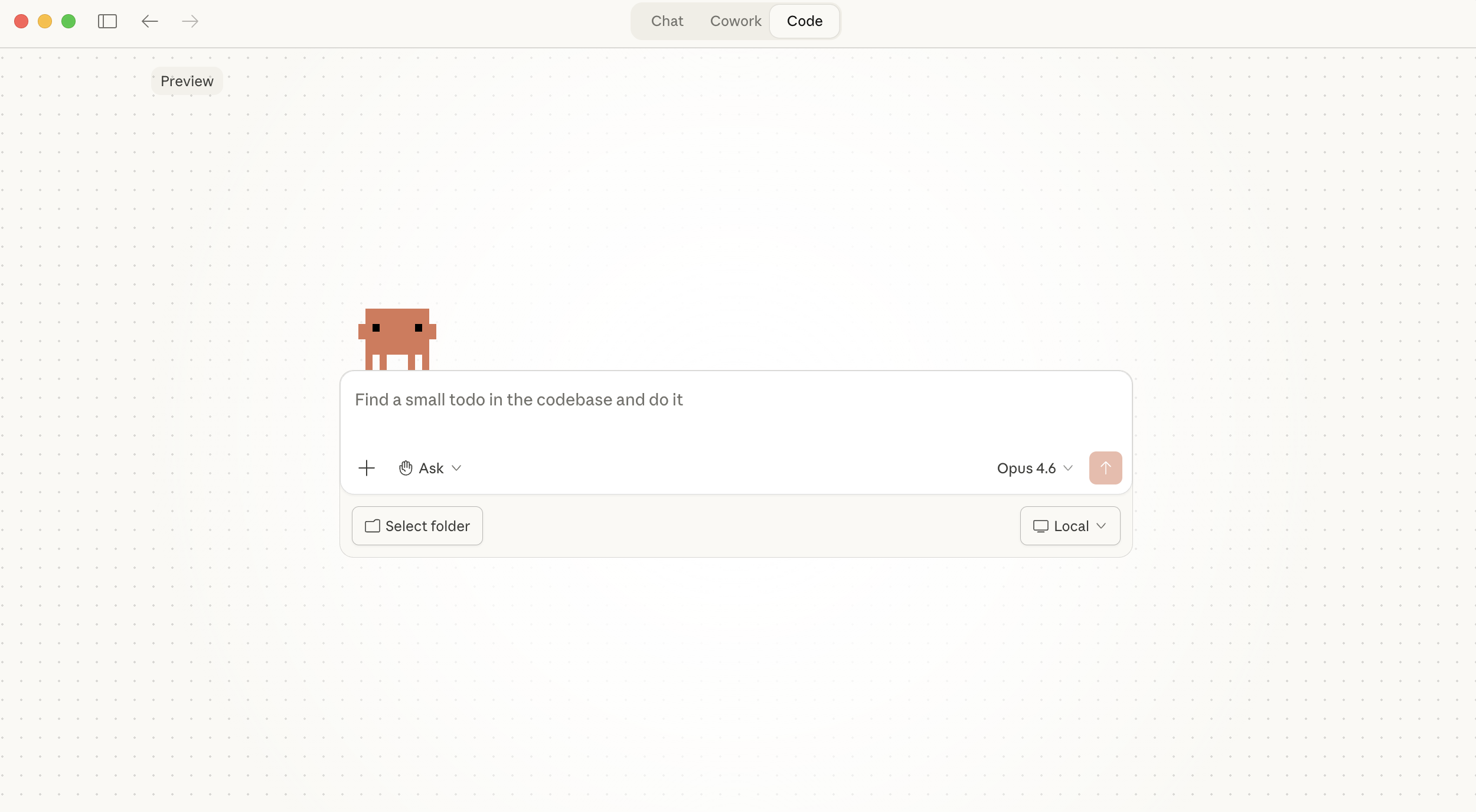
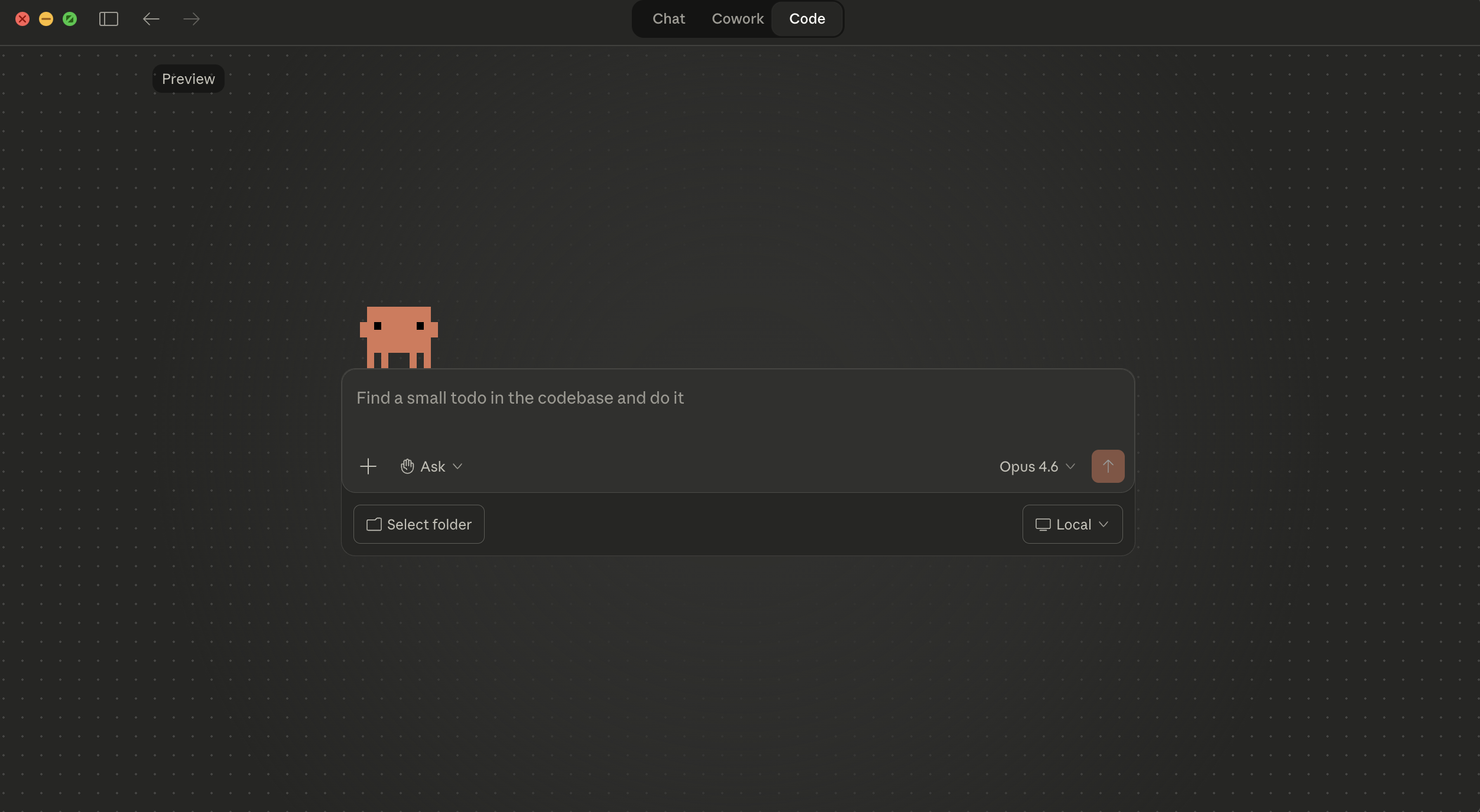
The desktop app has three tabs:
- Chat: General conversation with no file access, similar to claude.ai.
- Cowork: An autonomous background agent that works on tasks in a cloud VM with its own environment. It can run independently while you do other work.
- Code: An interactive coding assistant with direct access to your local files. You review and approve each change in real time.
Chat and Cowork are covered in the Claude Desktop support articles. This page focuses on the Code tab.
Install
Download the app
Download Claude for your platform.
For Windows ARM64, download here. Local sessions are not available on ARM64 devices, so use remote sessions instead. See ARM64 limitations for details.
Linux is not currently supported.
Sign in
Launch Claude from your Applications folder (macOS) or Start menu (Windows). Sign in with your Anthropic account.
Open the Code tab
Click the Code tab at the top center. If clicking Code prompts you to upgrade, you need to subscribe to a paid plan first. If it prompts you to sign in online, complete the sign-in and restart the app. If you see a 403 error, see authentication troubleshooting.
Start your first session
With the Code tab open, choose a project and give Claude something to do.
Choose an environment and folder
Select Local to run Claude on your machine using your files directly. Click Select folder and choose your project directory.
You can also select:
- Remote: Run sessions on Anthropic's cloud infrastructure that continue even if you close the app. Remote sessions use the same infrastructure as Claude Code on the web.
- SSH: Connect to a remote machine over SSH (your own servers, cloud VMs, or dev containers). Claude runs on the remote machine with access to its files and tools.
Choose a model
Select a model from the dropdown next to the send button. See models for a comparison of Opus, Sonnet, and Haiku. You cannot change the model after the session starts.
Tell Claude what to do
Type what you want Claude to do:
Find a TODO comment and fix itAdd tests for the main functionCreate a CLAUDE.md with instructions for this codebase
A session is a conversation with Claude about your code. Each session tracks its own context and changes, so you can work on multiple tasks without them interfering with each other.
Review and accept changes
By default, the Code tab starts in Ask mode, where Claude proposes changes and waits for your approval before applying them. You'll see:
- A diff view showing exactly what will change in each file
- Accept/Reject buttons to approve or decline each change
- Real-time updates as Claude works through your request
If you reject a change, Claude will ask how you'd like to proceed differently. Your files aren't modified until you accept.
Now what?
You've made your first edit. For the full reference on everything Desktop can do, see Use Claude Code Desktop. Here are some things to try next.
Interrupt and steer. You can interrupt Claude at any point. If it's going down the wrong path, click the stop button or type your correction and press Enter. Claude stops what it's doing and adjusts based on your input. You don't have to wait for it to finish or start over.
Give Claude more context. Type @filename in the prompt box to pull a specific file into the conversation, attach images and PDFs using the attachment button, or drag and drop files directly into the prompt. The more context Claude has, the better the results. See Add files and context.
Use skills for repeatable tasks. Type / or click + → Slash commands to browse built-in commands, custom skills, and plugin skills. Skills are reusable prompts you can invoke whenever you need them, like code review checklists or deployment steps.
Review changes before committing. After Claude edits files, a +12 -1 indicator appears. Click it to open the diff view, review modifications file by file, and comment on specific lines. Claude reads your comments and revises.
Adjust how much control you have. Your permission mode controls the balance. Ask mode (default) requires approval before every edit. Code mode auto-accepts file edits for faster iteration. Plan mode lets Claude map out an approach without touching any files, which is useful before a large refactor.
Add plugins for more capabilities. Click the + button next to the prompt box and select Plugins to browse and install plugins that add skills, agents, MCP servers, and more.
Scale up when you're ready. Open parallel sessions from the sidebar to work on multiple tasks at once, each in its own Git worktree. Send long-running work to the cloud so it continues even if you close the app, or continue a session on the web or in VS Code if a task takes longer than expected. Connect external tools like GitHub, Slack, and Linear to bring your workflow together.
Coming from the CLI?
Desktop runs the same engine as the CLI with a graphical interface. You can run both simultaneously on the same project, and they share configuration (CLAUDE.md files, MCP servers, hooks, skills, and settings). For a full comparison of features, flag equivalents, and what's not available in Desktop, see CLI comparison.
What's next
- Use Claude Code Desktop: permission modes, parallel sessions, diff view, connectors, and enterprise configuration
- Troubleshooting: solutions to common errors and setup issues
- Best practices: tips for writing effective prompts and getting the most out of Claude Code
- Common workflows: tutorials for debugging, refactoring, testing, and more