
Week 36 · August 31 – September 4, 2026
Switch to Claude Fable 5.1, let computer use run in the background on Desktop, and watch Claude's edits in a live /diff panel.
Releases v2.1.251 → v2.1.261 4 features · August 31 – September 4
Claude Fable 5.1 new model
Claude Fable 5.1 is available in Claude Code with a 1M-token context window, and the fable alias now selects it. In Claude apps gateway sessions, fable still selects Fable 5. If your gateway serves Fable 5.1, run /model claude-fable-5-1. Requires v2.1.257 or later.
Switch the current session to Fable 5.1 and save it as your default:
> /model fable
On the Anthropic API, the picker lists Fable only once the server reports it available for your organization, but typing /model fable checks with the server directly.
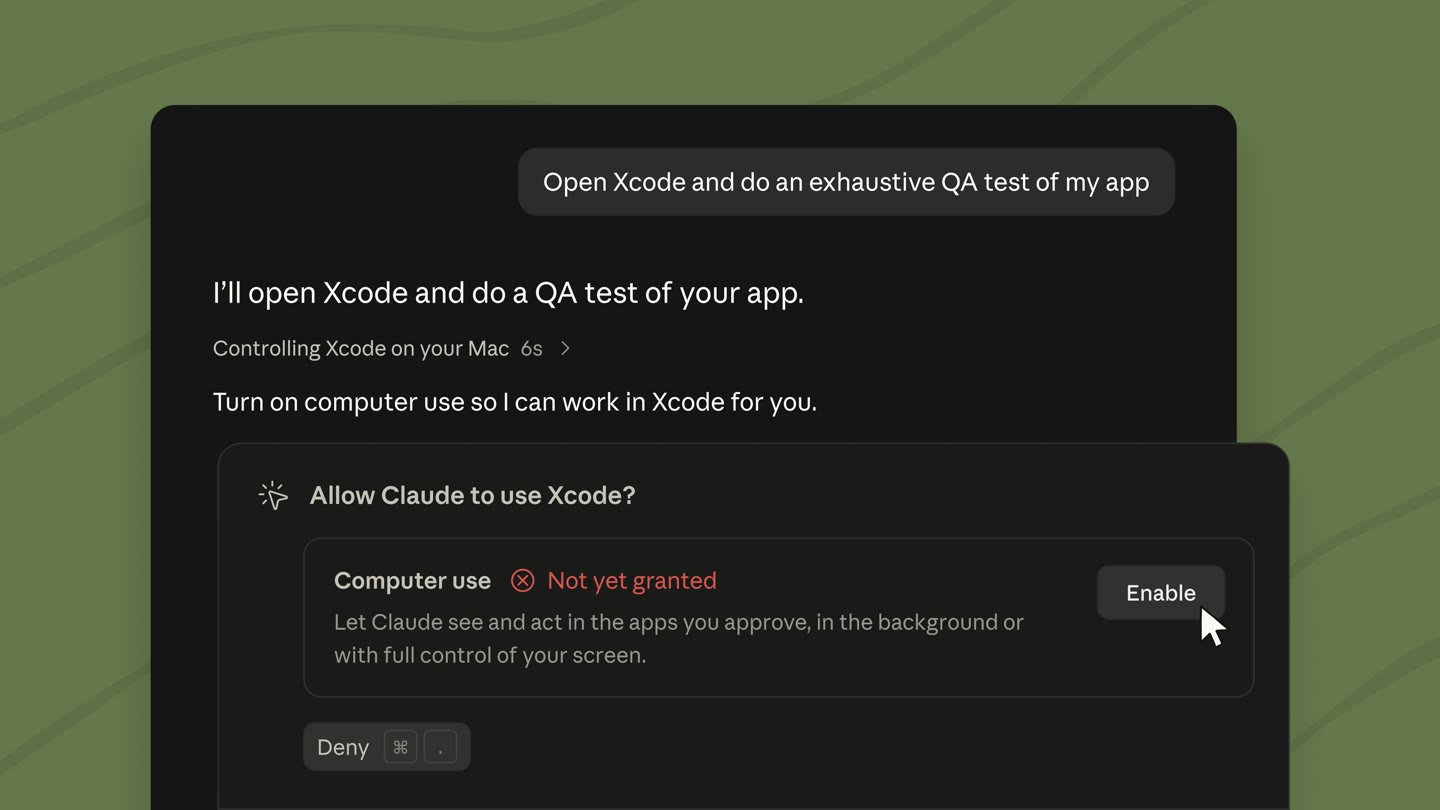
Computer use runs in the background on Desktop Desktop
On macOS, computer use in the Claude Code Desktop app now works in the background: Claude sees and acts in the apps you've approved while you keep working. Background computer use is in beta on Pro and Max plans.
Live diff panel in fullscreen rendering v2.1.260
In fullscreen rendering, /diff now opens a panel beside the conversation instead of a viewer you have to close. The panel lists the changed files with their added and removed line counts and refreshes each time Claude edits a file or runs a shell command. Select lines in the panel with the mouse to attach them to your next prompt.
With fullscreen rendering on, inside a git repository, and in a terminal at least 110 columns wide, toggle the panel:
> /diff
Run /diff again or click the ✕ in its header to close it.
Find unused skills with /skill-doctor CLI
/skill-doctor shows what each of your skills costs in context and how often it gets used, so you can decide which ones to turn off. Every skill in the skill listing adds to your context on every turn, whether or not Claude ever uses it. Requires v2.1.252 or later and isn't available in sessions that skip feature-flag fetching.
Run it in an interactive session to open the report in the /plugin manager's Stats tab:
> /skill-doctor
In non-interactive mode with -p, Claude Code prints the report as text instead.
Other wins
A PreModelSwitch hook can block a model switch you request, and a PostModelSwitch hook can add context for Claude after the session's model changes/cost adds a Prompt cache (main) line: the share of input tokens served from cache, the cache misses, whether the cache is warm, and a likely cause for the last miss when Claude Code can name one. Status line scripts get a matching prompt_cache objectOrganizations can list HTTP and SSE MCP servers under the managedMcpServers managed setting to give them to every user, in addition to the servers that users add on their own/effort and the /model picker now save a separate effort level for each model; press s instead of Enter to apply a level to the current session onlyBy default, the auto mode classifier now also blocks actions such as requesting credentials from the cloud instance-metadata endpoint or connecting to sibling containers that Claude didn't startIn auto mode, Claude Code asks you before Claude first reads a file outside your working directories, with an option to block such reads from then onRaise bashOutputMaxChars and taskOutputMaxChars, up to 128,000 characters, so Claude receives more of the output from a successful command or background task inlineThe prompt's word-editing shortcuts follow readline for everyone, and the keybindingFlavor setting no longer has any effect. Ctrl+W deletes back to the previous whitespace, and Alt+B, Alt+F, and Alt+D treat punctuation such as / and . as word breaksIf you set defaultMode to "bypassPermissions" in a project's .claude/settings.json or .claude/settings.local.json, it no longer takes effect and the session starts in Manual mode; set "bypassPermissions" in user or managed settings instead, or pass --permission-modeSeat-based Enterprise plans now default to Opus 5In the VS Code extension, click the model name at the bottom of the prompt box to open the model pickerIn the VS Code extension, select Output styles in the command menu's Customize section to pick an output style, including your custom ones