2 2
3> For the complete documentation index, see [llms.txt](https://learn.chatgpt.com/llms.txt). Markdown versions of documentation pages are available by appending `.md` to the page URL.3> For the complete documentation index, see [llms.txt](https://learn.chatgpt.com/llms.txt). Markdown versions of documentation pages are available by appending `.md` to the page URL.
4 4
5Workspace admins can enable Sites, choose which plugins they can use, and manage5For current workspace setup, permissions, and availability, see
6published Sites. To build or use a Site, see [Sites](https://learn.chatgpt.com/docs/sites).6 [Managing ChatGPT Sites for your workspace](https://help.openai.com/en/articles/20001338-managing-chatgpt-sites-for-your-workspace)
7 in the Help Center.
7 8
9<span
10 id="what-costs-and-limits-should-we-plan-for"
11 data-localization-body-anchor
12/>
8 13
9 14
10 {"For help with workspace access, publishing, and sharing, see "}
11 [{"Managing ChatGPT Sites for your workspace"}](https://help.openai.com/articles/20001338)
12 {" in the Help Center."}
13
14 15
16Use this guide to decide who can create, change, and use sites in your workspace, and how your organization reviews and maintains them. To build or use a site, see [Sites](https://learn.chatgpt.com/docs/sites).
15 17
16## Before you begin18## Before you begin
17 19
18Sign in as a workspace owner or admin and select the workspace you want to20Sign in to the workspace you administer. Decide who should create and publish sites, which audiences are appropriate, and who will handle review, support, and removal requests.
19manage. If tenant policy blocks access to connected apps, a tenant admin must
20enable that access. A tenant is the organization-level admin scope that can
21govern multiple workspaces.
22 21
23Sites is in public beta. Available controls depend on your plan, admin role,22Start with a specific use case. For example, an onboarding site that displays approved reference material needs a different review from a request tracker that collects employee information or a dashboard that uses connected apps. Agree on:
24 and feature availability. Review the [Sites
25 limits](https://learn.chatgpt.com/docs/sites#understand-limits-and-unsupported-uses), including data
26 residency limitations, before choosing what data to use.
27 23
28These controls apply at different levels:24- The intended audience and whether external or public access is appropriate.
25- The information the site displays, collects, stores, or sends to another service.
26- The people responsible for the site's content, application behavior, and ongoing support.
27- The review required before first publication and after material changes.
29 28
30| Control | What it governs | Where to manage it |29## How sites work
31| --------------------------- | ------------------------------------------------------- | --------------------------------------------------------------------------------- |
32| Sites access | Who can create and publish Sites | Workspace settings, including **Permissions & roles** where available |
33| Site sharing | Who can visit an individual Site | The Site's sharing controls or **Sites** in workspace administration |
34| Plugin permission for Sites | Which plugins can be used in Sites across the workspace | **Admin** > **Plugins** > the plugin > **Allow site visitors to use this plugin** |
35| Tenant connector access | Whether Sites can request access to connected apps | Tenant administration: **External access** > **ChatGPT Sites** > **Connectors** |
36| Network access | Which external destinations Sites can contact | Workspace administration: **Sites** > **Network access**, where available |
37 30
38## Enable Sites and choose sharing permissions
39 31
40<WorkflowSteps>
41 32
421. Open your workspace settings and review the Sites permissions. Where
43 **Permissions & roles** is available, enable Sites for the roles that need
44 to create and publish them.
452. Review public publishing separately. In Enterprise workspaces, public
46 publishing is off by default and requires an admin to enable it. You can use
47 Sites internally without enabling public publishing.
483. Review external invitations separately from public publishing. Enterprise
49 admins manage **Allow members to invite external visitors to sites** under
50 **Workspace settings** > **Permissions & roles**. Business workspaces don't
51 have a separate external-invitation permission toggle.
524. Ask a member of the intended group to create a Site, keep its audience
53 limited, and verify that they can publish it and share it with the intended
54 visitors.
55 33
56</WorkflowSteps>
57 34
58A new Site is limited to its owner and workspace admins until its access35
59changes. Visitor access and editor access are separate. See36
60[Control access and secrets](https://learn.chatgpt.com/docs/sites#control-access-and-secrets) for37
61sharing options and [Collaborate on a Site](https://learn.chatgpt.com/docs/sites#collaborate-on-a-site)38
62for editor permissions.39
63 40
64<a id="enable-bring-your-own-plugin"></a>41
65 42A site can contain pages, application code, and visitor information. Review what it publishes and collects before sharing it. For the building and publishing workflow, see [Creating and managing ChatGPT Sites](https://help.openai.com/en/articles/20001339).
66## Enable plugin use in Sites43
67 44### What you can build
68Plugins in Sites let a Site use each visitor's own connected45
69accounts and permissions. Sharing a Site doesn't share the builder's46Sites can support reference pages, forms, trackers, and interactive dashboards. The review should follow what the application does. A reference page needs a content and audience review. A form also needs a decision about which submissions to collect and who can read them. A connected dashboard needs a review of the accounts, permissions, and information used by its connections.
70connections. Visitors sign in with ChatGPT, review the requested access, and47
71choose which connections to allow. Connected features require membership in48### Information stored or exposed by a site
72the workspace that owns the Site.49
73 50Information from prompts, conversation context, and uploaded or referenced files can become part of a site. Check the resulting pages, sample records, downloads, and generated content for information that should not reach the intended audience.
74Each plugin has a separate **Allow site visitors to use this plugin** setting. When an admin51
75hasn't saved a choice for that plugin, the default depends on the workspace52Distinguish information copied into a site from information retrieved through a connection. For example, an uploaded spreadsheet can become a shared snapshot. A visitor using their own connected account may have different access from the person who built the site. Test the resulting behavior; the creator's preview alone does not establish what another visitor can see.
76plan:53
77 54For the builder workflow, see [Data and connections](https://learn.chatgpt.com/docs/sites/data-and-connections).
78- **Business and Education:** Available plugins are allowed in Sites by default.55
79- **Enterprise:** Plugins are off for Sites by default. An admin must allow56For hosting and processing providers, see OpenAI's [sub-processor list](https://openai.com/policies/sub-processor-list/).
80 each plugin the workspace needs.57
81 58## Enable sites and permissions
82A saved admin choice overrides the default. Allowing a plugin in Sites59
83doesn't override ordinary plugin permissions or tenant restrictions.60
84 61
85### Allow individual plugins in Sites62<span
86 63 id="enable-sites-and-choose-sharing-permissions"
871. Open **Admin** > **Plugins** in the intended workspace.64 data-localization-body-anchor
882. Open the plugin you want to allow, such as Notion.65/>
893. In its **Sites** section, review **Allow site visitors to use this plugin**. If it's off and you66
90 want to allow the plugin, turn it on and select **Save**. If it's already on,67
91 no change is needed.68
924. Review each plugin that the Site needs. Confirm that the plugin, its69
93 connected app, and the required actions are also available to the intended70
94 members through your [plugin controls](https://learn.chatgpt.com/docs/enterprise/apps-and-connectors).71
95 72
96If **Allow site visitors to use this plugin** is disabled because tenant73
97 connector access is off, follow the **External access** link on the plugin74
98 page when available. A tenant admin can enable **Connectors** for **ChatGPT75
99 Sites**. If you don't have tenant admin access, contact an admin of the tenant76
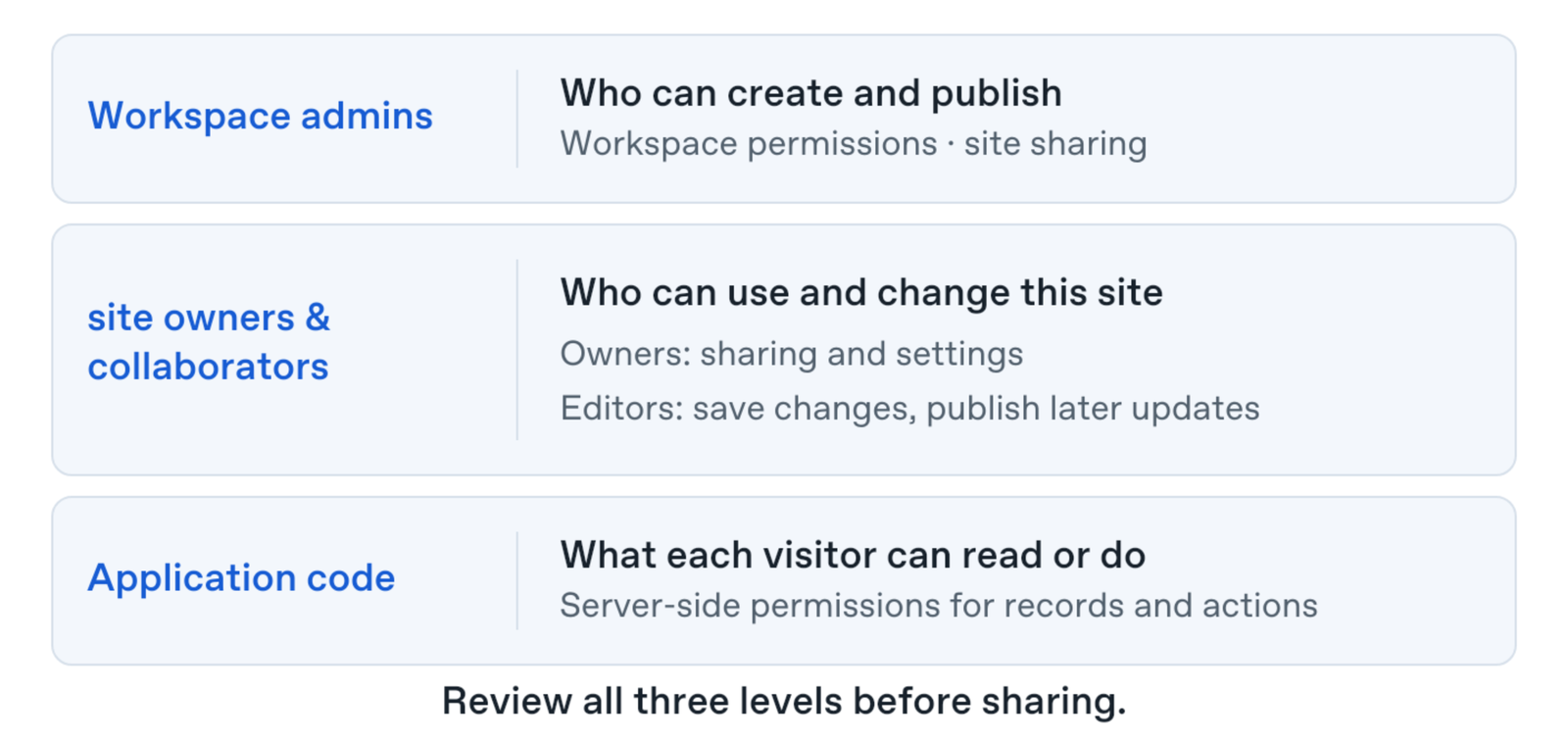
100 named in the notice.77Review three levels of control: workspace permissions, the site's sharing and editing permissions, and permissions implemented by the application.
101 78
102**Allow site visitors to use this plugin** is one setting per plugin for the whole workspace. It79
103doesn't assign access by role, connect accounts for members, or replace80
104visitor consent and the connected service's permissions. It also doesn't81
105provide separate Sites-specific read and write switches. Review the approved82
106actions and permissions before enabling a plugin.83
107 84
108<a id="enable-tenant-access-to-connected-apps"></a>85### Workspace admin controls
109 86
110### Check tenant access if plugins are blocked87Workspace permissions govern who can create and publish sites. Review public publishing and external invitations separately: allowing a named external viewer and making a site available to anyone on the internet are different decisions.
111 88
112Use these steps when the plugin page says tenant connector access is off.89For configuration steps and current role permissions, follow the [workspace administration guidance](https://help.openai.com/en/articles/20001338-managing-chatgpt-sites-for-your-workspace).
113If access is already on, no tenant change is needed. Turning it on doesn't90
114enable individual plugins that a workspace admin has disabled.91### Site owner and collaborator controls
115 92
1161. Follow the plugin page's **External access** link, or open [Admin Console](https://admin.openai.com)93Use the site's sharing controls to decide who can view it and who can help maintain it.
117 and select the tenant that governs the workspace.94
1182. Open **External access**, find **ChatGPT Sites**, and enable **Connectors**95#### Audience and sharing
119 if it's off.96
1203. Return to the workspace's plugin settings and review **Allow site visitors to use this plugin**97A site's audience controls who can open it. Choose an audience that matches the information and activities the site provides. Review the full set of access grants when narrowing access. Removing an individual invitation may still leave access through a group, workspace-wide sharing, or public publishing.
121 for each plugin your team needs.98
122 99Check the site from the intended visitor experience after changing access. For the sharing workflow, see [Publishing and sharing](https://learn.chatgpt.com/docs/sites/publishing-and-sharing).
123**External access** belongs to the tenant view. The workspace view has its own100
124**Sites** settings. If you can't find **External access**, check the selected101#### Editors and collaboration
125admin scope and whether you have tenant admin access. Workspaces without a102
126tenant don't have this tenant-level control. If the plugin page says connector103Owners can invite eligible workspace members as editors. Owners publish first; editors can publish later updates. Owners manage access and owner-only settings.
127access isn't available for the tenant yet, changing the plugin's setting104
128won't enable it.105Agree on how editors request and record review before publishing changes. An editor can publish later versions without a separate owner-approval step, so an organization's review process must account for who has edit access.
106
107### Application permissions
108
109Site access and access to individual records are separate. For private application data, enforce record access in server-side code and test with ordinary visitor accounts.
110
111For example, a request tracker might let every workspace member open the site while allowing each person to see only their own requests. The application needs to check that rule when returning a record or accepting an action. Hiding a page element does not enforce the rule. Test with separate accounts that should and should not have access to the same record.
112
113## Configure connections
114
115
116
117
118
119<span
120 id="enable-tenant-access-to-connected-apps"
121 data-localization-body-anchor
122/>
123
124
125
126
127<span
128 id="check-tenant-access-if-plugins-are-blocked"
129 data-localization-body-anchor
130/>
131
132
133
134
135<span
136 id="allow-an-additional-destination-for-one-site"
137 data-localization-body-anchor
138/>
139<span
140 id="credentials-and-connected-service-access"
141 data-localization-body-anchor
142/>
143
144Creating or sharing a site does not itself authorize connected-app access. Review organization approval, plugin settings, and each visitor's connected account and permissions in the [Help Center connected-app guidance](https://help.openai.com/en/articles/20001338-managing-chatgpt-sites-for-your-workspace).
145
146Include connections in the site's review. Identify which services it uses, what information it requests, and who should authorize that access. Keep the site's audience decision separate from the connected service's permissions.
147
148Keep credentials out of prompts, attachments, and visible site content. For questions about network access, contact your workspace admin.
129 149
130### Verify the visitor experience150### Verify the visitor experience
131 151
132Ask a builder to create a Site using an approved plugin and share it within152Keep connected sites private to their workspace. Before sharing a connected site more widely within that workspace, test with another eligible workspace member who uses their own connected account. Confirm that the site shows information appropriate to that person's existing permissions.
133the workspace. Have another member sign in, review access, and connect their153
134own account. Confirm that the Site shows data that member is allowed to154Also check the experience when a visitor does not grant the requested connection access. Explain which features need the connection and make sure the site does not present missing data as a successful result. Follow the current Help Center guidance for supported connections and access requirements.
135access. Also test continuing without granting plugin access: features that155
136require a connection won't work.156## Review and manage sites
157
137 158
138For the builder workflow, see
139[Bring user data to your Site with plugins](https://learn.chatgpt.com/docs/sites#bring-user-data-to-your-site-with-plugins).
140 159
141## Configure network access
142 160
143Where **Network access** is available, use it to control the external
144destinations a Site can contact. This setting is separate from plugin
145authorization: allowing a hostname doesn't grant access to a connected app.
146 161
147### Set the workspace policy162<span
163 id="workspace-visibility-and-audit-records"
164 data-localization-body-anchor
165/>
166<span
167 id="publishing-approval-and-network-controls"
168 data-localization-body-anchor
169/>
148 170
1491. Open **Sites** in workspace administration.
1502. Find **Network access** and open its editor.
1513. Choose **Allow all destinations** or **Allow only listed destinations**.
1524. For a restricted policy, enter one hostname per line under **Allowed
153 destinations**. Use an exact hostname such as `api.example.com`, or
154 `*.example.com` to allow its subdomains. The wildcard doesn't include the
155 bare `example.com` hostname; add that separately if needed.
1565. Select **Save**, reopen the editor, and confirm the saved destinations.
157 Test the Site's required network requests.
158 171
159Don't enter URLs, paths, IP addresses, or ports. The editor supports up to
1601,024 destination rules. A `*` rule allows all HTTP destinations. Restricted
161policies block raw TCP connections, including when the list contains `*`.
162 172
163### Allow an additional destination for one Site
164 173
165To allow a destination for one Site without broadening workspace-wide access:
166 174
1671. Find the Site in workspace administration and open **More actions** >175### Saved versions and publishing
168 **Network access**.
1692. Review the inherited policy.
1703. Enter the approved hostnames under **Additional allowed destinations** and
171 select **Save**.
1724. Reopen the dialog to confirm the saved list, then test the Site.
173 176
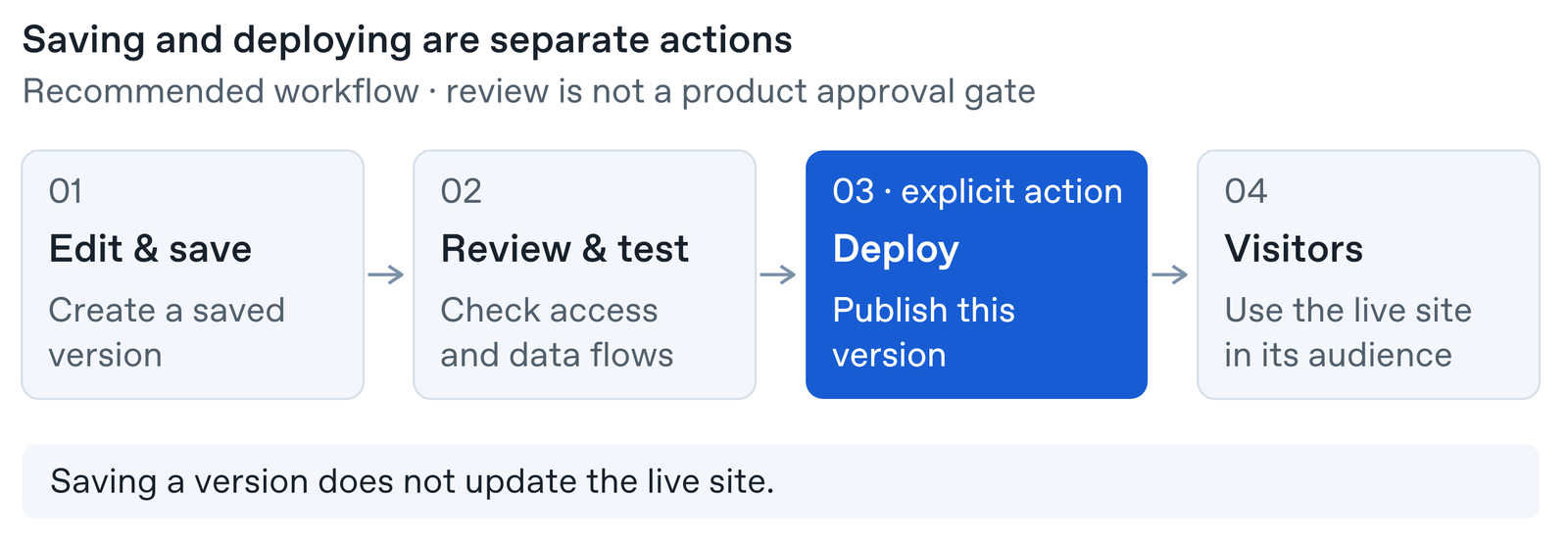
174These exceptions add to the inherited policy; they don't replace it or177Editing and saving a version are separate from publishing it. Review the updated preview, then publish when it's ready for visitors. Sending editing instructions does not immediately change the published site.
175restrict destinations it already allows. With an unrestricted inherited
176policy, exceptions don't further change access. If the combined destination
177limit is exceeded, the saved exceptions aren't applied; shorten the list and
178save again.
179 178
180## Manage workspace Sites
181 179
182Open **Sites** in workspace administration to find Sites by URL and review
183their owners. Use the controls available to your role to:
184 180
185- **Manage access:** Review or change the Site's audience.181
186- **Copy source clone command:** Get the command to inspect a Site's source182
187 code, where available.183
188- **Transfer ownership:** Assign a new owner when responsibility changes.184
189- **Suspend:** Stop access to a Site while you investigate an issue. Use185Use this workflow for the first publication and later updates:
190 **Reinstate** when you're ready to make it available again.186
191- **Delete Site:** Permanently remove a Site when it's no longer needed.187<WorkflowSteps>
188
1891. Describe the change and review the saved version.
1902. Check the content, audience, application permissions, and connections affected by the change.
1913. Complete your organization's review, then have the owner or an eligible editor publish the version. The owner must complete the first publication.
1924. Open the published site as an intended visitor and confirm that the expected content and behavior are available.
193
194</WorkflowSteps>
192 195
193To stop use of a particular plugin in Sites, turn off its **Allow site visitors196The review step is a recommended organizational process. It does not add a product approval gate.
194to use this plugin** setting and verify the affected Site's behavior. If another allowed
195plugin includes the same connector, turning off one plugin doesn't block that
196shared connector through the other plugin. Review all relevant plugins when
197removing connector access.
198 197
199## Troubleshoot access198### Shared responsibilities
199
200Successful generation or publication does not establish that a site meets your organization's requirements. Assign responsibility for reviewing the content, access rules, generated application code, and connected services. Use reviewers with the appropriate expertise for the site's data and use case.
201
202### Review before publishing
203
204Review the intended audience, generated code, visitor submissions, and connections before publishing. Test the experience for intended and unintended visitors. Repeat the review after material changes.
205
206For example, a team dashboard can look correct for its creator while exposing an uploaded customer list to a broader audience than intended. A request form can collect the right fields while allowing one visitor to read another visitor's submission. Review both what appears on the page and how the application handles data and actions.
207
208Before publishing, check:
209
210- **Content:** Review generated text, images, links, uploaded files, and example data for accuracy and appropriate sharing.
211- **Audience:** Confirm who should be able to open the site, including external viewers and public visitors where applicable.
212- **Records and actions:** Verify that visitors can read and change only the information they have permission to access.
213- **Forms and submissions:** Decide what to collect, where it goes, who can see it, and how visitors can ask questions about it.
214- **Connections and credentials:** Review the services used, requested access, and any information exposed in pages, downloads, or error messages.
215- **Visitor experience:** Use separate visitor accounts to check the expected paths and denied-access cases.
216
217### Ongoing maintenance
218
219Give each production site an owner and a reporting route for access, data, or service issues. Plan ownership handoffs and retirement with your workspace admin.
220
221Revisit the review when the site gains a new audience, editor, data source, connection, form, or application feature. Periodically check whether the audience and editor list still match the site's purpose, whether its content is current, and whether its connections still work for intended visitors.
222
223### Troubleshoot access
224
225Start with the affected person's account, role, and attempted action. A creator's successful preview does not confirm that another person can view, edit, publish, or use a connection.
200 226
201| Symptom | What to check |227| Symptom | What to check |
202| ------------------------------------------------------------ | --------------------------------------------------------------------------------------------------------------------------------------------------------------------------------------------------------------- |228| ------------------------------------------------------------- | ---------------------------------------------------------------------------------------------------------------------------------------------------------------------------------------------------------------------------- |
203| A member can't create or publish a Site | Confirm the selected workspace, Sites availability, and the member's workspace permissions. |229| A member cannot create or publish a site | Confirm the active workspace, feature availability, and permissions for that member's role. |
204| A plugin works in ChatGPT but is unavailable to a Site | Check **Allow site visitors to use this plugin**, including any saved admin choice, ordinary plugin permissions, and the member's connected account. If tenant policy blocks access, check **External access**. |230| A visitor cannot open a site | Check the site's audience and whether the visitor is signed in with the account that received access. |
205| The plugin's Sites toggle is disabled | Review the notice beside the toggle. If tenant connector access is off, follow **External access** or contact an admin of the tenant named in the notice. |231| An editor cannot publish | Check edit access, workspace permissions, and whether the owner has completed the first publication. |
206| A visitor can open the Site but can't use connected features | Confirm membership in the Site's workspace, the selected account, visitor consent, and permissions in the connected service. An external invitation doesn't grant workspace membership. |232| A connection works for the creator but not another visitor | Confirm that the site is private to its workspace and the visitor belongs to that workspace. Check the visitor's connected account, service permissions, authorization, and the applicable organization and plugin settings. |
207| The Site can't reach an external service | Check the hostname against the inherited network policy and any Site-specific exceptions. |233| A person can still view a site after an invitation is removed | Review remaining group, workspace-wide, or public access. |
208| A network policy save conflicts or can't be confirmed | Select **Refresh and review**, inspect the latest saved policy, then make the intended change. Refresh replaces the unsaved draft. |234| A published site does not show an expected edit | Confirm that the intended version was published, then open the live site to check the result. |
209| An admin setting is missing or read-only | Check the selected tenant or workspace, your admin role, and feature availability. The tenant and workspace views expose different controls. |235
210 236To review available workspace controls or troubleshoot access, follow the [Help Center guidance](https://help.openai.com/en/articles/20001338-managing-chatgpt-sites-for-your-workspace).
211When asking an admin for help, include the Site URL, workspace, plugin or237
212destination needed, and the exact error. Contact the admin directly to request238## Security and privacy
213access.239
240
241
242
243
244
245
246<span
247 id="certifications-encryption-and-customer-managed-keys"
248 data-localization-body-anchor
249/>
250
251
252<span
253 id="applicable-terms-and-data-processing-agreements"
254 data-localization-body-anchor
255/>
256
257
258
259
260
261Check current [hosting, residency, and data requirements](https://help.openai.com/en/articles/20001338-managing-chatgpt-sites-for-your-workspace) against your organization's policies before choosing what information to store in a site.
262
263### Visitor privacy and personal information
264
265Before adding a form, sign-in feature, or other way to collect visitor information, decide why the site needs that information and how the site will use it. Review who can access submissions and whether the site will send information to another service or display it to other visitors.
266
267Plan the appropriate privacy notice and a contact route for visitor questions. Use the resources below with your organization's privacy reviewers to determine what the notice and handling process should cover.
268
269For responsibilities and privacy guidance, review these resources:
270
271- Review [ChatGPT Sites Terms](https://openai.com/policies/chatgpt-sites-terms/).
272- Review [Operator responsibilities](https://help.openai.com/en/articles/20001337-understanding-responsibilities-for-your-chatgpt-sites).
273- Review [Data-protection responsibilities](https://help.openai.com/en/articles/20001340).
274- Review [Privacy-policy guidance](https://help.openai.com/en/articles/20001341).
275
276
277
278<span
279 id="what-happens-when-a-site-is-deleted-or-an-owner-leaves"
280 data-localization-body-anchor
281/>
282
283<ToggleSection title="How should I plan an ownership handoff or site retirement?">
284
285Before an owner changes roles or leaves, identify who will maintain the site and use the current administration guidance for available handoff options. For retirement, plan how to restrict access and handle information collected by the site. Confirm deletion and retention requirements before promising a recovery or removal timeline.
286
287</ToggleSection>
288
289<span
290 id="how-long-is-site-data-retained-including-backups"
291 data-localization-body-anchor
292/>
293
294<ToggleSection title="Where can I confirm retention and deletion requirements?">
295
296For retention or deletion questions, [contact OpenAI Support](https://help.openai.com/en/articles/6614161-how-can-i-contact-support).
297
298</ToggleSection>
299
300<span
301 id="how-do-i-report-an-access-issue-or-incident"
302 data-localization-body-anchor
303/>
304
305<ToggleSection title="How do I report an access issue?">
306
307For access questions, [contact OpenAI Support](https://help.openai.com/en/articles/6614161-how-can-i-contact-support). Include the site URL, workspace, affected role, attempted action, time, and error details. Omit secrets and access tokens.
308
309</ToggleSection>