1# Visual Studio Code1# Visual Studio Code
2 2
3> Use Claude Code with Visual Studio Code through our native extension or CLI integration3> Use Claude Code with Visual Studio Code through the native extension or CLI integration
4 4
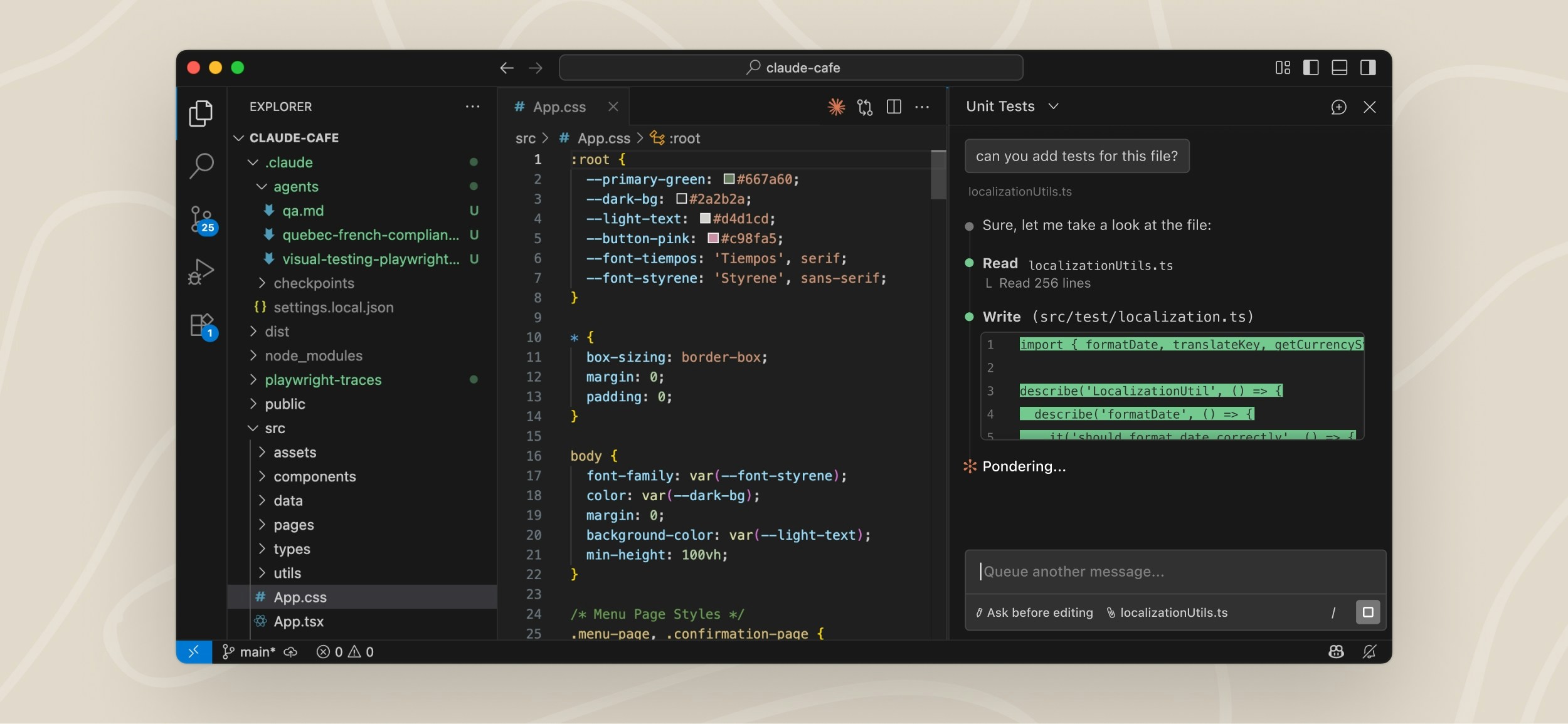
5<img src="https://mintcdn.com/claude-code/-YhHHmtSxwr7W8gy/images/vs-code-extension-interface.jpg?fit=max&auto=format&n=-YhHHmtSxwr7W8gy&q=85&s=300652d5678c63905e6b0ea9e50835f8" alt="Claude Code VS Code Extension Interface" data-og-width="2500" width="2500" data-og-height="1155" height="1155" data-path="images/vs-code-extension-interface.jpg" data-optimize="true" data-opv="3" srcset="https://mintcdn.com/claude-code/-YhHHmtSxwr7W8gy/images/vs-code-extension-interface.jpg?w=280&fit=max&auto=format&n=-YhHHmtSxwr7W8gy&q=85&s=87630c671517a3d52e9aee627041696e 280w, https://mintcdn.com/claude-code/-YhHHmtSxwr7W8gy/images/vs-code-extension-interface.jpg?w=560&fit=max&auto=format&n=-YhHHmtSxwr7W8gy&q=85&s=716b093879204beec8d952649ef75292 560w, https://mintcdn.com/claude-code/-YhHHmtSxwr7W8gy/images/vs-code-extension-interface.jpg?w=840&fit=max&auto=format&n=-YhHHmtSxwr7W8gy&q=85&s=c1525d1a01513acd9d83d8b5a8fe2fc8 840w, https://mintcdn.com/claude-code/-YhHHmtSxwr7W8gy/images/vs-code-extension-interface.jpg?w=1100&fit=max&auto=format&n=-YhHHmtSxwr7W8gy&q=85&s=1d90021d58bbb51f871efec13af955c3 1100w, https://mintcdn.com/claude-code/-YhHHmtSxwr7W8gy/images/vs-code-extension-interface.jpg?w=1650&fit=max&auto=format&n=-YhHHmtSxwr7W8gy&q=85&s=7babdd25440099886f193cfa99af88ae 1650w, https://mintcdn.com/claude-code/-YhHHmtSxwr7W8gy/images/vs-code-extension-interface.jpg?w=2500&fit=max&auto=format&n=-YhHHmtSxwr7W8gy&q=85&s=08c92eedfb56fe61a61e480fb63784b6 2500w" />5<img src="https://mintcdn.com/claude-code/-YhHHmtSxwr7W8gy/images/vs-code-extension-interface.jpg?fit=max&auto=format&n=-YhHHmtSxwr7W8gy&q=85&s=300652d5678c63905e6b0ea9e50835f8" alt="Claude Code VS Code Extension Interface" data-og-width="2500" width="2500" data-og-height="1155" height="1155" data-path="images/vs-code-extension-interface.jpg" data-optimize="true" data-opv="3" srcset="https://mintcdn.com/claude-code/-YhHHmtSxwr7W8gy/images/vs-code-extension-interface.jpg?w=280&fit=max&auto=format&n=-YhHHmtSxwr7W8gy&q=85&s=87630c671517a3d52e9aee627041696e 280w, https://mintcdn.com/claude-code/-YhHHmtSxwr7W8gy/images/vs-code-extension-interface.jpg?w=560&fit=max&auto=format&n=-YhHHmtSxwr7W8gy&q=85&s=716b093879204beec8d952649ef75292 560w, https://mintcdn.com/claude-code/-YhHHmtSxwr7W8gy/images/vs-code-extension-interface.jpg?w=840&fit=max&auto=format&n=-YhHHmtSxwr7W8gy&q=85&s=c1525d1a01513acd9d83d8b5a8fe2fc8 840w, https://mintcdn.com/claude-code/-YhHHmtSxwr7W8gy/images/vs-code-extension-interface.jpg?w=1100&fit=max&auto=format&n=-YhHHmtSxwr7W8gy&q=85&s=1d90021d58bbb51f871efec13af955c3 1100w, https://mintcdn.com/claude-code/-YhHHmtSxwr7W8gy/images/vs-code-extension-interface.jpg?w=1650&fit=max&auto=format&n=-YhHHmtSxwr7W8gy&q=85&s=7babdd25440099886f193cfa99af88ae 1650w, https://mintcdn.com/claude-code/-YhHHmtSxwr7W8gy/images/vs-code-extension-interface.jpg?w=2500&fit=max&auto=format&n=-YhHHmtSxwr7W8gy&q=85&s=08c92eedfb56fe61a61e480fb63784b6 2500w" />
6 6
18* **Extended thinking**: Toggle extended thinking on/off using the Extended Thinking button in the bottom-right corner of the prompt input18* **Extended thinking**: Toggle extended thinking on/off using the Extended Thinking button in the bottom-right corner of the prompt input
19* **File management**: @-mention files or attach files and images using the system file picker19* **File management**: @-mention files or attach files and images using the system file picker
20* **MCP server usage**: Use Model Context Protocol servers configured through the CLI20* **MCP server usage**: Use Model Context Protocol servers configured through the CLI
21* **Conversation history**: Easy access to past conversations21* **Conversation history**: Access to past conversations
22* **Multiple sessions**: Run multiple Claude Code sessions simultaneously22* **Multiple sessions**: Run multiple Claude Code sessions simultaneously
23* **Keyboard shortcuts**: Support for most shortcuts from the CLI23* **Keyboard shortcuts**: Support for most shortcuts from the CLI
24* **Slash commands**: Access most CLI slash commands directly in the extension24* **Slash commands**: Access most CLI slash commands directly in the extension
31 31
32Download and install the extension from the [Visual Studio Code Extension Marketplace](https://marketplace.visualstudio.com/items?itemName=anthropic.claude-code).32Download and install the extension from the [Visual Studio Code Extension Marketplace](https://marketplace.visualstudio.com/items?itemName=anthropic.claude-code).
33 33
34### How It Works34### How it works
35 35
36Once installed, you can start using Claude Code through the VS Code interface:36Once installed, you can start using Claude Code through the VS Code interface:
37 37
392. Prompt Claude Code in the same way you would in the terminal392. Prompt Claude Code in the same way you would in the terminal
403. Watch as Claude analyzes your code and suggests changes403. Watch as Claude analyzes your code and suggests changes
414. Review and accept edits directly in the interface414. Review and accept edits directly in the interface
42 * **Tip**: Drag the sidebar wider to see inline diffs, then click on them to expand for full details42 * **Tip**: Drag the sidebar wider to see inline diffs, then click them to expand for full details
43 43
44### Configuration44### Configuration
45 45
46The VS Code extension reads the same `settings.json` files as the CLI. See the [settings documentation](/en/settings) for details.46The VS Code extension reads the same `settings.json` files as the CLI. See the [settings documentation](/en/settings) for details.
47 47
48#### Third-Party Providers and Gateways48#### Third-party providers and gateways
49 49
50To use the VS Code extension with third-party providers (Amazon Bedrock, Google Vertex AI, Microsoft Foundry) or gateways that handle authentication:50To use the VS Code extension with third-party providers (Amazon Bedrock, Google Vertex AI, Microsoft Foundry) or gateways that handle authentication:
51 51
73* [Claude Code on Google Vertex AI](/en/google-vertex-ai)73* [Claude Code on Google Vertex AI](/en/google-vertex-ai)
74* [Claude Code on Microsoft Foundry](/en/microsoft-foundry)74* [Claude Code on Microsoft Foundry](/en/microsoft-foundry)
75 75
76### Not Yet Implemented76### Not yet implemented
77 77
78The following features are not yet available in the VS Code extension:78The following features aren't yet available in the VS Code extension:
79 79
80* **MCP server and Plugin configuration UI**: Type `/mcp` to open the terminal-based MCP server configuration, or `/plugin` for Plugin configuration. Once configured, MCP servers and Plugins will work in the extension. You can also [configure MCP servers through the CLI](/en/mcp) first, then the extension will use them.80* **MCP server and Plugin configuration UI**: Type `/mcp` to open the terminal-based MCP server configuration, or `/plugin` for Plugin configuration. Once configured, MCP servers and Plugins work in the extension. You can also [configure MCP servers through the CLI](/en/mcp) first, then the extension will use them.
81* **Subagents configuration**: Configure [subagents through the CLI](/en/sub-agents) to use them in VS Code81* **Subagents configuration**: Configure [subagents through the CLI](/en/sub-agents) to use them in VS Code
82* **Checkpoints**: Save and restore conversation state at specific points82* **Checkpoints**: Save and restore conversation state at specific points
83* **Conversation rewinding**: The `/rewind` command is coming soon83* **Conversation rewinding**: The `/rewind` command is coming soon
87* **Tab completion**: File path completion with tab key87* **Tab completion**: File path completion with tab key
88* **Model selection UI for older models**: To use older model versions like `claude-sonnet-4-20250514`, open VS Code settings for Claude Code (the `/General Config` command) and insert the model string directly into the 'Selected Model' field88* **Model selection UI for older models**: To use older model versions like `claude-sonnet-4-20250514`, open VS Code settings for Claude Code (the `/General Config` command) and insert the model string directly into the 'Selected Model' field
89 89
90We are working on adding these features in future updates.90These features are planned for future updates.
91 91
92## Security Considerations92## Security considerations
93 93
94When Claude Code runs in VS Code with auto-edit permissions enabled, it may be able to modify IDE configuration files that can be automatically executed by your IDE. This may increase the risk of running Claude Code in auto-edit mode and allow bypassing Claude Code's permission prompts for bash execution.94When Claude Code runs in VS Code with auto-edit permissions enabled, it may be able to modify IDE configuration files that can be automatically executed by your IDE. This may increase the risk of running Claude Code in auto-edit mode and allow bypassing Claude Code's permission prompts for bash execution.
95 95
99* Using manual approval mode for edits99* Using manual approval mode for edits
100* Taking extra care to ensure Claude is only used with trusted prompts100* Taking extra care to ensure Claude is only used with trusted prompts
101 101
102## Legacy CLI Integration102## Legacy CLI integration
103 103
104The first VS Code integration that we released allows Claude Code running in the terminal to interact with your IDE. It provides selection context sharing (current selection/tab is automatically shared with Claude Code), diff viewing in the IDE instead of terminal, file reference shortcuts (`Cmd+Option+K` on Mac or `Alt+Ctrl+K` on Windows/Linux to insert file references like @File#L1-99), and automatic diagnostic sharing (lint and syntax errors).104The original VS Code integration allows Claude Code running in the terminal to interact with your IDE. It provides selection context sharing (current selection/tab is automatically shared with Claude Code), diff viewing in the IDE instead of terminal, file reference shortcuts (`Cmd+Option+K` on Mac or `Alt+Ctrl+K` on Windows/Linux to insert file references like @File#L1-99), and automatic diagnostic sharing (lint and syntax errors).
105 105
106The legacy integration auto-installs when you run `claude` from VS Code's integrated terminal. Simply run `claude` from the terminal and all features activate. For external terminals, use the `/ide` command to connect Claude Code to your VS Code instance. To configure, run `claude`, enter `/config`, and set the diff tool to `auto` for automatic IDE detection.106The legacy integration auto-installs when you run `claude` from VS Code's integrated terminal. Run `claude` from the terminal and all features activate. For external terminals, use the `/ide` command to connect Claude Code to your VS Code instance. To configure, run `claude`, enter `/config`, and set the diff tool to `auto` for automatic IDE detection.
107 107
108Both the extension and CLI integration work with Visual Studio Code, Cursor, Windsurf, and VSCodium.108Both the extension and CLI integration work with Visual Studio Code, Cursor, Windsurf, and VSCodium.
109 109
110## Troubleshooting110## Troubleshooting
111 111
112### Extension Not Installing112### Extension not installing
113 113
114* Ensure you have a compatible version of VS Code (1.85.0 or later)114* Ensure you have a compatible version of VS Code (1.85.0 or later)
115* Check that VS Code has permission to install extensions115* Check that VS Code has permission to install extensions
116* Try installing directly from the Marketplace website116* Try installing directly from the Marketplace website
117 117
118### Claude Code Never Responds118### Claude Code never responds
119 119
120If Claude Code is not responding to your prompts:120If Claude Code isn't responding to your prompts:
121 121
1221. **Check your internet connection**: Ensure you have a stable internet connection1221. **Check your internet connection**: Ensure you have a stable internet connection
1232. **Start a new conversation**: Try starting a fresh conversation to see if the issue persists1232. **Start a new conversation**: Try starting a fresh conversation to see if the issue persists
1243. **Try the CLI**: Run `claude` from the terminal to see if you get more detailed error messages1243. **Try the CLI**: Run `claude` from the terminal to see if you get more detailed error messages
1254. **File a bug report**: If the problem continues, [file an issue on GitHub](https://github.com/anthropics/claude-code/issues) with details about the error1254. **File a bug report**: If the problem continues, [file an issue on GitHub](https://github.com/anthropics/claude-code/issues) with details about the error
126 126
127### Legacy Integration Not Working127### Legacy integration not working
128 128
129* Ensure you're running Claude Code from VS Code's integrated terminal129* Ensure you're running Claude Code from VS Code's integrated terminal
130* Ensure the CLI for your IDE variant is installed:130* Ensure the CLI for your IDE variant is installed:
134 * VSCodium: `codium` command should be available134 * VSCodium: `codium` command should be available
135* If the command isn't installed:135* If the command isn't installed:
136 1. Open command palette with `Cmd+Shift+P` (Mac) or `Ctrl+Shift+P` (Windows/Linux)136 1. Open command palette with `Cmd+Shift+P` (Mac) or `Ctrl+Shift+P` (Windows/Linux)
137 2. Search for "Shell Command: Install 'code' command in PATH" (or equivalent for your IDE)137 2. Search for `Shell Command: Install 'code' command in PATH` (or equivalent for your IDE)
138 138
139For additional help, see our [troubleshooting guide](/en/troubleshooting).139For additional help, see the [troubleshooting guide](/en/troubleshooting).
140 140
141 141
142---142---