
Use Claude Code in VS Code
Install and configure the Claude Code extension for VS Code. Get AI coding assistance with inline diffs, @-mentions, plan review, and keyboard shortcuts.
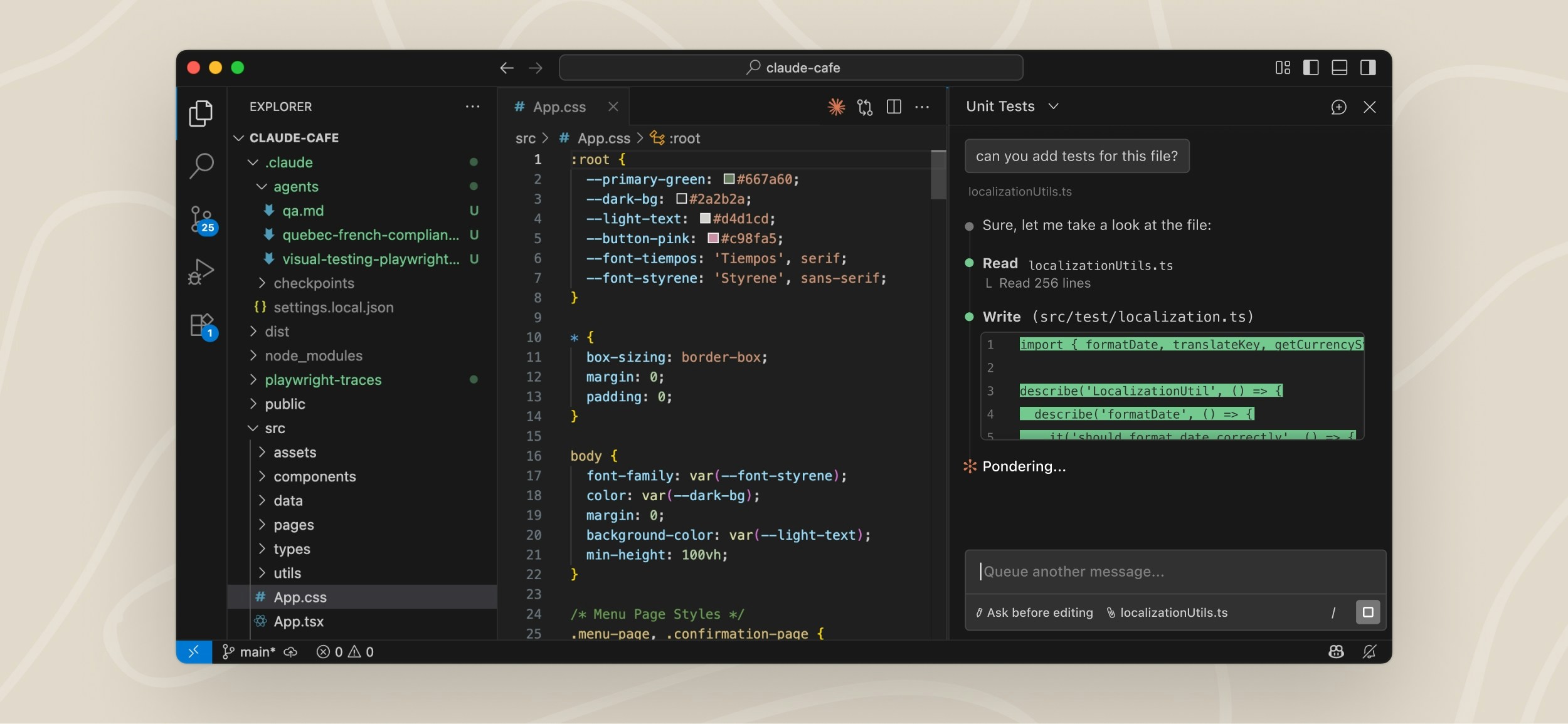
The VS Code extension provides a native graphical interface for Claude Code, integrated directly into your IDE. This is the recommended way to use Claude Code in VS Code.
With the extension, you can review and edit Claude's plans before accepting them, auto-accept edits as they're made, @-mention files with specific line ranges from your selection, access conversation history, and open multiple conversations in separate tabs or windows.
Prerequisites
- VS Code 1.98.0 or higher
- An Anthropic account (you'll sign in when you first open the extension). If you're using a third-party provider like Amazon Bedrock or Google Vertex AI, see Use third-party providers instead.
Install the extension
Click the link for your IDE to install directly:
Or in VS Code, press Cmd+Shift+X (Mac) or Ctrl+Shift+X (Windows/Linux) to open the Extensions view, search for "Claude Code", and click Install.
Get started
Once installed, you can start using Claude Code through the VS Code interface:
Open the Claude Code panel
Throughout VS Code, the Spark icon indicates Claude Code: <img src="https://mintcdn.com/claude-code/mfM-EyoZGnQv8JTc/images/vs-code-spark-icon.svg?fit=max&auto=format&n=mfM-EyoZGnQv8JTc&q=85&s=a734d84e785140016672f08e0abb236c" alt="Spark icon" style={{display: "inline", height: "0.85em", verticalAlign: "middle"}} data-og-width="16" width="16" data-og-height="16" height="16" data-path="images/vs-code-spark-icon.svg" data-optimize="true" data-opv="3" srcset="https://mintcdn.com/claude-code/mfM-EyoZGnQv8JTc/images/vs-code-spark-icon.svg?w=280&fit=max&auto=format&n=mfM-EyoZGnQv8JTc&q=85&s=9a45aad9a84b9fa1701ac99a1f9aa4e9 280w, https://mintcdn.com/claude-code/mfM-EyoZGnQv8JTc/images/vs-code-spark-icon.svg?w=560&fit=max&auto=format&n=mfM-EyoZGnQv8JTc&q=85&s=3f4cb9254c4d4e93989c4b6bf9292f4b 560w, https://mintcdn.com/claude-code/mfM-EyoZGnQv8JTc/images/vs-code-spark-icon.svg?w=840&fit=max&auto=format&n=mfM-EyoZGnQv8JTc&q=85&s=e75ccc9faa3e572db8f291ceb65bb264 840w, https://mintcdn.com/claude-code/mfM-EyoZGnQv8JTc/images/vs-code-spark-icon.svg?w=1100&fit=max&auto=format&n=mfM-EyoZGnQv8JTc&q=85&s=f147bd81a381a62539a4ce361fac41c7 1100w, https://mintcdn.com/claude-code/mfM-EyoZGnQv8JTc/images/vs-code-spark-icon.svg?w=1650&fit=max&auto=format&n=mfM-EyoZGnQv8JTc&q=85&s=78fe68efaee5d6e844bbacab1b442ed5 1650w, https://mintcdn.com/claude-code/mfM-EyoZGnQv8JTc/images/vs-code-spark-icon.svg?w=2500&fit=max&auto=format&n=mfM-EyoZGnQv8JTc&q=85&s=efb8dbe1dfa722d094edc6ad2ad4bedb 2500w" />


The quickest way to open Claude is to click the Spark icon in the Editor Toolbar (top-right corner of the editor). The icon only appears when you have a file open.
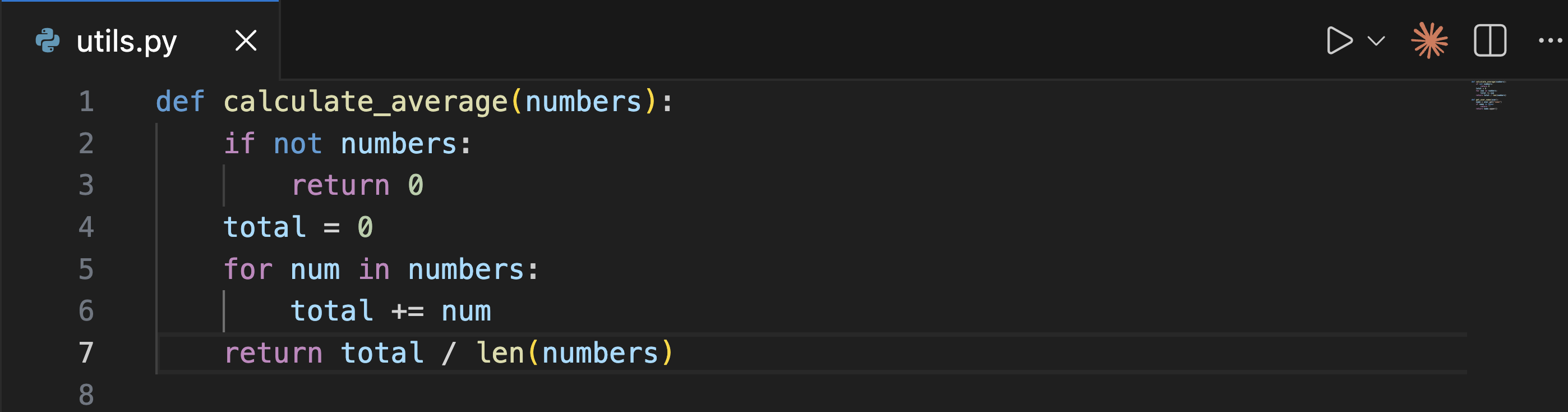
Other ways to open Claude Code:
- Command Palette:
Cmd+Shift+P(Mac) orCtrl+Shift+P(Windows/Linux), type "Claude Code", and select an option like "Open in New Tab" - Status Bar: Click ✱ Claude Code in the bottom-right corner of the window. This works even when no file is open.
You can drag the Claude panel to reposition it anywhere in VS Code. See Customize your workflow for details.
Send a prompt
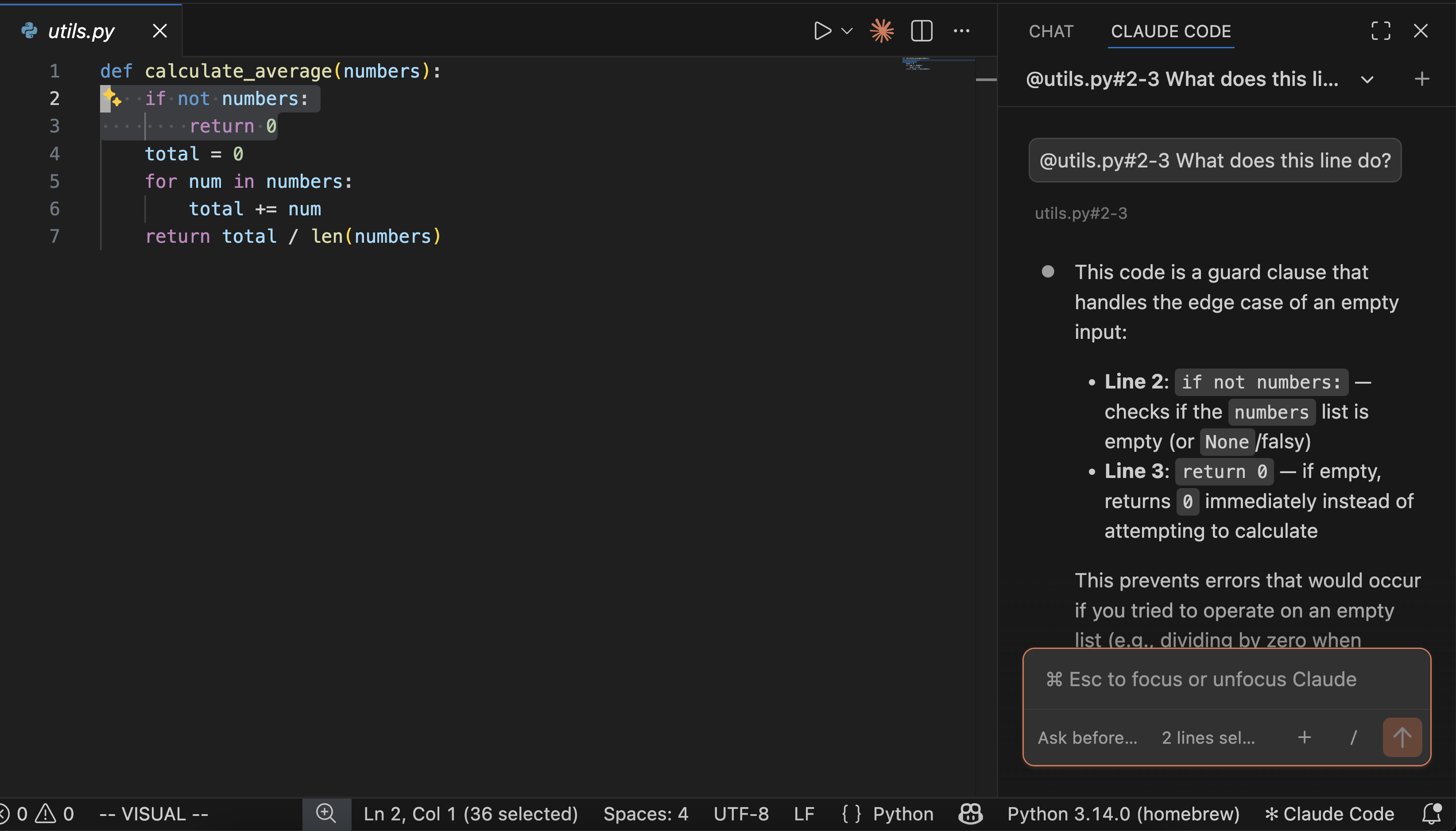
Ask Claude to help with your code or files, whether that's explaining how something works, debugging an issue, or making changes.
Here's an example of asking about a particular line in a file:
Review changes
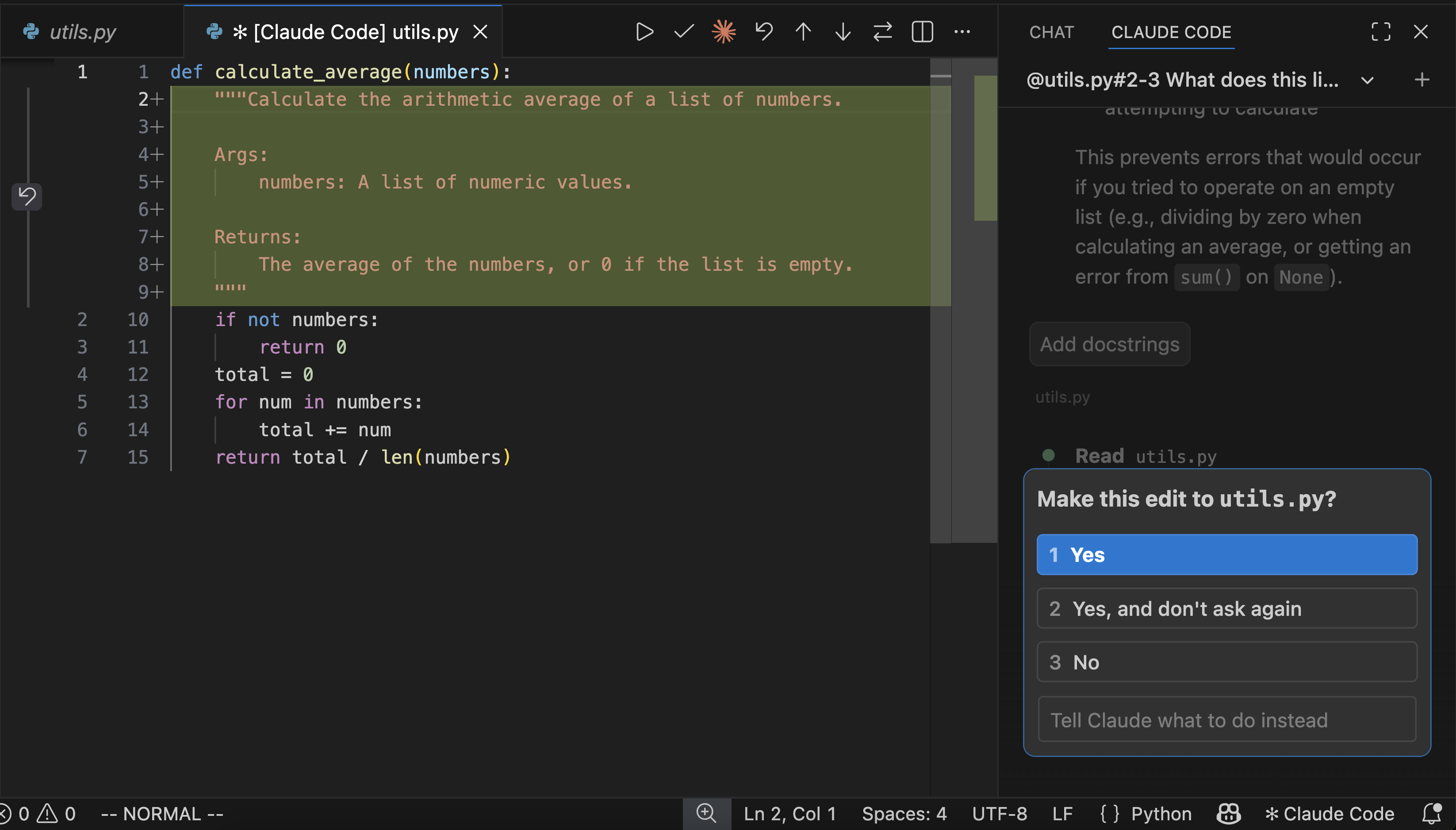
When Claude wants to edit a file, it shows a side-by-side comparison of the original and proposed changes, then asks for permission. You can accept, reject, or tell Claude what to do instead.
For more ideas on what you can do with Claude Code, see Common workflows.
Use the prompt box
The prompt box supports several features:
- Permission modes: Click the mode indicator at the bottom of the prompt box to switch modes. In normal mode, Claude asks permission before each action. In Plan mode, Claude describes what it will do and waits for approval before making changes. In auto-accept mode, Claude makes edits without asking. Set the default in VS Code settings under
claudeCode.initialPermissionMode. - Command menu: Click
/or type/to open the command menu. Options include attaching files, switching models, toggling extended thinking, and viewing account usage. The Customize section provides access to MCP servers, hooks, memory, permissions, and plugins. Items with a terminal icon open in the integrated terminal. - Context indicator: The prompt box shows how much of Claude's context window you're using. Claude automatically compacts when needed, or you can run
/compactmanually. - Extended thinking: Lets Claude spend more time reasoning through complex problems. Toggle it on via the command menu (
/). See Extended thinking for details. - Multi-line input: Press
Shift+Enterto add a new line without sending.
Reference files and folders
Use @-mentions to give Claude context about specific files or folders. When you type @ followed by a file or folder name, Claude reads that content and can answer questions about it or make changes to it. Claude Code supports fuzzy matching, so you can type partial names to find what you need:
> Explain the logic in @auth (fuzzy matches auth.js, AuthService.ts, etc.)
> What's in @src/components/ (include a trailing slash for folders)
When you select text in the editor, Claude can see your highlighted code automatically. The prompt box footer shows how many lines are selected. Press Option+K (Mac) / Alt+K (Windows/Linux) to insert an @-mention with the file path and line numbers (e.g., @app.ts#5-10). Click the selection indicator to toggle whether Claude can see your highlighted text - the eye-slash icon means the selection is hidden from Claude.
You can also hold Shift while dragging files into the prompt box to add them as attachments. Click the X on any attachment to remove it from context.
Resume past conversations
Click the dropdown at the top of the Claude Code panel to access your conversation history. You can search by keyword or browse by time (Today, Yesterday, Last 7 days, etc.). Click any conversation to resume it with the full message history. For more on resuming sessions, see Common workflows.
Customize your workflow
Once you're up and running, you can reposition the Claude panel, run multiple sessions, or switch to terminal mode.
Choose where Claude lives
You can drag the Claude panel to reposition it anywhere in VS Code. Grab the panel's tab or title bar and drag it to:
- Secondary sidebar: The right side of the window. Keeps Claude visible while you code.
- Primary sidebar: The left sidebar with icons for Explorer, Search, etc.
- Editor area: Opens Claude as a tab alongside your files. Useful for side tasks.
Run multiple conversations
Use Open in New Tab or Open in New Window from the Command Palette to start additional conversations. Each conversation maintains its own history and context, allowing you to work on different tasks in parallel.
When using tabs, a small colored dot on the spark icon indicates status: blue means a permission request is pending, orange means Claude finished while the tab was hidden.
Switch to terminal mode
By default, the extension opens a graphical chat panel. If you prefer the CLI-style interface, open the Use Terminal setting and check the box.
You can also open VS Code settings (Cmd+, on Mac or Ctrl+, on Windows/Linux), go to Extensions → Claude Code, and check Use Terminal.
VS Code commands and shortcuts
Open the Command Palette (Cmd+Shift+P on Mac or Ctrl+Shift+P on Windows/Linux) and type "Claude Code" to see all available VS Code commands for the Claude Code extension.
Some shortcuts depend on which panel is "focused" (receiving keyboard input). When your cursor is in a code file, the editor is focused. When your cursor is in Claude's prompt box, Claude is focused. Use Cmd+Esc / Ctrl+Esc to toggle between them.
| Command | Shortcut | Description |
|---|---|---|
| Focus Input | Cmd+Esc (Mac) / Ctrl+Esc (Windows/Linux) |
Toggle focus between editor and Claude |
| Open in Side Bar | - | Open Claude in the left sidebar |
| Open in Terminal | - | Open Claude in terminal mode |
| Open in New Tab | Cmd+Shift+Esc (Mac) / Ctrl+Shift+Esc (Windows/Linux) |
Open a new conversation as an editor tab |
| Open in New Window | - | Open a new conversation in a separate window |
| New Conversation | Cmd+N (Mac) / Ctrl+N (Windows/Linux) |
Start a new conversation (requires Claude to be focused) |
| Insert @-Mention Reference | Option+K (Mac) / Alt+K (Windows/Linux) |
Insert a reference to the current file and selection (requires editor to be focused) |
| Show Logs | - | View extension debug logs |
| Logout | - | Sign out of your Anthropic account |
Configure settings
The extension has two types of settings:
- Extension settings in VS Code: Control the extension's behavior within VS Code. Open with
Cmd+,(Mac) orCtrl+,(Windows/Linux), then go to Extensions → Claude Code. You can also type/and select General Config to open settings. - Claude Code settings in
~/.claude/settings.json: Shared between the extension and CLI. Use for allowed commands, environment variables, hooks, and MCP servers. See Settings for details.
Extension settings
| Setting | Default | Description |
|---|---|---|
selectedModel |
default |
Model for new conversations. Change per-session with /model. |
useTerminal |
false |
Launch Claude in terminal mode instead of graphical panel |
initialPermissionMode |
default |
Controls approval prompts: default (ask each time), plan, acceptEdits, or bypassPermissions |
preferredLocation |
panel |
Where Claude opens: sidebar (right) or panel (new tab) |
autosave |
true |
Auto-save files before Claude reads or writes them |
useCtrlEnterToSend |
false |
Use Ctrl/Cmd+Enter instead of Enter to send prompts |
enableNewConversationShortcut |
true |
Enable Cmd/Ctrl+N to start a new conversation |
hideOnboarding |
false |
Hide the onboarding checklist (graduation cap icon) |
respectGitIgnore |
true |
Exclude .gitignore patterns from file searches |
environmentVariables |
[] |
Set environment variables for the Claude process. Use Claude Code settings instead for shared config. |
disableLoginPrompt |
false |
Skip authentication prompts (for third-party provider setups) |
allowDangerouslySkipPermissions |
false |
Bypass all permission prompts. Use with extreme caution. |
claudeProcessWrapper |
- | Executable path used to launch the Claude process |
VS Code extension vs. Claude Code CLI
Claude Code is available as both a VS Code extension (graphical panel) and a CLI (command-line interface in the terminal). Some features are only available in the CLI. If you need a CLI-only feature, run claude in VS Code's integrated terminal.
| Feature | CLI | VS Code Extension |
|---|---|---|
| Commands and skills | All | Subset (type / to see available) |
| MCP server config | Yes | No (configure via CLI, use in extension) |
| Checkpoints | Yes | Coming soon |
! bash shortcut |
Yes | No |
| Tab completion | Yes | No |
Run CLI in VS Code
To use the CLI while staying in VS Code, open the integrated terminal (Ctrl+` on Windows/Linux or Cmd+` on Mac) and run claude. The CLI automatically integrates with your IDE for features like diff viewing and diagnostic sharing.
If using an external terminal, run /ide inside Claude Code to connect it to VS Code.
Switch between extension and CLI
The extension and CLI share the same conversation history. To continue an extension conversation in the CLI, run claude --resume in the terminal. This opens an interactive picker where you can search for and select your conversation.
Include terminal output in prompts
Reference terminal output in your prompts using @terminal:name where name is the terminal's title. This lets Claude see command output, error messages, or logs without copy-pasting.
Monitor background processes
When Claude runs long-running commands, the extension shows progress in the status bar. However, visibility for background tasks is limited compared to the CLI. For better visibility, have Claude output the command so you can run it in VS Code's integrated terminal.
Connect to external tools with MCP
MCP (Model Context Protocol) servers give Claude access to external tools, databases, and APIs. Configure them via CLI, then use them in both extension and CLI.
To add an MCP server, open the integrated terminal (Ctrl+` or Cmd+`) and run:
claude mcp add --transport http github https://api.githubcopilot.com/mcp/
Once configured, ask Claude to use the tools (e.g., "Review PR #456"). Some servers require authentication: run claude in the terminal, then type /mcp to authenticate. See the MCP documentation for available servers.
Work with git
Claude Code integrates with git to help with version control workflows directly in VS Code. Ask Claude to commit changes, create pull requests, or work across branches.
Create commits and pull requests
Claude can stage changes, write commit messages, and create pull requests based on your work:
> commit my changes with a descriptive message
> create a pr for this feature
> summarize the changes I've made to the auth module
When creating pull requests, Claude generates descriptions based on the actual code changes and can add context about testing or implementation decisions.
Use git worktrees for parallel tasks
Git worktrees allow multiple Claude Code sessions to work on separate branches simultaneously, each with isolated files:
# Create a worktree for a new feature
git worktree add ../project-feature-a -b feature-a

# Run Claude Code in each worktree
cd ../project-feature-a && claude
Each worktree maintains independent file state while sharing git history. This prevents Claude instances from interfering with each other when working on different tasks.
For detailed git workflows including PR reviews and branch management, see Common workflows.
Use third-party providers
By default, Claude Code connects directly to Anthropic's API. If your organization uses Amazon Bedrock, Google Vertex AI, or Microsoft Foundry to access Claude, configure the extension to use your provider instead:
Disable login prompt
Open the Disable Login Prompt setting and check the box.
You can also open VS Code settings (Cmd+, on Mac or Ctrl+, on Windows/Linux), search for "Claude Code login", and check Disable Login Prompt.
Configure your provider
Follow the setup guide for your provider:
These guides cover configuring your provider in ~/.claude/settings.json, which ensures your settings are shared between the VS Code extension and the CLI.
Security and privacy
Your code stays private. Claude Code processes your code to provide assistance but does not use it to train models. For details on data handling and how to opt out of logging, see Data and privacy.
With auto-edit permissions enabled, Claude Code can modify VS Code configuration files (like settings.json or tasks.json) that VS Code may execute automatically. To reduce risk when working with untrusted code:
- Enable VS Code Restricted Mode for untrusted workspaces
- Use manual approval mode instead of auto-accept for edits
- Review changes carefully before accepting them
Fix common issues
Extension won't install
- Ensure you have a compatible version of VS Code (1.98.0 or later)
- Check that VS Code has permission to install extensions
- Try installing directly from the VS Code Marketplace
Spark icon not visible
The Spark icon appears in the Editor Toolbar (top-right of editor) when you have a file open. If you don't see it:
- Open a file: The icon requires a file to be open. Having just a folder open isn't enough.
- Check VS Code version: Requires 1.98.0 or higher (Help → About)
- Restart VS Code: Run "Developer: Reload Window" from the Command Palette
- Disable conflicting extensions: Temporarily disable other AI extensions (Cline, Continue, etc.)
- Check workspace trust: The extension doesn't work in Restricted Mode
Alternatively, click "✱ Claude Code" in the Status Bar (bottom-right corner). This works even without a file open. You can also use the Command Palette (Cmd+Shift+P / Ctrl+Shift+P) and type "Claude Code".
Claude Code never responds
If Claude Code isn't responding to your prompts:
- Check your internet connection: Ensure you have a stable internet connection
- Start a new conversation: Try starting a fresh conversation to see if the issue persists
- Try the CLI: Run
claudefrom the terminal to see if you get more detailed error messages
If problems persist, file an issue on GitHub with details about the error.
Uninstall the extension
To uninstall the Claude Code extension:
- Open the Extensions view (
Cmd+Shift+Xon Mac orCtrl+Shift+Xon Windows/Linux) - Search for "Claude Code"
- Click Uninstall
To also remove extension data and reset all settings:
rm -rf ~/.vscode/globalStorage/anthropic.claude-code
For additional help, see the troubleshooting guide.
Next steps
Now that you have Claude Code set up in VS Code:
- Explore common workflows to get the most out of Claude Code
- Set up MCP servers to extend Claude's capabilities with external tools. Configure servers using the CLI, then use them in the extension.
- Configure Claude Code settings to customize allowed commands, hooks, and more. These settings are shared between the extension and CLI.
To find navigation and other pages in this documentation, fetch the llms.txt file at: https://code.claude.com/docs/llms.txt