
Image generation
Overview
The OpenAI API lets you generate and edit images from text prompts using GPT Image models, including our latest, gpt-image-2. You can access image generation capabilities through two APIs:
Image API
Starting with gpt-image-1 and later models, the Image API provides two endpoints, each with distinct capabilities:
- Generations: Generate images from scratch based on a text prompt
- Edits: Modify existing images using a new prompt, either partially or entirely
The Image API also includes a variations endpoint for models that support it, such as DALL·E 2.
Responses API
The Responses API allows you to generate images as part of conversations or multi-step flows. It supports image generation as a built-in tool, and accepts image inputs and outputs within context.
Compared to the Image API, it adds:
- Multi-turn editing: Iteratively make high fidelity edits to images with prompting
- Flexible inputs: Accept image File IDs as input images, not just bytes
The Responses API image generation tool uses its own GPT Image model selection. For details on mainline models that support calling this tool, refer to the supported models below.
Choosing the right API
- If you only need to generate or edit a single image from one prompt, the Image API is your best choice.
- If you want to build conversational, editable image experiences with GPT Image, go with the Responses API.
With the Image API, you choose a GPT Image model directly. With the Responses API, you choose a mainline model that supports the image generation tool; the tool handles GPT Image model selection. Responses API requests include the mainline model's token usage in addition to image generation costs.
Both APIs let you customize output by adjusting quality, size, format, and compression. Transparent backgrounds depend on model support.
This guide focuses on GPT Image.
To ensure these models are used responsibly, you may need to complete the API
Organization
Verification
from your developer
console before
using GPT Image models, including gpt-image-2, gpt-image-1.5,
gpt-image-1, and gpt-image-1-mini.
Generate Images
You can use the image generation endpoint to create images based on text prompts, or the image generation tool in the Responses API to generate images as part of a conversation.
To learn more about customizing the output (size, quality, format, compression), refer to the customize image output section below.
You can set the n parameter to generate multiple images at once in a single request (by default, the API returns a single image).
import OpenAI from "openai";
import fs from "fs";
const openai = new OpenAI();

const prompt = \`
A children's book drawing of a veterinarian using a stethoscope to
listen to the heartbeat of a baby otter.
\`;

const result = await openai.images.generate({
    model: "gpt-image-2",
    prompt,
});

// Save the image to a file
const image_base64 = result.data[0].b64_json;
const image_bytes = Buffer.from(image_base64, "base64");
fs.writeFileSync("otter.png", image_bytes);
from openai import OpenAI
import base64
client = OpenAI()

prompt = """
A children's book drawing of a veterinarian using a stethoscope to
listen to the heartbeat of a baby otter.
"""

result = client.images.generate(
    model="gpt-image-2",
    prompt=prompt
)

image_base64 = result.data[0].b64_json
image_bytes = base64.b64decode(image_base64)

# Save the image to a file
with open("otter.png", "wb") as f:
    f.write(image_bytes)
curl -X POST "https://api.openai.com/v1/images/generations" \\
    -H "Authorization: Bearer $OPENAI_API_KEY" \\
    -H "Content-type: application/json" \\
    -d '{
        "model": "gpt-image-2",
        "prompt": "A childrens book drawing of a veterinarian using a stethoscope to listen to the heartbeat of a baby otter."
    }' | jq -r '.data[0].b64_json' | base64 --decode > otter.png
openai images generate \\
  --model gpt-image-2 \\
  --prompt "A childrens book drawing of a veterinarian using a stethoscope to listen to the heartbeat of a baby otter." \\
  --raw-output \\
  --transform 'data.0.b64_json' | base64 --decode > otter.png
import OpenAI from "openai";
const openai = new OpenAI();

const response = await openai.responses.create({
    model: "gpt-5.5",
    input: "Generate an image of gray tabby cat hugging an otter with an orange scarf",
    tools: [{type: "image_generation"}],
});

// Save the image to a file
const imageData = response.output
  .filter((output) => output.type === "image_generation_call")
  .map((output) => output.result);

if (imageData.length > 0) {
  const imageBase64 = imageData[0];
  const fs = await import("fs");
  fs.writeFileSync("otter.png", Buffer.from(imageBase64, "base64"));
}
from openai import OpenAI
import base64

client = OpenAI()

response = client.responses.create(
    model="gpt-5.5",
    input="Generate an image of gray tabby cat hugging an otter with an orange scarf",
    tools=[{"type": "image_generation"}],
)

# Save the image to a file
image_data = [
    output.result
    for output in response.output
    if output.type == "image_generation_call"
]

if image_data:
    image_base64 = image_data[0]
    with open("otter.png", "wb") as f:
        f.write(base64.b64decode(image_base64))
Multi-turn image generation
With the Responses API, you can build multi-turn conversations involving image generation either by providing image generation calls outputs within context (you can also just use the image ID), or by using the previous_response_id parameter.
This lets you iterate on images across multiple turns—refining prompts, applying new instructions, and evolving the visual output as the conversation progresses.
With the Responses API image generation tool, supported tool models can choose whether to generate a new image or edit one already in the conversation. The optional action parameter controls this behavior: keep action: "auto" to let the model decide, set action: "generate" to always create a new image, or set action: "edit" to force editing when an image is in context.
Force image creation with action
import OpenAI from "openai";
const openai = new OpenAI();

const response = await openai.responses.create({
    model: "gpt-5.5",
    input: "Generate an image of gray tabby cat hugging an otter with an orange scarf",
    tools: [{type: "image_generation", action: "generate"}],
});

// Save the image to a file
const imageData = response.output
  .filter((output) => output.type === "image_generation_call")
  .map((output) => output.result);

if (imageData.length > 0) {
  const imageBase64 = imageData[0];
  const fs = await import("fs");
  fs.writeFileSync("otter.png", Buffer.from(imageBase64, "base64"));
}
from openai import OpenAI
import base64

client = OpenAI()

response = client.responses.create(
    model="gpt-5.5",
    input="Generate an image of gray tabby cat hugging an otter with an orange scarf",
    tools=[{"type": "image_generation", "action": "generate"}],
)

# Save the image to a file
image_data = [
    output.result
    for output in response.output
    if output.type == "image_generation_call"
]

if image_data:
    image_base64 = image_data[0]
    with open("otter.png", "wb") as f:
        f.write(base64.b64decode(image_base64))
If you force edit without providing an image in context, the call will return an error. Leave action at auto to have the model decide when to generate or edit.
import OpenAI from "openai";
const openai = new OpenAI();

const response = await openai.responses.create({
  model: "gpt-5.5",
  input:
    "Generate an image of gray tabby cat hugging an otter with an orange scarf",
  tools: [{ type: "image_generation" }],
});

const imageData = response.output
  .filter((output) => output.type === "image_generation_call")
  .map((output) => output.result);

if (imageData.length > 0) {
  const imageBase64 = imageData[0];
  const fs = await import("fs");
  fs.writeFileSync("cat_and_otter.png", Buffer.from(imageBase64, "base64"));
}

// Follow up

const response_fwup = await openai.responses.create({
  model: "gpt-5.5",
  previous_response_id: response.id,
  input: "Now make it look realistic",
  tools: [{ type: "image_generation" }],
});

const imageData_fwup = response_fwup.output
  .filter((output) => output.type === "image_generation_call")
  .map((output) => output.result);

if (imageData_fwup.length > 0) {
  const imageBase64 = imageData_fwup[0];
  const fs = await import("fs");
  fs.writeFileSync(
    "cat_and_otter_realistic.png",
    Buffer.from(imageBase64, "base64")
  );
}
from openai import OpenAI
import base64

client = OpenAI()

response = client.responses.create(
    model="gpt-5.5",
    input="Generate an image of gray tabby cat hugging an otter with an orange scarf",
    tools=[{"type": "image_generation"}],
)

image_data = [
    output.result
    for output in response.output
    if output.type == "image_generation_call"
]

if image_data:
    image_base64 = image_data[0]

    with open("cat_and_otter.png", "wb") as f:
        f.write(base64.b64decode(image_base64))


# Follow up

response_fwup = client.responses.create(
    model="gpt-5.5",
    previous_response_id=response.id,
    input="Now make it look realistic",
    tools=[{"type": "image_generation"}],
)

image_data_fwup = [
    output.result
    for output in response_fwup.output
    if output.type == "image_generation_call"
]

if image_data_fwup:
    image_base64 = image_data_fwup[0]
    with open("cat_and_otter_realistic.png", "wb") as f:
        f.write(base64.b64decode(image_base64))
import OpenAI from "openai";
const openai = new OpenAI();

const response = await openai.responses.create({
  model: "gpt-5.5",
  input:
    "Generate an image of gray tabby cat hugging an otter with an orange scarf",
  tools: [{ type: "image_generation" }],
});

const imageGenerationCalls = response.output.filter(
  (output) => output.type === "image_generation_call"
);

const imageData = imageGenerationCalls.map((output) => output.result);

if (imageData.length > 0) {
  const imageBase64 = imageData[0];
  const fs = await import("fs");
  fs.writeFileSync("cat_and_otter.png", Buffer.from(imageBase64, "base64"));
}

// Follow up

const response_fwup = await openai.responses.create({
  model: "gpt-5.5",
  input: [
    {
      role: "user",
      content: [{ type: "input_text", text: "Now make it look realistic" }],
    },
    {
      type: "image_generation_call",
      id: imageGenerationCalls[0].id,
    },
  ],
  tools: [{ type: "image_generation" }],
});

const imageData_fwup = response_fwup.output
  .filter((output) => output.type === "image_generation_call")
  .map((output) => output.result);

if (imageData_fwup.length > 0) {
  const imageBase64 = imageData_fwup[0];
  const fs = await import("fs");
  fs.writeFileSync(
    "cat_and_otter_realistic.png",
    Buffer.from(imageBase64, "base64")
  );
}
import openai
import base64

response = openai.responses.create(
    model="gpt-5.5",
    input="Generate an image of gray tabby cat hugging an otter with an orange scarf",
    tools=[{"type": "image_generation"}],
)

image_generation_calls = [
    output
    for output in response.output
    if output.type == "image_generation_call"
]

image_data = [output.result for output in image_generation_calls]

if image_data:
    image_base64 = image_data[0]

    with open("cat_and_otter.png", "wb") as f:
        f.write(base64.b64decode(image_base64))


# Follow up

response_fwup = openai.responses.create(
    model="gpt-5.5",
    input=[
        {
            "role": "user",
            "content": [{"type": "input_text", "text": "Now make it look realistic"}],
        },
        {
            "type": "image_generation_call",
            "id": image_generation_calls[0].id,
        },
    ],
    tools=[{"type": "image_generation"}],
)

image_data_fwup = [
    output.result
    for output in response_fwup.output
    if output.type == "image_generation_call"
]

if image_data_fwup:
    image_base64 = image_data_fwup[0]
    with open("cat_and_otter_realistic.png", "wb") as f:
        f.write(base64.b64decode(image_base64))
Result
| "Generate an image of gray tabby cat hugging an otter with an orange scarf" |
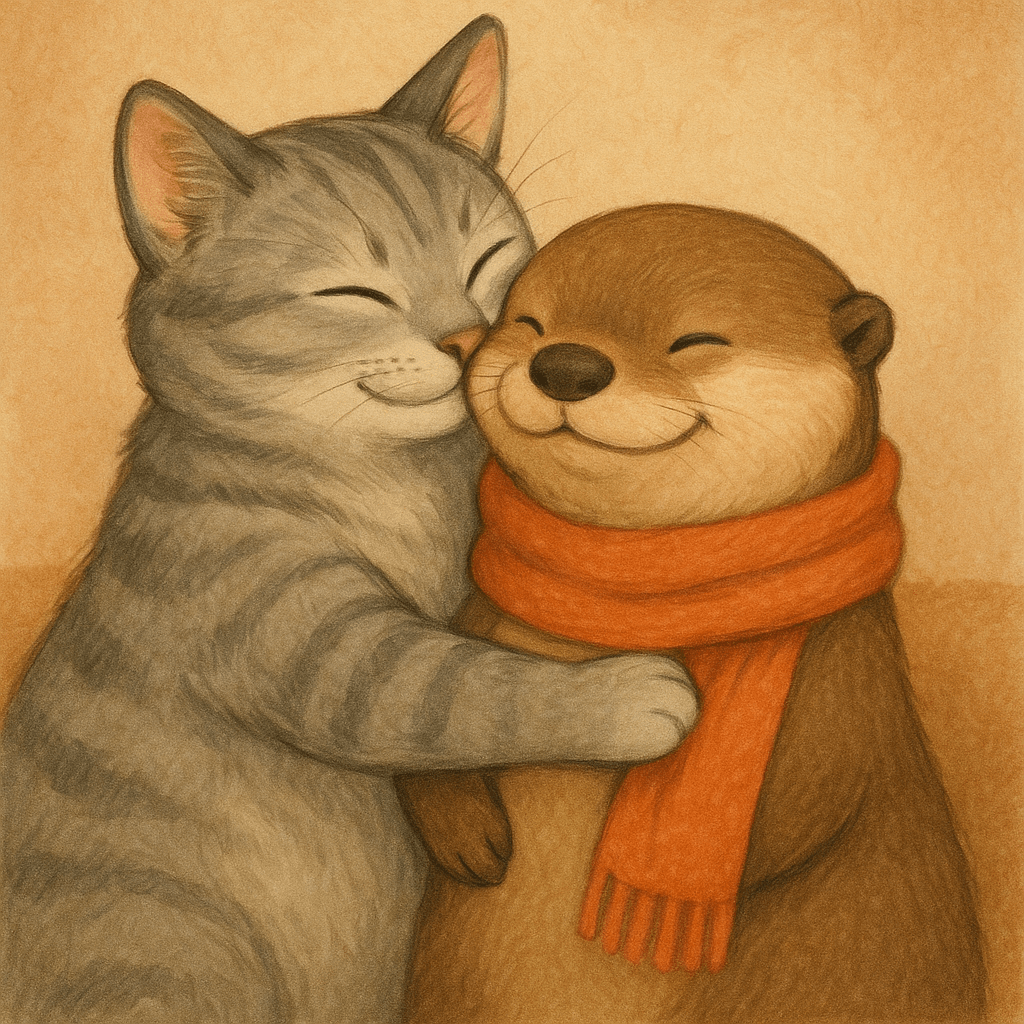
|
| "Now make it look realistic" |
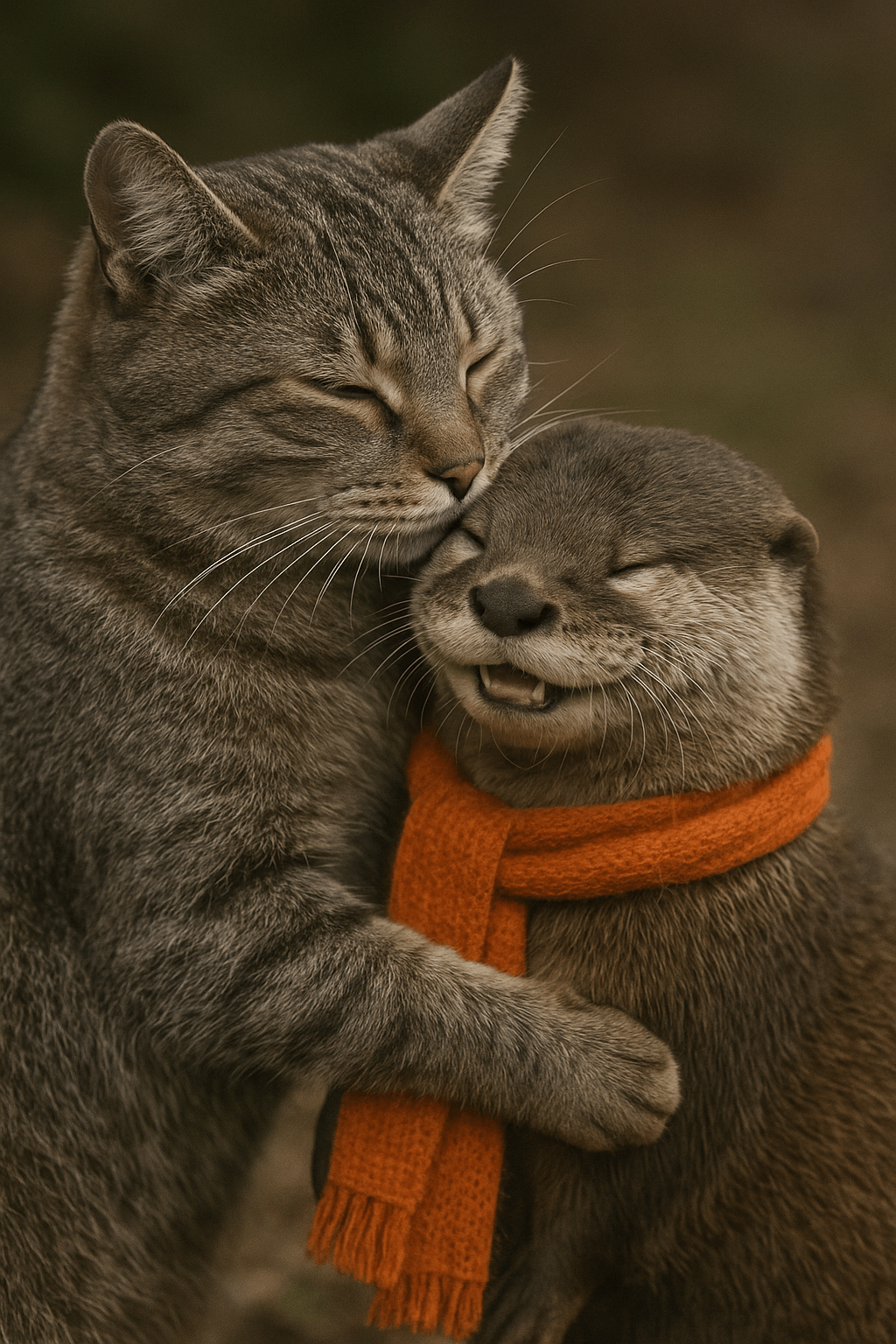
|
Streaming
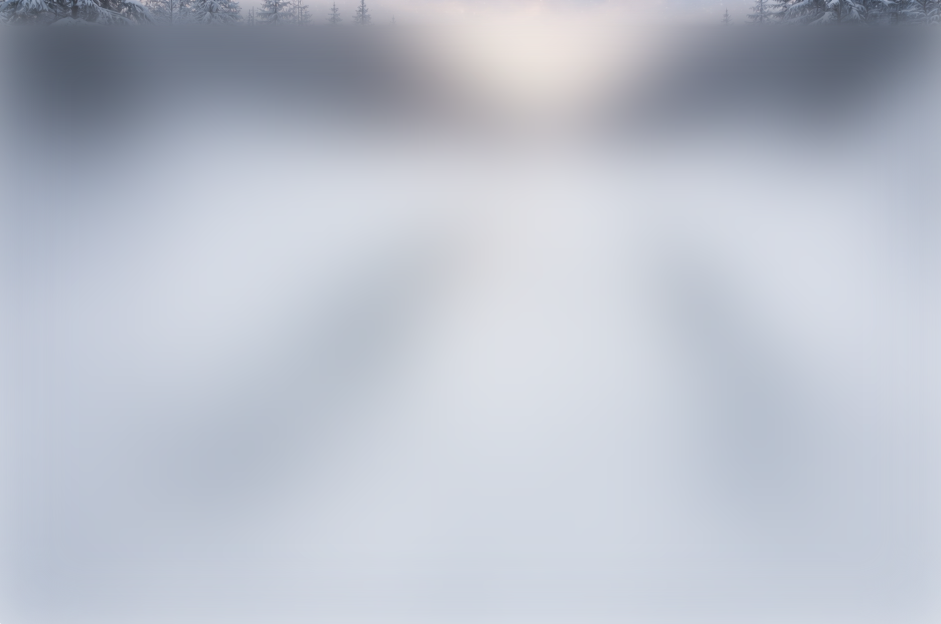
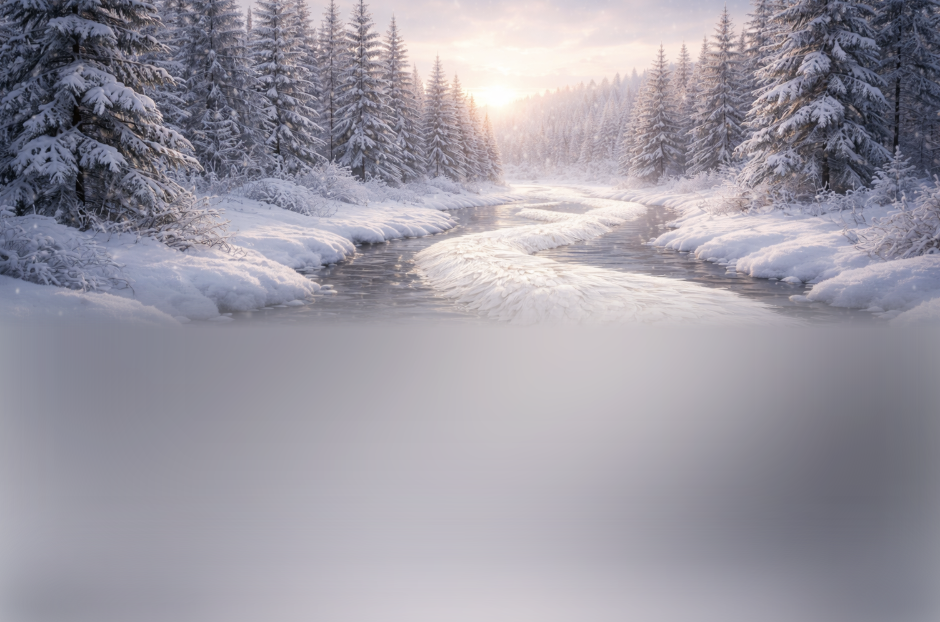
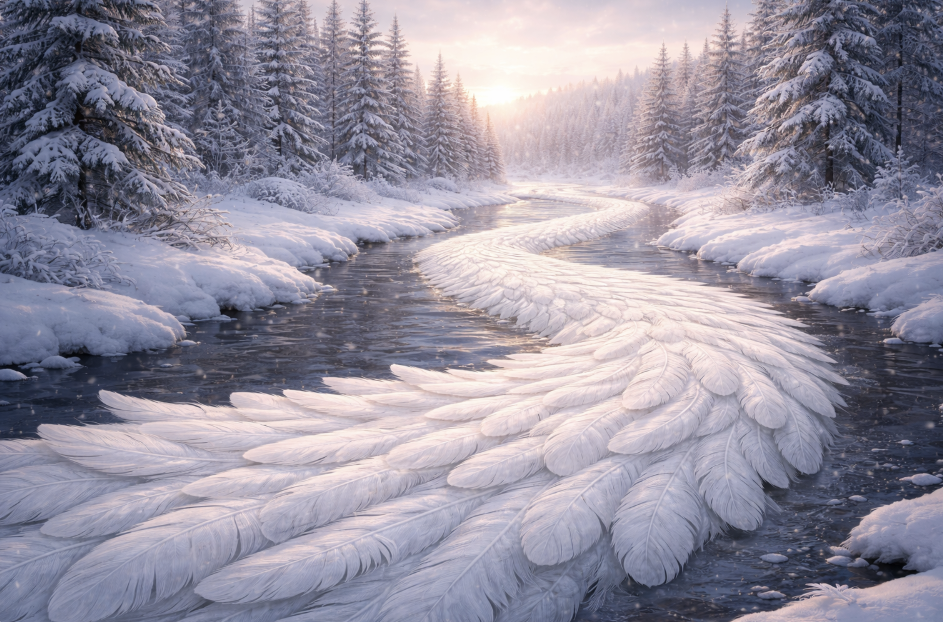
The Responses API and Image API support streaming image generation. You can stream partial images as the APIs generate them, providing a more interactive experience.
You can adjust the partial_images parameter to receive 0-3 partial images.
- If you set
partial_imagesto 0, you will only receive the final image. - For values larger than zero, you may not receive the full number of partial images you requested if the full image is generated more quickly.
import OpenAI from "openai";
import fs from "fs";
const openai = new OpenAI();

const stream = await openai.responses.create({
  model: "gpt-5.5",
  input:
    "Draw a gorgeous image of a river made of white owl feathers, snaking its way through a serene winter landscape",
  stream: true,
  tools: [{ type: "image_generation", partial_images: 2 }],
});

for await (const event of stream) {
  if (event.type === "response.image_generation_call.partial_image") {
    const idx = event.partial_image_index;
    const imageBase64 = event.partial_image_b64;
    const imageBuffer = Buffer.from(imageBase64, "base64");
    fs.writeFileSync(\`river\${idx}.png\`, imageBuffer);
  }
}
from openai import OpenAI
import base64

client = OpenAI()

stream = client.responses.create(
    model="gpt-5.5",
    input="Draw a gorgeous image of a river made of white owl feathers, snaking its way through a serene winter landscape",
    stream=True,
    tools=[{"type": "image_generation", "partial_images": 2}],
)

for event in stream:
    if event.type == "response.image_generation_call.partial_image":
        idx = event.partial_image_index
        image_base64 = event.partial_image_b64
        image_bytes = base64.b64decode(image_base64)
        with open(f"river{idx}.png", "wb") as f:
            f.write(image_bytes)
import fs from "fs";
import OpenAI from "openai";

const openai = new OpenAI();

const prompt =
  "Draw a gorgeous image of a river made of white owl feathers, snaking its way through a serene winter landscape";
const stream = await openai.images.generate({
  prompt: prompt,
  model: "gpt-image-2",
  stream: true,
  partial_images: 2,
});

for await (const event of stream) {
  if (event.type === "image_generation.partial_image") {
    const idx = event.partial_image_index;
    const imageBase64 = event.b64_json;
    const imageBuffer = Buffer.from(imageBase64, "base64");
    fs.writeFileSync(\`river\${idx}.png\`, imageBuffer);
  }
}
from openai import OpenAI
import base64

client = OpenAI()

stream = client.images.generate(
    prompt="Draw a gorgeous image of a river made of white owl feathers, snaking its way through a serene winter landscape",
    model="gpt-image-2",
    stream=True,
    partial_images=2,
)

for event in stream:
    if event.type == "image_generation.partial_image":
        idx = event.partial_image_index
        image_base64 = event.b64_json
        image_bytes = base64.b64decode(image_base64)
        with open(f"river{idx}.png", "wb") as f:
            f.write(image_bytes)
Result
| Partial 1 | Partial 2 | Final image |
|---|---|---|
 |
 |
 |
Revised prompt
When using the image generation tool in the Responses API, the mainline model (for example, gpt-5.5) will automatically revise your prompt for improved performance.
You can access the revised prompt in the revised_prompt field of the image generation call:
Revised prompt response
{
  "id": "ig_123",
  "type": "image_generation_call",
  "status": "completed",
  "revised_prompt": "A gray tabby cat hugging an otter. The otter is wearing an orange scarf. Both animals are cute and friendly, depicted in a warm, heartwarming style.",
  "result": "..."
}
Edit Images
The image edits endpoint lets you:
- Edit existing images
- Generate new images using other images as a reference
- Edit parts of an image by uploading an image and mask that identifies the areas to replace
Create a new image using image references
You can use one or more images as a reference to generate a new image.
In this example, we'll use 4 input images to generate a new image of a gift basket containing the items in the reference images.
import base64
from openai import OpenAI
client = OpenAI()

prompt = """
Generate a photorealistic image of a gift basket on a white background
labeled 'Relax & Unwind' with a ribbon and handwriting-like font,
containing all the items in the reference pictures.
"""

result = client.images.edit(
    model="gpt-image-2",
    image=[
        open("body-lotion.png", "rb"),
        open("bath-bomb.png", "rb"),
        open("incense-kit.png", "rb"),
        open("soap.png", "rb"),
    ],
    prompt=prompt
)

image_base64 = result.data[0].b64_json
image_bytes = base64.b64decode(image_base64)

# Save the image to a file
with open("gift-basket.png", "wb") as f:
    f.write(image_bytes)
import fs from "fs";
import OpenAI, { toFile } from "openai";

const client = new OpenAI();

const prompt = \`
Generate a photorealistic image of a gift basket on a white background
labeled 'Relax & Unwind' with a ribbon and handwriting-like font,
containing all the items in the reference pictures.
\`;

const imageFiles = [
    "bath-bomb.png",
    "body-lotion.png",
    "incense-kit.png",
    "soap.png",
];

const images = await Promise.all(
    imageFiles.map(async (file) =>
        await toFile(fs.createReadStream(file), null, {
            type: "image/png",
        })
    ),
);

const response = await client.images.edit({
    model: "gpt-image-2",
    image: images,
    prompt,
});

// Save the image to a file
const image_base64 = response.data[0].b64_json;
const image_bytes = Buffer.from(image_base64, "base64");
fs.writeFileSync("basket.png", image_bytes);
curl -s -D >(grep -i x-request-id >&2) \\
  -o >(jq -r '.data[0].b64_json' | base64 --decode > gift-basket.png) \\
  -X POST "https://api.openai.com/v1/images/edits" \\
  -H "Authorization: Bearer $OPENAI_API_KEY" \\
  -F "model=gpt-image-2" \\
  -F "image[]=@body-lotion.png" \\
  -F "image[]=@bath-bomb.png" \\
  -F "image[]=@incense-kit.png" \\
  -F "image[]=@soap.png" \\
  -F 'prompt=Generate a photorealistic image of a gift basket on a white background labeled "Relax & Unwind" with a ribbon and handwriting-like font, containing all the items in the reference pictures'
openai images edit \\
  --model gpt-image-2 \\
  --image body-lotion.png \\
  --image bath-bomb.png \\
  --image incense-kit.png \\
  --image soap.png \\
  --prompt 'Generate a photorealistic image of a gift basket on a white background labeled "Relax & Unwind" with a ribbon and handwriting-like font, containing all the items in the reference pictures' \\
  --raw-output \\
  --transform 'data.0.b64_json' | base64 --decode > gift-basket.png
Edit an image using a mask
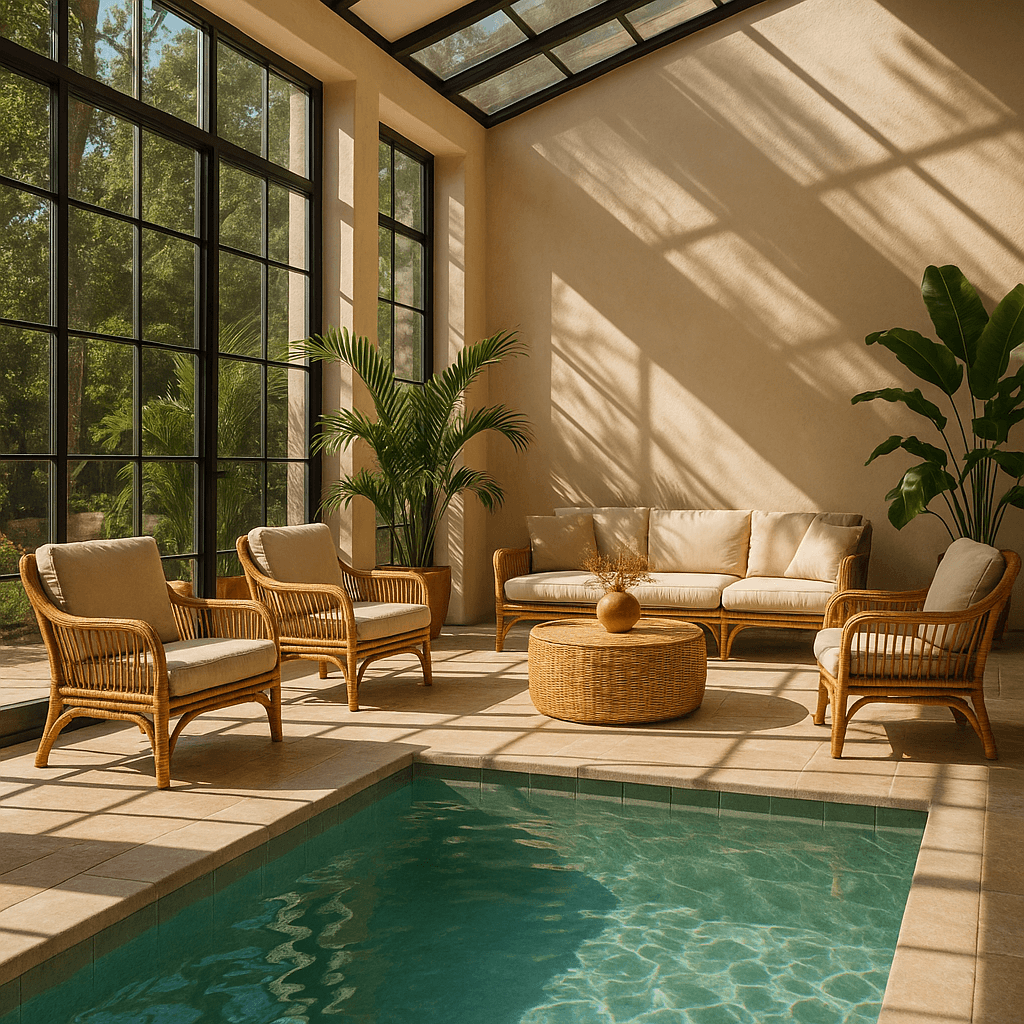
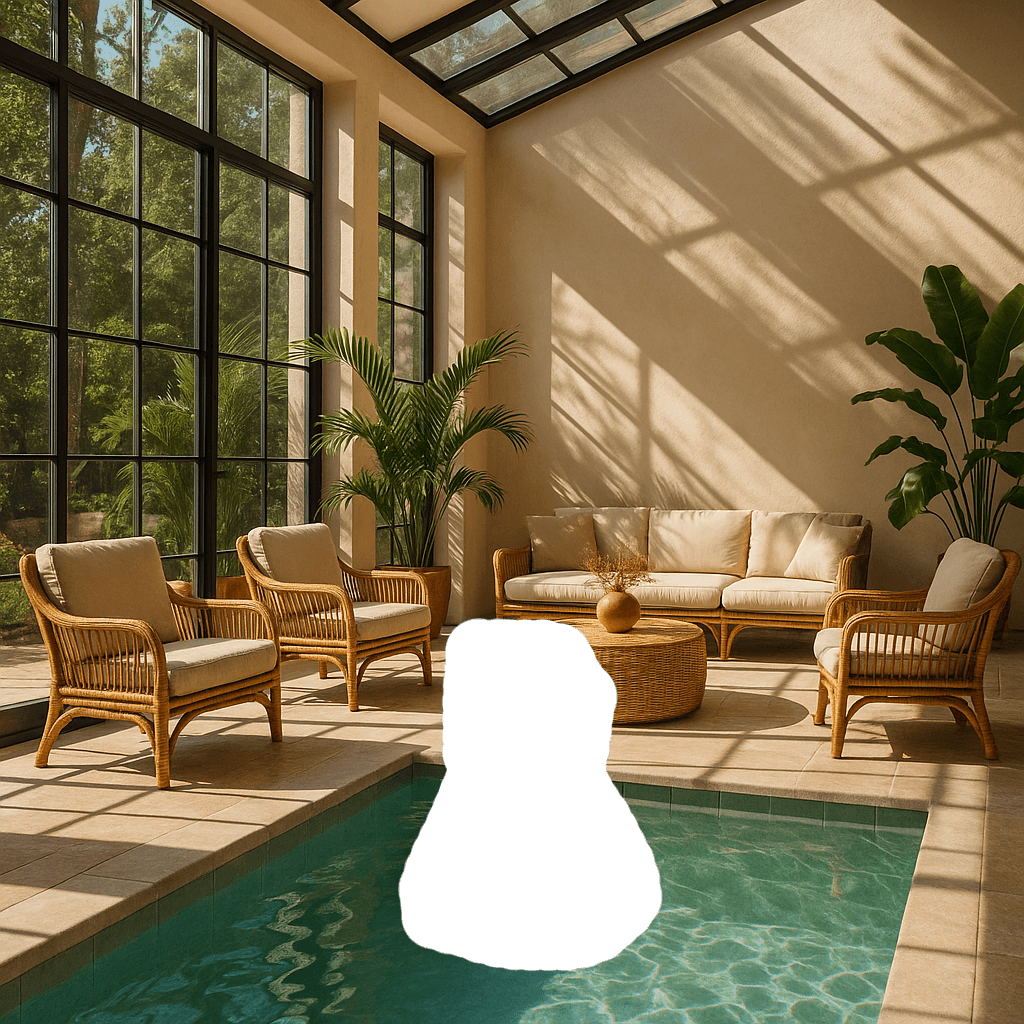
You can provide a mask to indicate which part of the image should be edited.
When using a mask with GPT Image, additional instructions are sent to the model to help guide the editing process accordingly.
Masking with GPT Image is entirely prompt-based. The model uses the mask as guidance, but may not follow its exact shape with complete precision.
If you provide multiple input images, the mask will be applied to the first image.
from openai import OpenAI
import base64

client = OpenAI()

def create_file(file_path):
    with open(file_path, "rb") as file_content:
        result = client.files.create(file=file_content, purpose="vision")
    return result.id

fileId = create_file("sunlit_lounge.png")
maskId = create_file("mask.png")

response = client.responses.create(
    model="gpt-5.5",
    input=[
        {
            "role": "user",
            "content": [
                {
                    "type": "input_text",
                    "text": "generate an image of the same sunlit indoor lounge area with a pool but the pool should contain a flamingo",
                },
                {
                    "type": "input_image",
                    "file_id": fileId,
                }
            ],
        },
    ],
    tools=[
        {
            "type": "image_generation",
            "quality": "high",
            "input_image_mask": {
                "file_id": maskId,
            }
        },
    ],
)

image_data = [
    output.result
    for output in response.output
    if output.type == "image_generation_call"
]

if image_data:
    image_base64 = image_data[0]
    with open("lounge.png", "wb") as f:
        f.write(base64.b64decode(image_base64))
import fs from "fs";
import OpenAI from "openai";

const openai = new OpenAI();

async function createFile(filePath) {
  const result = await openai.files.create({
    file: fs.createReadStream(filePath),
    purpose: "vision",
  });
  return result.id;
}

const fileId = await createFile("sunlit_lounge.png");
const maskId = await createFile("mask.png");

const response = await openai.responses.create({
  model: "gpt-5.5",
  input: [
    {
      role: "user",
      content: [
        {
          type: "input_text",
          text: "generate an image of the same sunlit indoor lounge area with a pool but the pool should contain a flamingo",
        },
        {
          type: "input_image",
          file_id: fileId,
        }
      ],
    },
  ],
  tools: [
    {
      type: "image_generation",
      quality: "high",
      input_image_mask: {
        file_id: maskId,
      }
    },
  ],
});

const imageData = response.output
  .filter((output) => output.type === "image_generation_call")
  .map((output) => output.result);

if (imageData.length > 0) {
  const imageBase64 = imageData[0];
  fs.writeFileSync("lounge.png", Buffer.from(imageBase64, "base64"));
}
from openai import OpenAI
import base64

client = OpenAI()

result = client.images.edit(
    model="gpt-image-2",
    image=open("sunlit_lounge.png", "rb"),
    mask=open("mask.png", "rb"),
    prompt="A sunlit indoor lounge area with a pool containing a flamingo"
)

image_base64 = result.data[0].b64_json
image_bytes = base64.b64decode(image_base64)

# Save the image to a file
with open("composition.png", "wb") as f:
    f.write(image_bytes)
import fs from "fs";
import OpenAI, { toFile } from "openai";

const client = new OpenAI();

const rsp = await client.images.edit({
    model: "gpt-image-2",
    image: await toFile(fs.createReadStream("sunlit_lounge.png"), null, {
        type: "image/png",
    }),
    mask: await toFile(fs.createReadStream("mask.png"), null, {
        type: "image/png",
    }),
    prompt: "A sunlit indoor lounge area with a pool containing a flamingo",
});

// Save the image to a file
const image_base64 = rsp.data[0].b64_json;
const image_bytes = Buffer.from(image_base64, "base64");
fs.writeFileSync("lounge.png", image_bytes);
curl -s -D >(grep -i x-request-id >&2) \\
  -o >(jq -r '.data[0].b64_json' | base64 --decode > lounge.png) \\
  -X POST "https://api.openai.com/v1/images/edits" \\
  -H "Authorization: Bearer $OPENAI_API_KEY" \\
  -F "model=gpt-image-2" \\
  -F "mask=@mask.png" \\
  -F "image[]=@sunlit_lounge.png" \\
  -F 'prompt=A sunlit indoor lounge area with a pool containing a flamingo'
openai images edit \\
  --model gpt-image-2 \\
  --image sunlit_lounge.png \\
  --mask mask.png \\
  --prompt "A sunlit indoor lounge area with a pool containing a flamingo" \\
  --raw-output \\
  --transform 'data.0.b64_json' | base64 --decode > out.png
| Image | Mask | Output |
|---|---|---|
 |
 |
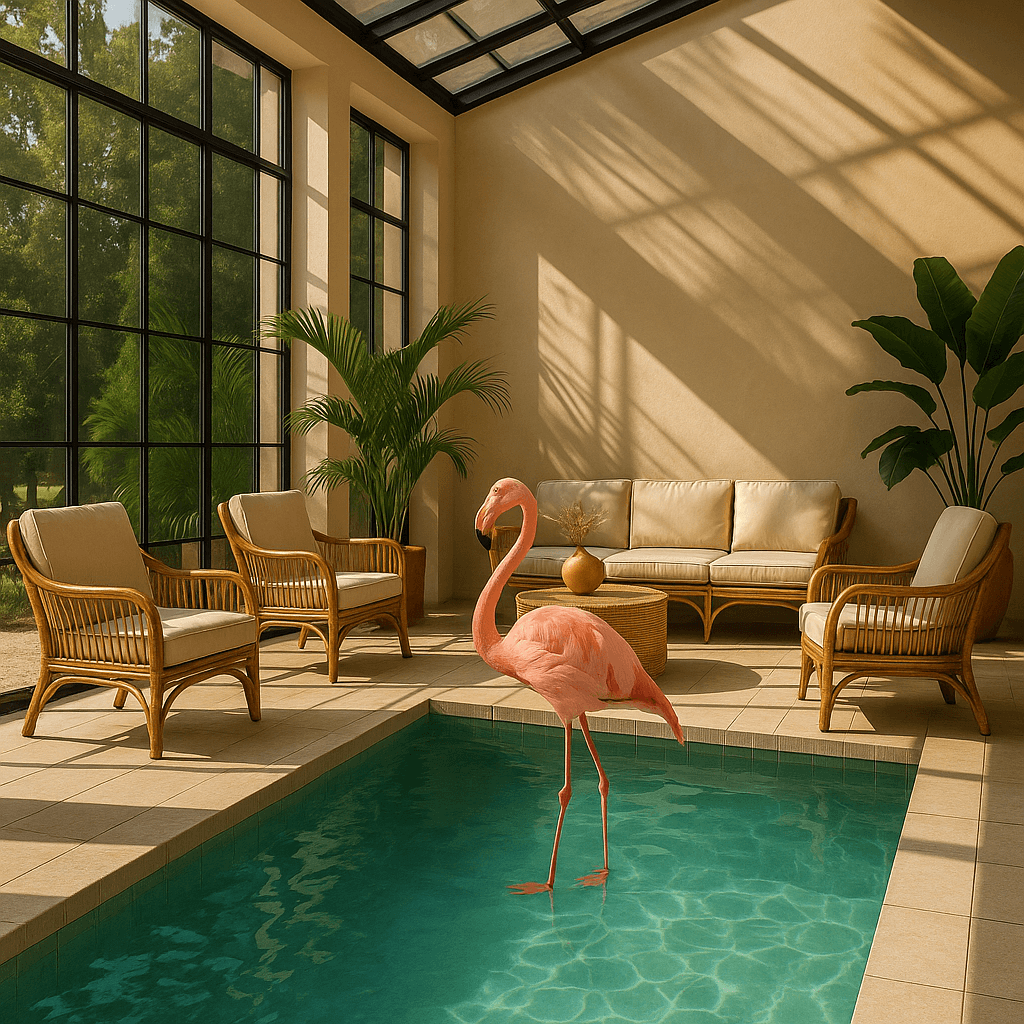 |
Mask requirements
The image to edit and mask must be of the same format and size (less than 50MB in size).
The mask image must also contain an alpha channel. If you're using an image editing tool to create the mask, make sure to save the mask with an alpha channel.
You can modify a black and white image programmatically to add an alpha channel.
Add an alpha channel to a black and white mask
from PIL import Image
from io import BytesIO

# 1. Load your black & white mask as a grayscale image
mask = Image.open("mask.png").convert("L")

# 2. Convert it to RGBA so it has space for an alpha channel
mask_rgba = mask.convert("RGBA")

# 3. Then use the mask itself to fill that alpha channel
mask_rgba.putalpha(mask)

# 4. Convert the mask into bytes
buf = BytesIO()
mask_rgba.save(buf, format="PNG")
mask_bytes = buf.getvalue()

# 5. Save the resulting file
img_path_mask_alpha = "mask_alpha.png"
with open(img_path_mask_alpha, "wb") as f:
    f.write(mask_bytes)
Image input fidelity
The input_fidelity parameter controls how strongly a model preserves details from input images during edits and reference-image workflows. For gpt-image-2, omit this parameter; the API doesn't allow changing it because the model processes every image input at high fidelity automatically.
Because gpt-image-2 always processes image inputs at high fidelity, image
input tokens can be higher for edit requests that include reference images. To
understand the cost implications, refer to the vision
costs
section.
Customize Image Output
You can configure the following output options:
- Size: Image dimensions (for example,
1024x1024,1024x1536) - Quality: Rendering quality (for example,
low,medium,high) - Format: File output format
- Compression: Compression level (0-100%) for JPEG and WebP formats
- Background: Opaque or automatic
size, quality, and background support the auto option, where the model will automatically select the best option based on the prompt.
gpt-image-2 doesn't currently support transparent backgrounds. Requests with
background: "transparent" aren't supported for this model.
Size and quality options
gpt-image-2 accepts any resolution in the size parameter when it satisfies the constraints below. Square images are typically fastest to generate.
| Popular sizes |
|
| Size constraints |
|
| Quality options |
|
Use quality: "low" for fast drafts, thumbnails, and quick iterations. It is
the fastest option and works well for many common use cases before you move to
medium or high for final assets.
Outputs that contain more than 2560x1440 (3,686,400) total pixels,
typically referred to as 2K, are considered experimental.
Output format
The Image API returns base64-encoded image data.
The default format is png, but you can also request jpeg or webp.
If using jpeg or webp, you can also specify the output_compression parameter to control the compression level (0-100%). For example, output_compression=50 will compress the image by 50%.
Using jpeg is faster than png, so you should prioritize this format if
latency is a concern.
Limitations
GPT Image models (gpt-image-2, gpt-image-1.5, gpt-image-1, and gpt-image-1-mini) are powerful and versatile image generation models, but they still have some limitations to be aware of:
- Latency: Complex prompts may take up to 2 minutes to process.
- Text Rendering: Although significantly improved, the model can still struggle with precise text placement and clarity.
- Consistency: While capable of producing consistent imagery, the model may occasionally struggle to maintain visual consistency for recurring characters or brand elements across multiple generations.
- Composition Control: Despite improved instruction following, the model may have difficulty placing elements precisely in structured or layout-sensitive compositions.
Content Moderation
All prompts and generated images are filtered in accordance with our content policy.
For image generation using GPT Image models (gpt-image-2, gpt-image-1.5, gpt-image-1, and gpt-image-1-mini), you can control moderation strictness with the moderation parameter. This parameter supports two values:
auto(default): Standard filtering that seeks to limit creating certain categories of potentially age-inappropriate content.low: Less restrictive filtering.
Supported models
When using image generation in the Responses API, gpt-5 and newer models should support the image generation tool. Check the model detail page for your model to confirm if your desired model can use the image generation tool.
Cost and latency
gpt-image-2 output tokens
For gpt-image-2, use the calculator to estimate output tokens from the requested quality and size:
Models prior to gpt-image-2
GPT Image models prior to gpt-image-2 generate images by first producing specialized image tokens. Both latency and eventual cost are proportional to the number of tokens required to render an image—larger image sizes and higher quality settings result in more tokens.
The number of tokens generated depends on image dimensions and quality:
| Quality | Square (1024×1024) | Portrait (1024×1536) | Landscape (1536×1024) |
|---|---|---|---|
| Low | 272 tokens | 408 tokens | 400 tokens |
| Medium | 1056 tokens | 1584 tokens | 1568 tokens |
| High | 4160 tokens | 6240 tokens | 6208 tokens |
Note that you will also need to account for input tokens: text tokens for the prompt and image tokens for the input images if editing images.
Because gpt-image-2 always processes image inputs at high fidelity, edit requests that include reference images can use more input tokens.
Refer to the pricing page for current text and image token prices, and use the Calculating costs section below to estimate request costs.
The final cost is the sum of:
- input text tokens
- input image tokens if using the edits endpoint
- image output tokens
Calculating costs
Use the pricing calculator below to estimate request costs for GPT Image models.
gpt-image-2 supports thousands of valid resolutions; the table below lists the
same sizes used for previous GPT Image models for comparison. For GPT Image 1.5,
GPT Image 1, and GPT Image 1 Mini, the legacy per-image output pricing table is
also listed below. You should still account for text and image input tokens when
estimating the total cost of a request.
A larger non-square resolution can sometimes produce fewer output tokens than a smaller or square resolution at the same quality setting.
| Model | Quality | 1024 x 1024 | 1024 x 1536 | 1536 x 1024 |
|---|---|---|---|---|
|
GPT Image 2
Additional sizes available |
Low | $0.006 | $0.005 | $0.005 |
| Medium | $0.053 | $0.041 | $0.041 | |
| High | $0.211 | $0.165 | $0.165 |
Partial images cost
If you want to stream image generation using the partial_images parameter, each partial image will incur an additional 100 image output tokens.