
Image generation
For the complete documentation index, see llms.txt. Markdown versions of documentation pages are available by appending
.mdto the page URL.
Overview
The OpenAI API lets you generate and edit images from text prompts using GPT Image models, including our latest, gpt-image-2. You can access image generation capabilities through two APIs:
Image API
Starting with gpt-image-1 and later models, the Image API provides two endpoints, each with distinct capabilities:
- Generations: Generate images from scratch based on a text prompt
- Edits: Modify existing images using a new prompt, either partially or entirely
The Image API also includes a variations endpoint for models that support it, such as DALL·E 2.
Responses API
The Responses API allows you to generate images as part of conversations or multi-step flows. It supports image generation as a built-in tool, and accepts image inputs and outputs within context.
Compared to the Image API, it adds:
- Multi-turn editing: Iteratively make high fidelity edits to images with prompting
- Flexible inputs: Accept image File IDs as input images, not just bytes
The Responses API image generation tool uses its own GPT Image model selection. For details on mainline models that support calling this tool, refer to the supported models below.
Choosing the right API
- If you only need to generate or edit a single image from one prompt, the Image API is your best choice.
- If you want to build conversational, editable image experiences with GPT Image, go with the Responses API.
With the Image API, you choose a GPT Image model directly. With the Responses API, you choose a mainline model that supports the image generation tool; the tool handles GPT Image model selection. Responses API requests include the mainline model's token usage in addition to image generation costs.
Both APIs let you customize output by adjusting quality, size, format, and compression. Transparent backgrounds depend on model support.
This guide focuses on GPT Image.
To ensure these models are used responsibly, you may need to complete the API
Organization
Verification
from your developer
console before
using GPT Image models, including gpt-image-2, gpt-image-1.5,
gpt-image-1, and gpt-image-1-mini.
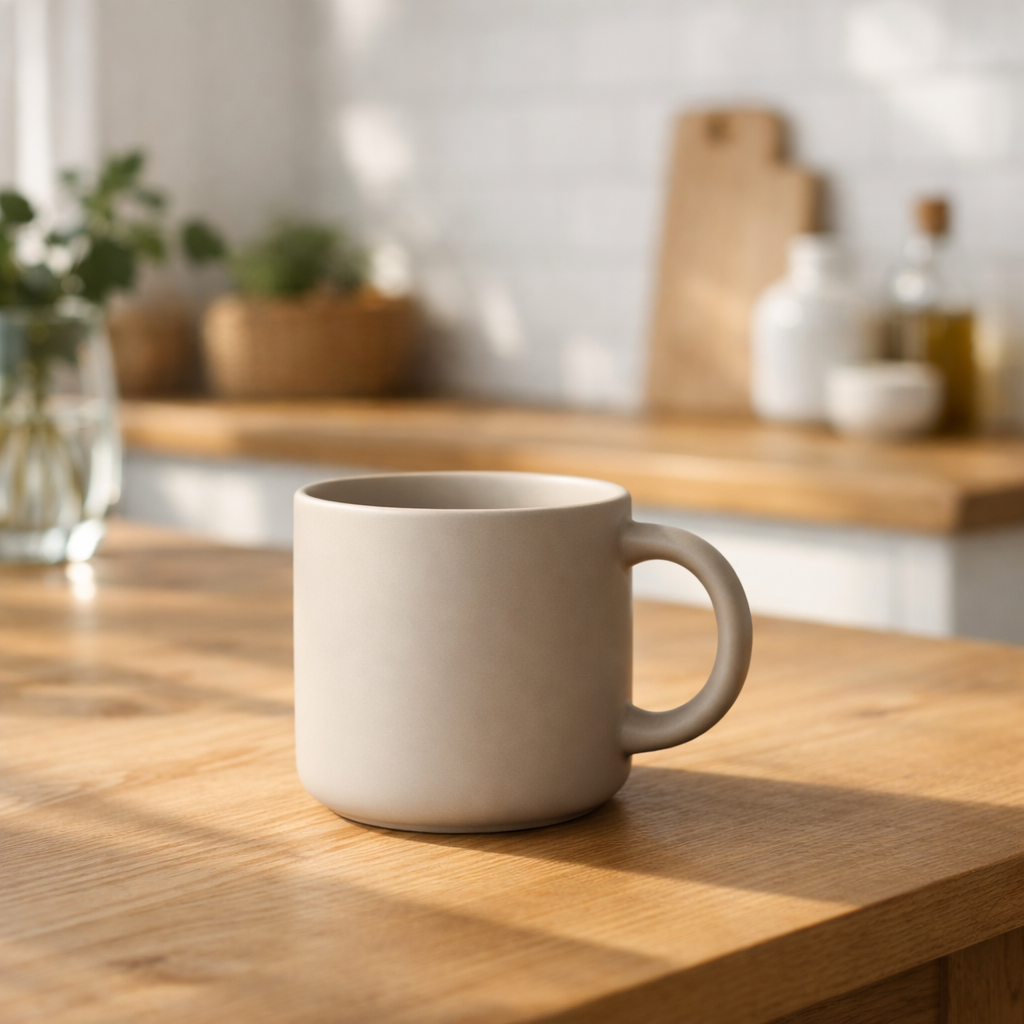
Generate Images
You can use the image generation endpoint to create images based on text prompts, or the image generation tool in the Responses API to generate images as part of a conversation.
To learn more about customizing the output (size, quality, format, compression), refer to the customize image output section below.
You can set the n parameter to generate multiple images at once in a single request (by default, the API returns a single image).
Image API
Generate an image
import OpenAI from "openai";
import fs from "fs";
const openai = new OpenAI();

const prompt = `
A children's book drawing of a veterinarian using a stethoscope to
listen to the heartbeat of a baby otter.
`;

const result = await openai.images.generate({
  model: "gpt-image-2",
  prompt,
});

// Save the image to a file
const image_base64 = result.data[0].b64_json;
const image_bytes = Buffer.from(image_base64, "base64");
fs.writeFileSync("otter.png", image_bytes);
from openai import OpenAI
import base64

client = OpenAI()

prompt = """
A children's book drawing of a veterinarian using a stethoscope to
listen to the heartbeat of a baby otter.
"""

result = client.images.generate(model="gpt-image-2", prompt=prompt)

image_base64 = result.data[0].b64_json
image_bytes = base64.b64decode(image_base64)

# Save the image to a file
with open("otter.png", "wb") as f:
    f.write(image_bytes)
curl -X POST "https://api.openai.com/v1/images/generations" \
    -H "Authorization: Bearer $OPENAI_API_KEY" \
    -H "Content-type: application/json" \
    -d '{
        "model": "gpt-image-2",
        "prompt": "A children'\''s book drawing of a veterinarian using a stethoscope to listen to the heartbeat of a baby otter."
    }' | jq -r '.data[0].b64_json' | base64 --decode > otter.png
openai images generate \
  --model gpt-image-2 \
  --prompt "A children's book drawing of a veterinarian using a stethoscope to listen to the heartbeat of a baby otter." \
  --raw-output \
  --transform 'data.0.b64_json' | base64 --decode > otter.png
Responses API
Generate an image
import OpenAI from "openai";
const openai = new OpenAI();

const response = await openai.responses.create({
  model: "gpt-5.6",
  input:
    "Generate an image of gray tabby cat hugging an otter with an orange scarf",
  tools: [{ type: "image_generation" }],
});

// Save the image to a file
const imageData = response.output
  .filter((output) => output.type === "image_generation_call")
  .map((output) => output.result);

if (imageData.length > 0) {
  const imageBase64 = imageData[0];
  const fs = await import("fs");
  fs.writeFileSync("otter.png", Buffer.from(imageBase64, "base64"));
}
from openai import OpenAI
import base64

client = OpenAI()

response = client.responses.create(
    model="gpt-5.6",
    input="Generate an image of gray tabby cat hugging an otter with an orange scarf",
    tools=[{"type": "image_generation"}],
)

# Save the image to a file
image_data = [
    output.result
    for output in response.output
    if output.type == "image_generation_call"
]

if image_data:
    image_base64 = image_data[0]
    with open("otter.png", "wb") as f:
        f.write(base64.b64decode(image_base64))
Multi-turn image generation
With the Responses API, you can build multi-turn conversations involving image generation either by providing image generation calls outputs within context (you can also just use the image ID), or by using the previous_response_id parameter.
This lets you iterate on images across multiple turns—refining prompts, applying new instructions, and evolving the visual output as the conversation progresses.
With the Responses API image generation tool, supported tool models can choose whether to generate a new image or edit one already in the conversation. The optional action parameter controls this behavior: keep action: "auto" to let the model decide, set action: "generate" to always create a new image, or set action: "edit" to force editing when an image is in context.
Force image creation with action
import OpenAI from "openai";
const openai = new OpenAI();

const response = await openai.responses.create({
  model: "gpt-5.6",
  input:
    "Generate an image of gray tabby cat hugging an otter with an orange scarf",
  tools: [{ type: "image_generation", action: "generate" }],
});

// Save the image to a file
const imageData = response.output
  .filter((output) => output.type === "image_generation_call")
  .map((output) => output.result);

if (imageData.length > 0) {
  const imageBase64 = imageData[0];
  const fs = await import("fs");
  fs.writeFileSync("otter.png", Buffer.from(imageBase64, "base64"));
}
from openai import OpenAI
import base64

client = OpenAI()

response = client.responses.create(
    model="gpt-5.6",
    input="Generate an image of gray tabby cat hugging an otter with an orange scarf",
    tools=[{"type": "image_generation", "action": "generate"}],
)

# Save the image to a file
image_data = [
    output.result
    for output in response.output
    if output.type == "image_generation_call"
]

if image_data:
    image_base64 = image_data[0]
    with open("otter.png", "wb") as f:
        f.write(base64.b64decode(image_base64))
If you force edit without providing an image in context, the call will return an error. Leave action at auto to have the model decide when to generate or edit.
Using previous response ID
Multi-turn image generation
import OpenAI from "openai";
const openai = new OpenAI();

const response = await openai.responses.create({
  model: "gpt-5.6",
  input:
    "Generate an image of gray tabby cat hugging an otter with an orange scarf",
  tools: [{ type: "image_generation" }],
});

const imageData = response.output
  .filter((output) => output.type === "image_generation_call")
  .map((output) => output.result);

if (imageData.length > 0) {
  const imageBase64 = imageData[0];
  const fs = await import("fs");
  fs.writeFileSync("cat_and_otter.png", Buffer.from(imageBase64, "base64"));
}

// Follow up

const response_fwup = await openai.responses.create({
  model: "gpt-5.6",
  previous_response_id: response.id,
  input: "Now make it look realistic",
  tools: [{ type: "image_generation" }],
});

const imageData_fwup = response_fwup.output
  .filter((output) => output.type === "image_generation_call")
  .map((output) => output.result);

if (imageData_fwup.length > 0) {
  const imageBase64 = imageData_fwup[0];
  const fs = await import("fs");
  fs.writeFileSync(
    "cat_and_otter_realistic.png",
    Buffer.from(imageBase64, "base64")
  );
}
from openai import OpenAI
import base64

client = OpenAI()

response = client.responses.create(
    model="gpt-5.6",
    input="Generate an image of gray tabby cat hugging an otter with an orange scarf",
    tools=[{"type": "image_generation"}],
)

image_data = [
    output.result
    for output in response.output
    if output.type == "image_generation_call"
]

if image_data:
    image_base64 = image_data[0]

    with open("cat_and_otter.png", "wb") as f:
        f.write(base64.b64decode(image_base64))


# Follow up

response_fwup = client.responses.create(
    model="gpt-5.6",
    previous_response_id=response.id,
    input="Now make it look realistic",
    tools=[{"type": "image_generation"}],
)

image_data_fwup = [
    output.result
    for output in response_fwup.output
    if output.type == "image_generation_call"
]

if image_data_fwup:
    image_base64 = image_data_fwup[0]
    with open("cat_and_otter_realistic.png", "wb") as f:
        f.write(base64.b64decode(image_base64))
Using image ID
Multi-turn image generation
import OpenAI from "openai";
const openai = new OpenAI();

const response = await openai.responses.create({
  model: "gpt-5.6",
  input:
    "Generate an image of gray tabby cat hugging an otter with an orange scarf",
  tools: [{ type: "image_generation" }],
});

const imageGenerationCalls = response.output.filter(
  (output) => output.type === "image_generation_call"
);

const imageData = imageGenerationCalls.map((output) => output.result);

if (imageData.length > 0) {
  const imageBase64 = imageData[0];
  const fs = await import("fs");
  fs.writeFileSync("cat_and_otter.png", Buffer.from(imageBase64, "base64"));
}

// Follow up

const response_fwup = await openai.responses.create({
  model: "gpt-5.6",
  input: [
    {
      role: "user",
      content: [{ type: "input_text", text: "Now make it look realistic" }],
    },
    {
      type: "image_generation_call",
      id: imageGenerationCalls[0].id,
    },
  ],
  tools: [{ type: "image_generation" }],
});

const imageData_fwup = response_fwup.output
  .filter((output) => output.type === "image_generation_call")
  .map((output) => output.result);

if (imageData_fwup.length > 0) {
  const imageBase64 = imageData_fwup[0];
  const fs = await import("fs");
  fs.writeFileSync(
    "cat_and_otter_realistic.png",
    Buffer.from(imageBase64, "base64")
  );
}
import openai
import base64

response = openai.responses.create(
    model="gpt-5.6",
    input="Generate an image of gray tabby cat hugging an otter with an orange scarf",
    tools=[{"type": "image_generation"}],
)

image_generation_calls = [
    output for output in response.output if output.type == "image_generation_call"
]

image_data = [output.result for output in image_generation_calls]

if image_data:
    image_base64 = image_data[0]

    with open("cat_and_otter.png", "wb") as f:
        f.write(base64.b64decode(image_base64))


# Follow up

response_fwup = openai.responses.create(
    model="gpt-5.6",
    input=[
        {
            "role": "user",
            "content": [{"type": "input_text", "text": "Now make it look realistic"}],
        },
        {
            "type": "image_generation_call",
            "id": image_generation_calls[0].id,
        },
    ],
    tools=[{"type": "image_generation"}],
)

image_data_fwup = [
    output.result
    for output in response_fwup.output
    if output.type == "image_generation_call"
]

if image_data_fwup:
    image_base64 = image_data_fwup[0]
    with open("cat_and_otter_realistic.png", "wb") as f:
        f.write(base64.b64decode(image_base64))
Result
| "Generate an image of gray tabby cat hugging an otter with an orange scarf" |
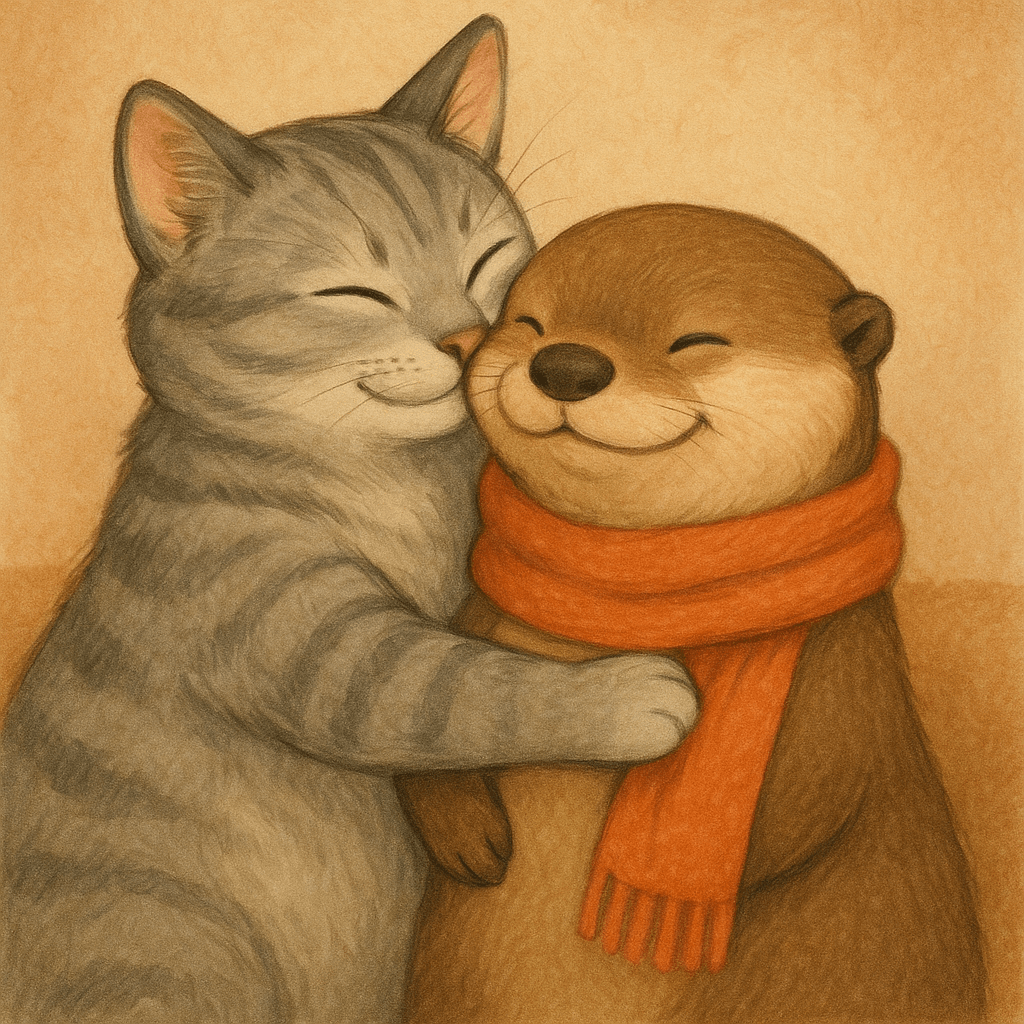
|
| "Now make it look realistic" |
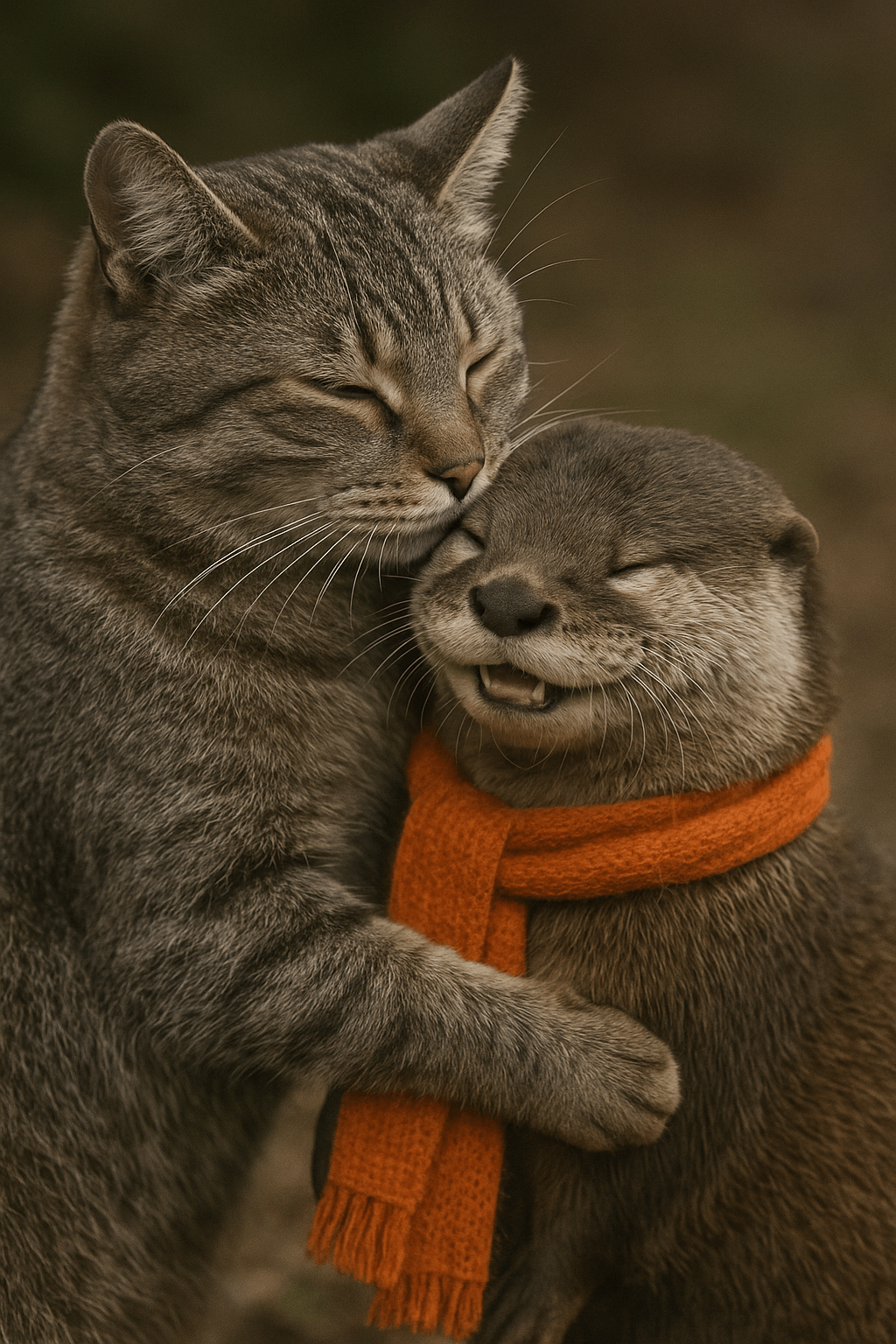
|
Streaming
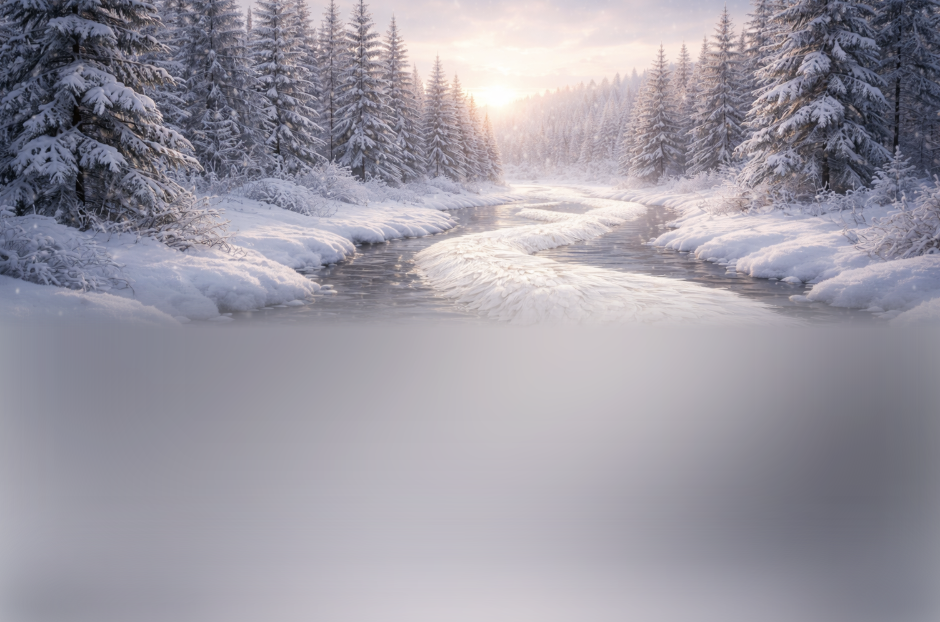
The Responses API and Image API support streaming image generation. You can stream partial images as the APIs generate them, providing a more interactive experience.
You can adjust the partial_images parameter to receive 0-3 partial images.
- If you set
partial_imagesto 0, you will only receive the final image. - For values larger than zero, you may not receive the full number of partial images you requested if the full image is generated more quickly.
Responses API
Stream an image
import OpenAI from "openai";
import fs from "fs";
const openai = new OpenAI();

function saveBase64Image(filename, imageBase64) {
  const imageBuffer = Buffer.from(imageBase64, "base64");
  fs.writeFileSync(filename, imageBuffer);
}

const stream = await openai.responses.create({
  model: "gpt-5.6",
  input:
    "Draw a gorgeous image of a river made of white owl feathers, snaking its way through a serene winter landscape",
  stream: true,
  tools: [{ type: "image_generation", partial_images: 2 }],
});

for await (const event of stream) {
  if (event.type === "response.image_generation_call.partial_image") {
    const idx = event.partial_image_index;
    saveBase64Image(`river-partial-${idx}.png`, event.partial_image_b64);
  } else if (event.type === "response.completed") {
    const imageData = event.response.output
      .filter((output) => output.type === "image_generation_call")
      .map((output) => output.result);

    if (imageData.length > 0) {
      saveBase64Image("river-final.png", imageData[0]);
    }
  }
}
from openai import OpenAI
import base64

client = OpenAI()


def save_base64_image(filename, image_base64):
    image_bytes = base64.b64decode(image_base64)
    with open(filename, "wb") as f:
        f.write(image_bytes)


stream = client.responses.create(
    model="gpt-5.6",
    input="Draw a gorgeous image of a river made of white owl feathers, snaking its way through a serene winter landscape",
    stream=True,
    tools=[{"type": "image_generation", "partial_images": 2}],
)

for event in stream:
    if event.type == "response.image_generation_call.partial_image":
        idx = event.partial_image_index
        save_base64_image(f"river-partial-{idx}.png", event.partial_image_b64)
    elif event.type == "response.completed":
        image_data = [
            output.result
            for output in event.response.output
            if output.type == "image_generation_call"
        ]

        if image_data:
            save_base64_image("river-final.png", image_data[0])
Image API
Stream an image
import fs from "fs";
import OpenAI from "openai";

const openai = new OpenAI();

const prompt =
  "Draw a gorgeous image of a river made of white owl feathers, snaking its way through a serene winter landscape";
const stream = await openai.images.generate({
  prompt: prompt,
  model: "gpt-image-2",
  stream: true,
  partial_images: 2,
});

for await (const event of stream) {
  if (event.type === "image_generation.partial_image") {
    const idx = event.partial_image_index;
    const imageBase64 = event.b64_json;
    const imageBuffer = Buffer.from(imageBase64, "base64");
    fs.writeFileSync(`river${idx}.png`, imageBuffer);
  }
}
from openai import OpenAI
import base64

client = OpenAI()

stream = client.images.generate(
    prompt="Draw a gorgeous image of a river made of white owl feathers, snaking its way through a serene winter landscape",
    model="gpt-image-2",
    stream=True,
    partial_images=2,
)

for event in stream:
    if event.type == "image_generation.partial_image":
        idx = event.partial_image_index
        image_base64 = event.b64_json
        image_bytes = base64.b64decode(image_base64)
        with open(f"river{idx}.png", "wb") as f:
            f.write(image_bytes)
Result
| Partial 1 | Partial 2 | Final image |
|---|---|---|
 |
 |
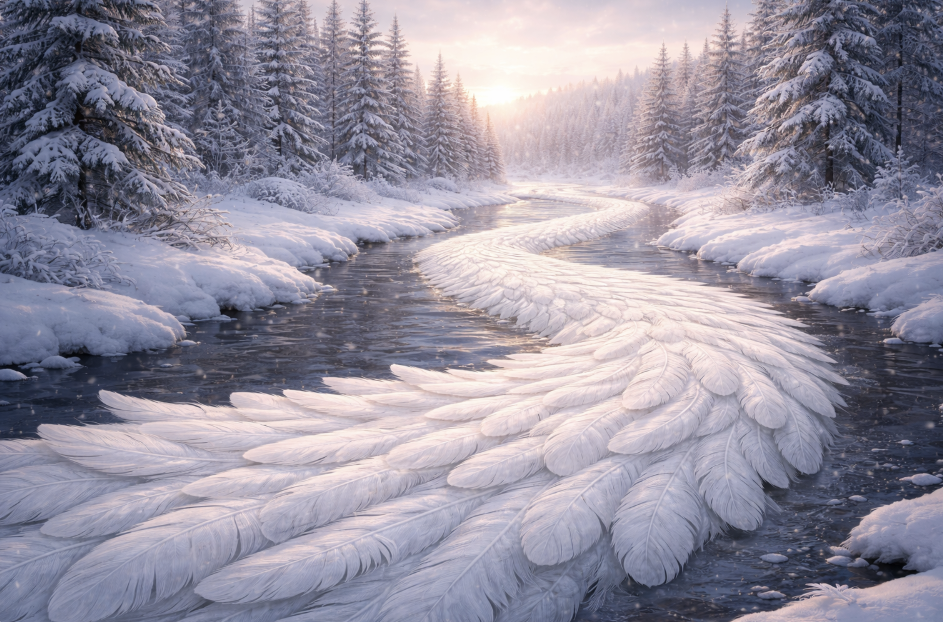 |
Prompt: Draw a gorgeous image of a river made of white owl feathers, snaking its way through a serene winter landscape
Revised prompt
When using the image generation tool in the Responses API, the mainline model (for example, gpt-5.5) will automatically revise your prompt for improved performance.
You can access the revised prompt in the revised_prompt field of the image generation call:
Revised prompt response
{
  "id": "ig_123",
  "type": "image_generation_call",
  "status": "completed",
  "revised_prompt": "A gray tabby cat hugging an otter. The otter is wearing an orange scarf. Both animals are cute and friendly, depicted in a warm, heartwarming style.",
  "result": "..."
}
Edit Images
The image edits endpoint lets you:
- Edit existing images
- Generate new images using other images as a reference
- Edit parts of an image by uploading an image and mask that identifies the areas to replace
Create a new image using image references
You can use one or more images as a reference to generate a new image.
In this example, we'll use 4 input images to generate a new image of a gift basket containing the items in the reference images.
Responses API
With the Responses API, you can provide input images in 3 different ways:
- By providing a fully qualified URL
- By providing an image as a Base64-encoded data URL
- By providing a file ID (created with the Files API)
Create a File
Create a File
from openai import OpenAI

client = OpenAI()


def create_file(file_path):
    with open(file_path, "rb") as file_content:
        result = client.files.create(
            file=file_content,
            purpose="vision",
        )
        return result.id
import fs from "fs";
import OpenAI from "openai";

const openai = new OpenAI();

async function createFile(filePath) {
  const fileContent = fs.createReadStream(filePath);
  const result = await openai.files.create({
    file: fileContent,
    purpose: "vision",
  });
  return result.id;
}
Create a base64 encoded image
Create a base64 encoded image
import base64


def encode_image(file_path):
    with open(file_path, "rb") as f:
        base64_image = base64.b64encode(f.read()).decode("utf-8")
    return base64_image
import fs from "fs";

function encodeImage(filePath) {
  const base64Image = fs.readFileSync(filePath, "base64");
  return base64Image;
}
Edit an image
from openai import OpenAI
import base64

client = OpenAI()


def encode_image(file_path):
    with open(file_path, "rb") as image_file:
        return base64.b64encode(image_file.read()).decode("utf-8")


def create_file(file_path):
    with open(file_path, "rb") as file_content:
        result = client.files.create(file=file_content, purpose="vision")
    return result.id


prompt = """Generate a photorealistic image of a gift basket on a white background
labeled 'Relax & Unwind' with a ribbon and handwriting-like font,
containing all the items in the reference pictures."""

base64_image1 = encode_image("body-lotion.png")
base64_image2 = encode_image("soap.png")
file_id1 = create_file("bath-bomb.png")
file_id2 = create_file("incense-kit.png")

response = client.responses.create(
    model="gpt-5.6",
    input=[
        {
            "role": "user",
            "content": [
                {"type": "input_text", "text": prompt},
                {
                    "type": "input_image",
                    "image_url": f"data:image/png;base64,{base64_image1}",
                },
                {
                    "type": "input_image",
                    "image_url": f"data:image/png;base64,{base64_image2}",
                },
                {
                    "type": "input_image",
                    "file_id": file_id1,
                },
                {
                    "type": "input_image",
                    "file_id": file_id2,
                },
            ],
        }
    ],
    tools=[{"type": "image_generation"}],
)

image_generation_calls = [
    output for output in response.output if output.type == "image_generation_call"
]

image_data = [output.result for output in image_generation_calls]

if image_data:
    image_base64 = image_data[0]
    with open("gift-basket.png", "wb") as f:
        f.write(base64.b64decode(image_base64))
else:
    print(response.output_text)
import fs from "fs";
import OpenAI from "openai";

const openai = new OpenAI();

function encodeImage(filePath) {
  return fs.readFileSync(filePath, "base64");
}

async function createFile(filePath) {
  const result = await openai.files.create({
    file: fs.createReadStream(filePath),
    purpose: "vision",
  });
  return result.id;
}

const prompt = `Generate a photorealistic image of a gift basket on a white background
labeled 'Relax & Unwind' with a ribbon and handwriting-like font,
containing all the items in the reference pictures.`;

const base64Image1 = encodeImage("fixtures/body-lotion.png");
const base64Image2 = encodeImage("fixtures/soap.png");
const fileId1 = await createFile("fixtures/bath-bomb.png");
const fileId2 = await createFile("fixtures/incense-kit.png");

const response = await openai.responses.create({
  model: "gpt-5.6",
  input: [
    {
      role: "user",
      content: [
        { type: "input_text", text: prompt },
        {
          type: "input_image",
          image_url: `data:image/png;base64,${base64Image1}`,
          detail: "auto",
        },
        {
          type: "input_image",
          image_url: `data:image/png;base64,${base64Image2}`,
          detail: "auto",
        },
        {
          type: "input_image",
          file_id: fileId1,
          detail: "auto",
        },
        {
          type: "input_image",
          file_id: fileId2,
          detail: "auto",
        },
      ],
    },
  ],
  tools: [{ type: "image_generation" }],
});

const imageData = response.output
  .filter((output) => output.type === "image_generation_call")
  .map((output) => output.result);

if (imageData.length > 0) {
  const imageBase64 = imageData[0];
  fs.writeFileSync("gift-basket.png", Buffer.from(imageBase64, "base64"));
} else {
  console.log(response.output_text);
}
Image API
Edit an image
import base64
from openai import OpenAI

client = OpenAI()

prompt = """
Generate a photorealistic image of a gift basket on a white background
labeled 'Relax & Unwind' with a ribbon and handwriting-like font,
containing all the items in the reference pictures.
"""

result = client.images.edit(
    model="gpt-image-2",
    image=[
        open("body-lotion.png", "rb"),
        open("bath-bomb.png", "rb"),
        open("incense-kit.png", "rb"),
        open("soap.png", "rb"),
    ],
    prompt=prompt,
)

image_base64 = result.data[0].b64_json
image_bytes = base64.b64decode(image_base64)

# Save the image to a file
with open("gift-basket.png", "wb") as f:
    f.write(image_bytes)
import fs from "fs";
import OpenAI, { toFile } from "openai";

const client = new OpenAI();

const prompt = `
Generate a photorealistic image of a gift basket on a white background
labeled 'Relax & Unwind' with a ribbon and handwriting-like font,
containing all the items in the reference pictures.
`;

const imageFiles = [
  "fixtures/bath-bomb.png",
  "fixtures/body-lotion.png",
  "fixtures/incense-kit.png",
  "fixtures/soap.png",
];

const images = await Promise.all(
  imageFiles.map(
    async (file) =>
      await toFile(fs.createReadStream(file), null, {
        type: "image/png",
      })
  )
);

const response = await client.images.edit({
  model: "gpt-image-2",
  image: images,
  prompt,
});

// Save the image to a file
const image_base64 = response.data[0].b64_json;
const image_bytes = Buffer.from(image_base64, "base64");
fs.writeFileSync("basket.png", image_bytes);
curl -s -D >(grep -i x-request-id >&2) \
  -o >(jq -r '.data[0].b64_json' | base64 --decode > gift-basket.png) \
  -X POST "https://api.openai.com/v1/images/edits" \
  -H "Authorization: Bearer $OPENAI_API_KEY" \
  -F "model=gpt-image-2" \
  -F "image[]=@body-lotion.png" \
  -F "image[]=@bath-bomb.png" \
  -F "image[]=@incense-kit.png" \
  -F "image[]=@soap.png" \
  -F 'prompt=Generate a photorealistic image of a gift basket on a white background labeled "Relax & Unwind" with a ribbon and handwriting-like font, containing all the items in the reference pictures'
openai images edit \
  --model gpt-image-2 \
  --image body-lotion.png \
  --image bath-bomb.png \
  --image incense-kit.png \
  --image soap.png \
  --prompt 'Generate a photorealistic image of a gift basket on a white background labeled "Relax & Unwind" with a ribbon and handwriting-like font, containing all the items in the reference pictures' \
  --raw-output \
  --transform 'data.0.b64_json' | base64 --decode > gift-basket.png
Edit an image using a mask
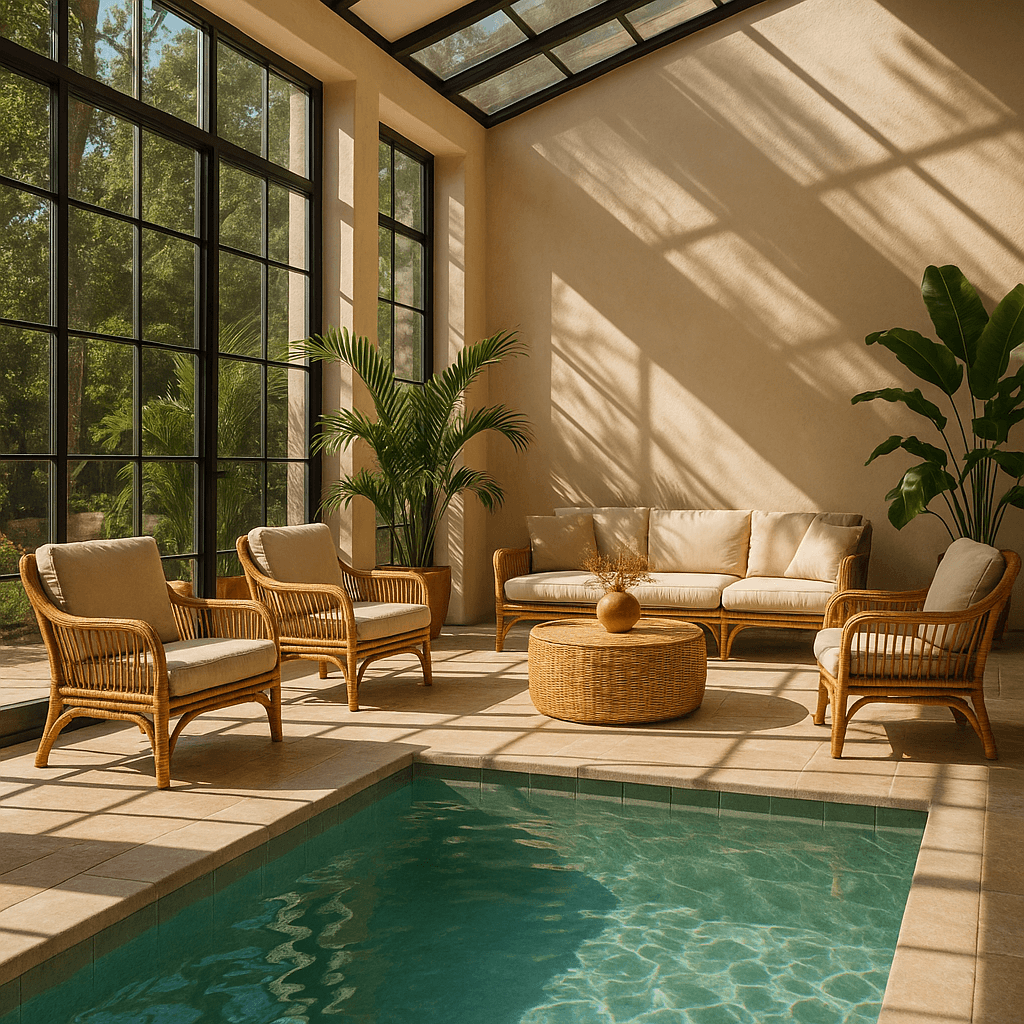
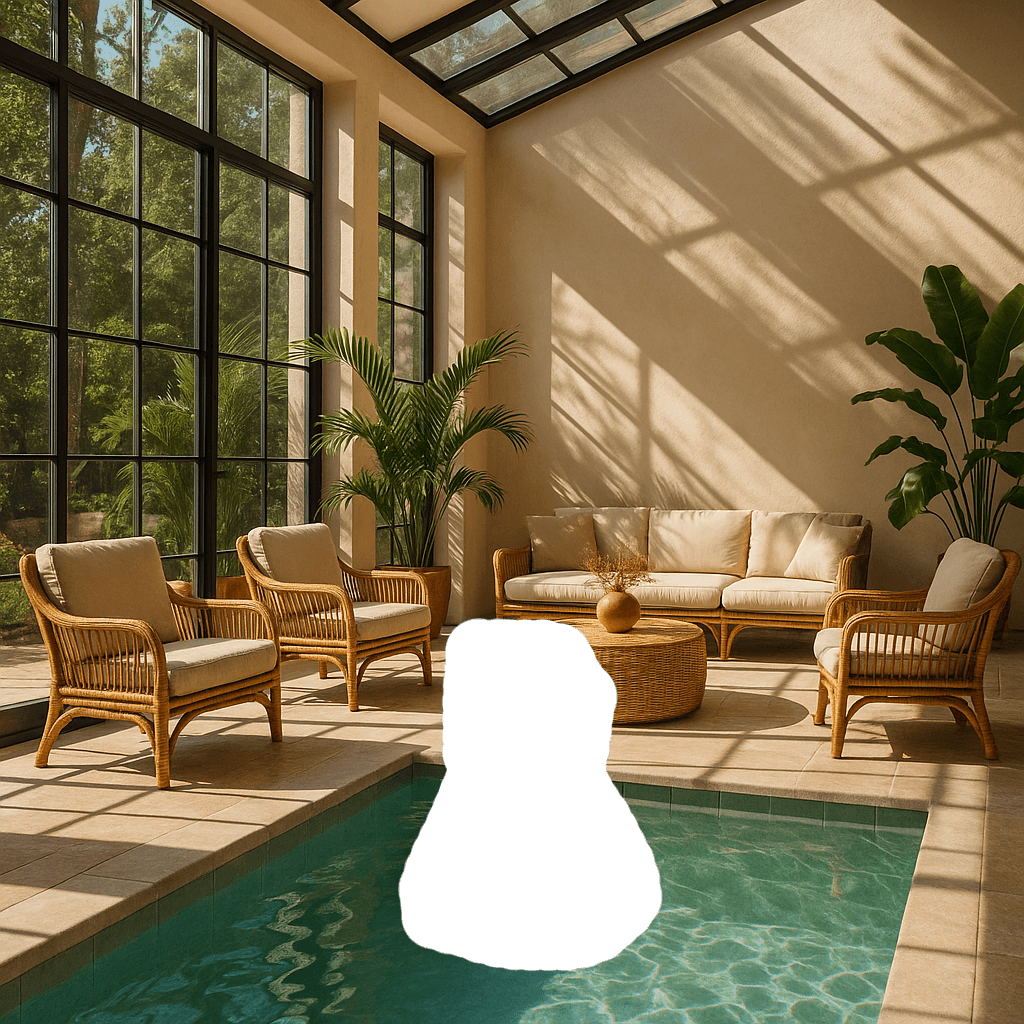
You can provide a mask to indicate which part of the image should be edited.
When using a mask with GPT Image, additional instructions are sent to the model to help guide the editing process accordingly.
Masking with GPT Image is entirely prompt-based. The model uses the mask as guidance, but may not follow its exact shape with complete precision.
If you provide multiple input images, the mask will be applied to the first image.
Responses API
Edit an image with a mask
from openai import OpenAI
import base64

client = OpenAI()


def create_file(file_path):
    with open(file_path, "rb") as file_content:
        result = client.files.create(file=file_content, purpose="vision")
    return result.id


fileId = create_file("sunlit_lounge.png")
maskId = create_file("mask.png")

response = client.responses.create(
    model="gpt-5.6",
    input=[
        {
            "role": "user",
            "content": [
                {
                    "type": "input_text",
                    "text": "generate an image of the same sunlit indoor lounge area with a pool but the pool should contain a flamingo",
                },
                {
                    "type": "input_image",
                    "file_id": fileId,
                },
            ],
        },
    ],
    tools=[
        {
            "type": "image_generation",
            "quality": "high",
            "input_image_mask": {
                "file_id": maskId,
            },
        },
    ],
)

image_data = [
    output.result
    for output in response.output
    if output.type == "image_generation_call"
]

if image_data:
    image_base64 = image_data[0]
    with open("lounge.png", "wb") as f:
        f.write(base64.b64decode(image_base64))
import fs from "fs";
import OpenAI from "openai";

const openai = new OpenAI();

async function createFile(filePath) {
  const result = await openai.files.create({
    file: fs.createReadStream(filePath),
    purpose: "vision",
  });
  return result.id;
}

const fileId = await createFile("fixtures/sunlit_lounge.png");
const maskId = await createFile("fixtures/mask.png");

const response = await openai.responses.create({
  model: "gpt-5.6",
  input: [
    {
      role: "user",
      content: [
        {
          type: "input_text",
          text: "generate an image of the same sunlit indoor lounge area with a pool but the pool should contain a flamingo",
        },
        {
          type: "input_image",
          file_id: fileId,
          detail: "auto",
        },
      ],
    },
  ],
  tools: [
    {
      type: "image_generation",
      quality: "high",
      input_image_mask: {
        file_id: maskId,
      },
    },
  ],
});

const imageData = response.output
  .filter((output) => output.type === "image_generation_call")
  .map((output) => output.result);

if (imageData.length > 0) {
  const imageBase64 = imageData[0];
  fs.writeFileSync("lounge.png", Buffer.from(imageBase64, "base64"));
}
Image API
Edit an image with a mask
from openai import OpenAI
import base64

client = OpenAI()

result = client.images.edit(
    model="gpt-image-2",
    image=open("sunlit_lounge.png", "rb"),
    mask=open("mask.png", "rb"),
    prompt="A sunlit indoor lounge area with a pool containing a flamingo",
)

image_base64 = result.data[0].b64_json
image_bytes = base64.b64decode(image_base64)

# Save the image to a file
with open("composition.png", "wb") as f:
    f.write(image_bytes)
import fs from "fs";
import OpenAI, { toFile } from "openai";

const client = new OpenAI();

const rsp = await client.images.edit({
  model: "gpt-image-2",
  image: await toFile(fs.createReadStream("fixtures/sunlit_lounge.png"), null, {
    type: "image/png",
  }),
  mask: await toFile(fs.createReadStream("fixtures/mask.png"), null, {
    type: "image/png",
  }),
  prompt: "A sunlit indoor lounge area with a pool containing a flamingo",
});

// Save the image to a file
const image_base64 = rsp.data[0].b64_json;
const image_bytes = Buffer.from(image_base64, "base64");
fs.writeFileSync("lounge.png", image_bytes);
curl -s -D >(grep -i x-request-id >&2) \
  -o >(jq -r '.data[0].b64_json' | base64 --decode > lounge.png) \
  -X POST "https://api.openai.com/v1/images/edits" \
  -H "Authorization: Bearer $OPENAI_API_KEY" \
  -F "model=gpt-image-2" \
  -F "mask=@mask.png" \
  -F "image[]=@sunlit_lounge.png" \
  -F 'prompt=A sunlit indoor lounge area with a pool containing a flamingo'
openai images edit \
  --model gpt-image-2 \
  --image sunlit_lounge.png \
  --mask mask.png \
  --prompt "A sunlit indoor lounge area with a pool containing a flamingo" \
  --raw-output \
  --transform 'data.0.b64_json' | base64 --decode > out.png
| Image | Mask | Output |
|---|---|---|
 |
 |
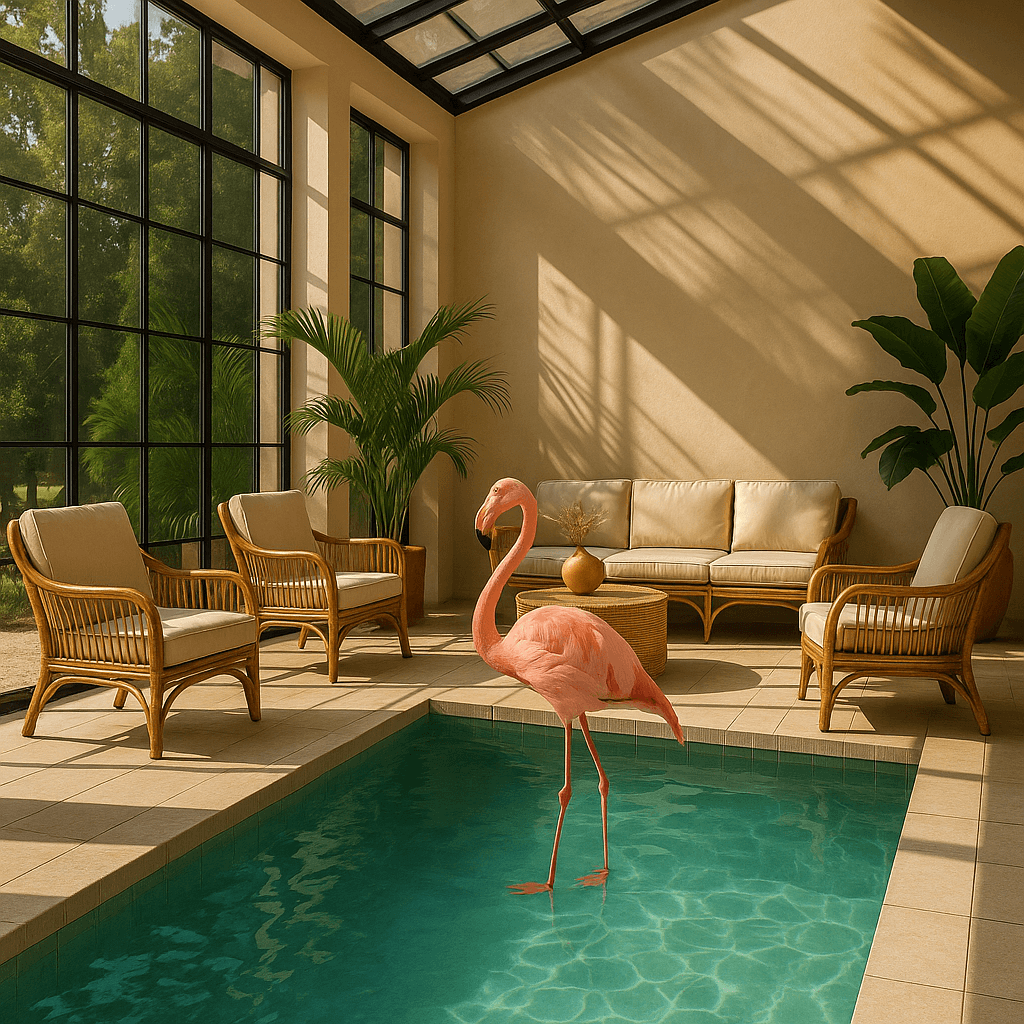 |
Prompt: a sunlit indoor lounge area with a pool containing a flamingo
Mask requirements
The image to edit and mask must be of the same format and size (less than 50MB in size).
The mask image must also contain an alpha channel. If you're using an image editing tool to create the mask, make sure to save the mask with an alpha channel.
You can modify a black and white image programmatically to add an alpha channel.
Add an alpha channel to a black and white mask
from PIL import Image
from io import BytesIO

# 1. Load your black & white mask as a grayscale image
mask = Image.open("mask.png").convert("L")

# 2. Convert it to RGBA so it has space for an alpha channel
mask_rgba = mask.convert("RGBA")

# 3. Then use the mask itself to fill that alpha channel
mask_rgba.putalpha(mask)

# 4. Convert the mask into bytes
buf = BytesIO()
mask_rgba.save(buf, format="PNG")
mask_bytes = buf.getvalue()

# 5. Save the resulting file
img_path_mask_alpha = "mask_alpha.png"
with open(img_path_mask_alpha, "wb") as f:
    f.write(mask_bytes)
Image input fidelity
The input_fidelity parameter controls how strongly a model preserves details from input images during edits and reference-image workflows. For gpt-image-2, omit this parameter; the API doesn't allow changing it because the model processes every image input at high fidelity automatically.
Because gpt-image-2 always processes image inputs at high fidelity, image
input tokens can be higher for edit requests that include reference images. To
understand the cost implications, refer to the vision
costs
section.
Customize Image Output
You can configure the following output options:
- Size: Image dimensions (for example,
1024x1024,1024x1536) - Quality: Rendering quality (for example,
low,medium,high) - Format: File output format
- Compression: Compression level (0-100%) for JPEG and WebP formats
- Background: Opaque or automatic
size, quality, and background support the auto option, where the model will automatically select the best option based on the prompt.
gpt-image-2 doesn't currently support transparent backgrounds. Requests with
background: "transparent" aren't supported for this model.
Size and quality options
gpt-image-2 accepts any resolution in the size parameter when it satisfies the constraints below. Square images are typically fastest to generate.
| Popular sizes |
|
| Size constraints |
|
| Quality options |
|
Use quality: "low" for fast drafts, thumbnails, and quick iterations. It is
the fastest option and works well for many common use cases before you move to
medium or high for final assets.
Outputs that contain more than 2560x1440 (3,686,400) total pixels,
typically referred to as 2K, are considered experimental.
Output format
The Image API returns base64-encoded image data.
The default format is png, but you can also request jpeg or webp.
If using jpeg or webp, you can also specify the output_compression parameter to control the compression level (0-100%). For example, output_compression=50 will compress the image by 50%.
Using jpeg is faster than png, so you should prioritize this format if
latency is a concern.
Limitations
GPT Image models (gpt-image-2, gpt-image-1.5, gpt-image-1, and gpt-image-1-mini) are powerful and versatile image generation models, but they still have some limitations to be aware of:
- Latency: Complex prompts may take up to 2 minutes to process.
- Text Rendering: Although significantly improved, the model can still struggle with precise text placement and clarity.
- Consistency: While capable of producing consistent imagery, the model may occasionally struggle to maintain visual consistency for recurring characters or brand elements across multiple generations.
- Composition Control: Despite improved instruction following, the model may have difficulty placing elements precisely in structured or layout-sensitive compositions.
Content Moderation
All prompts and generated images are filtered in accordance with our content policy.
For image generation using GPT Image models (gpt-image-2, gpt-image-1.5, gpt-image-1, and gpt-image-1-mini), you can control moderation strictness with the moderation parameter. This parameter supports two values:
auto(default): Standard filtering that seeks to limit creating certain categories of potentially age-inappropriate content.low: Less restrictive filtering.
Handling blocked requests and other errors
Handle image generation failures the same way you handle other API errors: check the HTTP status or SDK exception type, log the request ID, and refer to the error codes guide for authentication, quota, rate-limit, and server failures. Retries are appropriate for transient failures like 429 and 5xx, but not for image generation user errors that require changing the request.
Some image generation failures are user-correctable and may return error.type = "image_generation_user_error". Don't automatically retry these errors without modifying the prompt or input images. For programmatic handling, use error.code as the stable discriminator.
When error.code = "moderation_blocked", the error may also include an optional error.moderation_details object:
{
  "error": {
    "type": "image_generation_user_error",
    "code": "moderation_blocked",
    "moderation_details": {
      "moderation_stage": "input",
      "categories": ["harassment"]
    }
  }
}
The moderation_details object provides coarse debugging context without exposing internal classifier labels or scores.
moderation_stage can be:
input: The block came from the prompt or request inputs.output: The block came from a generated image or downstream output moderation stage.unknown: A rare fallback when provenance is hard to determine.
categories contains coarse public labels. For example, you might see values like harassment, self-harm, sexual, or violence.
For most apps, keep the primary end-user message generic. Use moderation_details for developer logs, support workflows, analytics, and light remediation hints.
For example, if harassment appears, suggest removing abusive or targeting language. If the block happened at the input stage, guide the user to revise the prompt. If it happened at the output stage, treat it as a generated result safety block and distinguish it in your logs. Always branch on error.code = "moderation_blocked" first, and treat moderation_details as optional extra context.
Handle moderation-blocked image generation errors
import OpenAI from "openai";

const openai = new OpenAI();

try {
  // The same error handling pattern applies to image generation requests,
  // image edits, and Responses API tool calls that generate images.
  await openai.images.generate({
    model: "gpt-image-2",
    prompt: "Create a poster humiliating my coworker with insulting captions",
  });
} catch (error) {
  if (error?.code !== "moderation_blocked") {
    throw error;
  }

  const moderationDetails = error?.moderation_details;
  const categories = moderationDetails?.categories ?? [];
  const stage = moderationDetails?.moderation_stage;

  let hint =
    "This request could not be completed because it did not meet safety requirements.";

  if (categories.includes("harassment")) {
    hint =
      "Try removing abusive or targeting language and focus on neutral visual details instead.";
  } else if (stage === "input") {
    hint =
      "Try revising the prompt or input images and submit the request again.";
  } else if (stage === "output") {
    hint =
      "The generated result was blocked by a safety check. Try changing the prompt and generating again.";
  }

  console.error("Image generation blocked", {
    request_id: error?.request_id,
    code: error?.code,
    moderation_details: moderationDetails,
  });

  console.log(hint);
}
import openai
from openai import OpenAI

client = OpenAI()

try:
    # The same error handling pattern applies to image generation requests,
    # image edits, and Responses API tool calls that generate images.
    client.images.generate(
        model="gpt-image-2",
        prompt="Create a poster humiliating my coworker with insulting captions",
    )
except openai.BadRequestError as error:
    if error.code != "moderation_blocked":
        raise

    error_body = error.body if isinstance(error.body, dict) else {}
    moderation_details = error_body.get("moderation_details") or {}
    categories = moderation_details.get("categories") or []
    stage = moderation_details.get("moderation_stage")

    hint = "This request could not be completed because it did not meet safety requirements."

    if "harassment" in categories:
        hint = "Try removing abusive or targeting language and focus on neutral visual details instead."
    elif stage == "input":
        hint = "Try revising the prompt or input images and submit the request again."
    elif stage == "output":
        hint = "The generated result was blocked by a safety check. Try changing the prompt and generating again."

    print(
        "Image generation blocked",
        {
            "request_id": error.request_id,
            "code": error.code,
            "moderation_details": moderation_details,
        },
    )

    print(hint)
Supported models
When using image generation in the Responses API, gpt-5 and newer models should support the image generation tool. Check the model detail page for your model to confirm if your desired model can use the image generation tool.
Cost and latency
gpt-image-2 output tokens
For gpt-image-2, use the calculator to estimate output tokens from the requested quality and size:
Models prior to gpt-image-2
GPT Image models prior to gpt-image-2 generate images by first producing specialized image tokens. Both latency and eventual cost are proportional to the number of tokens required to render an image—larger image sizes and higher quality settings result in more tokens.
The number of tokens generated depends on image dimensions and quality:
| Quality | Square (1024×1024) | Portrait (1024×1536) | Landscape (1536×1024) |
|---|---|---|---|
| Low | 272 tokens | 408 tokens | 400 tokens |
| Medium | 1056 tokens | 1584 tokens | 1568 tokens |
| High | 4160 tokens | 6240 tokens | 6208 tokens |
Note that you will also need to account for input tokens: text tokens for the prompt and image tokens for the input images if editing images.
Because gpt-image-2 always processes image inputs at high fidelity, edit requests that include reference images can use more input tokens.
Refer to the pricing page for current text and image token prices, and use the Calculating costs section below to estimate request costs.
The final cost is the sum of:
- input text tokens
- input image tokens if using the edits endpoint
- image output tokens
Calculating costs
Use the pricing calculator below to estimate request costs for GPT Image models.
gpt-image-2 supports thousands of valid resolutions; the table below lists the
same sizes used for previous GPT Image models for comparison. For GPT Image 1.5,
GPT Image 1, and GPT Image 1 Mini, the legacy per-image output pricing table is
also listed below. You should still account for text and image input tokens when
estimating the total cost of a request.
A larger non-square resolution can sometimes produce fewer output tokens than a smaller or square resolution at the same quality setting.
| Model | Quality | 1024 x 1024 | 1024 x 1536 | 1536 x 1024 |
|---|---|---|---|---|
|
GPT Image 2
Additional sizes available |
Partial images cost
If you want to stream image generation using the partial_images parameter, each partial image will incur an additional 100 image output tokens.
guides/image-generation.md +308 −69
1# Image generation1# Image generation
2 2
3> For the complete documentation index, see [llms.txt](/llms.txt). Markdown versions of documentation pages are available by appending `.md` to the page URL.
4
3## Overview5## Overview
4 6
5The OpenAI API lets you generate and edit images from text prompts using GPT Image models, including our latest, `gpt-image-2`. You can access image generation capabilities through two APIs:7The OpenAI API lets you generate and edit images from text prompts using GPT Image models, including our latest, `gpt-image-2`. You can access image generation capabilities through two APIs:
6 8
7### Image API9### Image API
8 10
911Starting with `gpt-image-1` and later models, the [Image API](https://developers.openai.com/api/docs/api-reference/images) provides two endpoints, each with distinct capabilities:Starting with `gpt-image-1` and later models, the [Image API](https://developers.openai.com/api/reference/resources/images) provides two endpoints, each with distinct capabilities:
10 12
11- **Generations**: [Generate images](#generate-images) from scratch based on a text prompt13- **Generations**: [Generate images](#generate-images) from scratch based on a text prompt
12- **Edits**: [Modify existing images](#edit-images) using a new prompt, either partially or entirely14- **Edits**: [Modify existing images](#edit-images) using a new prompt, either partially or entirely
15 17
16### Responses API18### Responses API
17 19
1820The [Responses API](https://developers.openai.com/api/docs/api-reference/responses/create#responses-create-tools) allows you to generate images as part of conversations or multi-step flows. It supports image generation as a [built-in tool](https://developers.openai.com/api/docs/guides/tools?api-mode=responses), and accepts image inputs and outputs within context.The [Responses API](https://developers.openai.com/api/reference/resources/responses/methods/create#responses-create-tools) allows you to generate images as part of conversations or multi-step flows. It supports image generation as a [built-in tool](https://developers.openai.com/api/docs/guides/tools?api-mode=responses), and accepts image inputs and outputs within context.
19 21
20Compared to the Image API, it adds:22Compared to the Image API, it adds:
21 23
22- **Multi-turn editing**: Iteratively make high fidelity edits to images with prompting24- **Multi-turn editing**: Iteratively make high fidelity edits to images with prompting
2325- **Flexible inputs**: Accept image [File](https://developers.openai.com/api/docs/api-reference/files) IDs as input images, not just bytes- **Flexible inputs**: Accept image [File](https://developers.openai.com/api/reference/resources/files) IDs as input images, not just bytes
24 26
25The Responses API image generation tool uses its own GPT Image model selection. For details on mainline models that support calling this tool, refer to the [supported models](#supported-models) below.27The Responses API image generation tool uses its own GPT Image model selection. For details on mainline models that support calling this tool, refer to the [supported models](#supported-models) below.
26 28
51 alt="A beige coffee mug on a wooden table"53 alt="A beige coffee mug on a wooden table"
52 style={{ height: "180px", width: "auto", borderRadius: "8px" }}54 style={{ height: "180px", width: "auto", borderRadius: "8px" }}
53 />55 />
5456</div>
57
55 58
56## Generate Images59## Generate Images
57 60
5861You can use the [image generation endpoint](https://developers.openai.com/api/docs/api-reference/images/create) to create images based on text prompts, or the [image generation tool](https://developers.openai.com/api/docs/guides/tools?api-mode=responses) in the Responses API to generate images as part of a conversation.You can use the [image generation endpoint](https://developers.openai.com/api/reference/resources/images) to create images based on text prompts, or the [image generation tool](https://developers.openai.com/api/docs/guides/tools?api-mode=responses) in the Responses API to generate images as part of a conversation.
59 62
60To learn more about customizing the output (size, quality, format, compression), refer to the [customize image output](#customize-image-output) section below.63To learn more about customizing the output (size, quality, format, compression), refer to the [customize image output](#customize-image-output) section below.
61 64
63 66
64 67
65 68
6669<div data-content-switcher-pane data-value="image">Image API
6770 <div class="hidden">Image API</div>
68 Generate an image71 Generate an image
69 72
70```javascript73```javascript
127 --transform 'data.0.b64_json' | base64 --decode > otter.png130 --transform 'data.0.b64_json' | base64 --decode > otter.png
128```131```
129 132
130133 </div>
131134 <div data-content-switcher-pane data-value="responses" hidden>
132135 <div class="hidden">Responses API</div>
136
137
138Responses API
139
133 Generate an image140 Generate an image
134 141
135```javascript142```javascript
180 f.write(base64.b64decode(image_base64))187 f.write(base64.b64decode(image_base64))
181```188```
182 189
183 </div>
184
185 190
186 191
187### Multi-turn image generation192### Multi-turn image generation
246 251
247 252
248 253
249254<div data-content-switcher-pane data-value="responseid">Using previous response ID
250255 <div class="hidden">Using previous response ID</div>
251 Multi-turn image generation256 Multi-turn image generation
252 257
253```javascript258```javascript
340 f.write(base64.b64decode(image_base64))345 f.write(base64.b64decode(image_base64))
341```346```
342 347
343348 </div>
344349 <div data-content-switcher-pane data-value="imageid" hidden>
345350 <div class="hidden">Using image ID</div>
351
352
353Using image ID
354
346 Multi-turn image generation355 Multi-turn image generation
347 356
348```javascript357```javascript
451 f.write(base64.b64decode(image_base64))460 f.write(base64.b64decode(image_base64))
452```461```
453 462
454 </div>
455
456 463
457 464
458#### Result465#### Result
459 466
460467<div className="not-prose">
468
461 <table style={{ width: "100%" }}>469 <table style={{ width: "100%" }}>
462 <tbody>470 <tbody>
463 <tr>471 <tr>
491 </tr>499 </tr>
492 </tbody>500 </tbody>
493 </table>501 </table>
494502</div>
503
495 504
496### Streaming505### Streaming
497 506
504 513
505 514
506 515
507516<div data-content-switcher-pane data-value="responses">Responses API
508517 <div class="hidden">Responses API</div>
509 Stream an image518 Stream an image
510 519
511```javascript520```javascript
577 save_base64_image("river-final.png", image_data[0])586 save_base64_image("river-final.png", image_data[0])
578```587```
579 588
580589 </div>
581590 <div data-content-switcher-pane data-value="image" hidden>
582591 <div class="hidden">Image API</div>
592
593
594Image API
595
583 Stream an image596 Stream an image
584 597
585```javascript598```javascript
629 f.write(image_bytes)642 f.write(image_bytes)
630```643```
631 644
632 </div>
633
634 645
635 646
636#### Result647#### Result
637 648
638649<div className="images-examples">
650
639 651
640| Partial 1 | Partial 2 | Final image |652| Partial 1 | Partial 2 | Final image |
641| ------------------------------------------------------------------------------------------------------------------------------- | ------------------------------------------------------------------------------------------------------------------------------- | ------------------------------------------------------------------------------------------------------------------------------- |653| ------------------------------------------------------------------------------------------------------------------------------- | ------------------------------------------------------------------------------------------------------------------------------- | ------------------------------------------------------------------------------------------------------------------------------- |
642| <img className="images-example-image" src="https://cdn.openai.com/API/docs/images/imgen1p5-streaming1.png" alt="1st partial" /> | <img className="images-example-image" src="https://cdn.openai.com/API/docs/images/imgen1p5-streaming2.png" alt="2nd partial" /> | <img className="images-example-image" src="https://cdn.openai.com/API/docs/images/imgen1p5-streaming3.png" alt="3rd partial" /> |654| <img className="images-example-image" src="https://cdn.openai.com/API/docs/images/imgen1p5-streaming1.png" alt="1st partial" /> | <img className="images-example-image" src="https://cdn.openai.com/API/docs/images/imgen1p5-streaming2.png" alt="2nd partial" /> | <img className="images-example-image" src="https://cdn.openai.com/API/docs/images/imgen1p5-streaming3.png" alt="3rd partial" /> |
643 655
644</div>
645 656
646657<div className="images-edit-prompt body-small">
658
659
660
647 Prompt: Draw a gorgeous image of a river made of white owl feathers, snaking661 Prompt: Draw a gorgeous image of a river made of white owl feathers, snaking
648 its way through a serene winter landscape662 its way through a serene winter landscape
649663</div>
664
650 665
651### Revised prompt666### Revised prompt
652 667
669 684
670## Edit Images685## Edit Images
671 686
672687The [image edits](https://developers.openai.com/api/docs/api-reference/images/createEdit) endpoint lets you:The [image edits](https://developers.openai.com/api/reference/resources/images) endpoint lets you:
673 688
674- Edit existing images689- Edit existing images
675- Generate new images using other images as a reference690- Generate new images using other images as a reference
681 696
682In this example, we'll use 4 input images to generate a new image of a gift basket containing the items in the reference images.697In this example, we'll use 4 input images to generate a new image of a gift basket containing the items in the reference images.
683 698
684699<div data-content-switcher-pane data-value="responses">Responses API
685700 <div class="hidden">Responses API</div>
686701 </div>
687702 <div data-content-switcher-pane data-value="image" hidden>
688703 <div class="hidden">Image API</div>With the Responses API, you can provide input images in 3 different ways:
704
705- By providing a fully qualified URL
706- By providing an image as a Base64-encoded data URL
707- By providing a file ID (created with the [Files API](https://developers.openai.com/api/reference/resources/files))
708
709#### Create a File
710
711Create a File
712
713```python
714from openai import OpenAI
715
716client = OpenAI()
717
718
719def create_file(file_path):
720 with open(file_path, "rb") as file_content:
721 result = client.files.create(
722 file=file_content,
723 purpose="vision",
724 )
725 return result.id
726```
727
728```javascript
729import fs from "fs";
730import OpenAI from "openai";
731
732const openai = new OpenAI();
733
734async function createFile(filePath) {
735 const fileContent = fs.createReadStream(filePath);
736 const result = await openai.files.create({
737 file: fileContent,
738 purpose: "vision",
739 });
740 return result.id;
741}
742```
743
744
745#### Create a base64 encoded image
746
747Create a base64 encoded image
748
749```python
750import base64
751
752
753def encode_image(file_path):
754 with open(file_path, "rb") as f:
755 base64_image = base64.b64encode(f.read()).decode("utf-8")
756 return base64_image
757```
758
759```javascript
760import fs from "fs";
761
762function encodeImage(filePath) {
763 const base64Image = fs.readFileSync(filePath, "base64");
764 return base64Image;
765}
766```
767
768
769Edit an image
770
771```python
772from openai import OpenAI
773import base64
774
775client = OpenAI()
776
777
778def encode_image(file_path):
779 with open(file_path, "rb") as image_file:
780 return base64.b64encode(image_file.read()).decode("utf-8")
781
782
783def create_file(file_path):
784 with open(file_path, "rb") as file_content:
785 result = client.files.create(file=file_content, purpose="vision")
786 return result.id
787
788
789prompt = """Generate a photorealistic image of a gift basket on a white background
790labeled 'Relax & Unwind' with a ribbon and handwriting-like font,
791containing all the items in the reference pictures."""
792
793base64_image1 = encode_image("body-lotion.png")
794base64_image2 = encode_image("soap.png")
795file_id1 = create_file("bath-bomb.png")
796file_id2 = create_file("incense-kit.png")
797
798response = client.responses.create(
799 model="gpt-5.6",
800 input=[
801 {
802 "role": "user",
803 "content": [
804 {"type": "input_text", "text": prompt},
805 {
806 "type": "input_image",
807 "image_url": f"data:image/png;base64,{base64_image1}",
808 },
809 {
810 "type": "input_image",
811 "image_url": f"data:image/png;base64,{base64_image2}",
812 },
813 {
814 "type": "input_image",
815 "file_id": file_id1,
816 },
817 {
818 "type": "input_image",
819 "file_id": file_id2,
820 },
821 ],
822 }
823 ],
824 tools=[{"type": "image_generation"}],
825)
826
827image_generation_calls = [
828 output for output in response.output if output.type == "image_generation_call"
829]
830
831image_data = [output.result for output in image_generation_calls]
832
833if image_data:
834 image_base64 = image_data[0]
835 with open("gift-basket.png", "wb") as f:
836 f.write(base64.b64decode(image_base64))
837else:
838 print(response.output_text)
839```
840
841```javascript
842import fs from "fs";
843import OpenAI from "openai";
844
845const openai = new OpenAI();
846
847function encodeImage(filePath) {
848 return fs.readFileSync(filePath, "base64");
849}
850
851async function createFile(filePath) {
852 const result = await openai.files.create({
853 file: fs.createReadStream(filePath),
854 purpose: "vision",
855 });
856 return result.id;
857}
858
859const prompt = `Generate a photorealistic image of a gift basket on a white background
860labeled 'Relax & Unwind' with a ribbon and handwriting-like font,
861containing all the items in the reference pictures.`;
862
863const base64Image1 = encodeImage("fixtures/body-lotion.png");
864const base64Image2 = encodeImage("fixtures/soap.png");
865const fileId1 = await createFile("fixtures/bath-bomb.png");
866const fileId2 = await createFile("fixtures/incense-kit.png");
867
868const response = await openai.responses.create({
869 model: "gpt-5.6",
870 input: [
871 {
872 role: "user",
873 content: [
874 { type: "input_text", text: prompt },
875 {
876 type: "input_image",
877 image_url: `data:image/png;base64,${base64Image1}`,
878 detail: "auto",
879 },
880 {
881 type: "input_image",
882 image_url: `data:image/png;base64,${base64Image2}`,
883 detail: "auto",
884 },
885 {
886 type: "input_image",
887 file_id: fileId1,
888 detail: "auto",
889 },
890 {
891 type: "input_image",
892 file_id: fileId2,
893 detail: "auto",
894 },
895 ],
896 },
897 ],
898 tools: [{ type: "image_generation" }],
899});
900
901const imageData = response.output
902 .filter((output) => output.type === "image_generation_call")
903 .map((output) => output.result);
904
905if (imageData.length > 0) {
906 const imageBase64 = imageData[0];
907 fs.writeFileSync("gift-basket.png", Buffer.from(imageBase64, "base64"));
908} else {
909 console.log(response.output_text);
910}
911```
912
913
914
915
916
917
918
919Image API
920
689 Edit an image921 Edit an image
690 922
691```python923```python
784 --transform 'data.0.b64_json' | base64 --decode > gift-basket.png1016 --transform 'data.0.b64_json' | base64 --decode > gift-basket.png
785```1017```
786 1018
787 </div>
788
789 1019
790 1020
791### Edit an image using a mask1021### Edit an image using a mask
801 1031
802 1032
803 1033
8041034<div data-content-switcher-pane data-value="responses">Responses API
8051035 <div class="hidden">Responses API</div>
806 Edit an image with a mask1036 Edit an image with a mask
807 1037
808```python1038```python
917}1147}
918```1148```
919 1149
9201150 </div>
9211151 <div data-content-switcher-pane data-value="image" hidden>
9221152 <div class="hidden">Image API</div>
1153
1154
1155Image API
1156
923 Edit an image with a mask1157 Edit an image with a mask
924 1158
925```python1159```python
987 --transform 'data.0.b64_json' | base64 --decode > out.png1221 --transform 'data.0.b64_json' | base64 --decode > out.png
988```1222```
989 1223
990 </div>
991 1224
992 1225
993 1226
9941227<div className="images-examples">
995 1228
996| Image | Mask | Output |1229| Image | Mask | Output |
997| ------------------------------------------------------------------------------------------------------------------------------------- | ------------------------------------------------------------------------------------------------------------------------------- | ------------------------------------------------------------------------------------------------------------------------------------------------------------------------------------- |1230| ------------------------------------------------------------------------------------------------------------------------------------- | ------------------------------------------------------------------------------------------------------------------------------- | ------------------------------------------------------------------------------------------------------------------------------------------------------------------------------------- |
998| <img className="images-example-image" src="https://cdn.openai.com/API/docs/images/sunlit_lounge.png" alt="A pink room with a pool" /> | <img className="images-example-image" src="https://cdn.openai.com/API/docs/images/mask.png" alt="A mask in part of the pool" /> | <img className="images-example-image" src="https://cdn.openai.com/API/docs/images/sunlit_lounge_result.png" alt="The original pool with an inflatable flamingo replacing the mask" /> |1231| <img className="images-example-image" src="https://cdn.openai.com/API/docs/images/sunlit_lounge.png" alt="A pink room with a pool" /> | <img className="images-example-image" src="https://cdn.openai.com/API/docs/images/mask.png" alt="A mask in part of the pool" /> | <img className="images-example-image" src="https://cdn.openai.com/API/docs/images/sunlit_lounge_result.png" alt="The original pool with an inflatable flamingo replacing the mask" /> |
999 1232
1000</div>
1001 1233
10021234<div className="images-edit-prompt body-small">
1235
1236
1237
1003 Prompt: a sunlit indoor lounge area with a pool containing a flamingo1238 Prompt: a sunlit indoor lounge area with a pool containing a flamingo
10041239</div>
1240
1005 1241
1006#### Mask requirements1242#### Mask requirements
1007 1243
1074 <td>1310 <td>
1075 <ul>1311 <ul>
1076 <li>1312 <li>
10771313 <code>1024x1024</code> (square) `1024x1024` (square)
1078 </li>1314 </li>
1079 <li>1315 <li>
10801316 <code>1536x1024</code> (landscape) `1536x1024` (landscape)
1081 </li>1317 </li>
1082 <li>1318 <li>
10831319 <code>1024x1536</code> (portrait) `1024x1536` (portrait)
1084 </li>1320 </li>
1085 <li>1321 <li>
10861322 <code>2048x2048</code> (2K square) `2048x2048` (2K square)
1087 </li>1323 </li>
1088 <li>1324 <li>
10891325 <code>2048x1152</code> (2K landscape) `2048x1152` (2K landscape)
1090 </li>1326 </li>
1091 <li>1327 <li>
10921328 <code>3840x2160</code> (4K landscape) `3840x2160` (4K landscape)
1093 </li>1329 </li>
1094 <li>1330 <li>
10951331 <code>2160x3840</code> (4K portrait) `2160x3840` (4K portrait)
1096 </li>1332 </li>
1097 <li>1333 <li>
10981334 <code>auto</code> (default) `auto` (default)
1099 </li>1335 </li>
1100 </ul>1336 </ul>
1101 </td>1337 </td>
1106 <ul>1342 <ul>
1107 <li>1343 <li>
1108 Maximum edge length must be less than or equal to 1344 Maximum edge length must be less than or equal to
11091345 <code>3840px</code> `3840px`
1110 </li>1346 </li>
1111 <li>1347 <li>
11121348 Both edges must be multiples of <code>16px</code> Both edges must be multiples of `16px`
1113 </li>1349 </li>
1114 <li>1350 <li>
11151351 Long edge to short edge ratio must not exceed <code>3:1</code> Long edge to short edge ratio must not exceed `3:1`
1116 </li>1352 </li>
1117 <li>1353 <li>
11181354 Total pixels must be at least <code>655,360</code> and no more than Total pixels must be at least `655,360` and no more than
11191355 <code>8,294,400</code> `8,294,400`
1120 </li>1356 </li>
1121 </ul>1357 </ul>
1122 </td>1358 </td>
1126 <td>1362 <td>
1127 <ul>1363 <ul>
1128 <li>1364 <li>
11291365 <code>low</code> `low`
1130 </li>1366 </li>
1131 <li>1367 <li>
11321368 <code>medium</code> `medium`
1133 </li>1369 </li>
1134 <li>1370 <li>
11351371 <code>high</code> `high`
1136 </li>1372 </li>
1137 <li>1373 <li>
11381374 <code>auto</code> (default) `auto` (default)
1139 </li>1375 </li>
1140 </ul>1376 </ul>
1141 </td>1377 </td>
1369 <tr>1605 <tr>
1370 <td rowSpan="3" style={{ padding: "8px", width: "28%" }}>1606 <td rowSpan="3" style={{ padding: "8px", width: "28%" }}>
1371 GPT Image 21607 GPT Image 2
13721608 <br />
13731609 <span style={{ fontSize: "0.875em" }}>Additional sizes available</span>
1610
1611Additional sizes available
1612
1374 </td>1613 </td>
1375 <td style={{ padding: "8px" }}>Low</td>1614 <td style={{ padding: "8px" }}>Low</td>
1376 <td style={{ padding: "8px" }}>$0.006</td>1615 <td style={{ padding: "8px" }}>$0.006</td>